# GitHub Login
> This page is about FlutterFlow Studio (the visual builder), not FlutterFlow (the app builder you use by describing your app).
URL: https://docs.flutterflow.io/integrations/authentication/firebase/github
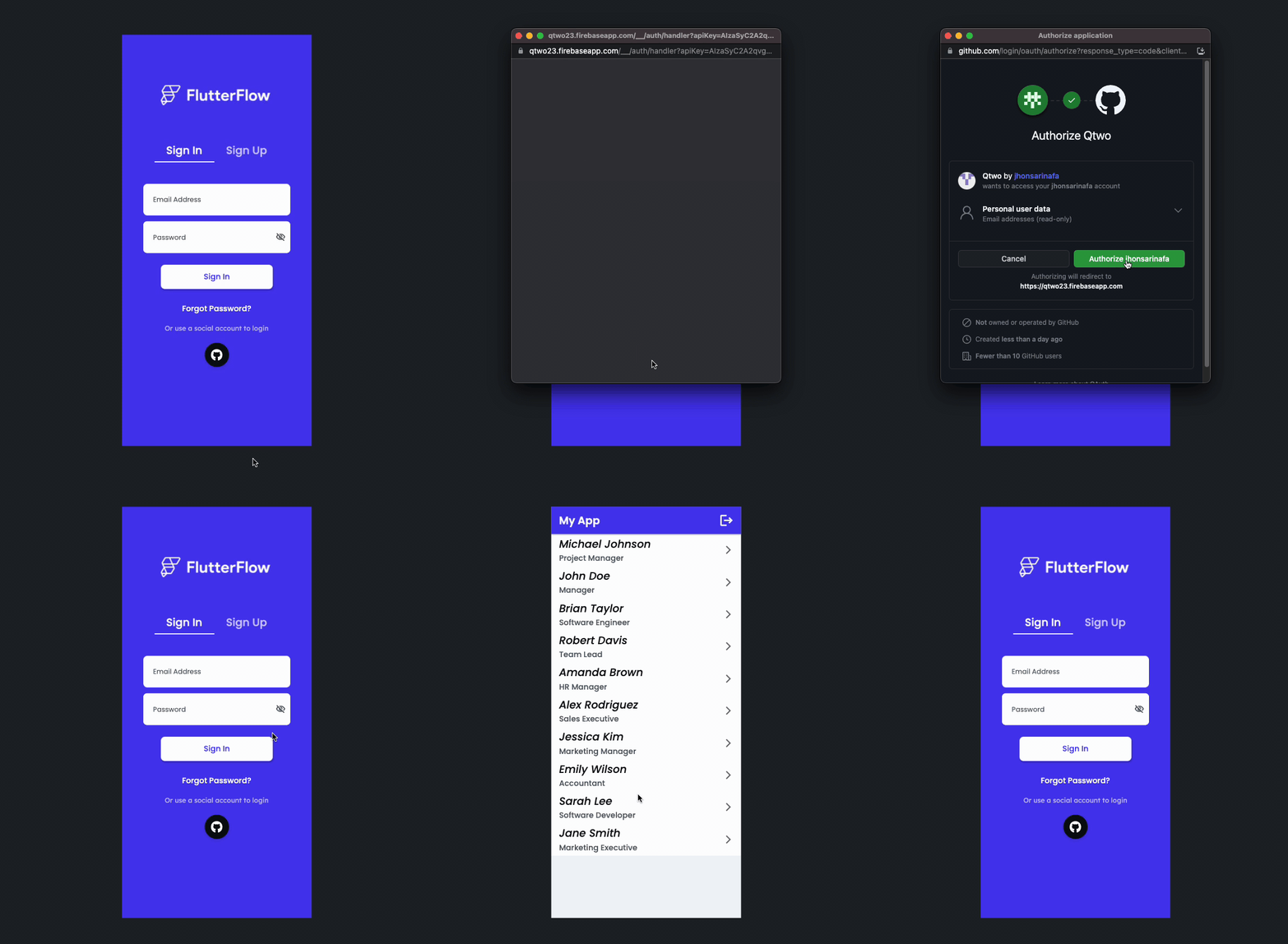
Learn how to add GitHub authentication in your FlutterFlow Studio app.
The GitHub auth provides a convenient way for users to authenticate and log in to your application using their GitHub accounts.
:::note[Prerequisites]
Before getting started with this section:
- Complete [**Firebase Setup**](https://docs.flutterflow.io/integrations/firebase/connect-to-firebase).
- Complete [**Initial setup**](https://docs.flutterflow.io/integrations/authentication/firebase/initial-setup) required for authentication.
:::
## Adding GitHub auth
Adding GitHub auth comprises of following steps:
1. [Enabling GitHub authentication in Firebase](#1-enabling-github-authentication-in-firebase)
2. [Adding GitHub login action](#2-adding-github-login-action)
### 1. Enabling GitHub Authentication in Firebase
To enable GitHub authentication in the Firebase:
1. Open the [Firebase console](https://console.firebase.google.com/), Click on **Authentication** ( in the left side menu).
2. Select the **Sign-in method** tab, and select **GitHub**. If you have already added another provider, click on the **Add new provider**, select **GitHub**, and **Enable** it.
3. To get the **Client ID** and **Client Secret**, [register your app](https://github.com/settings/applications/new) as a developer application on GitHub, and while doing so, paste the authorization callback URL to your GitHub app configuration.
4. Click **Save**.
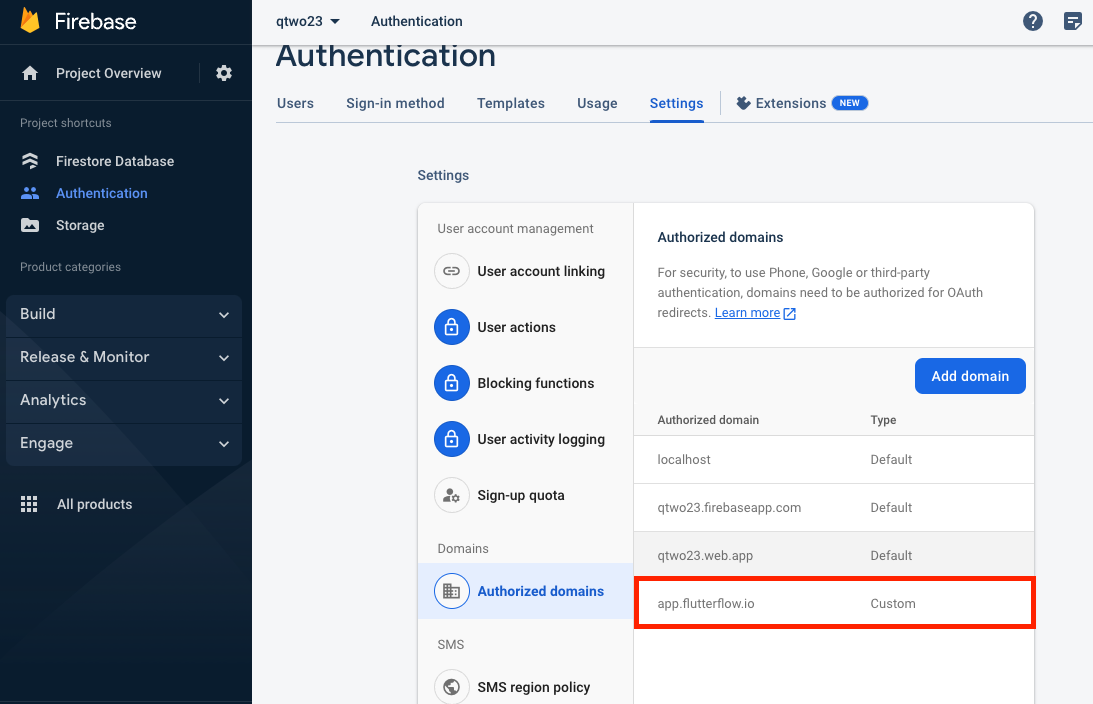
5. To test the app in Run Mode, add our domain to **Authorized domains**.
### 2. Adding GitHub Login Action
Follow the steps below to add GitHub login action:
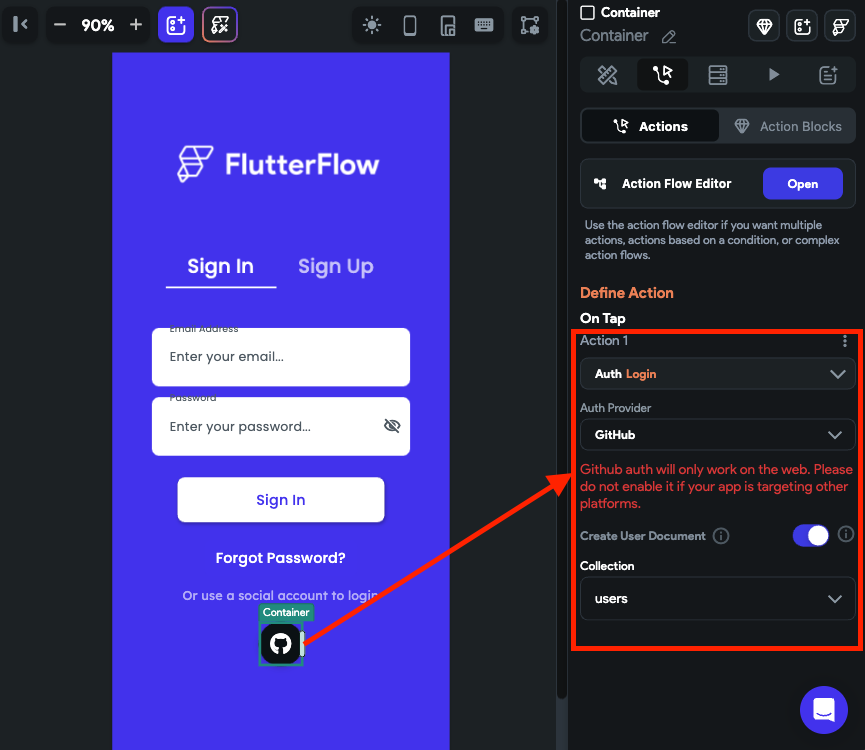
1. Select the widget (e.g., Button) on which you want to add the action.
2. Select **Actions** from the properties panel (the right menu), If it's the first action, click **+ Add Action** button. Otherwise, click the "**+**" button below the previous action tile (inside *Action Flow Editor*) and select **Add Action**.
3. Search and select the **Login** (under *Backend/Database > Firebase Authentication*) action.
4. Set **Auth Provider** to **GitHub**.
:::note
To let users log out of your app, you can use the [**Logout**](https://docs.flutterflow.io/integrations/authentication/firebase/auth-actions#logout-action) action.
:::