# Place Picker Widget
> This page is about FlutterFlow Studio (the visual builder), not FlutterFlow (the app builder you use by describing your app).
URL: https://docs.flutterflow.io/integrations/google-maps/place-picker-widget
Learn how to add and configure the Place Picker widget in your FlutterFlow Studio app.
The `PlacePicker` widget is designed to retrieve information about places, such as establishments (e.g., buildings, parks, museums) and geographic features (e.g., roads, lakes, mountains). It provides details like name, address, city, state, country, zip code, and latitude-longitude coordinates.
This widget is particularly useful in applications like cab booking services. For instance, it can be used to capture the exact location and full address of a destination, displaying this information on a page or integrating it into a Google Map.
Visually, the PlacePicker appears as a button. When tapped, it enables you to search for a place by typing its name, and displaying a dropdown list of matching locations. Once a place is selected, its name is displayed on the button, and additional details are accessible through the placePickerValue variable from Widget State.
Here's an example from the Demo app:
:::note[Prerequisites]
- The Place Picker **requires a Google Maps API key**. See how to [**create and add API keys**](https://docs.flutterflow.io/integrations/google-maps/generate-maps-keys#add-maps-apis) to FlutterFlow Studio.
- Ensure you have enabled the [**Places API**](https://docs.flutterflow.io/integrations/google-maps/generate-maps-keys#add-places-apis) from Cloud console.
- Enable **Google Maps Platform Billing** via your Cloud console. Please note: Failing to enable the Google Maps Platform Billing will not show any place in an autocomplete list.
:::
## Add Place Picker widget
To add the PlacePicker widget to your project:
By default, the `Place Picker` widget features an icon and the text "Select Location" on the
button. You can modify the styling and properties of these elements from the Properties Panel on
the right.
If you retain the Text widget, the text will update to the name of the selected location when a user makes a selection. Both the icon and text are optional; adjust them according to your design requirements.
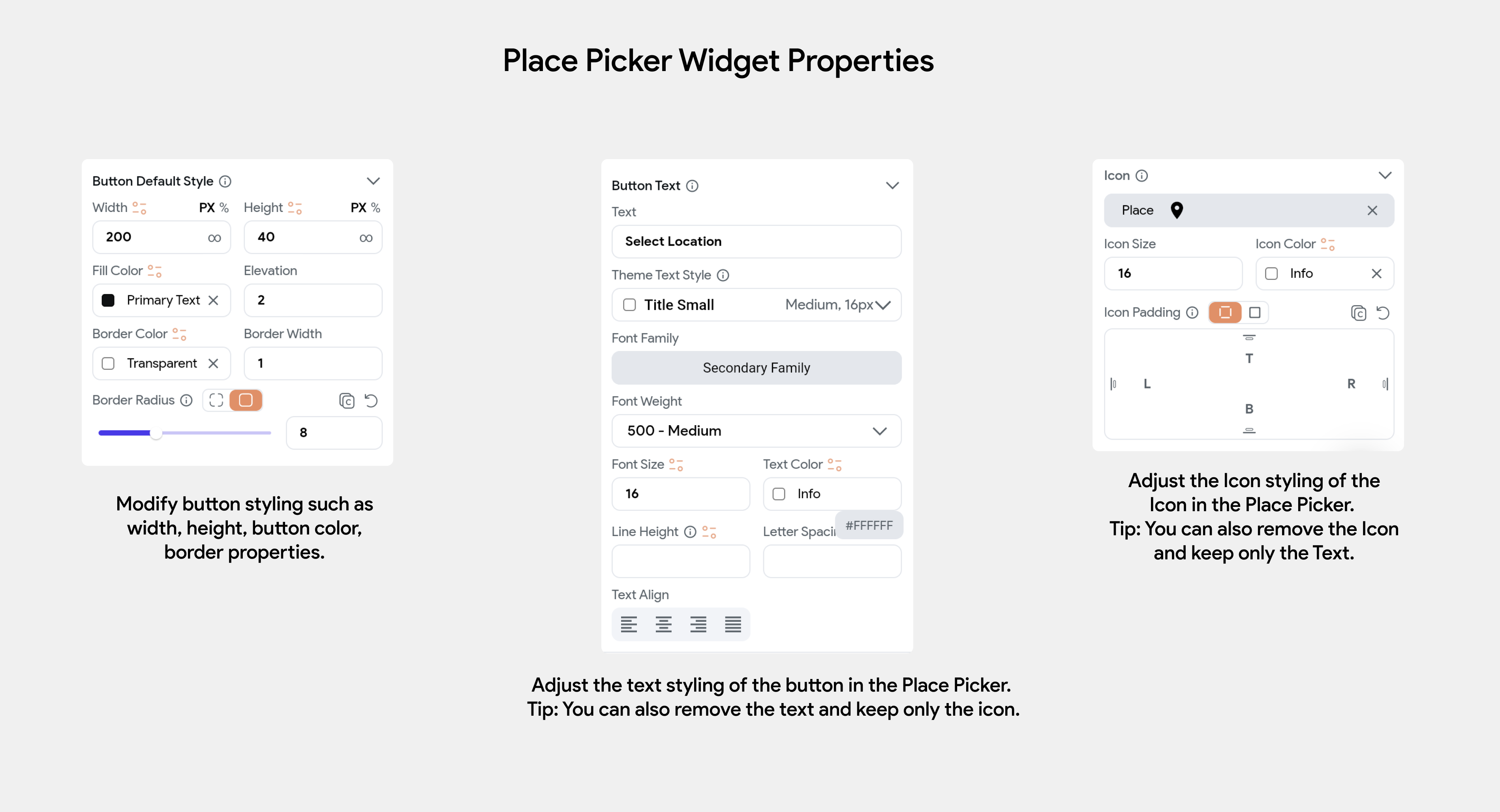
The widget properties of Place Picker widget
## Use PlacePicker Values
The selected place’s details are stored in a `GooglePlace` custom data type provided by FlutterFlow Studio. You can access this via **Widget State > placePickerValue**, which includes fields like name, address, latitude/longitude (LatLng), city, state, country, and ZIP code. These values can be used to display content in Text widgets or perform conditional logic based on the selected location.