# Query Collection / Table
> This page is about FlutterFlow Studio (the visual builder), not FlutterFlow (the app builder you use by describing your app).
URL: https://docs.flutterflow.io/resources/backend-query/query-collection
Learn how to query a collection in your FlutterFlow Studio app.
Quering Firestore Collection or Supabase Table helps you to retrieve a record (or a list of records) automatically whenever a
user navigates to the page containing the query. The information that is present in the record can
be used to update any widget present inside.
:::note[Prerequisites]
- To query Firestore collection, complete the [**Firebase setup**](https://docs.flutterflow.io/integrations/firebase/connect-to-firebase) and have some data in a [**Collection**](https://docs.flutterflow.io/integrations/database/cloud-firestore/creating-collections).
- To query Supabase table, complete the [**Supabase**](https://docs.flutterflow.io/integrations/supabase/setup) Setup and have some data in a [**table**](https://docs.flutterflow.io/integrations/supabase/setup#create-tables-in-supabase).
:::
## Defining the Query
To add a Firestore collection or Supabase table query:
1. Select the widget or page where you want to run the query.
2. Open **Backend Query** from the [Properties Panel](https://docs.flutterflow.io/flutterflow-ui/builder#properties-panel) and click **Add Query**.
3. Choose the backend source and records to return:
- **Firestore:** Set the query type to **Query Collection**, select a **Collection**, then choose **List of Documents** or **Single Document**.
- **Supabase:** Set the query type to **Supabase Query**, select a **Table**, then choose **List of Rows** or **Single Row**.
4. Configure any filters required by the query:
- **Firestore:** Under **Filters**, click **+ Filter**, then select a field, relation, and comparison value.
- **Supabase:** Under **Filters**, click **+ Add Filter**, then select a field, relation, and comparison value. To use the [full-text search](https://supabase.com/docs/guides/database/full-text-search), set **Relation** to **Search (Full-Text)**. Then choose a **Search Type**:
- **Websearch (Recommended):** Supports user-friendly search syntax, including quoted phrases, `OR`, and excluding terms with a minus sign (`-`).
- **All Words:** Returns rows that contain every search term.
- **Phrase:** Returns rows that contain the search terms as a phrase.
- **Raw tsquery:** Accepts PostgreSQL text-search operators for advanced queries.
You can optionally, set **Language**, leave it empty to use the database's default configuration. Under **Value**, enter the text you want to find.
5. Under **Ordering**, click **+ Order By** for Firestore or **+ Add Order** for Supabase. Select the field and choose **Increasing** or **Decreasing**.
6. Configure the available optional settings:
- **Hide Widget If No Match** (Firestore): Hides the queried widget when the query returns no matching documents.
- **Ignore Empty Filter Values** (Firestore): Disabled by default, meaning the query will attempt to find documents with empty text fields if any filter value is empty. When enabled, the query will ignore fields with empty filter values instead.
- **Filter on Null Values** (Firestore): By default, if any filter value is null, the query will ignore that filter. Enabling this option will include null filters in the query.
- [**Enable Infinite Scroll**](https://docs.flutterflow.io/resources/ui/widgets/composing-widgets/list-grid#infinite-scroll-on-a-list-from-a-firestore-collection-or-supabase-table): Loads list results in pages as the user scrolls. Set the number of records loaded per page using **Page Size**. For Supabase, the table must have a primary key and the query must be ordered by it.
- **Listen For Changes** (Firestore): Updates displayed documents when their data changes. This is enabled automatically when infinite scroll is turned on.
7. Click **Confirm**.
8. When a list query is applied to a flexible widget such as a **Column**, **Row**, or **ListView**, confirm that you want to generate dynamic children from the returned documents or rows when prompted.
:::caution[Limitations of Supabase Streaming with Filters]
When using Supabase query with real-time updates enabled, you have the following limitations:
- **Only One Filter is Supported:** Supabase streaming supports only a single filter. Combining multiple filters (e.g., `isActive = true AND city = 'Los Angeles'`) is not allowed.
- **Delete Events are not Filterable:** Streaming queries do not detect deletions, even if the deleted row matches the filter condition. For example, If you are streaming rows with the filter `city = 'New York’` and a row is deleted, the query output will not reflect the deletion.
- **Updates that remove Rows from Filters are not Tracked:** Changes that make a row no longer match the filter condition (e.g., updating `isActive` from `true` to `false`) will not trigger an update in the query output.
For more details, refer to the limitations mentioned in the [**official Supabase docs**](https://supabase.com/docs/guides/realtime/postgres-changes?queryGroups=language&language=js&queryGroups=database-method&database-method=dashboard#delete-events-are-not-filterable).
:::
## Using Query Data
The documents retrieved from the backend query can be used to set the record values to the widgets
present inside. Follow the steps below to use the document record data:
1. Select the **widget** (eg, `Text`, `Image`, or `ToggleIcon`) on which you want to set the record
data.
2. From the [Properties Panel](https://docs.flutterflow.io/flutterflow-ui/builder#properties-panel), select **Set from
Variable**.
3. Choose the **Source** as the record variable (the variable gets automatically generated when you
add the Collection query).
4. Under **Available Options**, select a field name from the dropdown.
5. You can also specify a **Default Value** (it is used if the record field is empty).
6. Click **Save**.
You can follow similar steps for using the record data on the other widgets as well.
**Display Data from Firestore Collection**
**Display Data from Supabase Table**
## FAQs
Why aren't real-time updates working for my table in Supabase project?
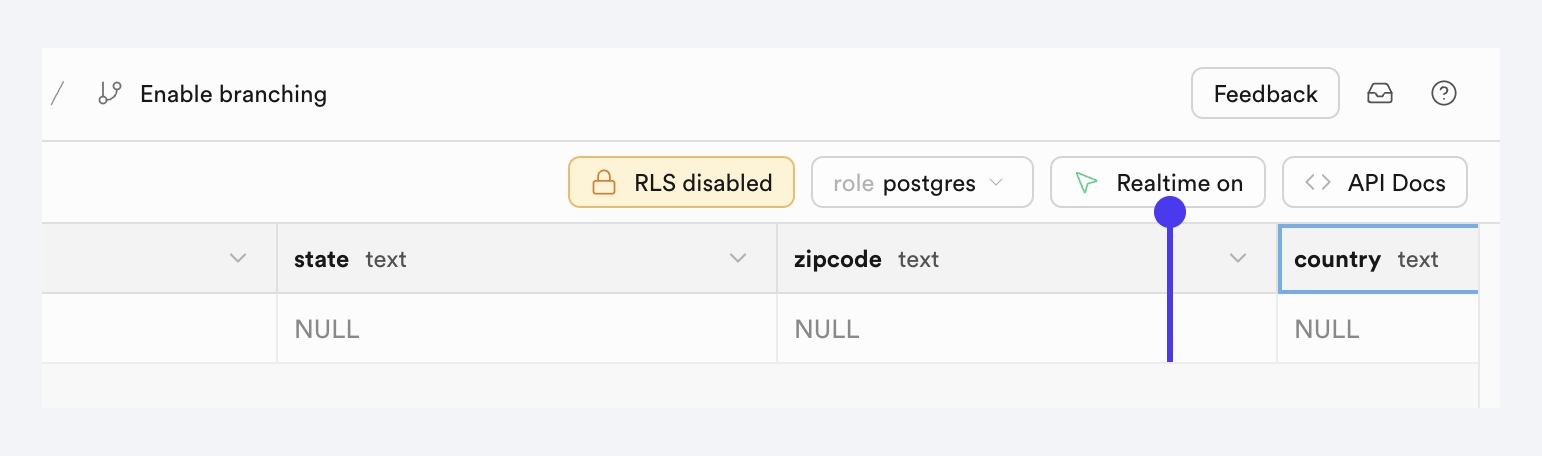
First, ensure that the **Single Time Query** option is disabled in the query where you've added it. Then, verify that the real-time feature is enabled for your table in Supabase project. You can find this option in the top-right corner of the table viewer.
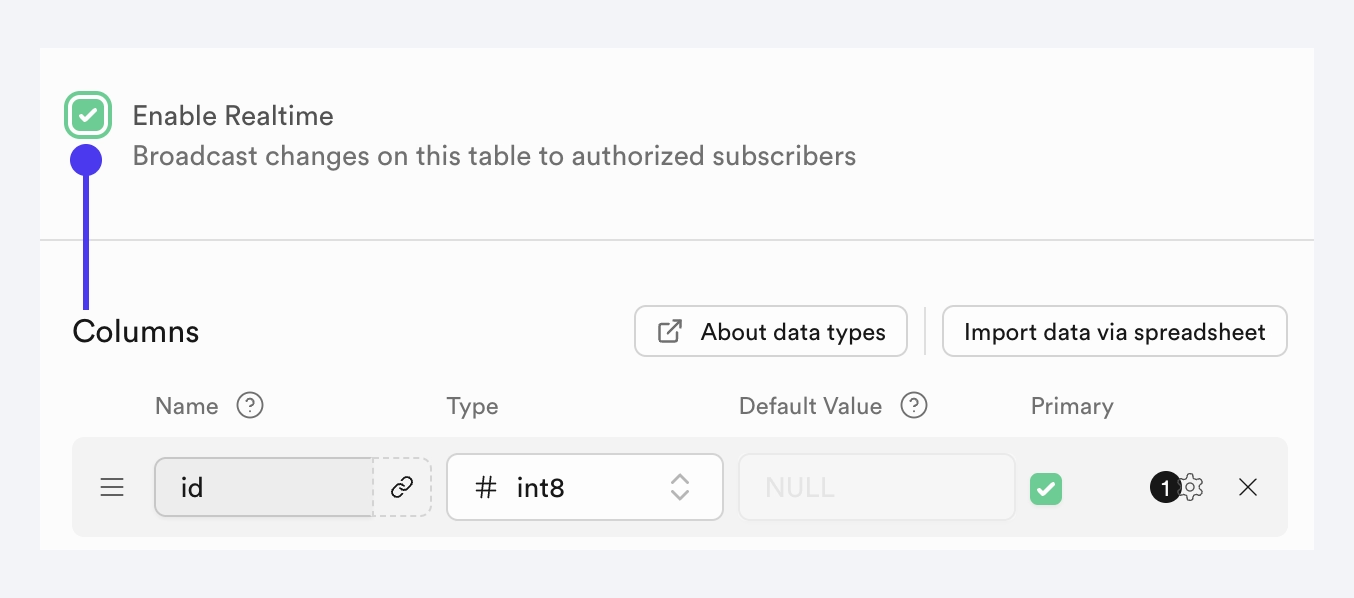
Additionally, you can enable real-time updates when creating a new table.