# Action Blocks
> This page is about FlutterFlow Studio (the visual builder), not FlutterFlow (the app builder you use by describing your app).
URL: https://docs.flutterflow.io/resources/functions/action-blocks
Learn how to use Action Blocks in your FlutterFlow Studio app to and create reusable actions.
An Action Block is a set of actions that perform a specific task and can be reused in different parts of the app. If you find yourself repeatedly performing a particular set of operations in your app, it may be helpful to create an Action Block. This allows you to break down complex actions into smaller, more manageable units, making them easier to understand and modify in the future.
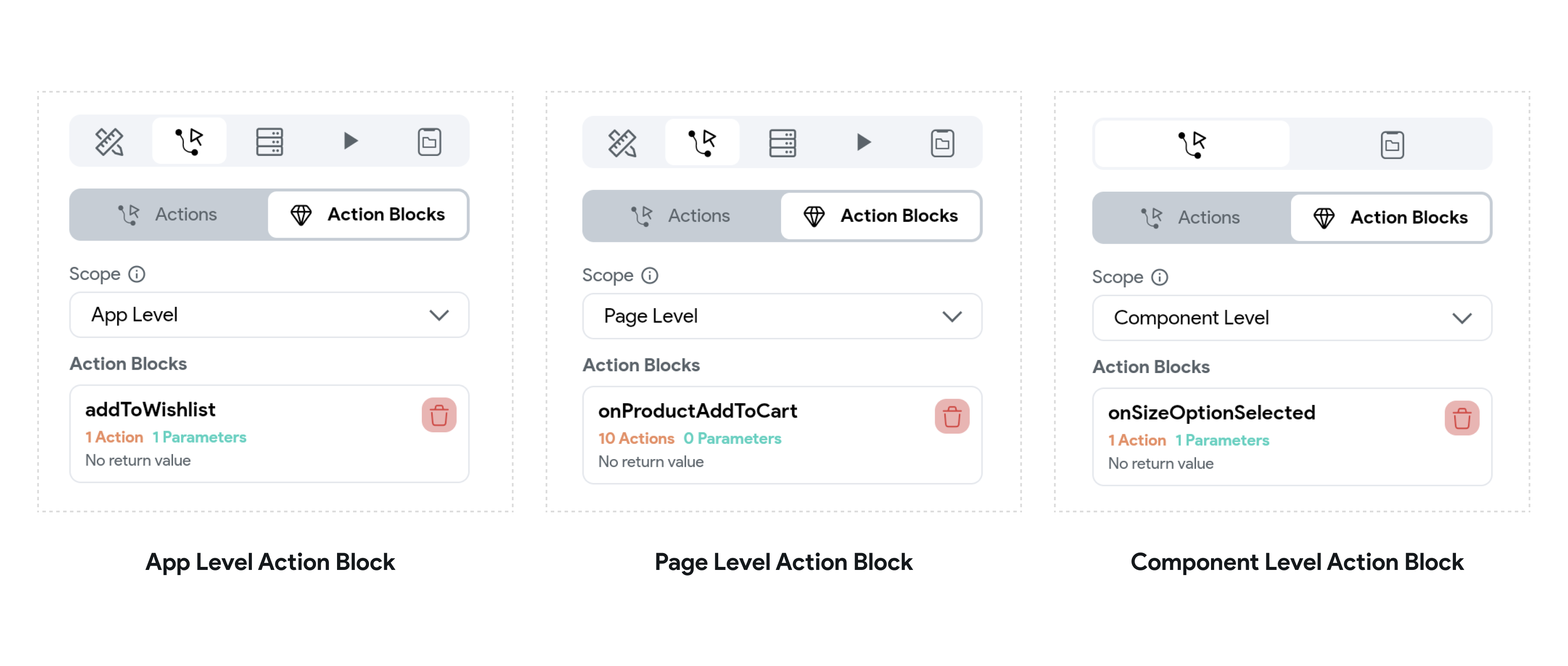
Action Blocks have different scopes, which determine their availability:
| **Action Block Type** | **Description** | **Scope** |
|----------------------------------|--------------------------------------------------------------------------------------------------------------------------------------------------------------------------|---------------------------------------------------------------------------------------------------------------------------------------------------------------|
| **App Level Action Blocks** | Usable across the entire app. You can create an App Level Action Block from any page or component, and it will be accessible for viewing or editing from any page or component as well. | Internally, an App Level Action Block can only access the state variables available in its scope (e.g., app state variables). |
| **Page Level Action Blocks** | Restricted to the page in which they were created. These can access the state variables available in their scope, such as page state variables, as well as variables above their scope, such as [App State variables](https://docs.flutterflow.io/resources/data-representation/app-state). | Page Level Action Blocks can access page state variables and App State variables. |
| **Component Level Action Blocks**| Restricted to the component in which they were created. These can access the state variables available in their scope, such as component state variables, as well as variables from higher scopes, like page and App State variables. | Component Level Action Blocks can access component state variables, page state variables, and App State variables. |
:::note[Unsupported Actions in Action Blocks]
Some actions are not supported and cannot be used in an Action Block. By default, these actions are hidden in the Action Block Editor.
For example, actions under the **Firebase Authentication** category, **Start Periodic Action**, **Upload Data**, and others.
:::
## Action Blocks Structure
When creating an Action Block, the process of defining the flow is similar to **[defining
Actions](https://docs.flutterflow.io/resources/functions/action-flow-editor#adding-an-action-example)**.
The main difference is in choosing the scope and defining the input & output values of the
Action Block.
### Choosing the Scope of Action Block
As discussed, Action Blocks can be **App Level, Page Level**, or **Component Level**. App Level Action Blocks can be created from any widget's action properties throughout the app. However, Page Level or Component Level Action Blocks are only available in the Page or Component where they were created.
Usually, you will see a dropdown to choose between App Level, Page Level, or Component Level. Choose the scope based on your Action Block's use case.
### Action Parameters
Action Blocks have access to the state variables available in the same scope as the Action Block
(for e.g., Page State variables can be accessed from Page Level Action Blocks). However, there
will be times when you may need to input some parameters for the Action Block to perform its logic. These are called **Action Parameters**, and they can be added from the Action Flow Editor when you create a new Action.
For example, here is a small demo where we create an Action Block with an input parameter.
In this example, we add an item to the wishlist of an e-commerce app. Let's say our local wishlist is saved in an App State variable called `localWishlist`, and we have a reusable Action Block called `addToWishlist` that takes an input parameter called productId and performs the actions to add it to the `localWishlist` object.
### Return Values
Often, your Action Block may return a value. For example, in our Product Cart Page, we have a reusable Component Level Action Block called `getTotalCost` that returns the final cost of all the products. You can define such an Action Block that returns a value (e.g., a double for this example) or a value related to your use case. You can define the return value in the Action Flow Editor. Let's see one example.