# Collaborate on Projects
> This page is about FlutterFlow Studio (the visual builder), not FlutterFlow (the app builder you use by describing your app).
URL: https://docs.flutterflow.io/resources/projects/collaboration
Learn how to collaborate effectively on projects in FlutterFlow Studio, including best practices for teamwork and project management.
In FlutterFlow Studio you can share projects with your entire organization (team), with individual users within your organization, or external users.
## Sharing a Project with Team
To share a project with team members, use the **Share with team** dropdown in the **Collaboration** page of your project's settings, and select how you want the project to be shared:
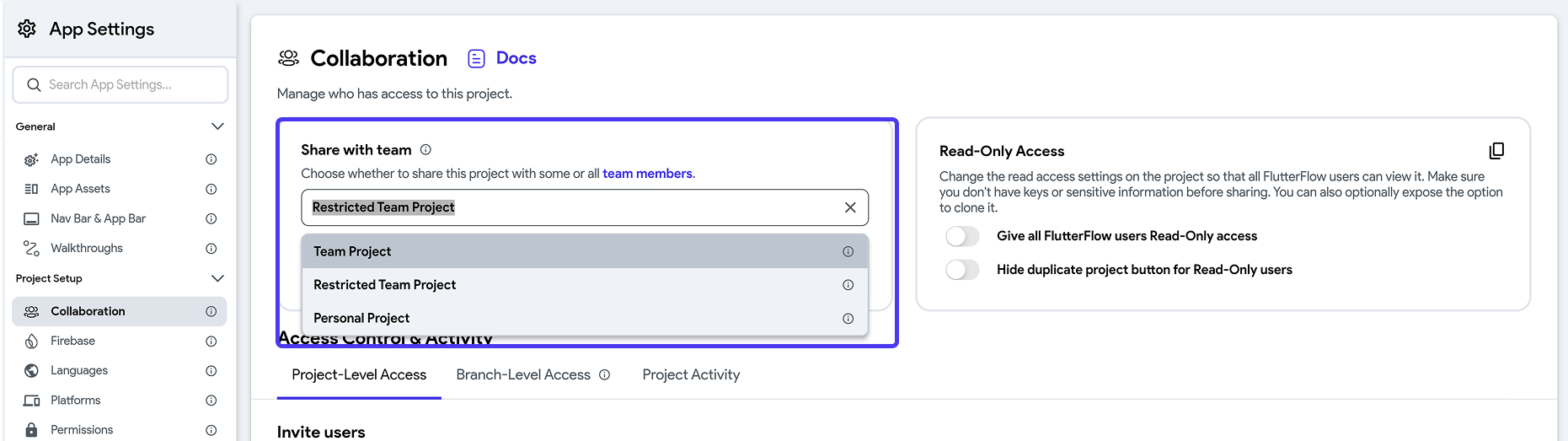
- **Team project:** A project associated with your team and automatically visible to all team members. When a project is a Team Project, team members are automatically added as Editors. You can specifically designate team members as Viewers, but you cannot remove them.
- **Restricted team project:** A project associated with your team but only visible to specific team members who are added directly. After selecting this option, you’ll need to manually choose the team members you want to share the project with.
- **Personal project:** A project not associated with any team, where editing capabilities depend on the type of personal plan you have.
:::note
- The Team owner always has edit access to the project, regardless of who created or shared it, and retains full team plan capabilities.
- The Team owner can also selectively share the project with any number of team members.
- A [**Library**](https://docs.flutterflow.io/resources/projects/libraries) project will not have the *Restricted Team Project* option.
- Sharing a project with team members is only available on the **Growth** plan and **higher**. Check out our [**pricing**](https://www.flutterflow.io/pricing) section.
:::
## Sharing a Project with External Collaborators
You can invite users to your project who are not part of your organization.
For instance, you might want to share your work with clients, stakeholders, or
team members of the client.
You can add users as Read Only users to any project regardless of your pricing plan in the **Collaborators** page of your project's settings.
:::note
- Users with read-only access will only be able to access that specific project
and won't be able to access any shared *Teams* libraries (e.g., custom code,
design system).
- You must verify your email before inviting users.
- If a user isn't already a FlutterFlow Studio user, we will send them an invite email. Their status will be shown as Pending until they create an account.
:::
To add an external user as a collaborator as an Editor to a project, you first need to purchase a collaborator pass.
To purchase a collaborator pass, go to the [My Teams](https://app.flutterflow.io/team) page and, under the **Collaborator Passes** section, click **Add Pass** and complete the checkout process. Once the pass is created, enter the user email and select the project (Team Project or Restricted Team Project) you’d like to grant them access to.
:::note
- You must be a Team Owner to purchase and assign a Collaboration Pass.
- Collaborator Passes can only be assigned to users who have a paid plan (Basic, Growth, or Business).
:::
## Transferring Project
:::danger
This step can not be undone. If you want to regain project ownership, the new
project owner will need to transfer ownership back to you.
:::
To transfer ownership to another user, navigate to **Settings & Integrations > Project Setup > Collaboration > Project-Level Access**, click on the current role and select **Owner**.
:::note
You can transfer a project to any FlutterFlow Studio user (including [external collaborators](#sharing-a-project-with-external-collaborators)) as long as they have an active paid plan.
:::

## Real-Time Collaboration
Real-Time Collaboration is a powerful feature that allows multiple builders to
work together on the same project or, rather same page and design system
simultaneously. With this, all builders can see the changes being made to the
page as they happen and can also make their own changes to the page without
interfering with the work of others.
This increases efficiency and productivity, as multiple builders can work on
various aspects of the project or together on the same page at the same time.
When multiple builders are on the same page, it looks like this:
real-time-collaboration.gif
:::note
Real-Time collaboration is only available on the **Growth** plan and **higher**. Check out our [**pricing**](https://www.flutterflow.io/pricing) section.
:::
## Project Activity
You can see a running history of changes made while building that helps you
track progress and stay up to date on project changes.
:::note
Project Activity is only available to **Enterprise** users. Check out our [**pricing**](https://www.flutterflow.io/pricing) section.
:::

### Reading Activity Entries
Each entry shows who made the change, the action they performed, the affected item, and a short summary. Hover over an entry to see the full text. Changes by the same person that involve the same action and item are grouped into one entry.
A label before the description tells you how the change was made:
- **(AI)**: An AI feature in FlutterFlow Studio made the change.
- **(SDK)**: The change came through the FlutterFlow AI SDK, such as from the CLI, an MCP client, or a script. This label indicates how a change was submitted, not whether a person or an AI agent decided to make it.
- **(agent)**: A FlutterFlow Studio-hosted agent made the change through the SDK.
When someone uses undo or redo, the entry starts with **undid:** or **redid:** followed by the description of the change.
If the summary doesn't include every change, it ends with **more changes**. The tooltip explains that the summary is incomplete.
### Investigate Changes With an AI Agent
When you need to work out what changed in a project during a given period, ask your AI agent to retrieve the project's activity logs. The agent uses the `activity_logs` tool of the FlutterFlow MCP server. For setup, see [Build with AI Agents](https://docs.flutterflow.io/flutterflow-cli/build#investigate-project-activity).