# Dividers
> This page is about FlutterFlow Studio (the visual builder), not FlutterFlow (the app builder you use by describing your app).
URL: https://docs.flutterflow.io/resources/ui/widgets/built-in-widgets/dividers
Add a thin horizontal or vertical line, with padding on either side. Customize the color, width
Add a thin horizontal or vertical line, with padding on either side. Customize the color, width
or height, and style of the divider from the Properties Panel.
## Divider Properties
Here are the properties in detail:
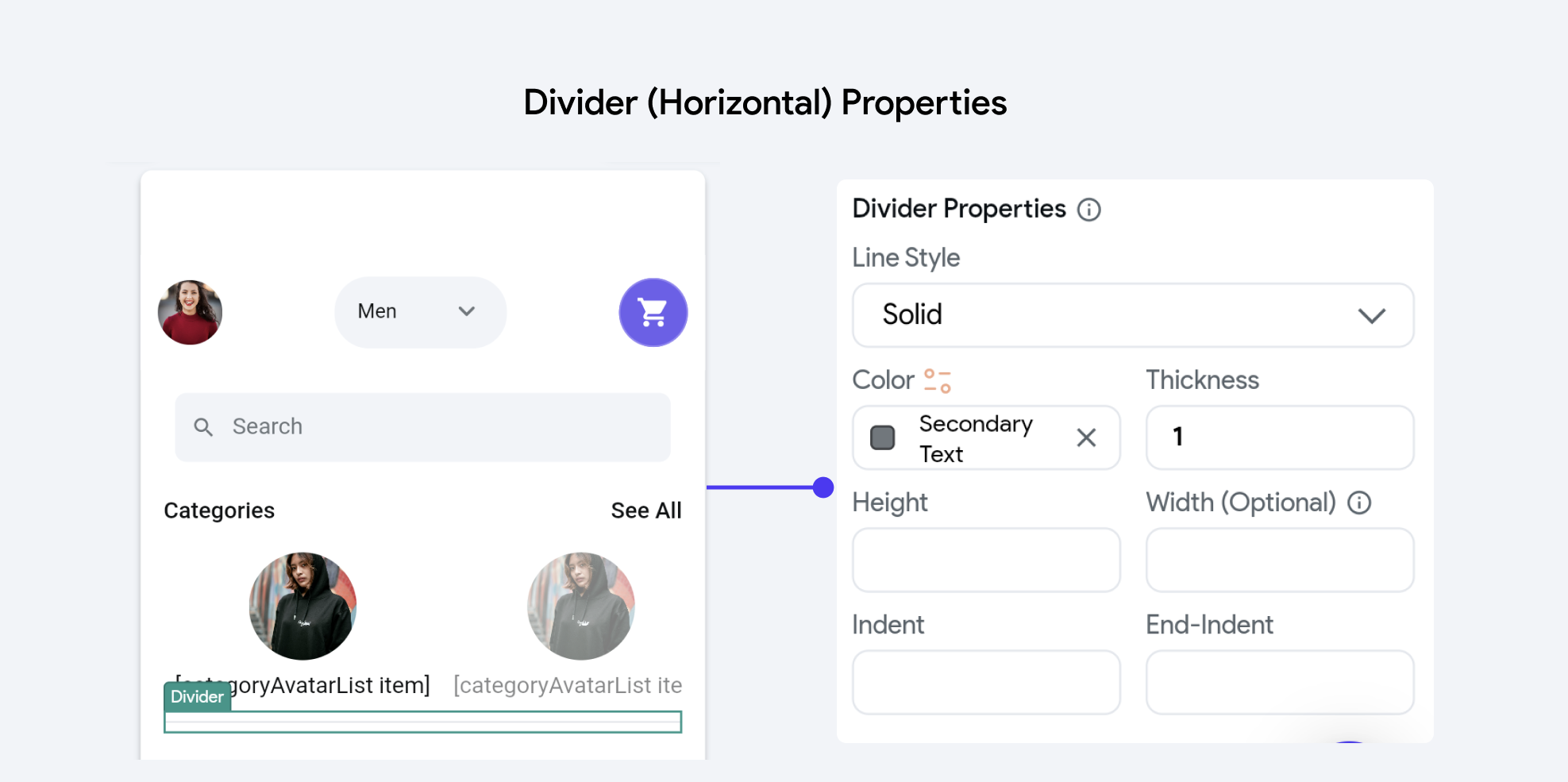
Divider (Horizontal) Properties
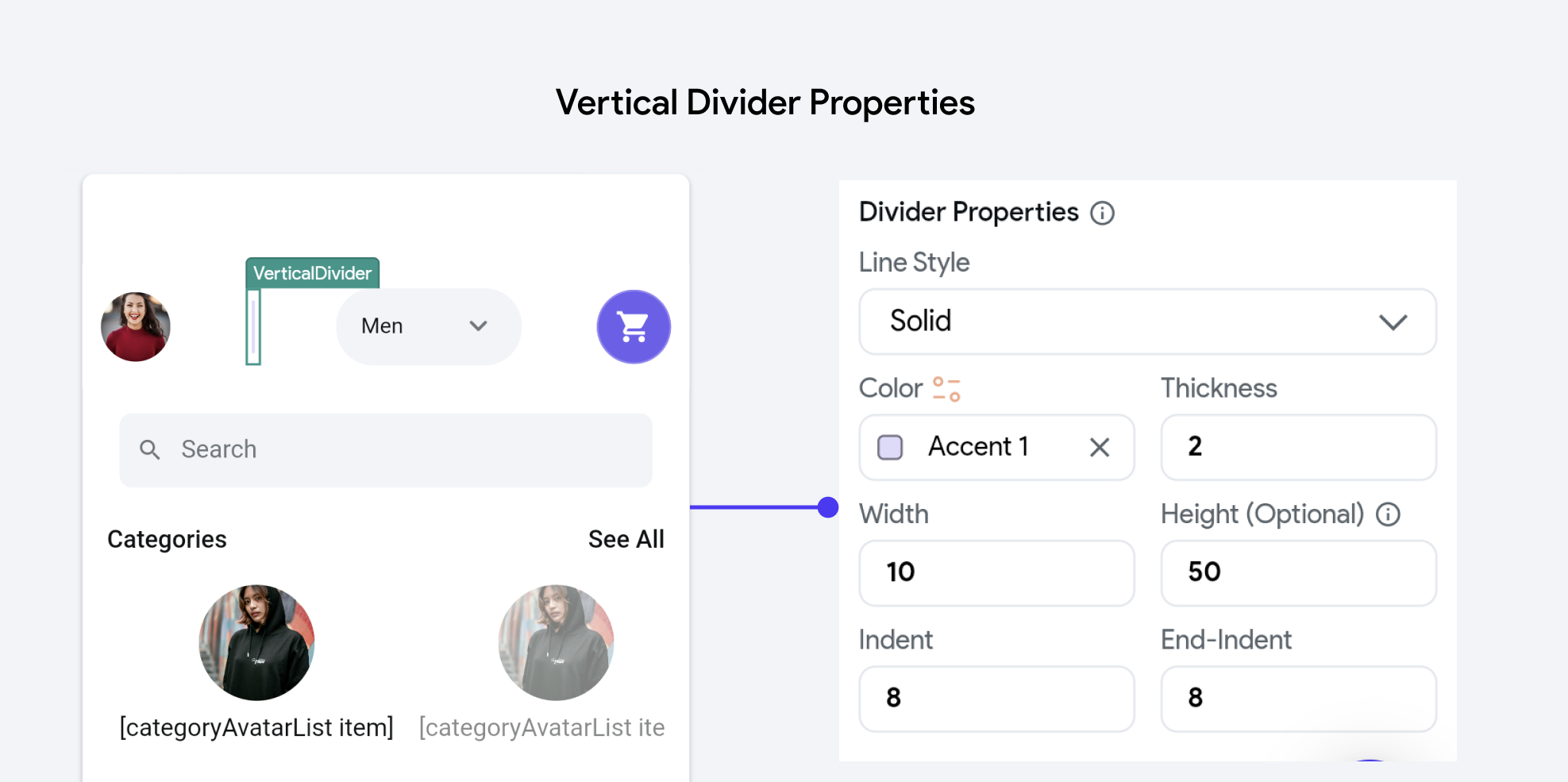
Vertical Divider Properties
- **Line Style**: This property determines the visual pattern of the divider line. Options
typically include:
- **Solid**: A continuous line.
- **Dotted**: A series of dots.
- **Dashed**: A series of dashes.
- **Dashdotted:** A combination of dashes and dots.
- **Color**: Defines the color of the divider line. This can be set using predefined theme colors or
custom values to match or contrast with the application's design scheme.
- **Thickness**: Specifies the thickness of the divider line, influencing its visual prominence.
Thicker lines are more noticeable and can be used to make a bold statement, while thinner lines are subtler.
- **Width**: This property sets the horizontal length of the divider. It can be specified in
absolute terms (e.g., pixels).
- **Height**: For vertical dividers, this property sets the vertical length. Like width, it can
also be defined in pixels.
- **Indent and End-Indent**: These properties control the spacing from the edges of the container
to the start and end points of the divider line, respectively. Indents can be used to fine-tune the placement of the divider within a layout, helping to achieve a balanced or desired aesthetic effect.