Common Code Examples
The custom code feature in FlutterFlow Studio allows you to extend functionality by accessing generated classes and modifying global variables like App States and FlutterFlow Studio themes. This guide covers common scenarios where you can leverage custom code to enhance your project by working directly with data models and other resources within your code.
Access FlutterFlow Studio Generated Classes
FlutterFlow Studio generates a complete Flutter codebase for you as you build apps in its platform. Part of this code includes custom classes that are designed to streamline common tasks and encapsulate reusable properties or logic.
For example:
- Button Widgets: FlutterFlow Studio provides custom button classes like
FFButtonthat come with built-in styling and behaviors. - Google Places: The
FFPlaceclass encapsulates properties of a Google Place, such as name, address, and coordinates. - File Uploads: The
FFUploadedFileclass represents files uploaded to your app, encapsulating properties like the file name, bytes, and URL.
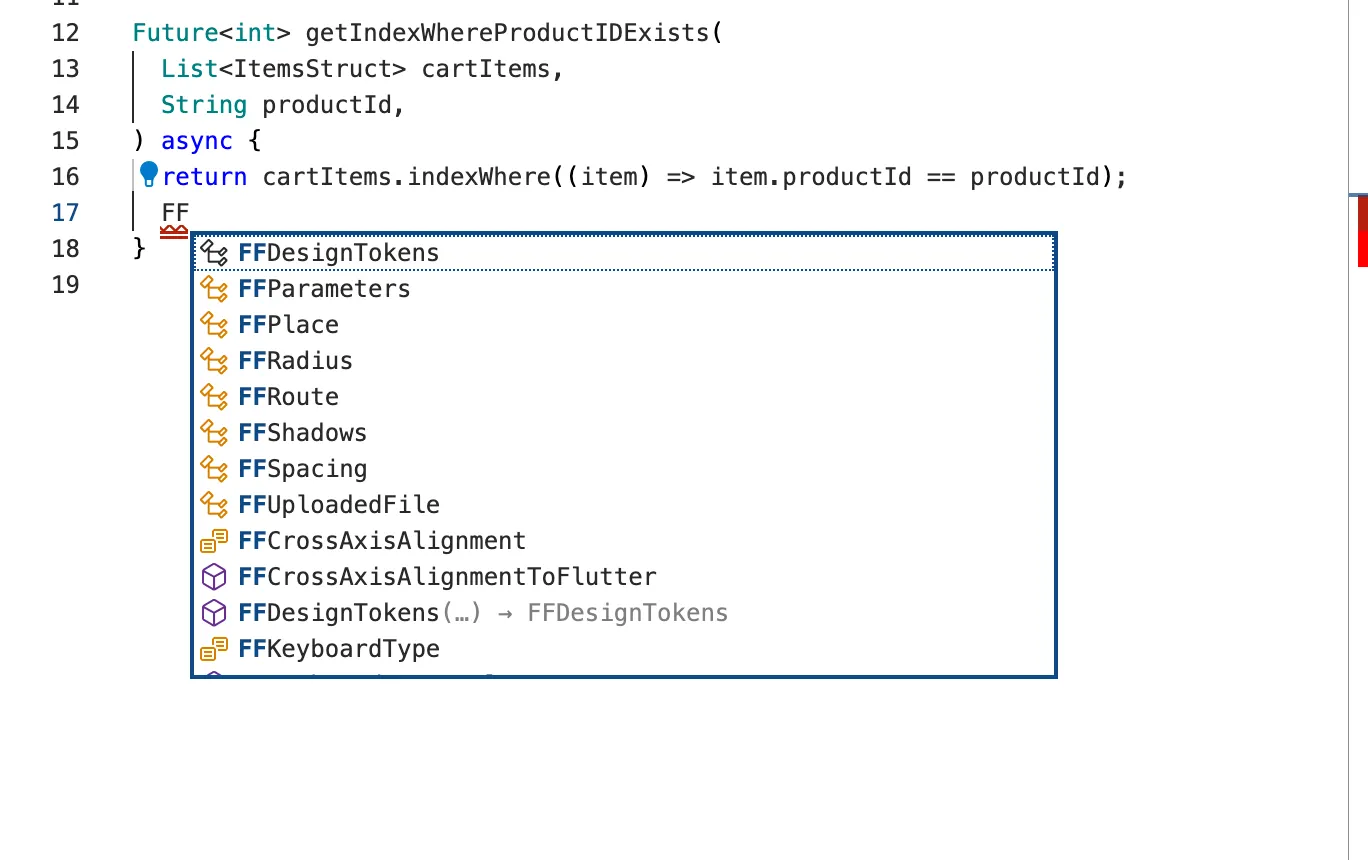
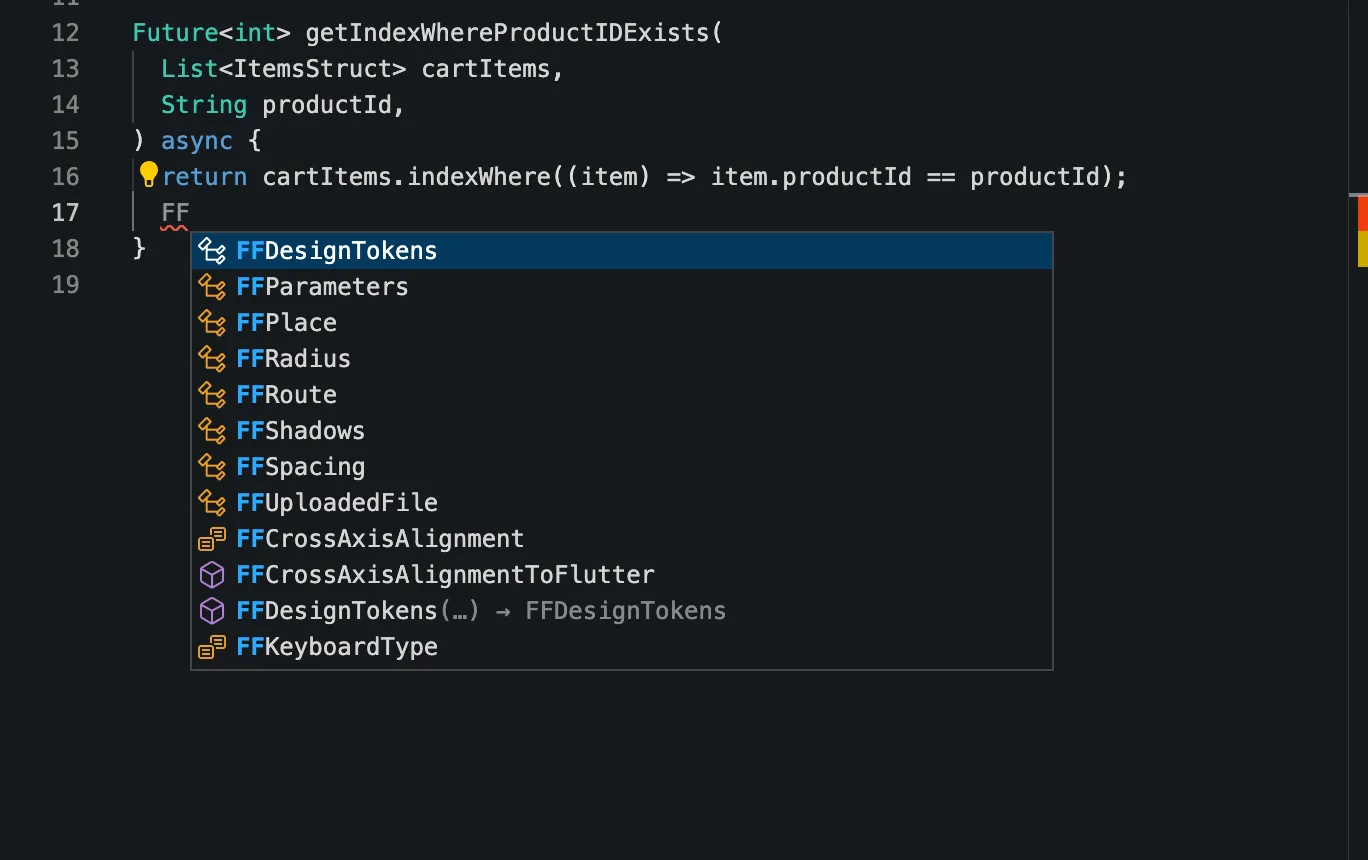
These custom FlutterFlow Studio classes in the generated code are mostly prefixed with FF<ClassName> or FlutterFlow<ClassName>. If you need to access these classes in your custom code, simply type “FF” or “FlutterFlow Studio” in the code editor to locate them quick.
Leveraging Components in Custom Widget
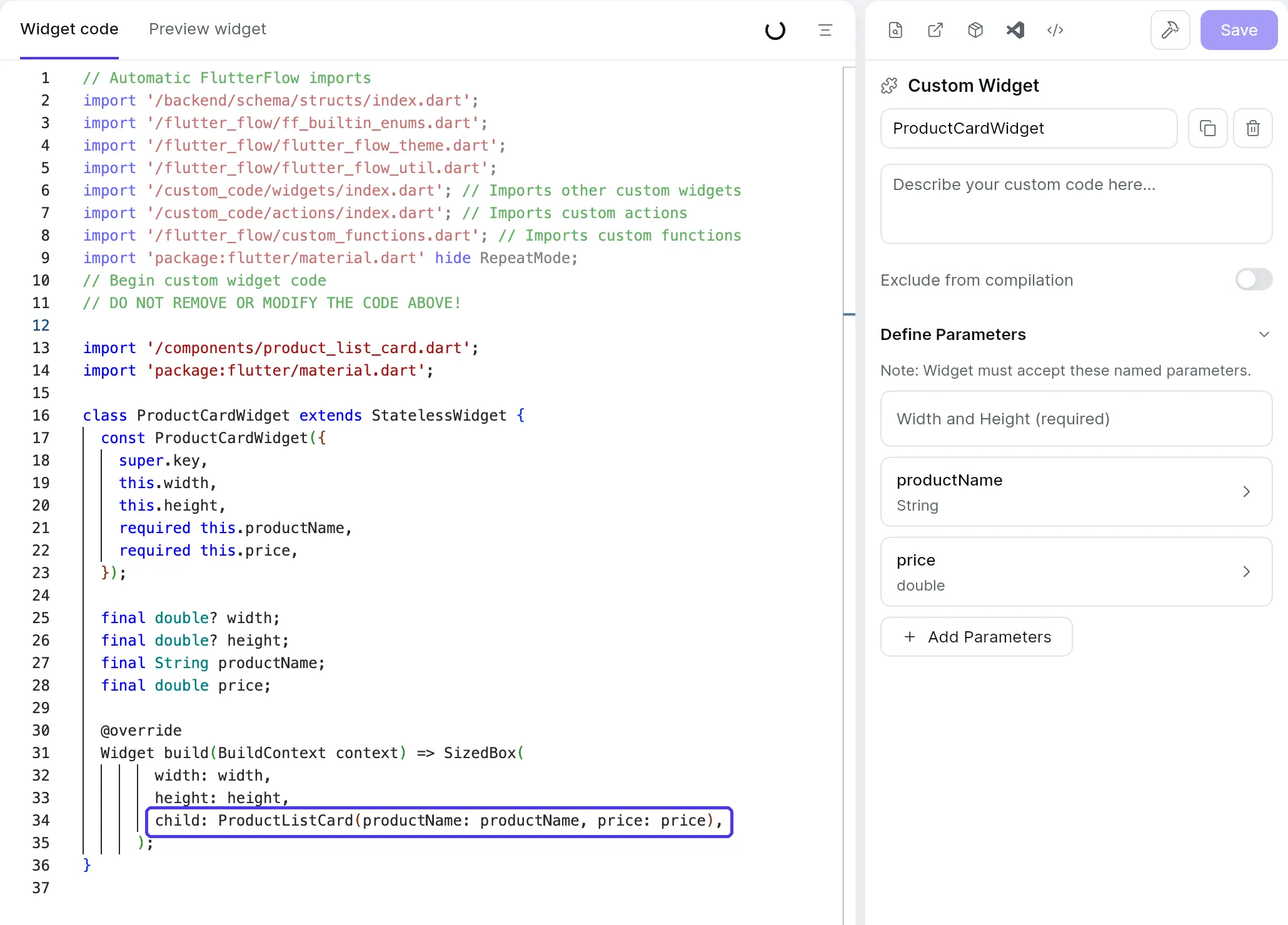
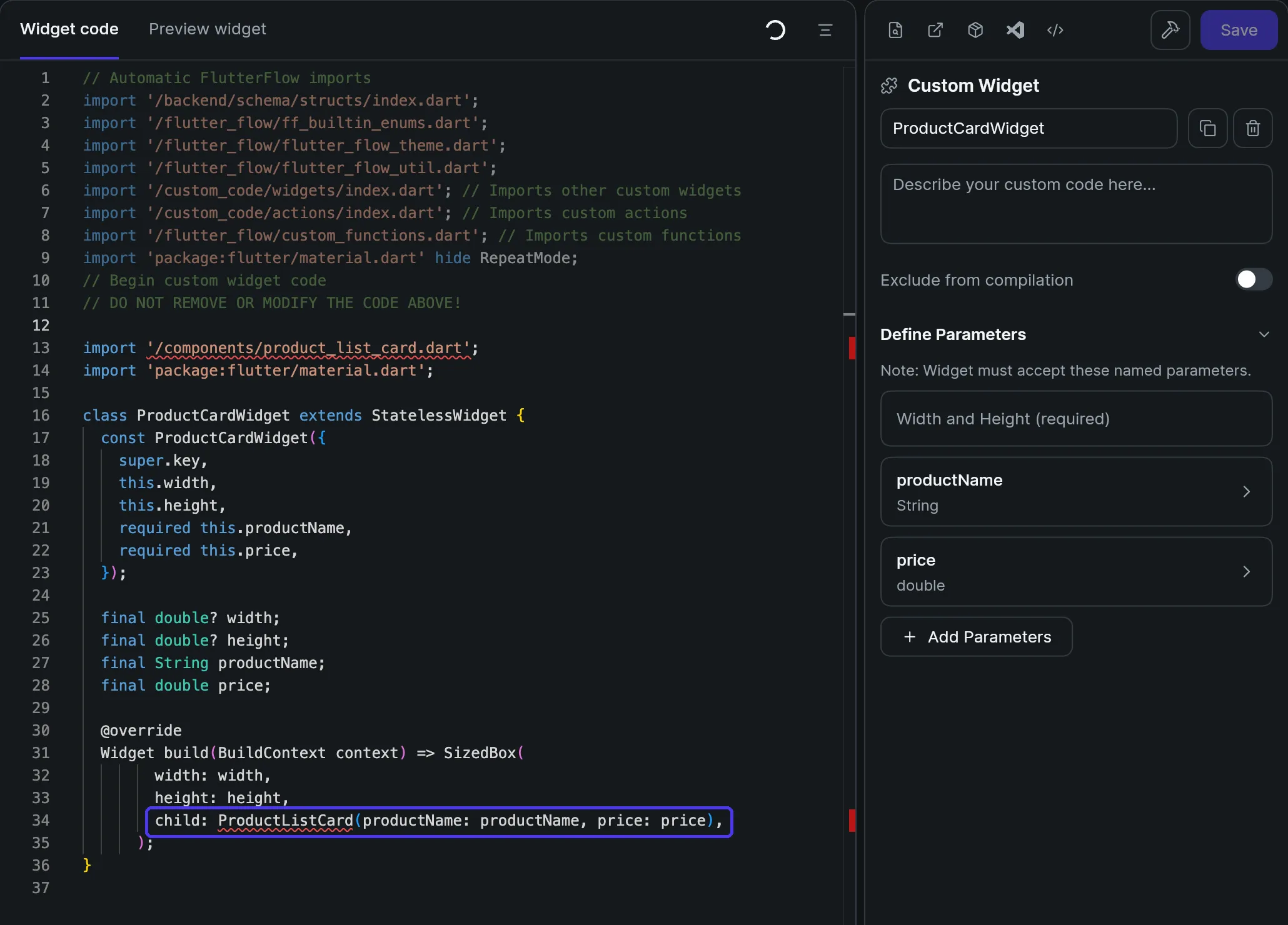
In a Custom Widget, you can integrate a previously built FlutterFlow Studio Component directly, saving you from recreating child content in code. For example, if you’re building a Custom Widget to display custom dialog boxes or bottom sheets using a package from pub.dev, you can simply return an existing Component created on the canvas, rather than coding a new one from scratch.
Get FlutterFlow Studio Theme in Custom Widget
When building custom widgets, you often need to style parts of the widget, such as setting colors. Instead of using hardcoded color values, you can directly access the FlutterFlow Studio Theme. This theme provides consistent styling across your app and reflects colors set by you or your project developer.
To access theme colors in your custom widget, use the FlutterFlowTheme.of(context) method. This allows you to retrieve any theme property, such as the default primary, primaryBackground, or other custom-created colors, as well as text styles like bodyLarge or bodyMedium, ensuring that your custom widget aligns with the app’s overall theme.
Here’s an example of how to use the primary color from FlutterFlow Studio Theme in a custom widget:
class CustomButton extends StatefulWidget {  final String label;
  CustomButton({required this.label});
  @override  _CustomButtonState createState() => _CustomButtonState();}
class _CustomButtonState extends State<CustomButton> {  bool isPressed = false;
  void toggleButton() {    setState(() {      isPressed = !isPressed;    });  }
  @override  Widget build(BuildContext context) {    return ElevatedButton(      style: ElevatedButton.styleFrom(        backgroundColor: isPressed            ? FlutterFlowTheme.of(context).primary // Primary color when pressed            : FlutterFlowTheme.of(context).secondaryBackground, // Default color        foregroundColor: FlutterFlowTheme.of(context).secondaryText, // Text color      ),      onPressed: toggleButton,      child: Text(        widget.label,        style: FlutterFlowTheme.of(context).bodyText1, // Themed text style      ),    );  }}
Modifying AppState from Custom Code
In FlutterFlow Studio, you can access or update AppState directly from the Action Flow Editor. However, certain scenarios may require you to access or modify AppState within custom code for more control over the operation flow. The FFAppState class also provides additional helper functions to modify AppState values. Let’s look at some examples:
- Get AppState value in Custom Code
Future getCartItems() async { // Retrieve the current cart items from AppState final currentCartItems = FFAppState().cartItems; print('Current Cart Items: $currentCartItems');}- Updating AppState Values in Custom Code
Future enableDarkMode() async { // Enable dark mode in AppState FFAppState().update(() { FFAppState().enableDarkMode = true; }); print('Dark mode enabled');}- Modifying a List in AppState Using Helper Functions
The FFAppState class offers a variety of helper functions to easily manage list variables in AppState. For a detailed overview of this generated class, check out this guide. Here are some examples of how to use these helper functions to modify an AppState list variable:
Future addLocation(LatLng value) async {  // Add a new location to the LatLng list  FFAppState().addToLatLngList(value);}
Future removeLocation(LatLng value) async {  // Remove a specific location from the LatLng list  FFAppState().removeFromLatLngList(value);}
Future removeLocationAtIndex(int index) async {  // Remove a location at a specific index from the LatLng list  FFAppState().removeAtIndexFromLatLngList(index);}
Future updateLocationAtIndex(int index, LatLng Function(LatLng) updateFn) async {  // Update a location at a specific index in the LatLng list  FFAppState().updateLatLngListAtIndex(index, updateFn);}
Future insertLocationAtIndex(int index, LatLng value) async {  // Insert a new location at a specific index in the LatLng list  FFAppState().insertAtIndexInLatLngList(index, value);}
Leverage Custom Data Types
When you create a custom data type in FlutterFlow Studio, it generates a corresponding <Name>Struct class. In FlutterFlow Studio’s custom code, you can create new instances of such data types, pass instances back into an action, or manipulate and retrieve information from existing objects. Here are some examples to help illustrate working with an example ProductStruct class.
Example 1: Creating a new Instance of ProductStruct
To create a new ProductStruct instance, initialize it with the required properties:
// Create a new instance of ProductStructfinal newProduct = ProductStruct( productId: '123', name: 'Example Product', description: 'A sample product description.', category: 'Electronics', subCategory: 'Mobile Phones', price: PriceStruct(amount: 299.99, currency: 'USD'), sizes: ['Small', 'Medium', 'Large'], colors: [ColorsStruct(colorName: 'Red', colorHex: '#FF0000')], images: [ImagesStruct(thumbnail: 'https://example.com/image.jpg')], stockStatus: StockStatusStruct(xs: 0, small: 2), reviews: [ReviewsStruct(rating: 4, comment: 'Great product!')],);Example 2: Get Properties of an Existing ProductStruct object
If you have an existing ProductStruct object (e.g., retrieved from a list of products), you can access its properties or return specific values back to the calling Action.
Let’s assume you have an Action that calls a Custom Action to retrieve a field value from the provided ProductStruct object.
- Returning a Single Field from ProductStruct
This function retrieves and returns the product’s name. The return type is String? to account for the possibility of a null value.
// Function to return the product name from a ProductStruct instanceString? getProductName(ProductStruct product) { // Get and return the product name return product.name;}- Checking if a Field Exists in a
ProductStructObject This function determines whether theProductStructobject contains a non-null value for a specific field, such asdescription. It returnstrueif the field exists and is not null, andfalseotherwise.
// Function to check if the description field exists in a ProductStruct instancebool hasDescription(ProductStruct product) { // Return true if the description is not null, false otherwise return product.description != null;}- Returning a List of Review Comments from ProductStruct
This function retrieves a list of review comments from the reviews field in the ProductStruct. The return type is List<String> as it returns a list of comments (or an empty list if there are no reviews).
// Function to return a list of review comments from a ProductStruct instanceList<String> getProductReviewComments(ProductStruct product) { // Check if reviews are present and return a list of review comments return product.reviews?.map((review) => review.comment ?? '').toList() ?? [];}Example 3: Modifying Properties of an Existing ProductStruct Object
You can also modify the properties of an existing ProductStruct object. This can be helpful if you want to update a field before saving the data back to Firebase or passing it into an action.
- Simple Property Modification
In this example, we’ll modify a single property, like
productName, of an existingProductStructobject. This example is straightforward and demonstrates how to update a basic field in the object.
// Function to update the product name of a ProductStruct instanceFuture updateProductName(ProductStruct product, String newProductName) { // Update the product name with the new value product.productName = newProductName;}- Complex Property Modification - Nested Object Update
In this more complex example, we’ll modify a nested property within the
ProductStruct, such as updating the price (which itself is aPriceStructobject). This shows how to update a property that itself contains multiple fields.
// Function to update the price of a ProductStruct instanceFuture updateProductPrice(ProductStruct product, double newAmount, String currency) {// Check if price is not null if (product.price != null) { // Update only the amount field product.price!.amount = newAmount; } else { // If price is null, optionally initialize it if needed product.price = PriceStruct( amount: newAmount, currency: currency, ); }}- Complex Property Modification - Updating a List Property
In this example, we’ll add new items to a list property, like adding new review comments to the
reviewslist inProductStruct. This example shows how to work with a list of nested objects.
Future addNewReviews(ProductStruct product) { product.reviews ??= []; // Initialize the reviews list if it's null product.reviews!.addAll([ ReviewStruct(rating: 5, comment: 'Excellent product!'), ReviewStruct(rating: 4, comment: 'Good quality, but a bit expensive.'), ReviewStruct(rating: 3, comment: 'Satisfactory, meets expectations.'), ]);}or if the new list of reviews is being provided to the Custom Action, then:
Future addDynamicReviews(ProductStruct product, List<ReviewStruct> newReviews) { product.reviews ??= []; // Initialize the reviews list if it's null product.reviews!.addAll(newReviews); // Add the new reviews}Using Firebase Auth Variables in Custom Code
When using Firebase Authentication for your app, FlutterFlow Studio provides access to key authentication data, such as currentUserDisplayName, currentUserUid, and more. These variables can be used in your Custom Actions to build additional features that require such common data from authenticated users.
For example, you can check if a user’s email is verified before proceeding with certain actions:
if (currentUserEmailVerified) { // Perform action for verified users}Or, if you need to create a directory path that includes the user’s unique ID:
String directoryPath = '/users/' + currentUserUid + '/files';Here’s a list of other Firebase Auth variables that can be referenced in Custom Code:
-
currentUserEmail– The email address of the current user. -
currentUserUid– The unique ID of the current user. -
currentUserDisplayName– The display name set by the user. -
currentUserPhoto– The profile photo URL of the current user. -
currentPhoneNumber– The user’s phone number, if available. -
currentJwtToken– The current user’s JWT token for secure requests. -
currentUserEmailVerified– Boolean indicating if the user’s email is verified. -
These variables make it easy to integrate Firebase Auth data into custom functionality, enhancing the user experience.
Get Dev Environment Values in Custom Code
Similar to FFAppState, FlutterFlow Studio generates a singleton FFDevEnvironmentValues class in your FlutterFlow Studio generated codebase, if you are using Dev Environments. This class can also be accessed from custom code if needed. It is generated based on the environment selected by the user at the time of code generation.
To access any Dev Environment values in custom code, simply use:
Future getWebhookId() async { // Add your function code here! return FFDevEnvironmentValues().webhookId;}Access Library Components in Custom Code
When using a library dependency in your project, you can also access its components, such as Library App State, Library Values, and Library Widgets, in the user project’s custom code. Here are a few examples:
Get Library Values
Similar to FFAppState or FFDevEnvironmentValues class, FlutterFlow Studio generates a singleton FFLibraryValues class for library projects, which provides direct access to Library Values.
To access Library Values directly in custom code:
Future getSchema(StateStruct? syncStatus) async { print(FFLibraryValues().schema);}Get Library Custom Code
When you add a library dependency to your FlutterFlow Studio project, FlutterFlow Studio automatically includes necessary imports, allowing you to utilize custom code resources from the library project in your user project’s custom code files.
For example, if you have a library with project ID library_hybw3o, FlutterFlow Studio will add the following import to your project:
import 'package:library_hybw3o/flutter_flow/custom_functions.dart' as library_hybw3o_functions;Now, let’s use the library’s custom functions in the user project’s custom function:
int getRandomIndex(List<int> indexList) { final item = library_hybw3o_functions.getRandomItem(); // Library's custom function // get Random Index final randomNumber = math.Random(); return ...}Manually Add Library Imports
If the library import doesn’t appear in your project automatically, you can manually add it and assign a custom alias. For example, to import a library’s custom actions into your project’s Custom Widget resource, add the import yourself as shown below:
For example, let’s import the library’s custom actions into the user project’s Custom Widget resource.
If the import is not already available, you can add it manually as follows:
// Custom importimport 'package:library_hybw3o/custom_code/actions/index.dart' as library_hybw3o_actions; // Assigning a custom alias to the import
// Example Widget codeclass CustomDialog extends StatefulWidget {  const CustomDialog({    super.key,    this.width,    this.height,  });
  final double? width;  final double? height;
  @override  State<CustomDialog> createState() => _CustomDialogState();}
class _CustomDialogState extends State<CustomDialog> {    @override    void initState() {        library_hybw3o_actions.getSchema(StateStruct()); // calling library custom action        super.initState();    }    @override        Widget build(BuildContext context) {            return Container(height: 50, width: 50);    }}
Last updated on