Build with Codex
The FlutterFlow plugin for Codex lets you create and edit FlutterFlow projects by describing the outcome you want in plain language. The plugin guides Codex through FlutterFlow authentication, workspace setup, project inspection, branch-aware editing, validation, and code export.
FlutterFlow/flutterflow-codexOpen GitHub ↗
The plugin uses the FlutterFlow CLI and each workspace's project-scoped MCP server. FlutterFlow remains the source of truth for the project, so you can open the result in the visual builder and continue editing there.
For the agent-independent architecture and full FlutterFlow AI command list, see Build with AI Agents.
Choose your Codex surface
The FlutterFlow plugin works in both Codex CLI and Codex inside the ChatGPT desktop app. The FlutterFlow workflow is the same after installation, but plugin discovery, installation, requirements, and task startup differ between the two surfaces. Follow only the section for the surface you use.
FlutterFlow is currently distributed from the FlutterFlow Codex GitHub repository, which contains a single-plugin Codex marketplace. In Codex CLI, you add the GitHub URL and install the plugin with commands. In the ChatGPT desktop app, you open Plugins from the main sidebar and add the GitHub marketplace from the Create menu.
Codex CLI
Use this path when you run Codex from a terminal.
Terminal requirements
Before you begin, make sure you have:
- Codex CLI installed.
- Dart and Flutter available on
your
PATH. - A FlutterFlow API token available from your FlutterFlow account. You only need to copy it when the plugin asks you to authenticate.
Install or update the FlutterFlow CLI:
dart pub global activate flutterflow_cli
Install in Codex CLI
- Add the FlutterFlow Codex GitHub marketplace and install the plugin:
codex plugin marketplace add https://github.com/FlutterFlow/flutterflow-codex --ref main
codex plugin add flutterflow@flutterflow
- Start a new Codex CLI session from the folder where you want to work:
cd /path/to/your/projects
codex
-
Enter
/pluginsto open the terminal plugin browser. Confirm thatflutterflow@flutterflowis installed and enabled. -
Close the plugin browser and describe the FlutterFlow outcome you want at the prompt.
If Codex CLI was already running when you installed or updated the plugin, exit and relaunch it so the new session loads the FlutterFlow skill.
ChatGPT desktop app (Codex)
Use this path when you work with Codex inside the ChatGPT desktop app.
Desktop requirements
Install and open the ChatGPT desktop app. You do not need Codex CLI or terminal plugin commands to add the FlutterFlow marketplace in the app.
You can install the plugin before configuring FlutterFlow tooling or authentication. When you start your first FlutterFlow task, the plugin checks for Dart, Flutter, and the FlutterFlow CLI, then guides you through anything that is missing. It asks for a FlutterFlow API token only when authentication is required.
Select Plugins from the main Codex sidebar. Settings > Plugins manages installed plugins, skills, apps, and MCPs, but it does not provide the Add marketplace action.
Install in the ChatGPT desktop app
- Select Plugins from the main Codex sidebar.
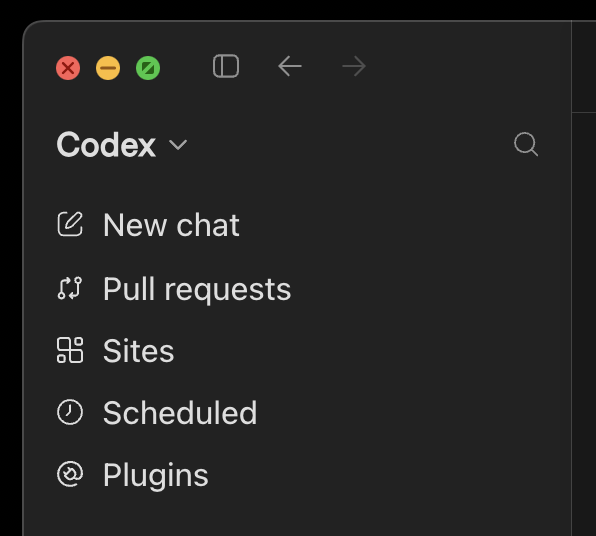
- On the Plugins page, open the Create menu and select Add marketplace.
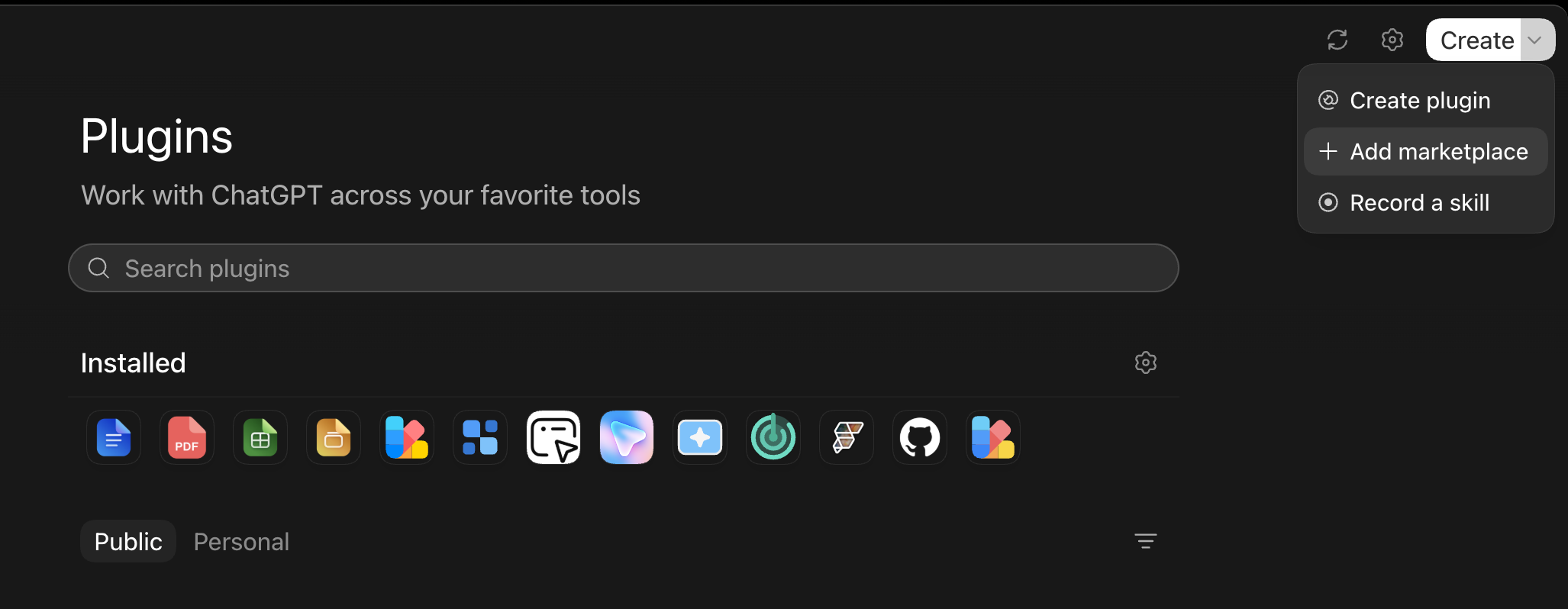
- Enter the FlutterFlow Codex marketplace GitHub URL:
https://github.com/FlutterFlow/flutterflow-codex
-
Complete the marketplace setup, then open the FlutterFlow plugin's details.
-
Select the plus button on the plugin details page to install it.
-
Start a new Codex task so the FlutterFlow skill loads.
-
Choose the parent folder where Codex should create a new FlutterFlow workspace, or choose an existing FlutterFlow AI workspace if you are continuing work on a project.
-
Describe the FlutterFlow outcome you want in the task composer.
After adding the GitHub marketplace, follow OpenAI's plugin installation flow to open the plugin details, select the plus button, and start a new task.
The plugin does not replace the FlutterFlow CLI. It gives Codex a supported workflow for driving the CLI and the workspace-specific FlutterFlow tools.
Authenticate securely
The FlutterFlow account page calls this credential an API token. The
FlutterFlow AI workflow also refers to it as an API key and uses the
FF_API_KEY environment variable. Code export and Firebase deployment use the
FLUTTERFLOW_API_TOKEN environment variable.
Authentication works the same way in Codex CLI and the ChatGPT desktop app. You do not need to paste your FlutterFlow API token into the Codex task.
When Codex needs authentication, it will ask you to:
- Open your FlutterFlow account and copy the API token.
- Return to Codex and type only
copied.
The plugin then runs its secure clipboard hand-off. It reads the clipboard once, validates the credential format, stores it in a private configuration file with restricted permissions, and clears the live clipboard without displaying the credential.
Never paste a FlutterFlow API token into the chat. Avoid passing it with the
--api-key command-line option because command arguments can be visible to
other processes and the CLI persists that value to credential files.
Clipboard-history applications and cross-device clipboard services may retain a copy that the plugin cannot clear. Clear those histories separately if you use them.
Create a new FlutterFlow app
In Codex CLI or the ChatGPT desktop app, start the task from the parent folder where you want the local FlutterFlow workspace, then describe the app you want. For example:
Create a new FlutterFlow app called
habit_tracker. Make it a minimalist habit tracker with daily check-ins, streaks, and a weekly progress view.
Codex will:
- Check FlutterFlow authentication.
- Initialize a version-matched FlutterFlow AI workspace.
- Read the workspace's generated instructions and typed project SDK.
- Plan and validate the app before creating the remote FlutterFlow project.
- Return a link to open the project in FlutterFlow.
After the first successful creation, use follow-up prompts in the same workspace to edit the project rather than trying to create it again.
Edit an existing project
If you know the project ID, include it in the prompt:
Edit my FlutterFlow project
<project-id>. Add a settings page with profile, notification, and privacy sections.
You can find the project ID in its FlutterFlow editor URL:
https://app.flutterflow.io/project/<project-id>
If you do not know the project ID, ask Codex to help you choose a project. The FlutterFlow CLI provides an interactive searchable project picker:
List my FlutterFlow projects so I can choose which one to edit.
Codex creates or reuses a local workspace bound to that project. Before it applies changes, it confirms the active FlutterFlow branch, inspects the current project, and runs the workspace test gate.
In the FlutterFlow builder, right-click a widget and select Copy AI Selector. Paste that selector into your prompt when you want Codex to update an exact widget instead of identifying it from its label or position.
Export Flutter code
Ask Codex for the export destination and identify the project:
Export my FlutterFlow project
<project-id>to Flutter code in./generated_app.
Code export uses the standard FlutterFlow CLI export workflow rather than the
AI project-editing workflow. See Exporting Projects
for export options, branch selection, and .flutterflowignore behavior.
What the plugin checks before applying changes
For project edits, the plugin guides Codex through these safety checks:
- Work inside an initialized workspace containing
.flutterflow/config.yaml. - Read the workspace's version-matched
AGENTS.mdbefore authoring changes. - Confirm the active FlutterFlow branch and its project ID.
- Inspect the current project and use its typed SDK rather than guessing names.
- Run
flutterflow ai testbefore applying changes. - Apply changes with an explicit commit message.
- Inspect history, trace information, and project context after the operation.
Validation failures do not push a change. Failures later in the create, network, conflict, push, or post-push phases may have remote effects, so Codex inspects the result before retrying an operation.
FlutterFlow MCP in Codex
FlutterFlow MCP is project-scoped. When the CLI initializes a workspace, it can
write Codex configuration to .codex/config.toml for that workspace's vendored
FlutterFlow MCP server.
Open a new Codex task from the initialized workspace after this configuration is written so the tools load. If MCP tools are unavailable, the plugin can continue through the FlutterFlow CLI instead of blocking the workflow.
Update the plugin
Update in Codex CLI
Refresh the FlutterFlow marketplace and reinstall the terminal plugin from the updated snapshot:
codex plugin marketplace upgrade flutterflow
codex plugin add flutterflow@flutterflow
Exit and relaunch Codex CLI, then start a new task. Existing CLI sessions and tasks do not reload an updated plugin bundle.
Update in the ChatGPT desktop app
Open Plugins in the ChatGPT desktop app and manage the installed FlutterFlow plugin from there. After installing an updated version, start a new task; already-open tasks do not reload plugin updates.
Update the FlutterFlow CLI separately:
dart pub global activate flutterflow_cli
Troubleshooting
The plugin is not available in Codex CLI
Enter /plugins and look for flutterflow@flutterflow. Confirm that it is
installed and enabled. If you installed or updated it while Codex CLI was
running, exit and relaunch Codex, then start a new task.
The plugin is not available in the ChatGPT desktop app
Open Plugins from the main Codex sidebar, not from Settings. Open the Create menu and select Add marketplace, then add the FlutterFlow Codex GitHub marketplace:
https://github.com/FlutterFlow/flutterflow-codex
Open the FlutterFlow plugin details and select the plus button to install it. Then start a new task so the FlutterFlow skill loads.
The flutterflow command is not found
Install or update the CLI:
dart pub global activate flutterflow_cli
Restart your terminal or Codex if the Dart global executable directory was
added to PATH during installation.
Authentication is missing or rejected
Copy a current token from your
FlutterFlow account, return to Codex, and
type copied when the plugin asks. Do not paste the token into the chat.
If FlutterFlow rejects a saved credential, generate a replacement token and repeat the secure clipboard hand-off.
Codex cannot find the FlutterFlow workspace
Run the task from the initialized workspace directory. Its root contains:
.flutterflow/config.yaml
Do not initialize a new workspace inside a populated, unrelated directory. If a workspace already exists for the project, open that folder instead of creating another one.
MCP tools do not appear
Confirm that the workspace contains .codex/config.toml, then start a new Codex
task from that workspace. Codex loads project-scoped MCP configuration at the
start of a task.
The visual builder changed after Codex inspected the project
Ask Codex to refresh the project context before applying another edit:
Refresh the FlutterFlow project context, then re-check the planned change.
FlutterFlow uses optimistic concurrency to prevent Codex from silently overwriting a newer visual-builder or teammate edit. See Concurrent Edits with Builder for details.
Support
- Review the FlutterFlow Codex plugin source and release notes.
- Report plugin bugs through FlutterFlow Codex GitHub issues.
- Run
flutterflow ai docs [topic]inside an initialized workspace for version-matched FlutterFlow AI reference material.