Add to App Store Connect
Create your app’s record in App Store Connect so FlutterFlow can find it and you can move on to testing.
First, an owner connects your Apple Developer account and saves your App ID. See Connect App Store Connect and App details.
Add the app
To create the app record:
-
In Releases, on the App Store card, click Continue.
The step Add your app in App Store Connect opens.
-
If the step says Prepare the iPhone app first., click Prepare iPhone app.
-
Click Open App Store Connect.
-
In App Store Connect, click +, and then click New App.
If + is disabled, ask the Account Holder of your Apple Developer account to accept Apple’s latest agreement in App Store Connect.
-
Enter the details that FlutterFlow lists. Where a value has a copy button, use it to copy the value.
Field in FlutterFlow What to enter in App Store Connect Platforms iOS Name Your app’s name. Primary language The language that FlutterFlow lists. App ID Select this App ID in Apple’s Bundle ID field. SKU The SKU that FlutterFlow lists, made from your app’s name. User access Full Access -
Click Create.
-
Return to the step in FlutterFlow. FlutterFlow looks for your app in App Store Connect.
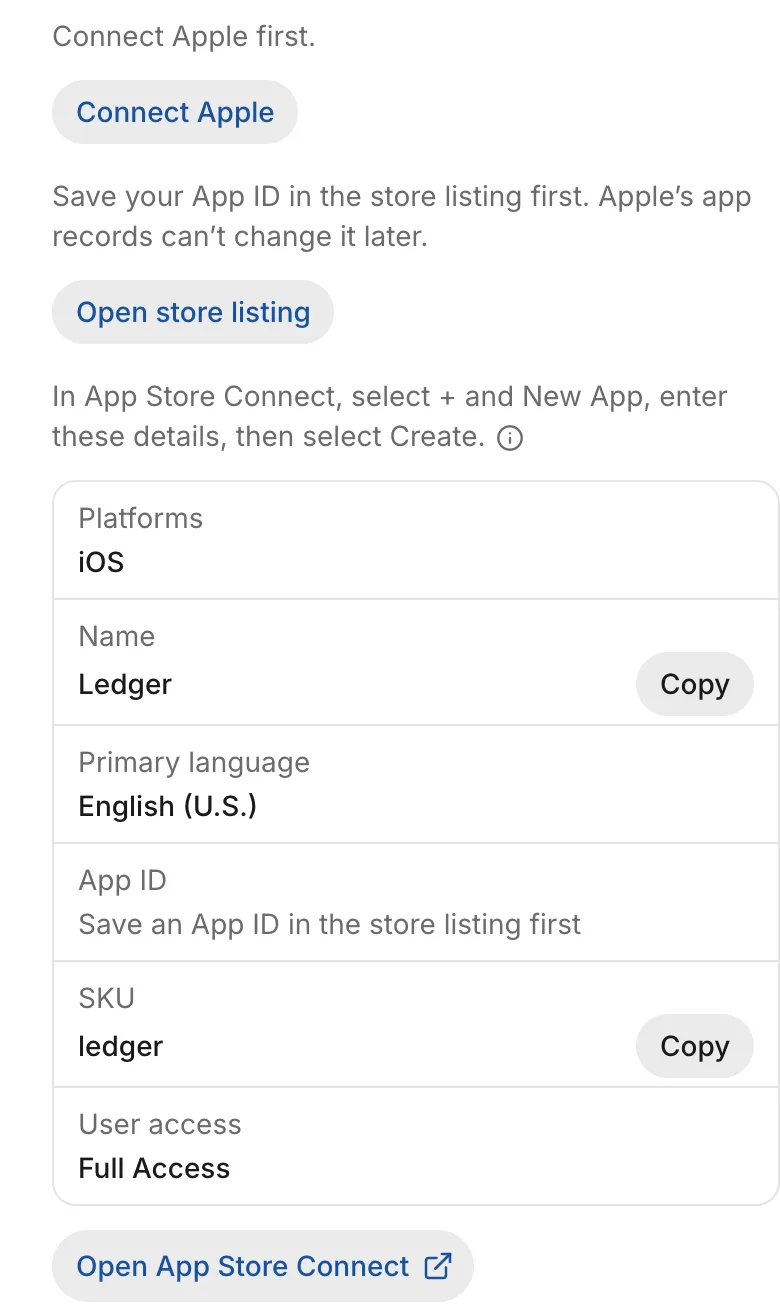
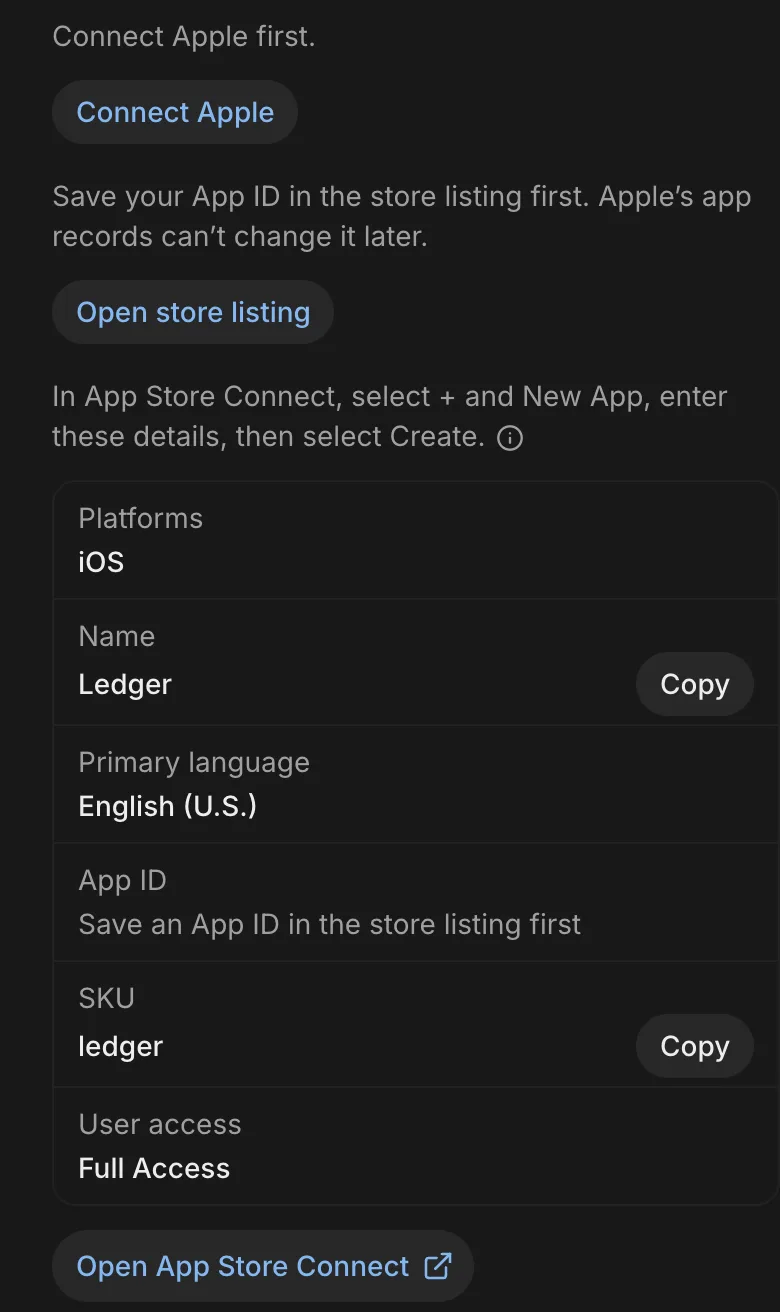
FlutterFlow shows the Store account that the app goes in. Create the app in that account’s App Store Connect. Moving the app to another account later requires an app transfer.
Result: When FlutterFlow finds your app, the step shows App found. To return to the App Store steps, click Continue. Next, send a version to testers.
Why you prepare the iPhone app first
Preparing the iPhone app registers your App ID with Apple so App Store Connect’s New App form can offer it. FlutterFlow asks you to prepare the iPhone app only when it hasn’t built one with your App ID yet.
Troubleshooting
For help with setting up the stores, see Troubleshoot phone builds and store releases.