Connect App Store Connect
Connect FlutterFlow to your Apple Developer account so that FlutterFlow can upload and submit versions of your app to the App Store. When you finish, your app uses the connection, and FlutterFlow saves it for your other apps.
You need an approved Apple Developer account. See Developer accounts.
Only an owner of the app can connect App Store Connect or choose its account, and connecting a new account also takes an owner of your account.
Connect a key
You create a team key in App Store Connect, and then upload it to FlutterFlow. Apple lets you download the key only one time, so keep the file somewhere safe.
To create and connect a key:
-
In FlutterFlow, open Releases › App Store, and open the Connect FlutterFlow to App Store Connect step.
-
Select Open App Store Connect, and then open Users and Access › Integrations.
If this is your team’s first time, the Account Holder must select Request Access and accept Apple’s terms. API access requires Apple’s approval.
-
Select Team Keys › +. For Name, enter
FlutterFlow.For Access, select App Manager. App Manager can’t change your team’s members, agreements or banking.
-
Select Generate, and then select Download.
-
In FlutterFlow, under Upload the key, select Choose file, and choose the
.p8file that you downloaded. Then enter the key’s details:- Key ID: the 10 characters beside the key in App Store Connect.
- Issuer ID: the ID at the top of the Keys page in App Store Connect.
- Connection name (optional): a name for this account, such as your company’s name. You see this name when you choose an account for another app.
-
Select Connect.
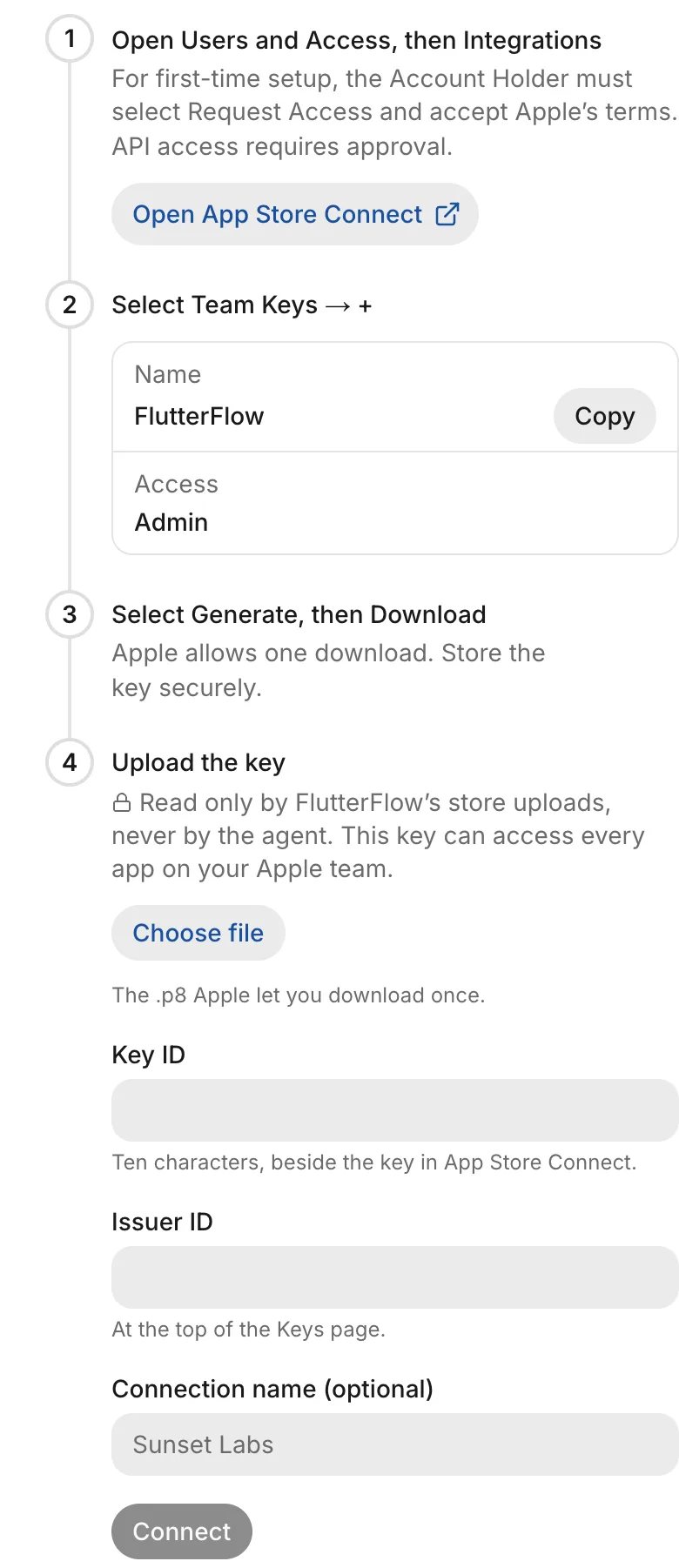
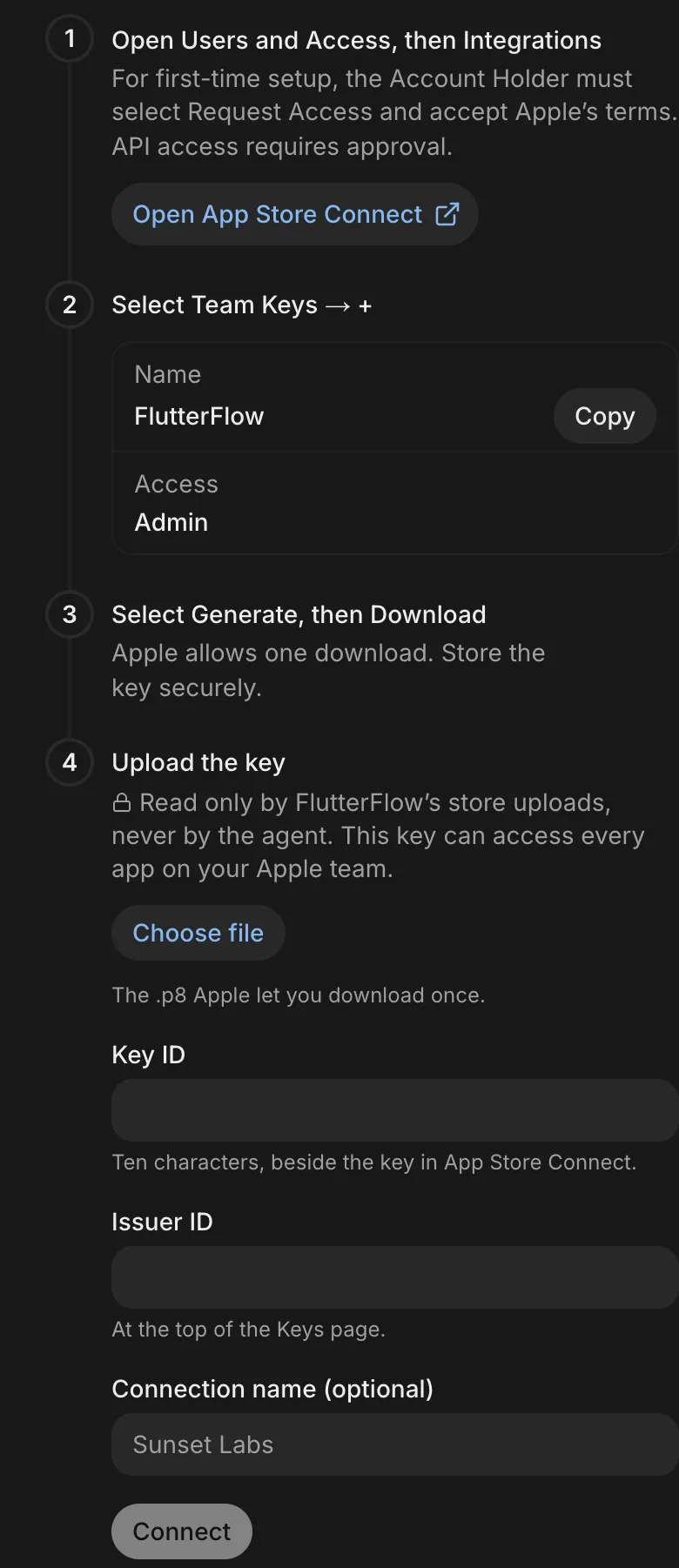
FlutterFlow uses the key for your app’s builds and its requests to App Store Connect. The agent never sees the key.
Choose a saved account
You can use one Apple Developer connection for more than one app. If you already connected an account for another app and this app doesn’t use one yet, FlutterFlow asks you to choose an account instead of creating a key.
To choose a saved account:
- In Releases, on the Choose the Apple Developer account for step (Choose developer accounts for when it covers both stores), select Choose.
- Select an account, and then select Use selected account (Use selected accounts for both stores).
To connect a different account instead, select Connect another account, and follow the steps in Connect a key.
To change the account later, open Releases › App Store, open the Connect FlutterFlow to App Store Connect step, and select Change beside the account that your app uses.
When the agent asks
The agent can ask for your App Store Connect key in a thread. The request appears in place of the message box, and only the person who started the thread can answer it. Choosing or connecting an account takes an owner. Depending on what your app already has, the request shows one of the following:
- Your app already uses an account: the request names it. Select Continue to keep it, or Change to choose another.
- You have saved accounts: the request asks which Apple Developer account your app is on. Select an account, and then select Use followed by the account’s name. To add a new account instead, select Connect another account.
- You don’t have a saved account: the request shows the same fields as Connect a key. Create the key in App Store Connect first, fill out the fields, and then select Connect.
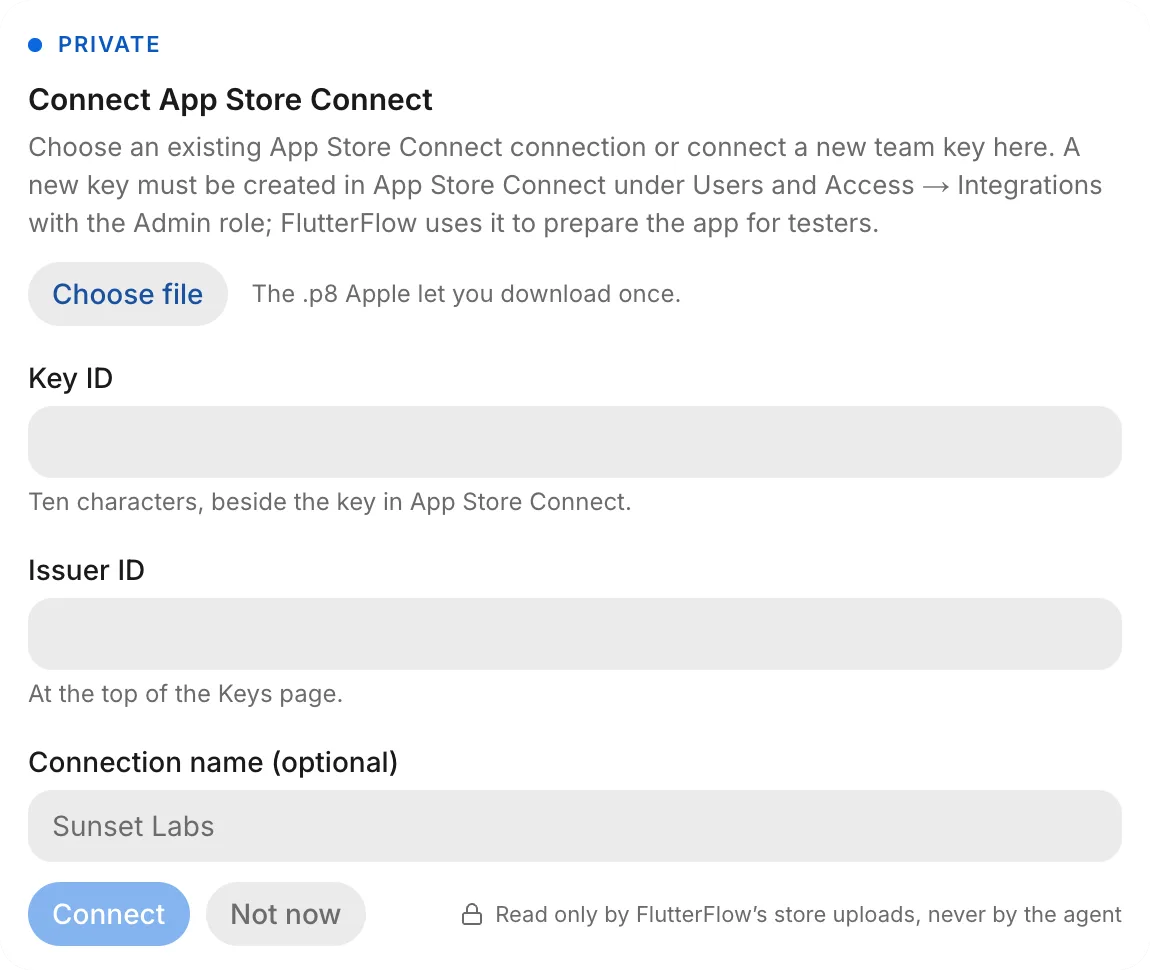
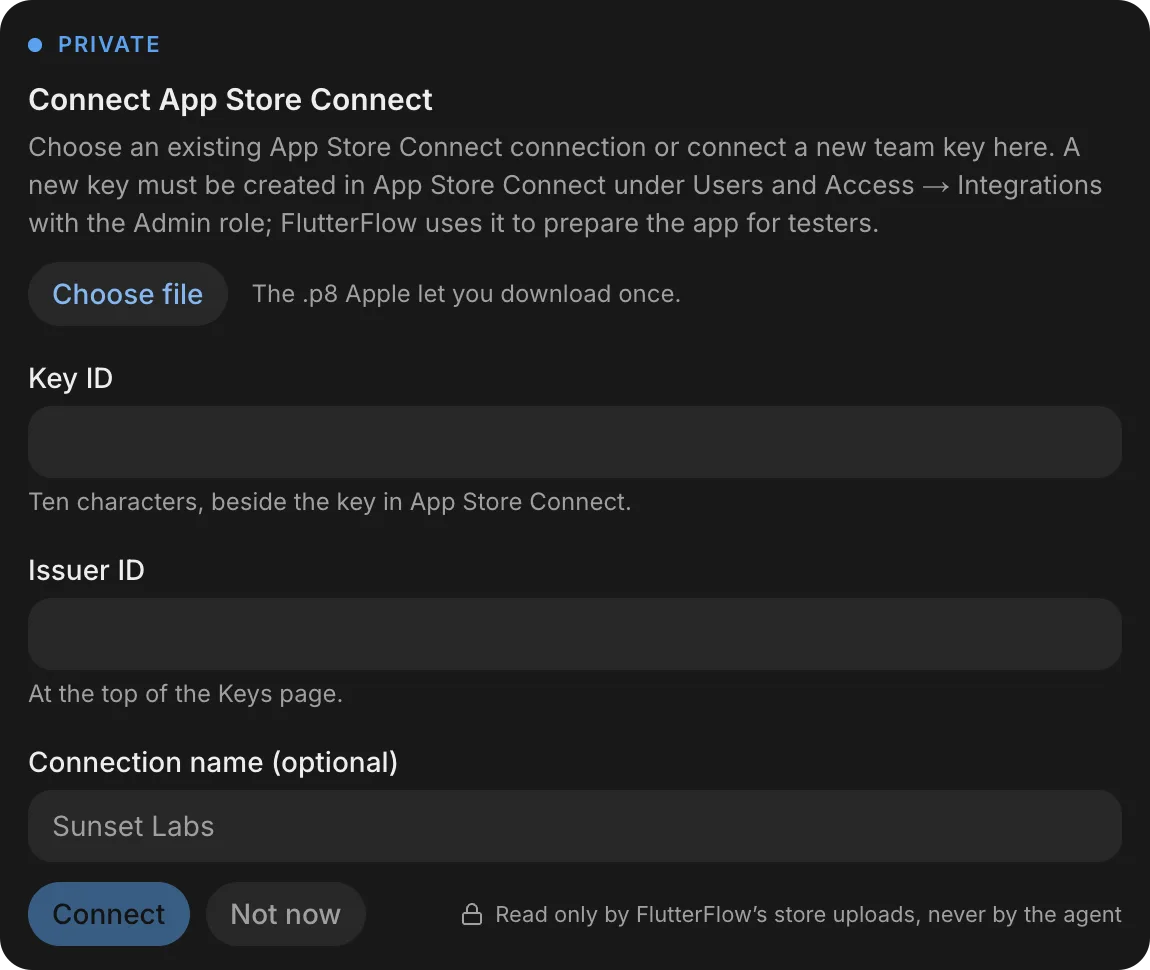
If you don’t have the key yet, select Not now, and ask the agent again when you have it.
Troubleshooting
If Apple refuses the key, or the connection shows Needs attention, see Troubleshoot phone builds and store releases.