Start a thread
Start a new thread so the agent can work on one change to your app.
New thread
A new thread starts on the New thread page, where you describe the change you want:
- Click New thread, or press ⌘K (Control+K on Windows) and choose New thread.
- In the message box, describe the change. See Ask for a change.
- Press Enter.
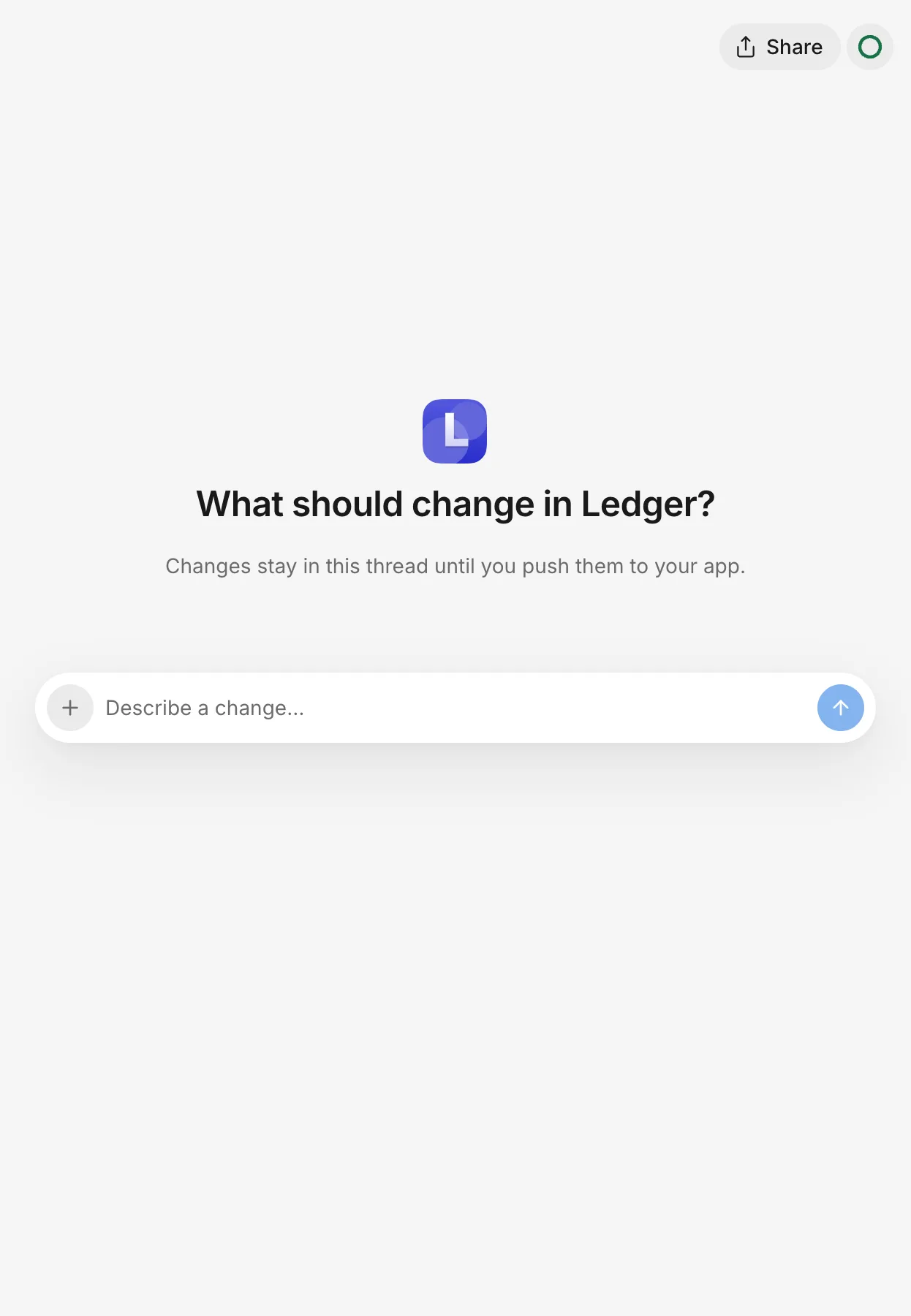
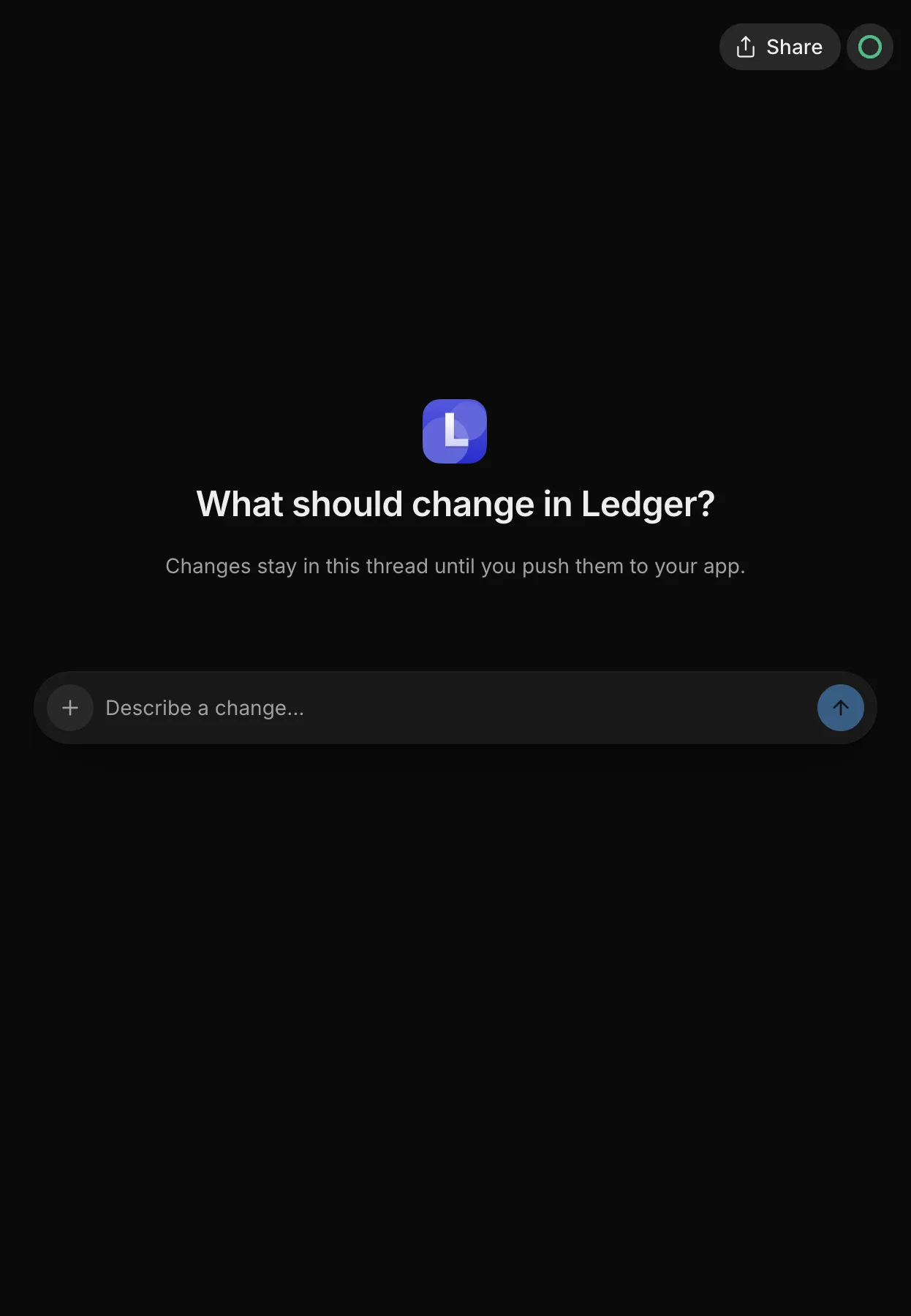
From search
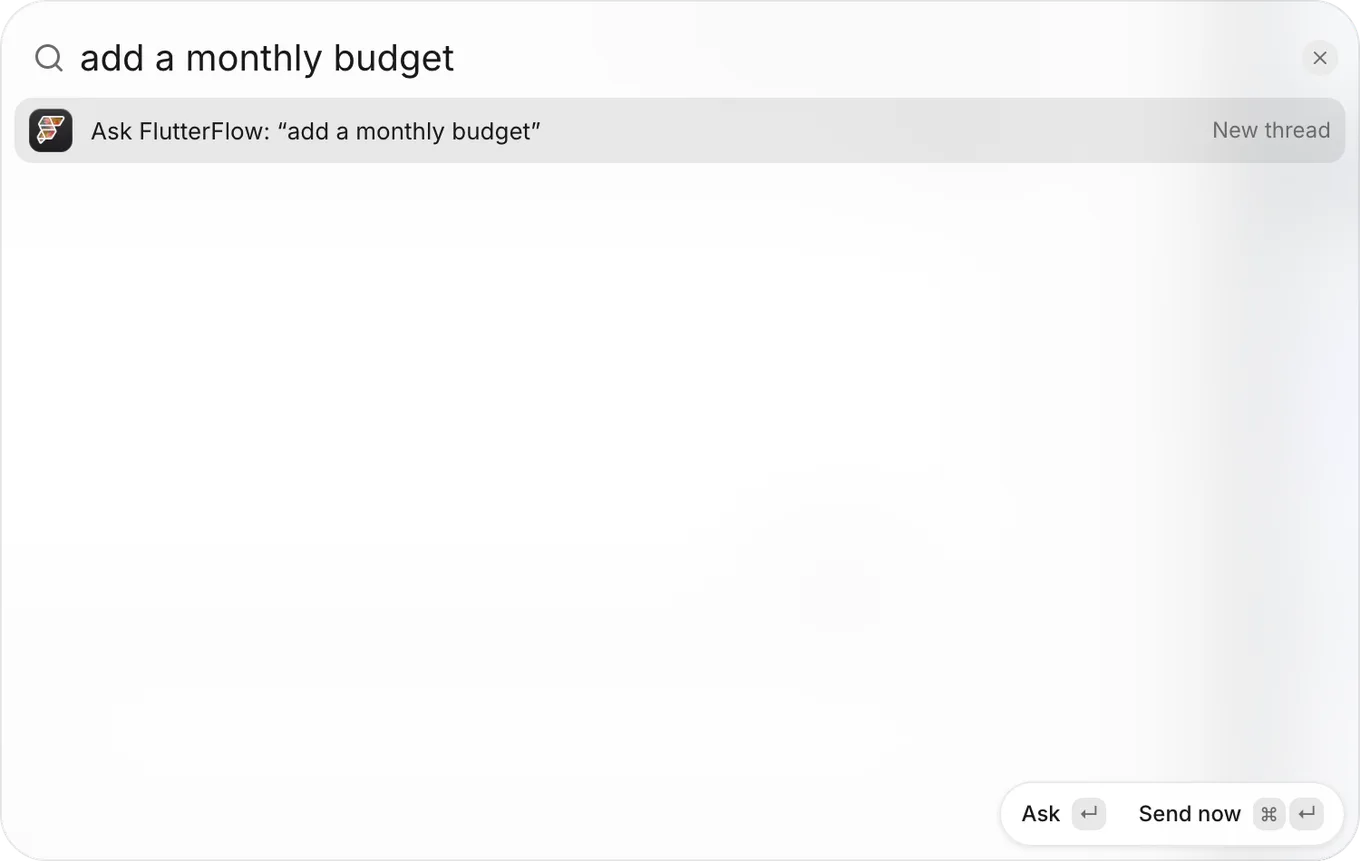
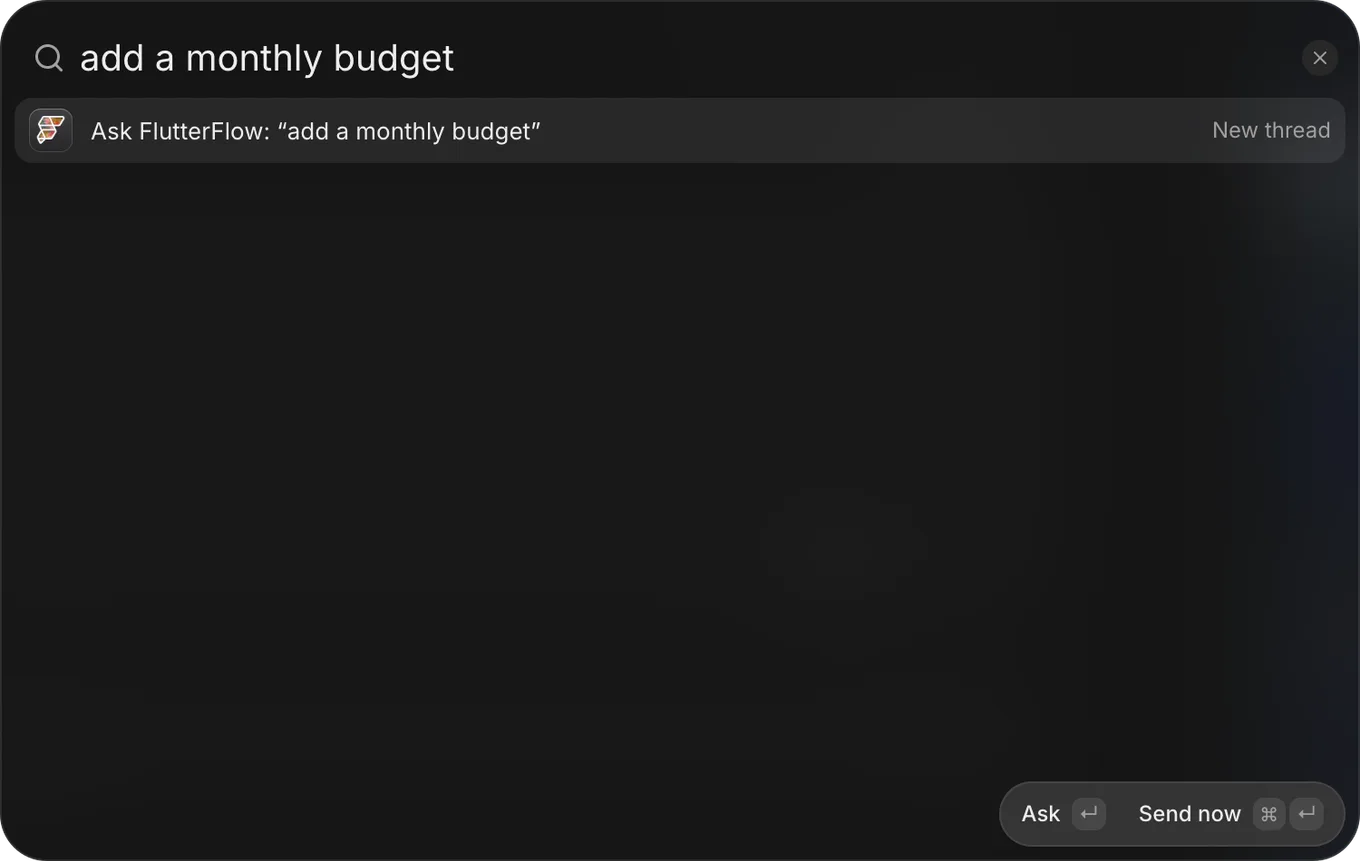
Start a thread directly from the search box (⌘K):
- In your app, press ⌘K (Control+K on Windows).
- Type a few words describing the change. The list displays Ask FlutterFlow: “…” with your words.
- Choose how to proceed:
- Press Enter to open New thread with your words in the message box so you can review them first.
- Press ⌘↵ (Control+Enter on Windows) for Send now to send the request immediately.
From another area
Several buttons across FlutterFlow open New thread with a prefilled request in the message box. You can edit the text before sending it.
You can open New thread from these areas:
- Backend: At the end of a table’s Fields, People › Sign-in, or Files › Rules, click Ask for a change. See Backend.
- Project Settings › Connections: On the page of a service your app doesn’t use yet, click Add to my app to prefill a request that adds that service. See Connections.
- Releases: When Apple requests changes to a version, click Fix with the agent. If Apple included review notes, the request quotes them. The same button also appears beside the sample-data warning when you send a version.
- Road to launch: In Change something with the agent, Start a thread opens an empty New thread page. See Road to launch.
Who can start one
Only app owners and developers can start threads. Teammates with the viewer or billing role can’t start threads. See Team roles.
Teammates with the Viewer or Billing role can click New thread, but the thread won’t start; the message box shows “You don’t have permission to do that.” and “Ask an owner of this project.”
Troubleshooting
If the thread fails to start or a notice appears on the message box, see Troubleshoot threads and the agent.