Developer accounts
Create a developer account with each store where you plan to release your app, so you can connect FlutterFlow to it. Your app goes to the App Store through your own Apple Developer account and to Google Play through your own Google Play developer account.
Join the Apple Developer Program
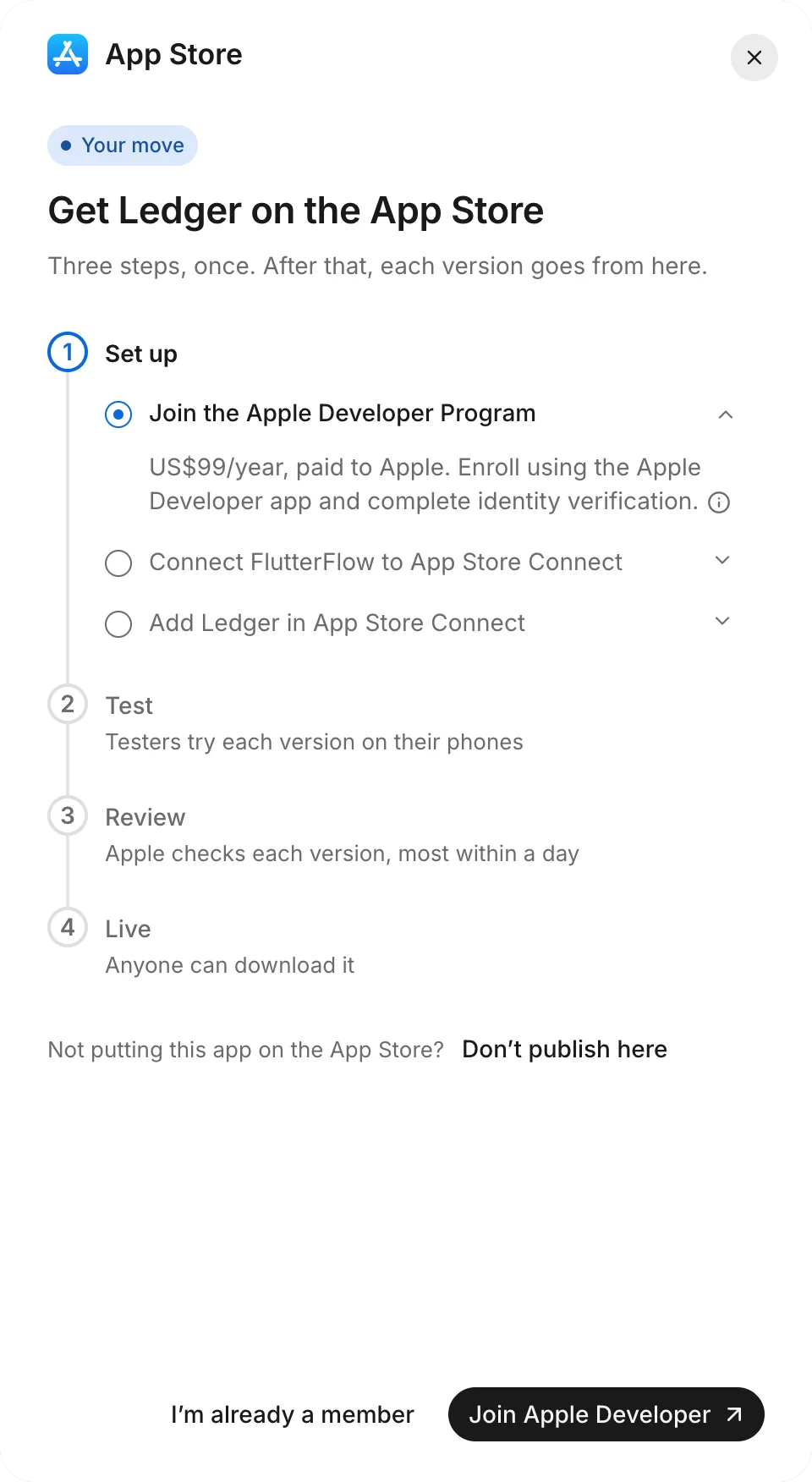
The Apple Developer Program costs US$99 a year, paid to Apple. To join it from FlutterFlow:
- Go to Releases. On the App Store card, select Set up.
- To see what Apple asks for, select Account requirements at the end of the step’s line. Have these ready: an Apple Account with two-factor sign-in, a photo ID, and an iPhone, iPad, or Mac.
- Select Join Apple Developer.
- Enroll using the Apple Developer app, and then complete identity verification.
While you wait, the App Store page shows Apple is checking your account. FlutterFlow can’t track Apple’s progress, so check your enrollment status with Apple.
Create a Google Play account
A Google Play developer account costs US$25, one time. To create one from FlutterFlow:
- Go to Releases. On the Google Play card, select Set up.
- To see what Google asks for, select Account requirements at the end of the step’s line. Have a photo ID ready and, for a personal account, an Android phone. Personal accounts also need Android device verification.
- Select Create a Play account.
- Register in Play Console, and then complete identity verification.
While you wait, the Google Play page shows Google is checking your account. FlutterFlow can’t track Google’s progress, so check your verification status in Play Console.
Mark your account approved
Neither store notifies FlutterFlow when it approves your account, so an owner of the app confirms approval. After Apple or Google approves your account:
- Go to Releases. On the store’s card, select Continue.
- Select Account approved.
Use an existing account
If you already have an Apple Developer account or a Google Play developer account, an owner of the app can use it without creating a new one:
- Go to Releases. On the store’s card, select Set up.
- For Apple, select I’m already a member. For Google Play, select I already have one.
If this store is already in your connections, the card shows Continue and the account step is done. Select Continue, pick the saved account, and then select Use followed by the account’s name.
Next steps
Troubleshooting
For help with Releases, see Troubleshoot releases.