Invite teammates
Invite a teammate with a role so that they can join your app using their invitation link. Only an owner of the app can invite teammates or revoke invitations.
Invite from Share
On a computer, to invite one or more teammates with the same role from Share, follow these steps:
- Click Share, and then click People · N (where N is the number of people in the app).
- In Invite by email, enter one or more email addresses.
- Beside Invite as, select a role (Developer is selected by default).
- Click Invite.
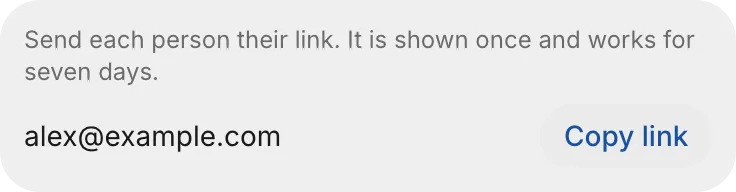
- Beside each address, click Copy link, and send the link to that teammate (see Send the link).

Invite from Project Settings
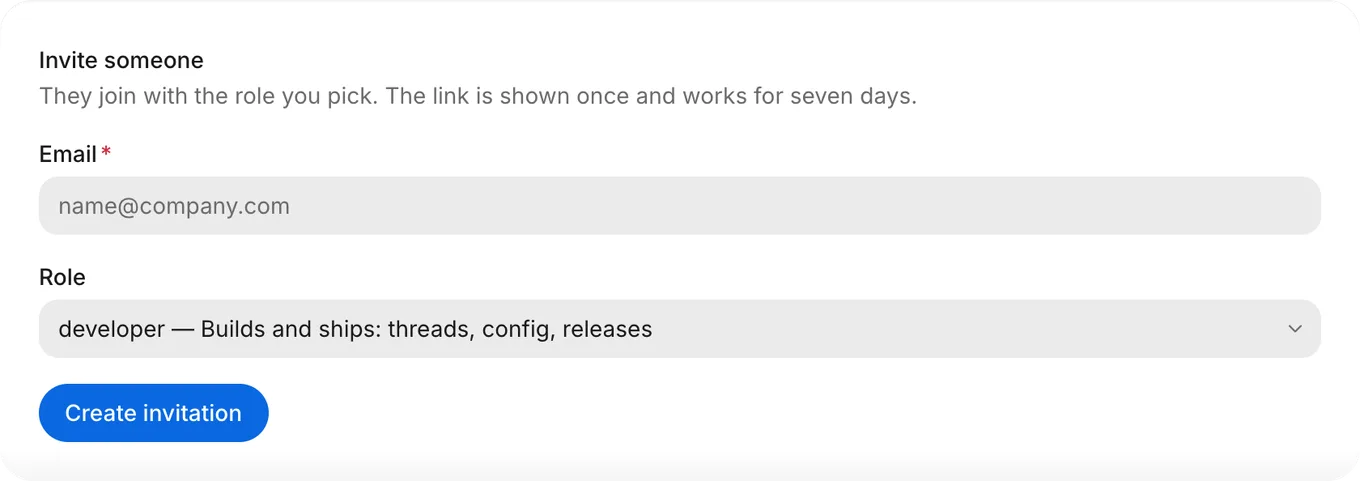
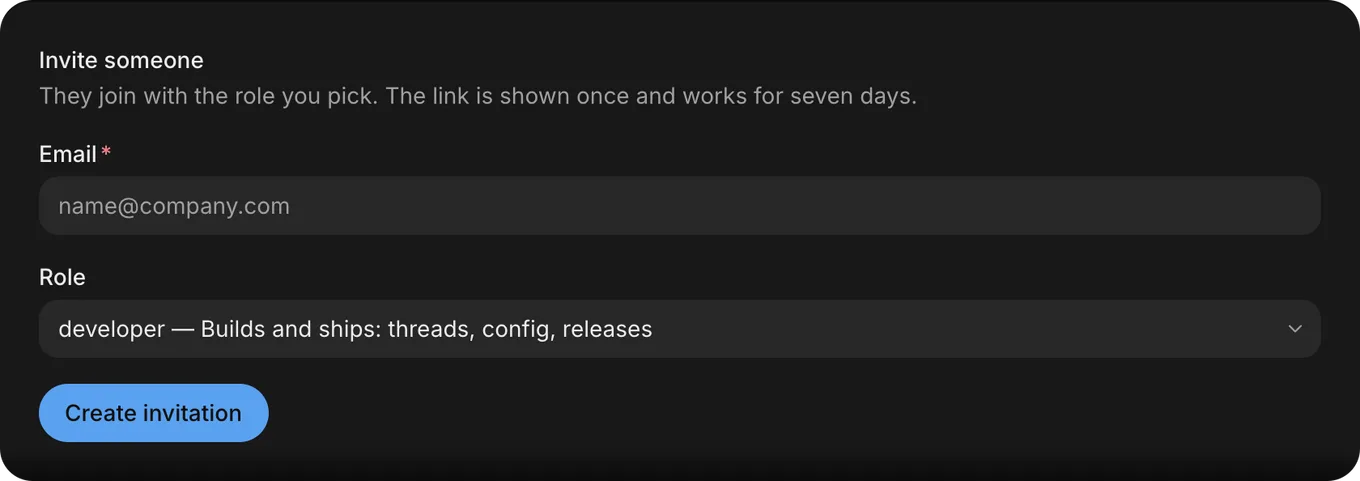
On a computer, to invite one teammate at a time from Project Settings › Team, follow these steps:
- Open Project Settings › Team.
- In Invite someone, enter the teammate’s Email.
- In Role, select a role.
- Click Create invitation.
- Click Copy link, and send the link to your teammate (see Send the link).
Invite from a phone
To invite teammates from a phone, follow these steps:
- Open Project settings, and then tap Invite people under Team.
- Enter one or more email addresses, and then tap a role.
- Tap Invite.
- Send each teammate their link (see Send the link).
Send the link
Copy each invitation link as soon as it appears. As the Invite someone form notes, “The link is shown once and works for seven days.”
Click Copy link and send the link to your teammate. If they already have a FlutterFlow account at the invited address, the invitation also appears on their Home page and in their account menu (where they must verify their email before accepting). Opening the copied link works without email verification, as long as they sign in with the invited address.
Revoke an invitation
To deactivate an invitation link before your teammate accepts it, follow these steps:
- On a computer, open Share › People · N or Project Settings › Team. On a phone, open Project settings.
- Find the invitation under Invited in Share, under Invitations in Project Settings, or under Team in Project settings on a phone.
- Select Revoke. Outside Share, select Revoke again to confirm.
Revoking deactivates the link immediately. You can invite the same email address again at any time.
Troubleshooting
For problems with invitations and roles, see Troubleshoot teamwork.