Steer or stop the agent
While the agent works on a turn, you can queue your next message, steer the agent to it right away, or stop the turn. Only the person who started a thread can queue, steer, or stop in it.
Queue a message
A message that you send while the agent works waits in a queue until the current turn ends. To queue a message, type it in the message box while the agent works, and press Enter.
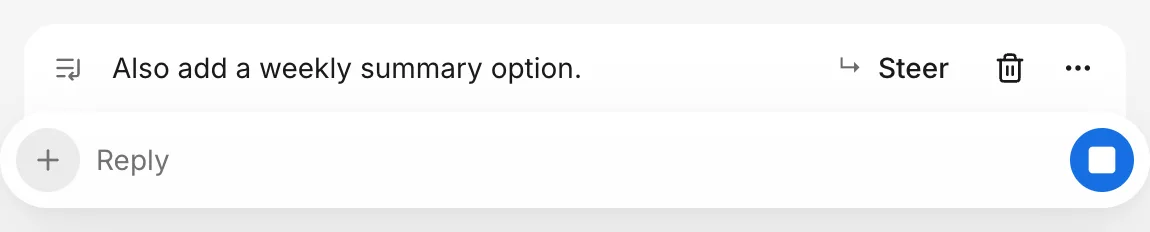
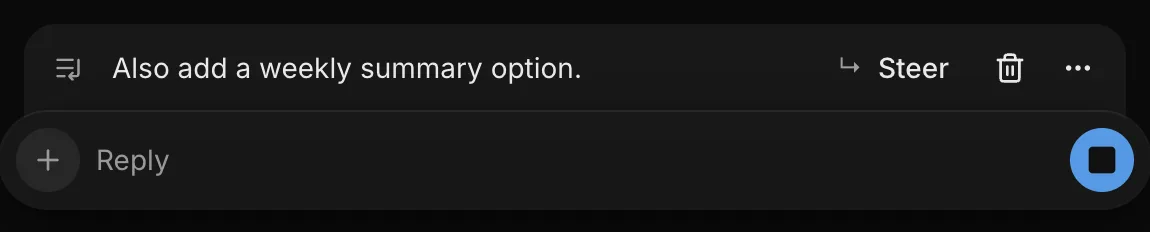
The message appears above the message box, and the agent starts on it when the current turn ends. If you send another message while one is waiting, FlutterFlow adds it to the waiting message, so the queue shows them as one.
Steer the agent
Steer stops the current turn so that the agent runs your queued message next. To steer, point to the queued message, and then click Steer.
Edit the queue
You can withdraw a queued message before the agent starts on it:
- To change it, point to the queued message, click More, and then choose Edit prompt. The message leaves the queue, and its text returns to the message box for you to change and send again. The returned text replaces anything that you’ve typed in the message box.
- To remove it, point to the queued message, and then click Remove from queue.
Stop
To stop the current turn, press Escape in the message box, or click Stop, which takes the place of the send button while the message box is empty.
Stopping ends only the current turn: queued messages keep their place, and the thread stays open. Tasks that the agent already started keep running. To stop a task, click it in the thread to open it, and then click Stop task.
To stop the first version, see Stop the first version. To set aside a question that the agent asked during a turn, see Stop here.
Continue after a stop
To continue after you stop the agent, send a message in the same thread. If a message was waiting in the queue, the agent starts on it after the turn stops.
To recall the last message that you sent, press ↑ in the empty message box. You can change it before you send it again.
Closing the tab
Closing the tab, reloading the page, or leaving the thread doesn’t stop a turn or a first version, because the agent works on FlutterFlow’s servers, not in your browser. To stop the agent, use Stop.
When you come back, open the thread to check its progress. See While you were away.