Troubleshoot the look and icon
A font looks like the default font
What it means: Your app renders a custom font only when the font’s files are in your app. Naming a font without attaching its files displays the default font instead.
Fix it:
- In a thread, attach the font’s
.ttfor.otffile. - Ask the agent to use the attached font and specify where to apply it, such as headings or body text.
- Check the affected screens in Screens and Preview.
Gradients appear instead of pictures
What it means: When the first version can’t resolve a picture, the screen shows a gradient placeholder instead.
Fix it:
- In a thread, attach the picture you want to use.
- Ask the agent to replace the gradient, and name the screen and where the picture belongs.
- Check the screen in Preview.
See Pictures in your app.
Dark mode looks wrong
What it means: Your app’s light and dark appearances can differ. Check the affected screen in both appearances before asking for a change.
Fix it:
- Open Screens in the thread. Select Switch to dark to inspect the dark appearance, or Switch to light to compare the light appearance.
- Ask the agent to fix the affected screen in dark mode, and describe the problem, such as unreadable text or a bright background.
- Check both appearances again after the agent finishes.
“That’s today’s draws. Draw more tomorrow.”
What it means: Your app has used all of today’s symbol draws, including any that the agent drew in a thread. The draw limit resets at midnight UTC.
Fix it:
- On a computer, open Overview and select your app’s icon to open App icon.
- To continue now, choose an existing symbol and select Use this icon.
- To draw a new symbol, return after midnight UTC.
See Set your app icon.
Your icon PNG is refused
What it means: FlutterFlow checks the icon file’s contents, size, and dimensions. The file must be a PNG of 1,024 by 1,024 pixels and smaller than 1 MB.
Fix it:
- Export the icon as a PNG with the required dimensions and file size.
- In App icon, open Your own PNG and select Choose PNG (or Replace if a PNG is already in use).
- Select the exported file, and then select Use this icon.
If the message says This PNG couldn’t be opened. Try another file., export a fresh copy and try that file.
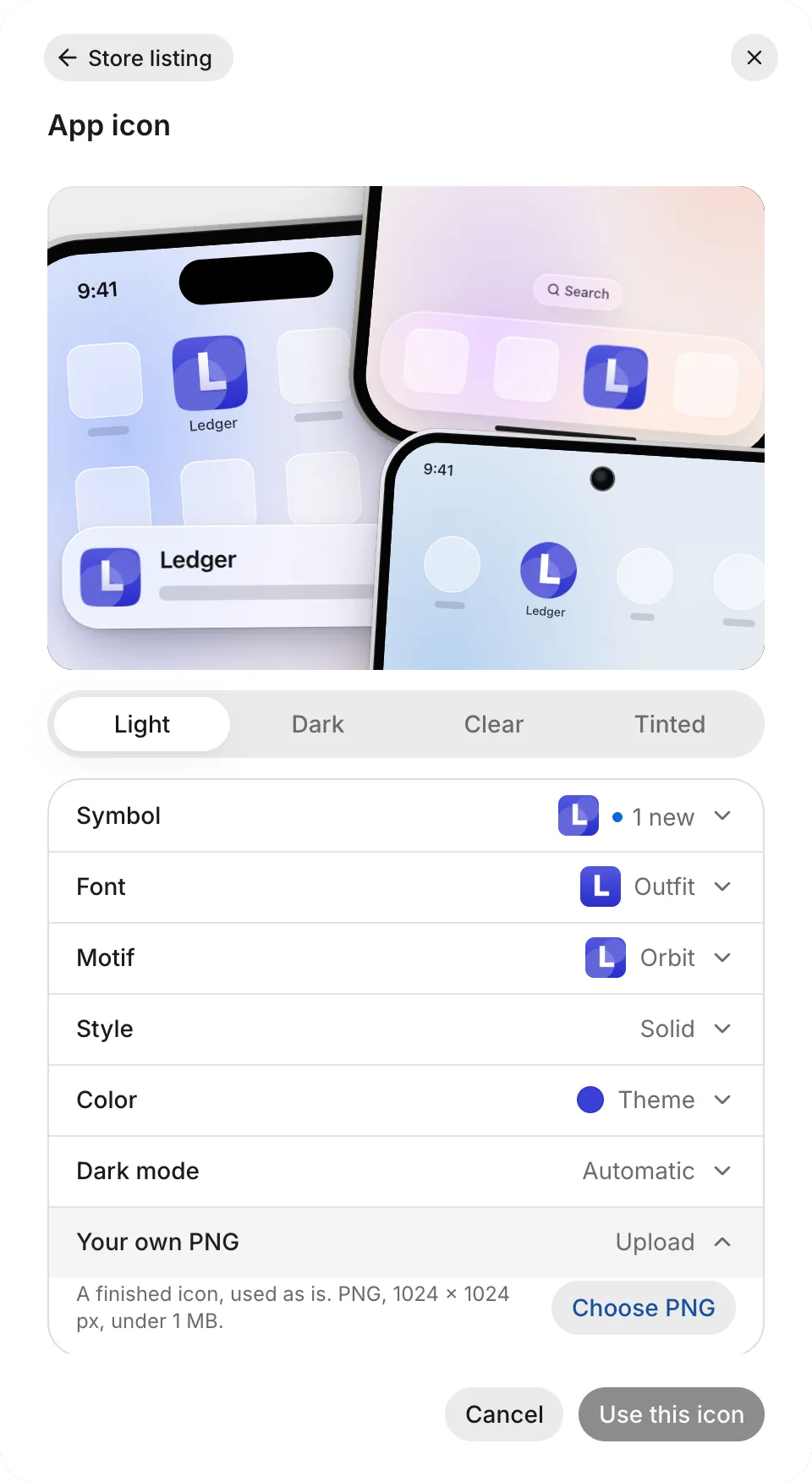
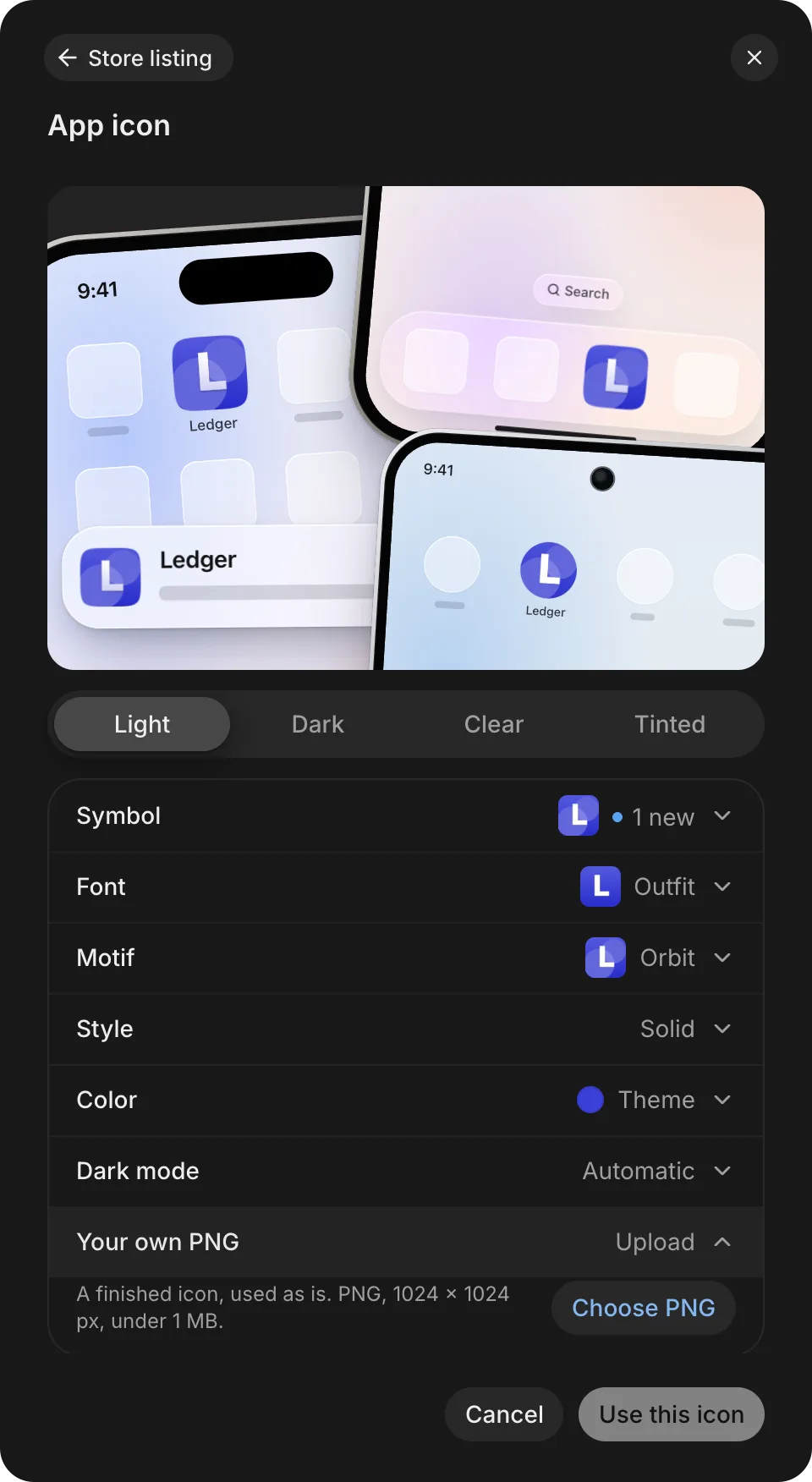
See Set your app icon.
Your phone still shows the previous icon
What it means: Phone builds use the app icon saved at the time the build starts. Changing the saved icon doesn’t update an already installed build.
Fix it:
- If you haven’t saved your icon choice, open App icon and select Use this icon.
- Build and install a new test build: see Test on Android or Test on iPhone.
- For a store app, see Release an update.