Send feedback
Tell the team that builds FlutterFlow how it’s working for you, how a thread went, or what happened when the agent’s work failed.
Send feedback
Send feedback sends a note about FlutterFlow as a whole.
- Click Send feedback at the bottom of the left bar inside an app, or open the account menu from your picture and click Send feedback.
- Optional: under “How’s FlutterFlow working for you?”, choose a face, from Frustrating to Love it.
- In the box, describe what’s working, what isn’t, or what you’d like to see. You can send a face, a note, or both.
- Click Send.
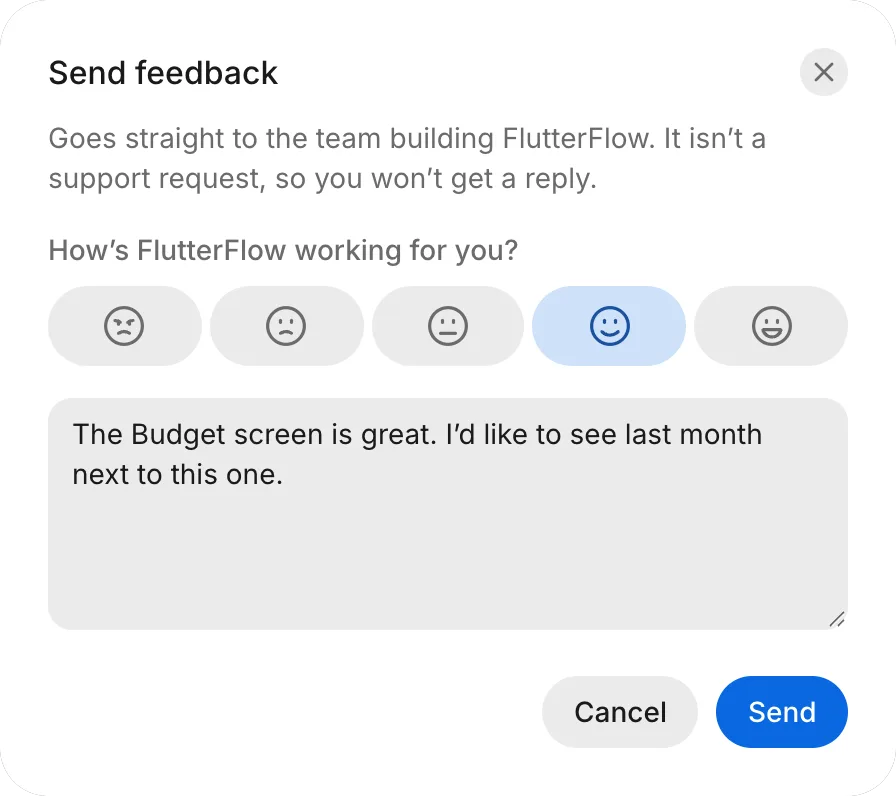
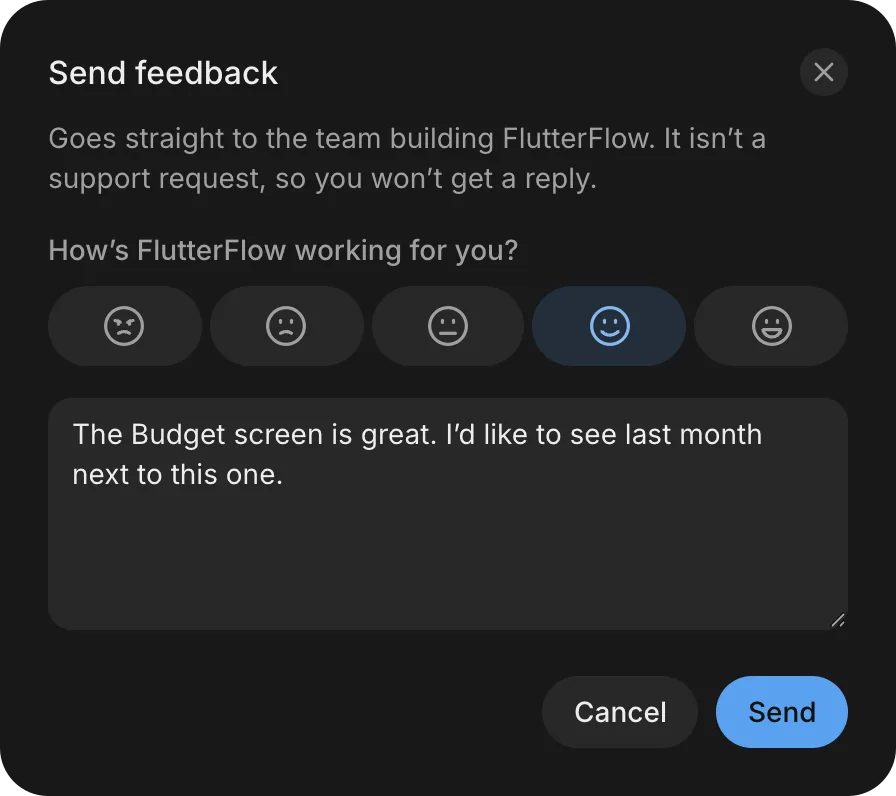
You don’t need to say which app or thread you were in. With your note, FlutterFlow sends your account’s email address and the page that you sent it from, including its app and thread, your browser, and the size of your window.
Rate a thread
A thread rating tells the team how the agent’s work in that one thread went. You can rate a thread when FlutterFlow asks at the end of a turn, or from the thread’s menu.
At the end of a turn
At the end of some turns in a thread that you started, a short question appears at the right end of the row above the message box. On a phone, it appears at the end of the conversation instead. The question depends on what just happened:
- After you’ve followed up on the first version: “How close is this to what you had in mind?”
- After a push: “How did this push go?”
- In a long thread with no push: “How’s this thread going?”
To answer, choose one of the three faces: Bad, Okay, or Good. FlutterFlow saves your answer right away and shows Thanks.
To add reasons or a note, click Tell us more. The Tell us more dialog opens with your face already chosen. Continue from step 5 in From the thread menu.
To skip the question, click Not now (×).
From the thread menu
Rate this thread… opens the same dialog for any thread that you can open.
-
Open the thread.
-
Click the thread’s menu (⋮) at the top of the thread.
-
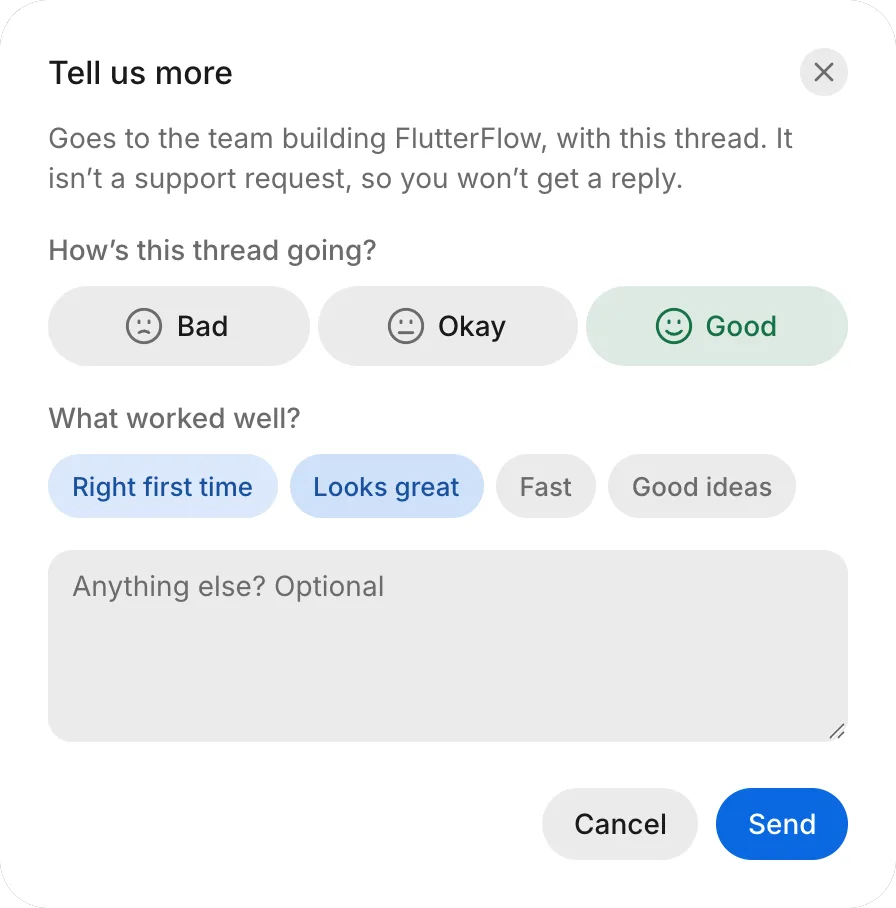
Choose Rate this thread…. The Tell us more dialog opens.
-
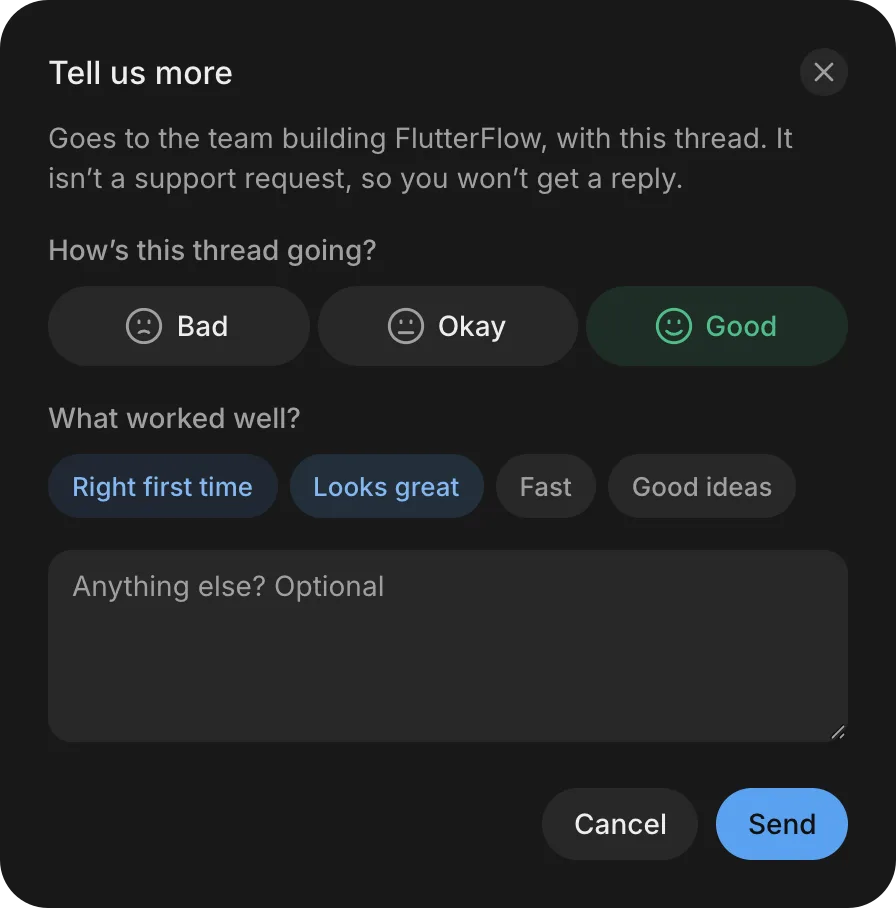
Under “How’s this thread going?”, choose Bad, Okay, or Good.
-
Optional: under the question that appears, choose any of the reasons for your face:
Face Reasons Bad Didn’t do what I asked, Broke something, Too slow, Hard to follow Okay Took a few tries, Close, not quite, Too slow, Hard to follow Good Right first time, Looks great, Fast, Good ideas -
Optional: in the box, enter anything else that you want the team to know.
-
Click Send.
After a failure
Tell us what happened sends a note about a failure in a thread, together with that thread. It appears in two places, usually beside Try again:
- On the strip above the message box, when a turn fails.
- On the first version’s card, when the first version fails.
- Click Tell us what happened.
- In the box, describe what you were trying to do and what went wrong.
- Click Send.
To retry the work, click Try again. For what a failure means and how to fix it, see Troubleshoot threads.
Who reads feedback
Everything that you send from Send feedback, Tell us more, and Tell us what happened goes to the team that builds FlutterFlow, together with your account. Your feedback isn’t anonymous. A thread rating or note goes with that thread.
Feedback isn’t a support request, so you don’t get a reply. For other places to look when you’re stuck, see Get help.
Troubleshooting
- “Couldn’t send your feedback” with “Try again in a moment.”: the dialog stays open with what you entered. Wait a moment, and then click Send again.
- “Couldn’t open feedback”: the Tell us more or Tell us what happened dialog didn’t open.
- With “Try again in a moment.”: wait a moment, and then choose Rate this thread… or Tell us what happened again.
- With “Reload the page to try again.”: click Reload, and then choose Rate this thread… or Tell us what happened again.