Ways to run your app
Your app runs in three ways: in the preview inside FlutterFlow, through a share link in a browser, and as an installed phone app. Each option fits a different stage of building, sharing, and testing.
Which to use
| Way | What it runs | Who can open it | Where it runs | Use it to |
|---|---|---|---|---|
| Preview | Your app on Overview, or a thread’s Copy of your app on that thread’s page | App owners, developers, and viewers in FlutterFlow | Inside FlutterFlow | Test a change while you build it. |
| Share link | Your app, or a single thread’s version | Anyone with the link | In a browser on a phone or computer | Share your app with others, or open it on your own phone. |
| Phone app | Your app at the time the build was created | Test builds: your own phone. Store apps: anyone downloading from the App Store or Google Play | Installed on an iPhone or Android phone | Test your app as a native install, and release it to the stores. |
Your app’s share links, test builds, and Overview preview all use live data. Adding, editing, or deleting data in the Overview preview changes your live data directly.
The preview
The preview runs your app inside FlutterFlow on Overview and on each thread’s page. Click Show the app to open it:
- On Overview, the preview runs your app.
- On a thread’s page, the preview runs that thread’s Copy of your app. Changes requested in the thread remain isolated there until you push them. Data edited in the thread’s preview stays in that thread’s copy of your starter data; to add an item to your starter data for future threads, turn on Keep for new threads for that item and push the thread. See Live, thread and starter data.
See Preview.
Share links
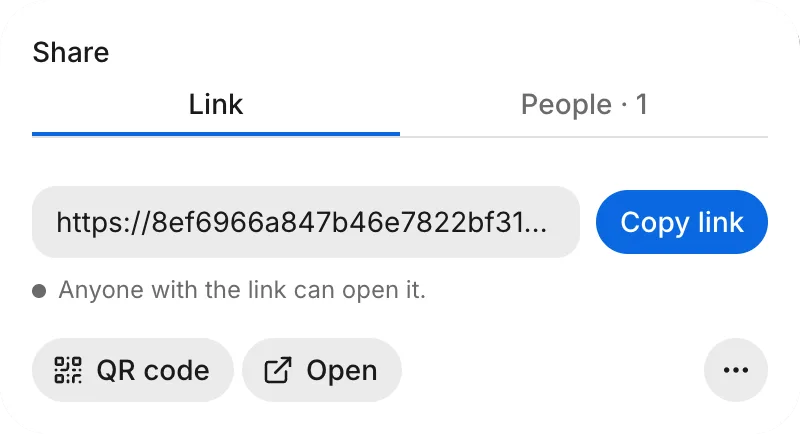
A share link opens your app in a browser for anyone with the link. Owners and developers get the link from Share › Link. In a thread you started, choose Your app or This thread.
Scan the link’s QR code to open it on your own phone.
Share › Link publishes your app on the web. Anyone with the link can open your app in a browser. Some browsers, including those on iPhone and iPad, also show an Install button to add the app to the device. FlutterFlow assigns the link’s address.
See Put it on the web.
Phone apps
Owners and developers build installable iPhone and Android apps in Releases:
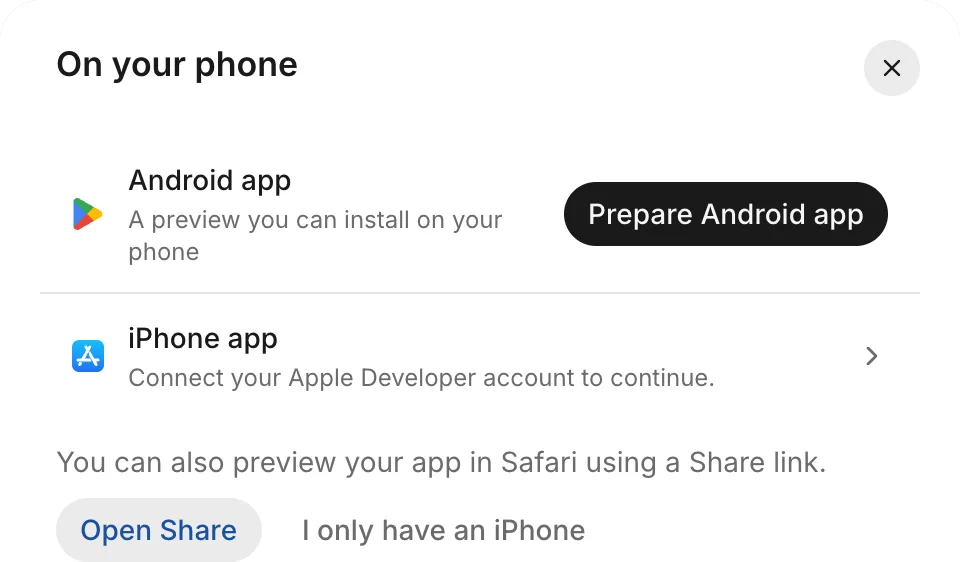
- Test builds let you test on your own phone. In Releases, click On your phone. The iPhone app installs through TestFlight and requires an Apple Developer account.
- Store apps go to testers and store review in the App Store and Google Play.
FlutterFlow always builds phone apps from your app, never from an unpushed thread.
See Android test build, iPhone test build, and How releasing works.
Compared
| Action | Where | What it does |
|---|---|---|
| Push | Push to your app, in a thread | Applies a thread’s changes to your app. |
| Share | Share › Link | Creates a browser link to your app or to one thread’s version. |
| Release | Releases | Builds installable phone apps from your app. |
See Push.
iPhone without a developer account
Building an iPhone test app requires an Apple Developer account.
To use your app on an iPhone without an Apple Developer account, open your app’s share link in Safari on your iPhone and add it to your Home Screen. See Open on a phone.