Preview
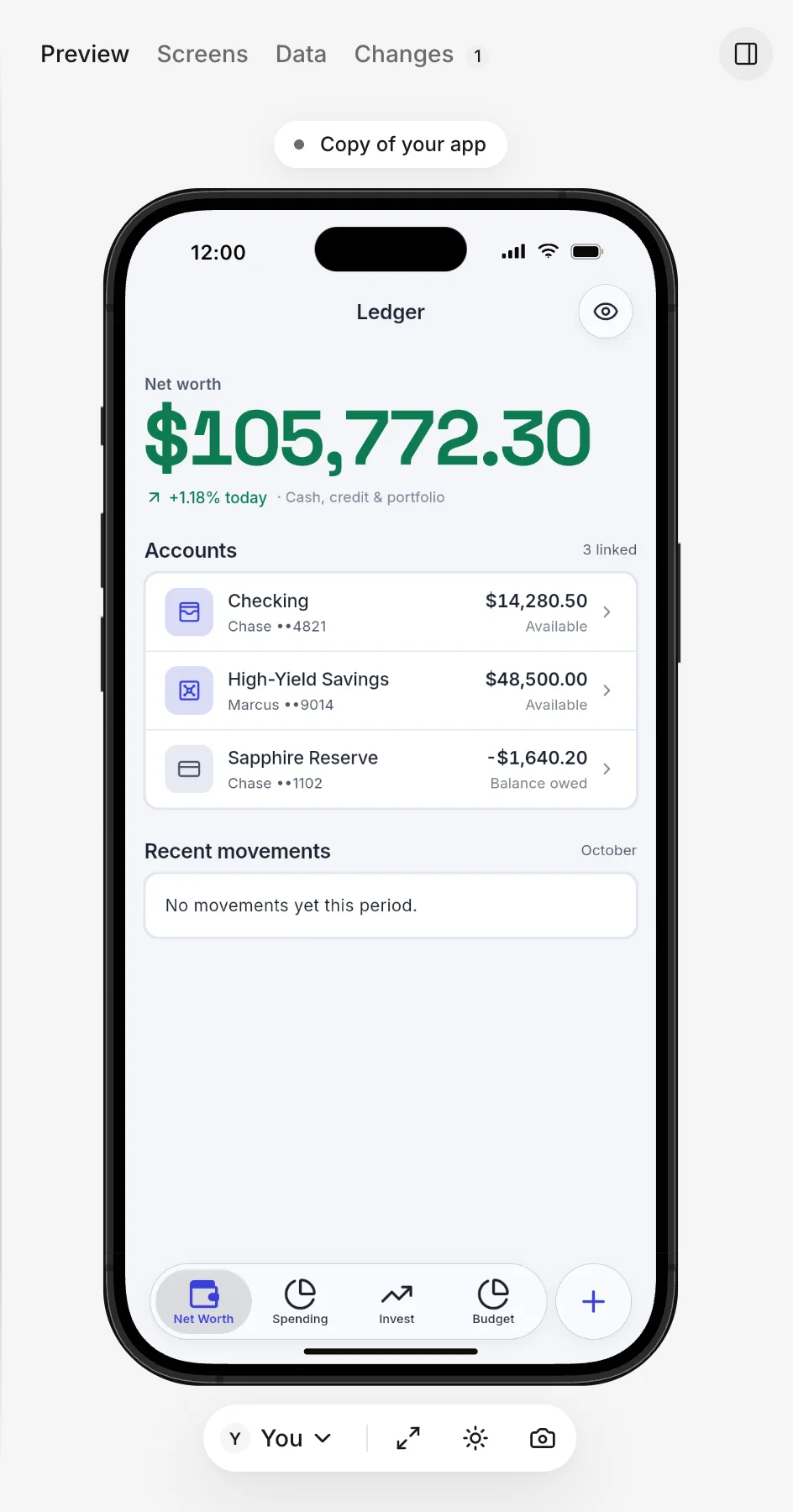
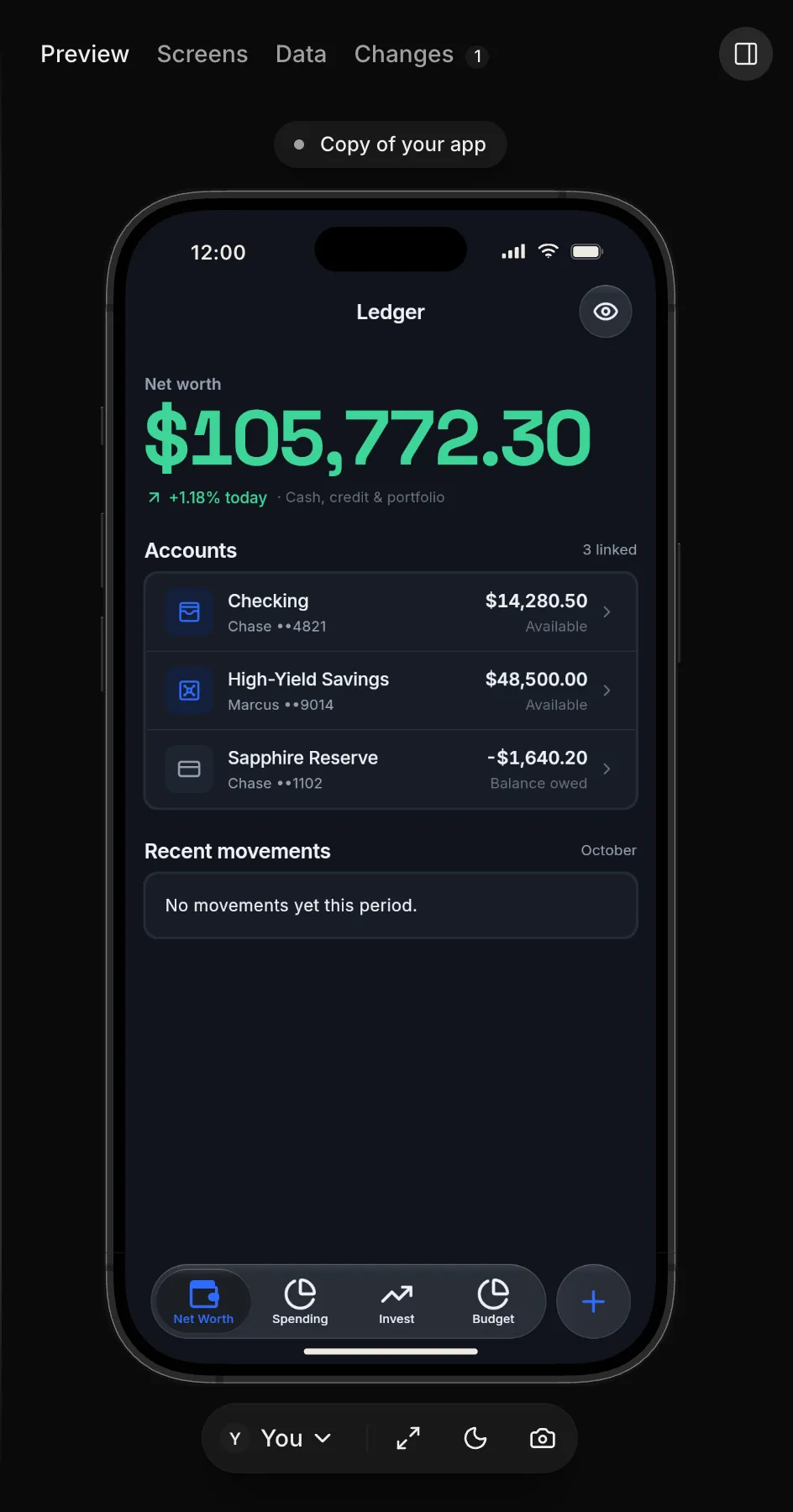
Run your app on a phone frame beside Overview or a thread to test it as you would on a real phone.
The stage is the area on Overview and thread pages that displays your app (referenced in labels such as Show in stage and Fill the stage). Click Show the app in the top-right corner to open it. While the stage is open, that button shows a panel icon and reads Hide the app; click it to close the stage. In a window 1,024 pixels wide or wider, the stage sits beside the page as a column, and closing it keeps it closed across pages and reloads. In a narrower window, the stage overlays the page and starts closed on each new page.
Open the preview
- Go to Overview, or open a thread.
- Click Show the app in the top-right corner.
- In a thread, click Preview.
Your app appears in a phone frame.
What the preview runs
What the preview runs depends on the page that you open it from:
- On Overview, the preview runs your app (everything you’ve pushed to it) under the Preview label.
- On a thread, the preview runs the thread’s Copy of your app. After the thread or your app has a build and no work is running, the pill above the phone reads Copy of your app. When you point to the pill, a tooltip explains that changes made in the chat or preview stay in the thread until you push them. When your app uses data, the tooltip also explains that the preview runs a copy of your starter data.
Your app’s share links, test builds, and Overview preview all use live data. Adding, editing, or deleting data in the Overview preview changes your live data directly.
Thread tabs
In a thread, the top tabs show different views of the thread’s copy of your app (Overview shows only Preview):
- Preview: the thread’s copy of your app running on the phone.
- Screens: each screen in the thread, marked as new, changed, or removed compared with your app. See Screens.
- Data: the thread’s own data, shown when the thread’s copy of your app stores data. See Thread data.
- Changes: what the thread changed, with a count, shown once the thread has changes. See What changed.
- Choose: design directions to compare while the agent waits for your choice. See Design directions.
When the tabs don’t fit across the top bar, FlutterFlow groups them into a single menu labeled with the active tab. To switch views, click the menu and select a tab. The menu marks the active tab with a check mark.
Use the preview
In the preview, your mouse acts like a finger on the phone:
- Click to tap.
- Drag to scroll a list or swipe a page.
On a computer, the preview shows an iPhone frame. Android phone and tablet frames aren’t available.
Preview tools
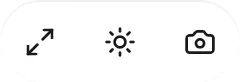
On a computer, the buttons below the phone control how the preview displays your app:
- Standard size and Fill the stage: the phone starts as large as the window allows. Click Standard size to shrink it to standard dimensions, or Fill the stage to maximize it again. Your browser saves your choice.
- Switch to light and Switch to dark: switches your app between light and dark themes without changing FlutterFlow’s own theme. Until you click it, your app matches your browser’s theme.
- Save a screenshot: downloads a PNG image of the current screen inside its phone frame.
Switch to light, Switch to dark, and Save a screenshot become available after your app loads on the phone.
In an unpushed thread where neither the thread nor your app has a build yet (such as while FlutterFlow builds a first version), Rebuild previews can also appear. If you started the thread, Inspect element can appear too: click it, then click a widget on the phone to add its source to your message.

If you started an unpushed thread whose copy of your app includes sign-in and at least one other account, a button also appears to switch the signed-in preview account. See Test sign-in.
Camera, microphone, and location
When your app requests the camera, microphone, or location, your browser prompts you for permission as it does for any website. To test the feature in the preview, allow the permission in your browser.
Troubleshooting
For issues with the preview or messages shown above or on the phone, see Troubleshoot the preview.