Find your way around
FlutterFlow has two levels: Home, which lists all your apps, and each app’s workspace, where you build that app. This page describes the layout on a computer. For a phone, see Use on a phone.
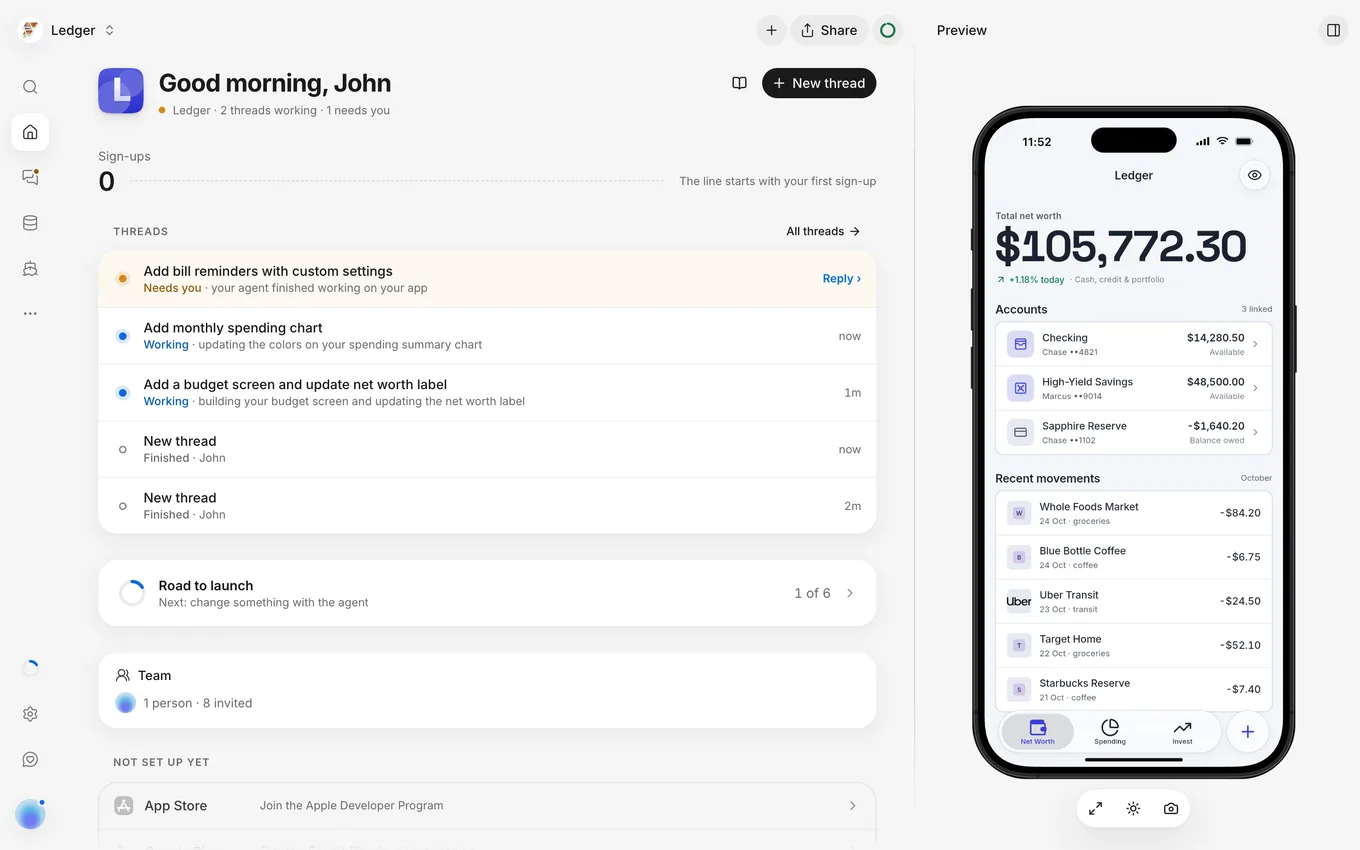
Home and Your apps
On Home, you start new apps and open existing ones. Use the prompt box at the top to describe your next app (see Write a prompt).
Your apps shows a card for each app with its name and latest activity, such as which thread needs you or what the agent is doing. When the agent is building or working in an app’s newest thread, or when that thread needs your input, the card shows Building, Working, or Needs you. When you have several apps, a Search box filters them by name.
Click a card to open the app’s Overview.
To return to Home from an app, open the project switcher and select All apps.
Project switcher
The project switcher at the top left shows your current app’s name and lets you switch apps:
- A check mark shows the current app.
- New app opens the page to describe a new app.
- All apps shows your total app count and opens Home.
Home lists your apps by when you last opened them across any device, most recent first, followed by unopened apps from newest to oldest. The project switcher (the menu with your app’s name at the top left) shows your active app first, followed by your next few apps in the same order; select All apps to open Home and view the full list.
Left bar
The left bar lists your app’s areas from top to bottom:
- Search opens the command palette (or press
Control+K, orCommand+Kon macOS). - Overview opens the app’s front page.
- Threads reopens your last active thread. See How threads work.
- Backend manages your app’s data and sign-in. See How the backend works.
- Releases builds phone apps and sends them to the stores. See How releasing works.
- Coming soon lists areas that aren’t available yet. See Coming soon.
- Road to launch shows a progress ring that fills as you complete the steps to launch in the stores. Click it to view the checklist. See Road to launch.
- Project Settings manages the app’s settings.
- Send feedback sends a note to the FlutterFlow team. See Send feedback.
- Your avatar at the bottom opens the account menu.
A dot on Threads or Releases indicates that an item there is running or needs your attention.
Top-right corner
The top-right corner of an app’s workspace contains these controls:
- New thread starts a thread. See Start a thread.
- Share opens two tabs: Link to share your app with a link, and People (with the number of people on the app) to view and invite teammates. Only owners can invite people. See Share a link and Invite teammates.
- The usage ring shows your remaining allowance. Click it to see the percentage, the reset time, and Usage details. See Plans, prices and allowance.
- Show the app opens the live preview beside Overview and thread pages. See Preview.
Guides
FlutterFlow includes six built-in guides:
- How FlutterFlow works: open it from the account menu, the command palette, or the book button () on Overview.
- How threads work: open it from the command palette while in Threads.
- How the backend works: open it from the book button () on Backend.
- How releasing works: open it from the book button () on Releases.
- How connections work: open it from the book button () on Connections in Project Settings, or from the command palette there.
- How chat connections work: open it from the book button () on Connections in your account, or from the command palette there.
How FlutterFlow works, How the backend works, and How releasing works can open by themselves when you visit Overview, Backend, or Releases. After a guide opens once in a browser, it opens only when you select it.
Account menu
The account menu holds your account settings and help links. Open it from your avatar at the bottom of the left bar inside an app, or at the top right on Home.
The menu contains:
- Your name and email address.
- Your remaining allowance, when it resets, and an action button such as Manage.
- Account settings, Plan & usage, Connections, and App stores, which open those account pages.
- How FlutterFlow works, which opens the guide.
- What’s new, which lists recent changes to FlutterFlow.
- Send feedback, which sends a note to the FlutterFlow team.
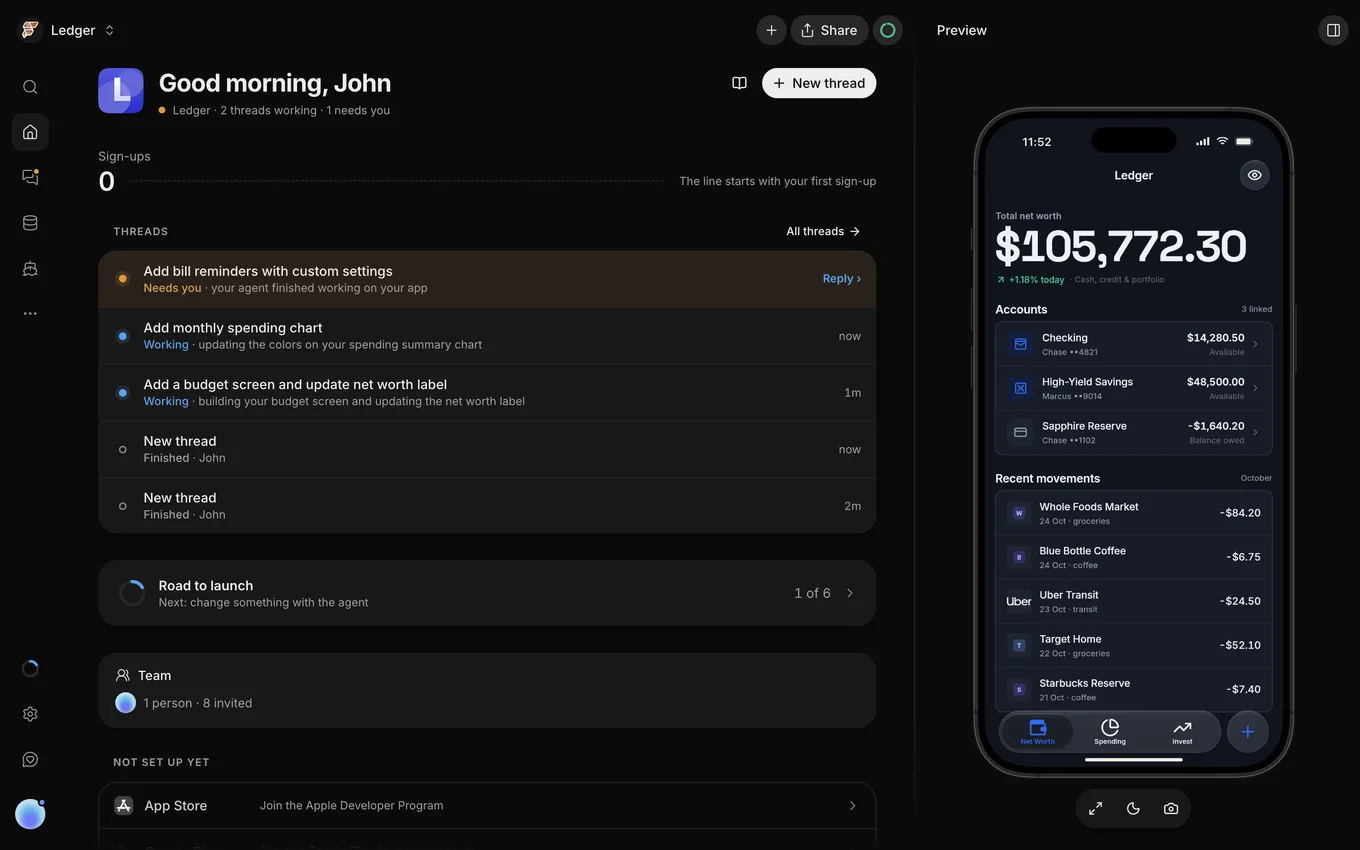
- Theme, which switches between light and dark modes. See Change the theme.
- Sign out, which signs you out in this browser and opens the sign-in page.
Change the theme
Theme in the account menu offers three options:
- Light and Dark set FlutterFlow’s appearance.
- System matches your device’s setting.
FlutterFlow saves your choice in the current browser. Other browsers and devices start on System until you choose a theme there. You can also switch themes in the command palette with Theme: Light, Theme: Dark, or Theme: System. See Browser storage.
Coming soon
The Coming soon menu (after Releases in the left bar) lists areas that are still in development. Each item opens a preview page. Until those areas launch, use these alternatives:
- Design (“Screens, components and styles”): describe the look you want in a thread, and check the result on the Screens tab.
- Analytics (“Who is using the app, and how”): see how many people have signed up to your app under Sign-ups on Overview.
- Payments (“Plans, subscribers, and revenue”): take payments with Stripe.