Live data for launch
Before people use your app, remove unwanted starter rows and test records from your app’s live data.
What’s in live data
Your live data can hold rows that you added while you built and tried your app, as well as real ones.
Your app’s share links, test builds, and Overview preview all use live data. Adding, editing, or deleting data in the Overview preview changes your live data directly.
Starter rows can also reach your live data when you push a thread. See How data moves.
Delete test data
No single button clears all starter rows from your live data. Owners and developers can delete unwanted rows one at a time from their tables under Backend › Data. Tables don’t mark which rows came from starter data. You can compare a table against Backend › Starter data (which lists what new threads start with), though the two lists can differ: some starter rows never reach live data, tables ignore starter rows added after the first ones arrive, and rows edited or deleted in live data no longer match.
To delete a record from your live data:
- Open Backend, select the table under Data, and open Records.
- Open the record that you want to remove.
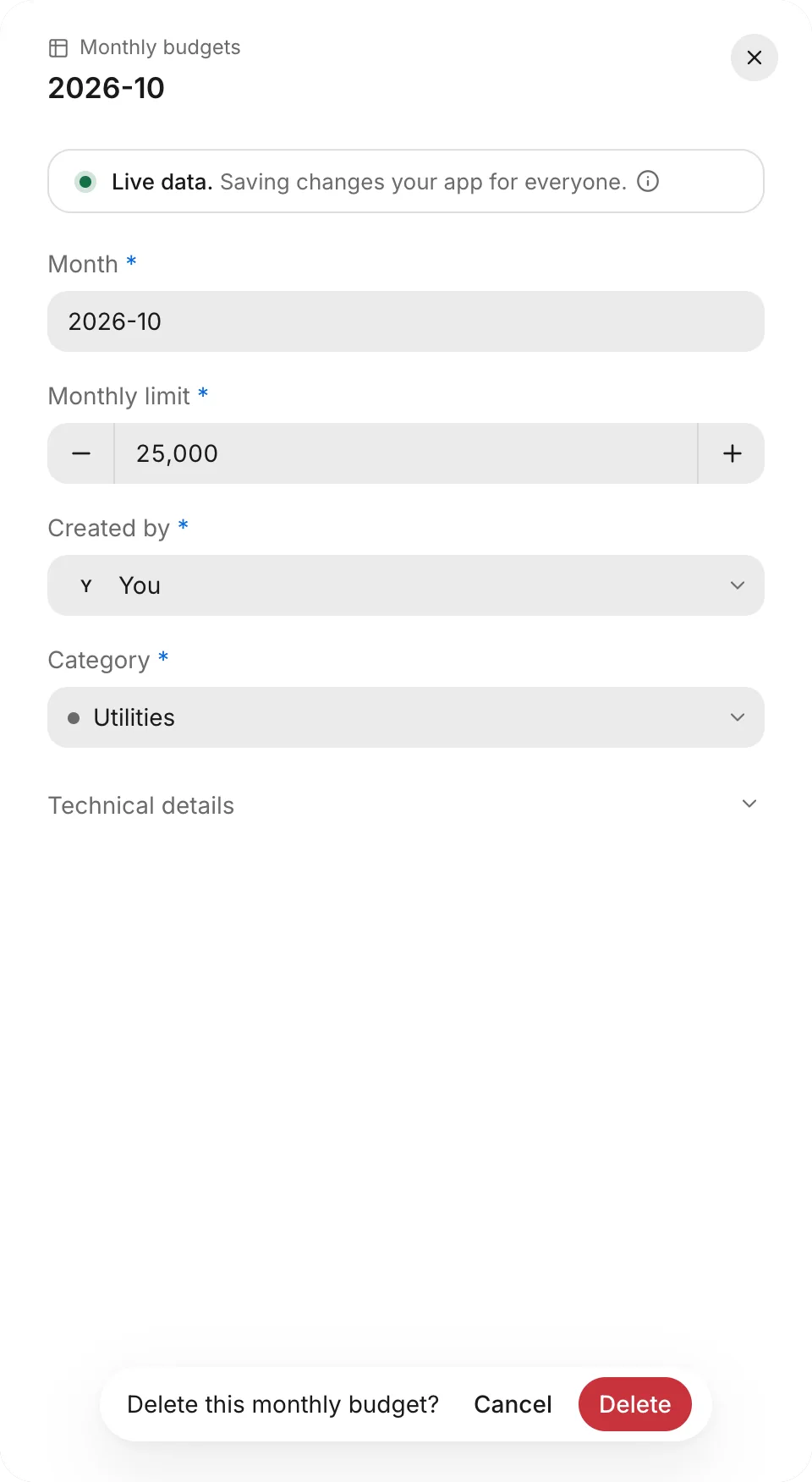
- Click Delete followed by the kind of record, such as Delete task.
- Click Delete to confirm.
To keep the record after all, click Undo in the notification before it closes and before you leave the table.
The builder account
The builder account, shown as You, is a test account for building your app. The preview on Overview can sign in to your app as the builder account, so you see your app as yourself.
When starter rows owned by the builder account (You) reach your live data, FlutterFlow adds the builder account to your live data too. That account stays even if you delete those rows, cannot be deleted, and never appears in People. If your app uses roles and defines an admin role, the builder account receives admin in live data unless it already has another role.
In Backend › Data, a field that links to the builder account shows You.
A thread’s own data can also hold the builder account. A thread’s Data › Accounts lists it as You, and its account form differs from other accounts’ forms:
- You can’t change its Email, because you sign in to the preview with it.
- It has no Password field.
- You can’t delete it.
Troubleshooting
If a deletion fails or a table won’t load, see Troubleshoot data and sign-in.