Troubleshoot data and sign-in
Fields can’t be edited in Backend
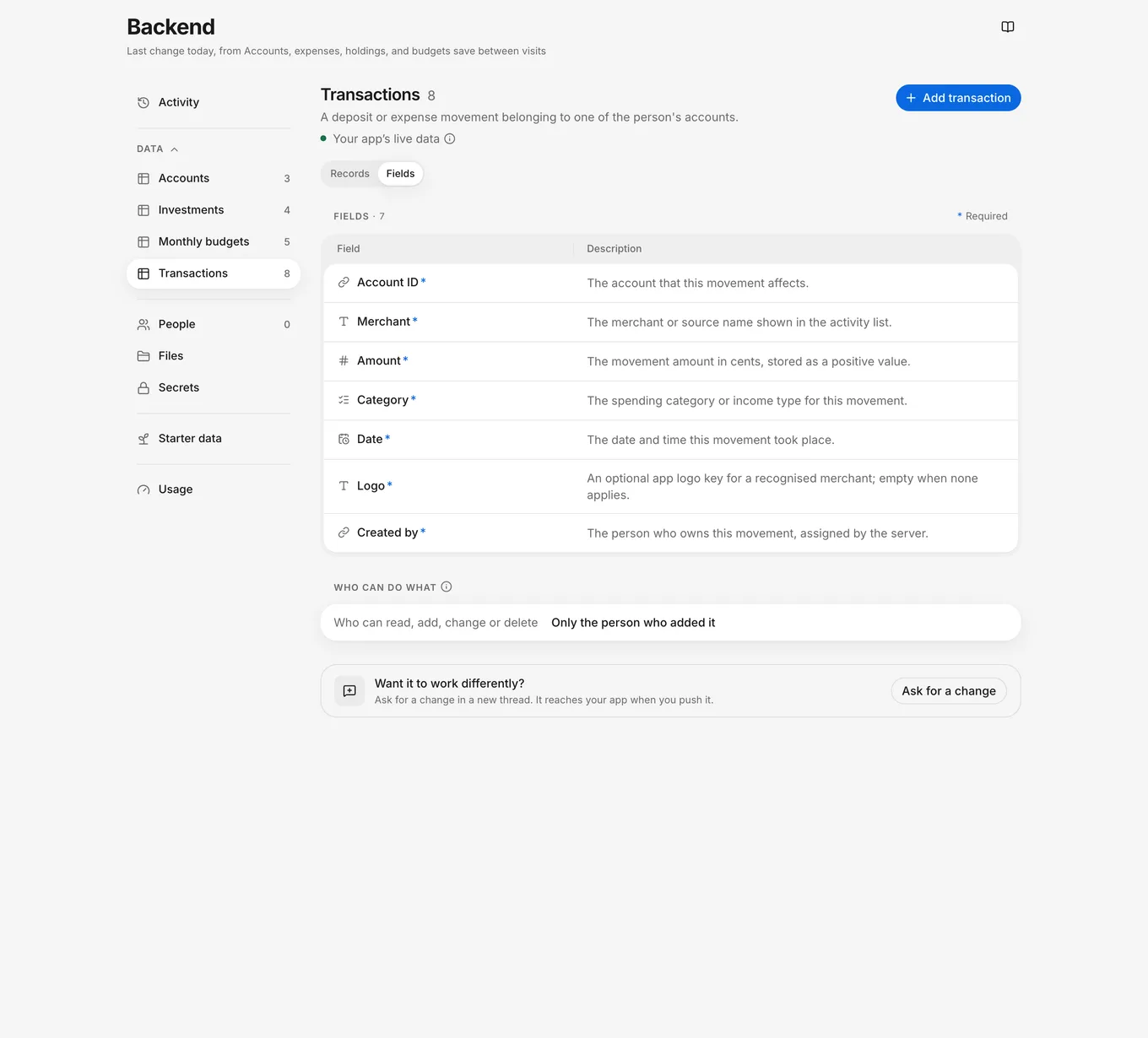
What it means: A table’s Fields view in Backend displays its setup. You change field definitions, sign-in settings, and file rules in a thread.
Fix it:
- Select Ask for a change in the relevant view (requires the owner or developer role, or ask an owner or developer).
- Describe the change you need and check the result in the thread.
- Push the change to your app.
To change a record’s values instead of its fields, use the table’s Records view. See Add, edit, and delete records.
Thread records aren’t in your app or on a share link
What it means: This thread’s data is separate from your app’s live data. A share link uses live data, not the records you edit on a thread’s Data tab.
Your app’s share links, test builds, and Overview preview all use live data. Adding, editing, or deleting data in the Overview preview changes your live data directly.
Fix it:
- Check the records in Backend › Data rather than on the thread’s Data tab.
- Add or edit the record in its table in Backend › Data. Changes there update your live app immediately.
See Live, thread and starter data.
Changing starter data didn’t change live records
What it means: Starter data gives threads sample records to try. After a table receives its initial starter records in your app, later pushes don’t add, overwrite, or remove that table’s live records when starter data changes.
Fix it:
- To change live records, open the table in Backend › Data and edit the records there.
- To include a modified thread record in future threads, turn on Keep for new threads for that record and push the change.
“This thread’s backend settings aren’t valid.”
What it means: The thread’s backend settings failed validation, so you can’t push the thread’s changes.
Fix it:
- Ask the agent in the thread to fix the backend settings.
- Check the changes after the agent finishes, and then push again.
“Couldn’t undo: it changed since”
What it means: You selected Undo, but the record changed after you saved it. Undo stops so it doesn’t overwrite that later change.
Fix it:
- Reopen the record and review its current values.
- Edit the values if needed and select Save to app (or Save on a thread’s Data tab).
See Add, edit, and delete records.
“Couldn’t delete {name}”
What it means: FlutterFlow couldn’t delete the record, person, or secret. The accompanying message, “It’s back in {table}.”, names the list where the item returned: its table, People, or Secrets.
Fix it:
- Find the item in that list and confirm that you still want to delete it.
- Delete it again and check the list to confirm.
See Add, edit, and delete records.
“There’s no table called {table}”
What it means: The table at the address you opened isn’t in your app’s backend settings, for example because a pushed thread removed it.
Fix it:
- Select Go to Activity to review recent backend changes.
- Open the table you need from Backend › Data. To restore a removed table, ask the agent in a thread and check the result before you push.
See Tables and fields.
“Couldn’t load the configuration.”
What it means: FlutterFlow couldn’t read your app’s backend settings.
Fix it:
- Read the details in the message.
- Select Try again.
See Your app’s backend.
“Couldn’t read this change.”
What it means: FlutterFlow couldn’t read this backend change.
Fix it:
- Read the details in the message.
- Select Try again.
See Your app’s backend.
“Couldn’t load the tables”
What it means: The Backend menu couldn’t load the table list. Your tables haven’t been deleted.
Fix it:
- Open a Backend section and look for “Couldn’t load the configuration.”
- Select Try again in that message.
See Your app’s backend.
A file upload is refused
What it means: FlutterFlow refuses a file if it’s empty, exceeds the size limit, or uses a file type that the selected folder doesn’t accept. Uploads also fail when the connection drops or when the folder requires file details that you can’t enter in Backend › Files.
Fix it:
- Read the reason shown for the file in Backend › Files.
- If the file type or size was refused, check Kinds of files and Largest file under Rules. Choose a file that meets the rules, or select another Folder in the upload dialog.
- For “This file is empty.”, choose a file with content. For a connection or temporary storage error, check your internet connection and select Try again.
- To change the folder’s rules, select Ask for a change in Rules, and then check and push the thread’s change before uploading again.
If the message says “This folder needs details about each file that can’t be added here yet.”, retrying the upload won’t supply those details.
See Manage files.
The You account can’t be deleted
What it means: You use the builder account (You) while building your app, so the thread’s account form doesn’t offer Delete for it.
When starter rows owned by the builder account (You) reach your live data, FlutterFlow adds the builder account to your live data too. That account stays even if you delete those rows, cannot be deleted, and never appears in People. If your app uses roles and defines an admin role, the builder account receives admin in live data unless it already has another role.
Fix it:
- To test account deletion, create a separate account in the thread and delete that account.
- Before launch, review the live records you want to keep. See Get your live data ready for launch.
Problems covered on other pages
- A part of a page says “Couldn’t load …” or “Couldn’t read …” (Troubleshoot loading and reconnecting)
- “This thread is stopped, so its data can’t be reached.” (Troubleshoot threads and the agent)
- “This thread’s workspace is stopped, so its data can’t be reached.” (Troubleshoot threads and the agent)