Command palette
The command palette is FlutterFlow’s search box: it finds places, threads, and apps, and runs commands from the keyboard.
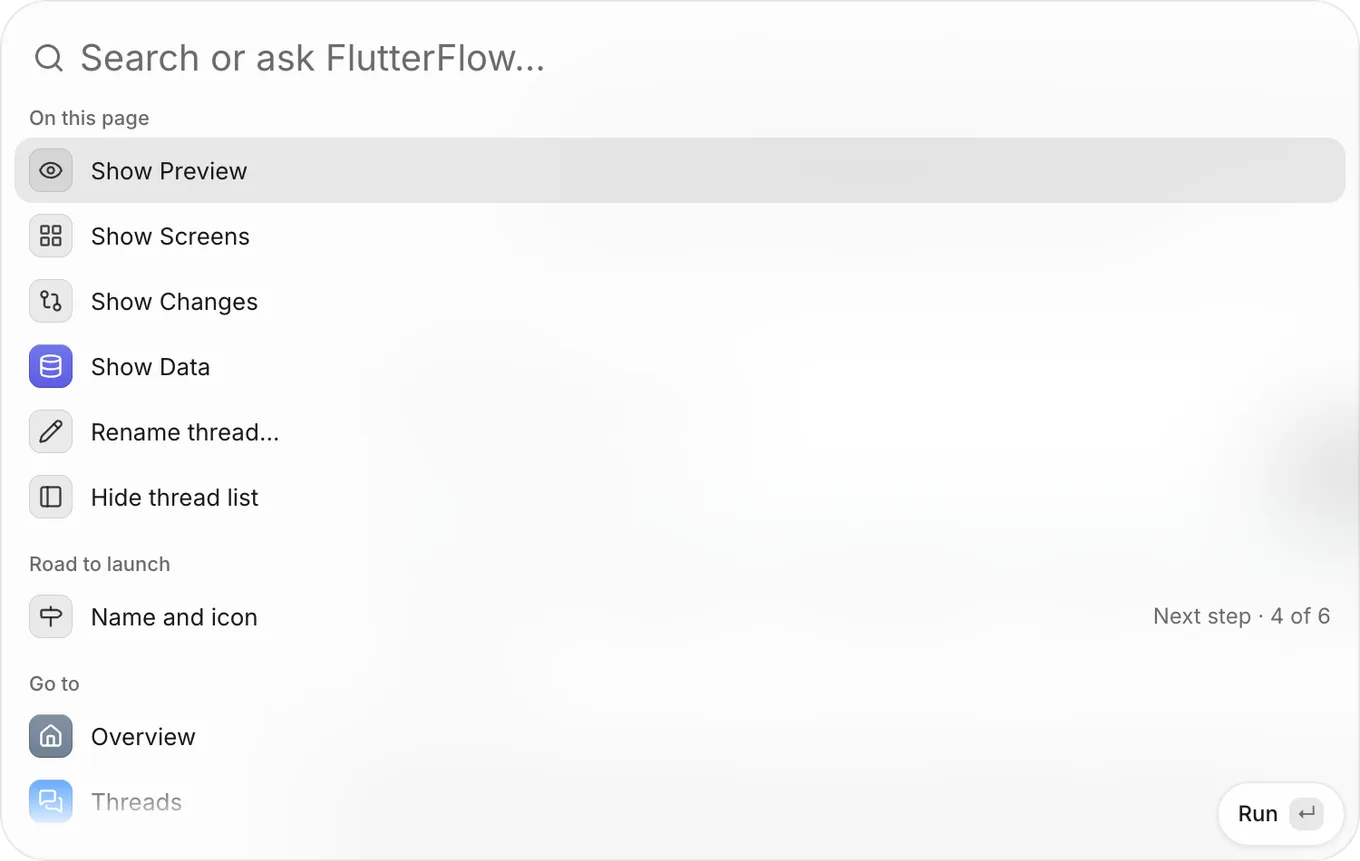
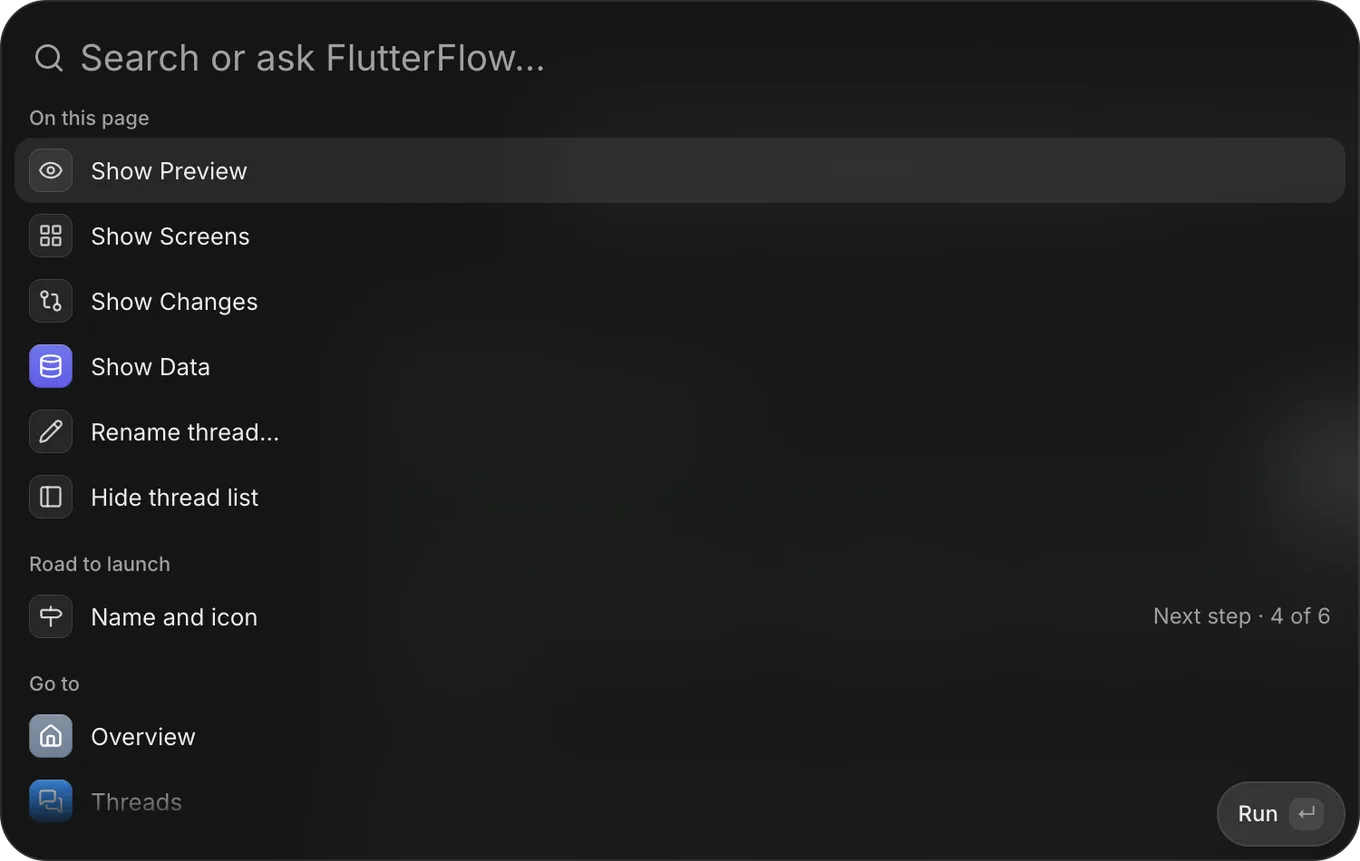
Open the palette
You open the command palette with a shortcut or the Search button. In an app, its search box says “Search or ask FlutterFlow…”. Outside an app, it says “Search projects and settings…”. The following table lists each key and button, and what it does.
| Key or button | What it does |
|---|---|
Command+K (Control+K on Windows) |
Opens the palette, or closes it when it’s open. |
| Search, at the top of the left bar | Opens the palette. |
Enter |
Runs the highlighted command. The button at the bottom of the palette names what Enter does: Open, Run, Switch, Ask, or Open draft. |
Command+Enter (Control+Enter on Windows) |
New tab for a place, which opens it in a new browser tab, or Send now for Ask FlutterFlow. |
Esc |
Closes the palette. |
The shortcut does nothing while the agent is making a first version, or while another menu or dialog is open.
If you reopen the palette shortly after closing it, what you typed comes back, selected, so your next key replaces it.
Search
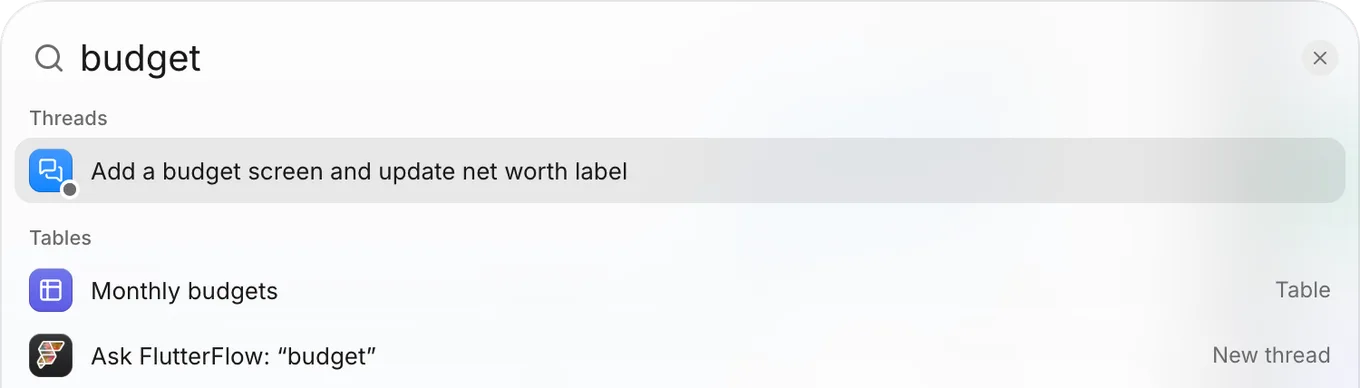
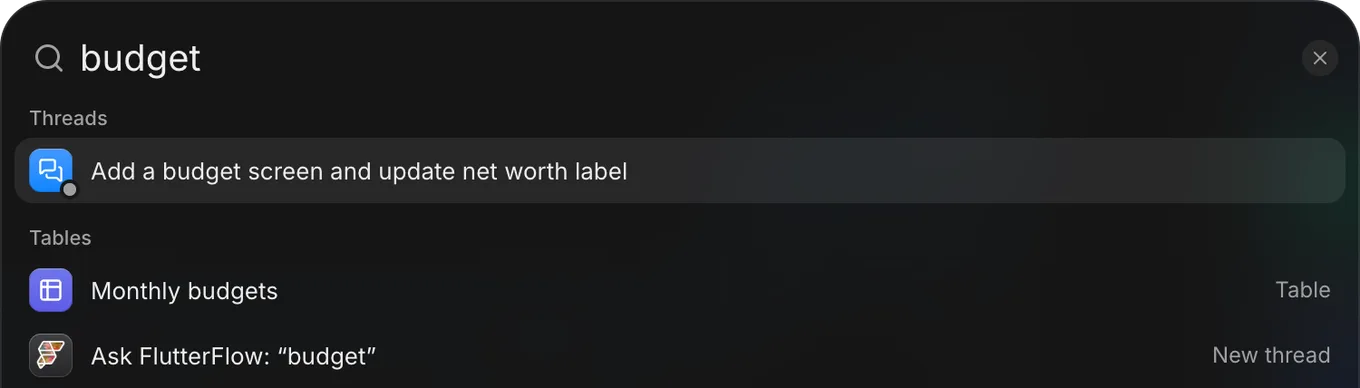
When you type, the palette searches every command together and groups the results, with the group of the best match first. It matches each command’s name, the text at its right, and some related words, so testflight also finds iPhone app and App Store.
- When more than four threads or apps match, Threads and Projects show the best four, then All threads or All apps.
- On Threads pages, matching threads come first.
- In an app, after you type a few characters, the last row is Ask FlutterFlow: “…”, which opens a new thread with what you typed in the message box.
Command+Entersends it at once (From search). The row shows while your allowance lets you send messages.
Before you type
When the search box is empty, the palette shows a short list instead of every command. The following table lists what it shows inside and outside an app.
| Where you are | What the palette shows |
|---|---|
| In an app | On this page (the page’s own commands), Recent, the next Road to launch step, the areas under Go to, and Create. |
| Outside an app | Recent, your apps under Projects with All apps, Create, and Preferences · Account. |
Recent lists the commands that you run most, and recent runs count for more. The palette keeps them for your account in this browser and clears them when you sign out.
Commands
The following table lists each group’s commands and when they show. Text that the palette shows at the right of a command is in parentheses.
| Group | Commands | When they show |
|---|---|---|
| On this page | The current page’s own commands. For a thread page’s commands, see On a thread page. On Overview, the next Road to launch step and Share a preview move here. On some pages, that area’s guide is here too, such as How threads work on Threads or How connections work on Connections. | On pages that have commands of their own |
| Road to launch | The next step’s name (Next step · N of M, or Needs you · N of M when the step needs you) | In an app, until the required steps are done |
| Open the road to launch | While the road to launch is showing (in the left bar on a computer) | |
| Go to | Overview, Threads, Backend, Releases | In an app |
| Design, Analytics, Payments: see Coming soon | In an app | |
| Backend overview, Starter data, Usage (Backend) | In an app | |
| People, Files (Backend) | In an app that has them, when your role can open them | |
| Secrets (Backend) | In an app, when your role can open it | |
| App Store, Google Play, Store listing (Releases) | In an app | |
| Connect FlutterFlow to App Store Connect, Add the app in App Store Connect (App Store); Connect FlutterFlow to Google Play, Add the app in Play Console (Google Play) | In an app | |
| Project settings, Team, Connections, App stores, Emails, Store pictures (Settings) | In an app | |
| Android app, iPhone app (Releases), each opening its store’s page in Releases | In an app | |
| Threads | Up to 50 threads by name: first the ones you’ve opened since the page last loaded (most recent first), then the rest by latest activity, each with its state when it has one (Working, Needs you, Failed, or Unread) | In an app, except the thread you’re on |
| All threads | In an app | |
| Projects | The app you’re in (Current project), your other apps (Enter says Switch), and All apps |
Always |
| Tables | Each of your app’s tables (Table) | In an app that has tables |
| Create | New thread | In an app |
| New app | Always | |
| Share · Stage | Share a preview | On Overview, on New thread, and on threads that you started (on a phone, also on Threads, Backend, Releases, Project settings, and the Coming soon pages) |
| Invite people; Show the app or Hide the app | On Overview and thread pages (on a phone, also on Threads, Backend, Releases, Project settings, and the Coming soon pages) | |
| Fill the stage or Show the app at standard size | While the app is showing beside the page | |
| On your phone | In an app | |
| Preferences · Account | Theme: Light, Theme: Dark, Theme: System (Current beside the one you use) | Always |
| Plan & usage; Connections, App stores (Account); Sign out | Always | |
| Choose a plan | On the Free plan, or when your allowance is spent, you have no refills left, and a higher plan exists | |
| Help | How FlutterFlow works, What’s new, Send feedback | Always |
On a thread page
A thread page adds the following commands under On this page.
| Command | When it shows |
|---|---|
| Stop the run | While a turn is running in a thread that you started |
| Push to your app… | When the thread’s Push to your app button is available |
| Show Preview, Show Changes | When the thread page can show the app |
| Show Screens | When the thread’s preview has Screens |
| Show followed by a screen’s name (Screen or Variants), one for each screen | When the thread’s preview has Screens |
| Show Data | When the thread’s app keeps data |
| Rename thread…, Delete thread… | In a thread that you started |
| Hide thread list or Show thread list | On Threads pages that have a thread list, on a computer |