Manage members
Change what each teammate can do in your app, remove someone from your app’s team, or revoke a pending invitation. Only an owner can change roles, remove teammates, or revoke invitations.
Change someone’s role
To change a teammate’s role:
- Open Project Settings › Team, or click Share and open the People · N tab.
- In Members, click the role on the teammate’s row.
- In the menu, click the new role.
If you change your own role, FlutterFlow asks you to confirm. Click Change my role. Only another owner can change it back.
Remove someone
To remove a teammate from your app:
- Open Project Settings › Team, or click Share and open the People · N tab.
- In Members, click the role on the teammate’s row.
- Click Remove from project.
FlutterFlow removes the teammate right away. The teammate loses access to your app, and an owner can invite them again.
On a phone, open Project settings, tap the teammate’s name under Team, and tap Remove from followed by your app’s name. FlutterFlow asks you to confirm. Tap Remove.
Revoke an invitation
Revoking an invitation disables the link that you sent. To revoke a pending invitation:
- Open Project Settings › Team.
- In Invitations, click Revoke on the invitation’s row.
- In the Revoke the invitation for dialog, click Revoke.
You can invite the same person again. To send a new invitation, see Invite teammates.
The last owner
An app always keeps at least one owner. When an app has only one owner, nobody can change that owner’s role or remove them. The owner’s role menu disables the other roles and shows Make someone else an owner first under Remove from project.
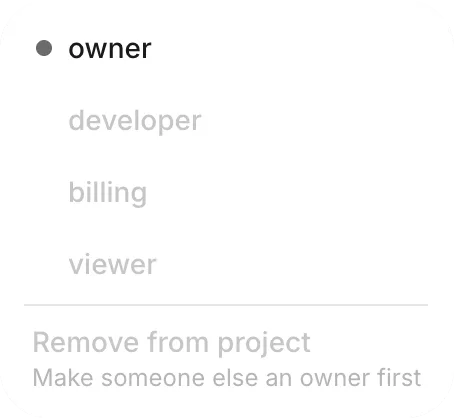
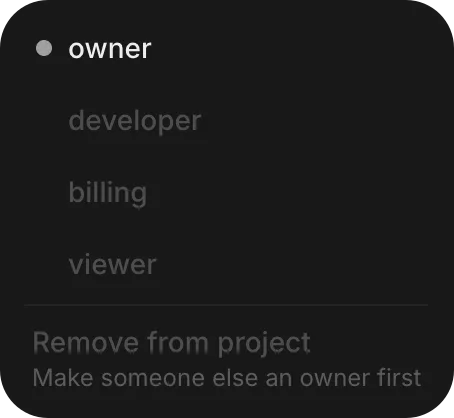
To change the last owner’s role or remove them, first make another teammate an owner. See Change someone’s role.
Leave an app
To leave an app yourself, you must be an Owner and the app must have at least one other Owner. (If you have another role, ask an owner to remove you; if you are the sole owner, make a teammate an owner first.)
In Project Settings › Team or on the People · N tab in Share, click the role on your row, and then click Remove from project.
Hand over an app
To hand an app over to someone else, make them an Owner: invite them with the Owner role, or change their role if they are already on the team. Once they are an owner, you can leave the app, or they can change your role or remove you. Change roles or remove teammates from the role menu on their row in Project Settings › Team or on the People · N tab in Share.
Store accounts are connected to a FlutterFlow account, and only an owner of that account can connect, rename or disconnect them.
Troubleshooting
For problems with invitations, roles, and the last owner, see Troubleshoot teamwork.