Team roles
Each teammate on an app holds one role (Owner, Developer, Billing, or Viewer). The tables on this page list what each role can see and do across the app.
The roles
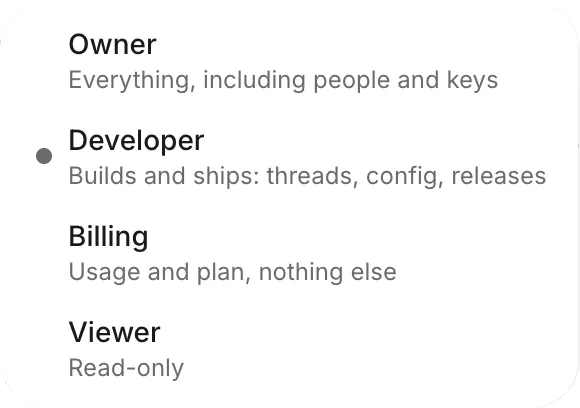
The role menu on Share › People · N and the invitation form show a short description of each role. When an owner invites someone, Developer is selected by default. For the Billing role, see Billing. The following table lists the other roles’ descriptions:
| Role | Description |
|---|---|
| Owner | “Everything, including people and keys” |
| Developer | “Builds and ships: threads, config, releases” |
| Viewer | “Read-only” |
Threads
Only owners and developers can start threads:
| Action | Owner | Developer | Viewer |
|---|---|---|---|
| Start a thread | Yes | Yes | No |
| Open a teammate’s thread and follow it | Yes | Yes | Yes |
Teammates with the Viewer or Billing role can click New thread, but the thread won’t start; the message box shows “You don’t have permission to do that.” and “Ask an owner of this project.”
Each thread belongs to its creator, regardless of the role of any teammate who opens it. Only the creator can send messages, answer the agent, edit the thread’s data, and push the thread. See Only the person who started a thread can act in it.
Backend
Your role controls which sections of Backend appear and whether you can edit them:
| Action | Owner | Developer | Viewer |
|---|---|---|---|
| See tables and their records | Yes | Yes | Yes |
| See People, Files, and Secrets | Yes | Yes | No |
| Change records, people, and secrets, and upload files | Yes | Yes | No |
Viewers see a View only chip next to the Backend title. See What each role sees.
Releases
Your role controls access to store status, versions, and store settings in Releases:
| Action | Owner | Developer | Viewer |
|---|---|---|---|
| See store status and versions | Yes | Yes | No |
| Send versions to testers and submit them for review | Yes | Yes | No |
| Connect a store for the app, choose the store account that it uses, and set its App ID | Yes | No | No |
In Releases, viewers see only “Only owners and developers can see releases for now.”
Store accounts belong to your FlutterFlow account rather than to a single app, and only a FlutterFlow account owner can connect, rename, or disconnect them. See Store accounts.
Connections
Only an app owner can connect a service in Project Settings › Connections, replace its key, or disconnect it. Developers and viewers see “Only a project owner can connect services. The ones connected here work for you in chat and in the app.” See Who can connect.
Share
The Share panel holds your app’s share link and lists your app’s team on its People · N tab.
Only an Owner or Developer can get or change a share link, and only a thread’s creator can share that thread’s version.
- In a thread you didn’t create, Share › Link shows “Only the creator can share this thread’s version.” Owners and developers can still get the app’s main link by opening Share outside the thread.
- Outside a thread, teammates with the Billing or Viewer role see “The link could not be retrieved.” in Share › Link. Ask an Owner or Developer for the link.
Team and Project Settings
Your role controls what you can manage for the app and its team in Project Settings › Team and Share › People · N:
| Action | Owner | Developer | Viewer |
|---|---|---|---|
| Invite people, change roles, remove someone, and revoke invitations | Yes | No | No |
| See and change the emails in Project Settings › Emails | Yes | Yes | No |
| Delete the app, or restore it after it’s deleted | Yes | No | No |
In the team list, developers and viewers see “Only an owner can invite people or change roles.” In Project Settings › Emails, viewers see “Emails are for owners and developers”.
Every app needs at least one owner. An app’s only owner can’t change their own role or be removed. See The last owner.
To invite someone or change a role, see Invite teammates and Manage members.
Billing
The Billing role grants access only to app usage. In Backend, teammates with this role see only Usage (marked with a Usage only chip), without access to threads, tables, or emails. Releases shows “Only owners and developers can see releases for now.”
Although the role picker describes Billing as “Usage and plan, nothing else”, plans and allowances are personal: each person manages their own under Plan & usage in their account menu.