App name and launch screen
Set the name that your team sees in FlutterFlow, the name that users see on their phones, and your app’s launch screen colors.
Project name and App name
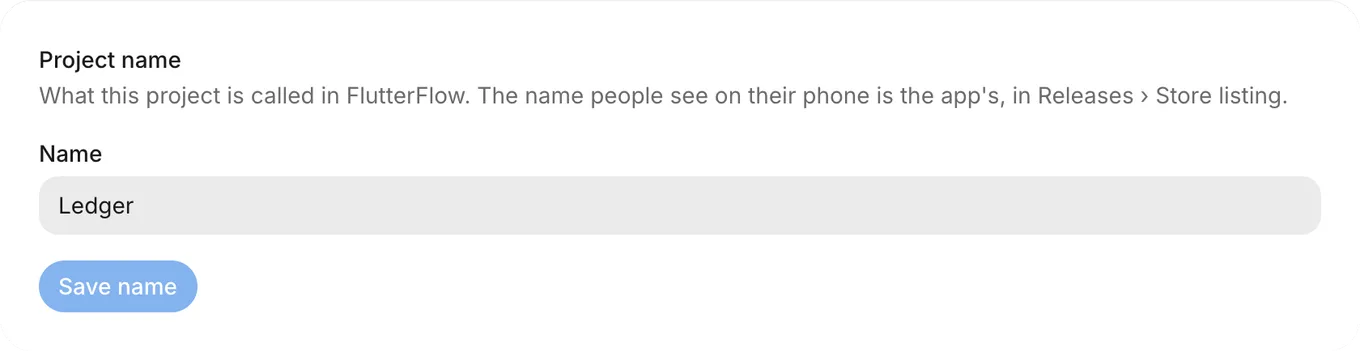
Project name identifies the app for your team inside FlutterFlow (which calls your app’s workspace a project).
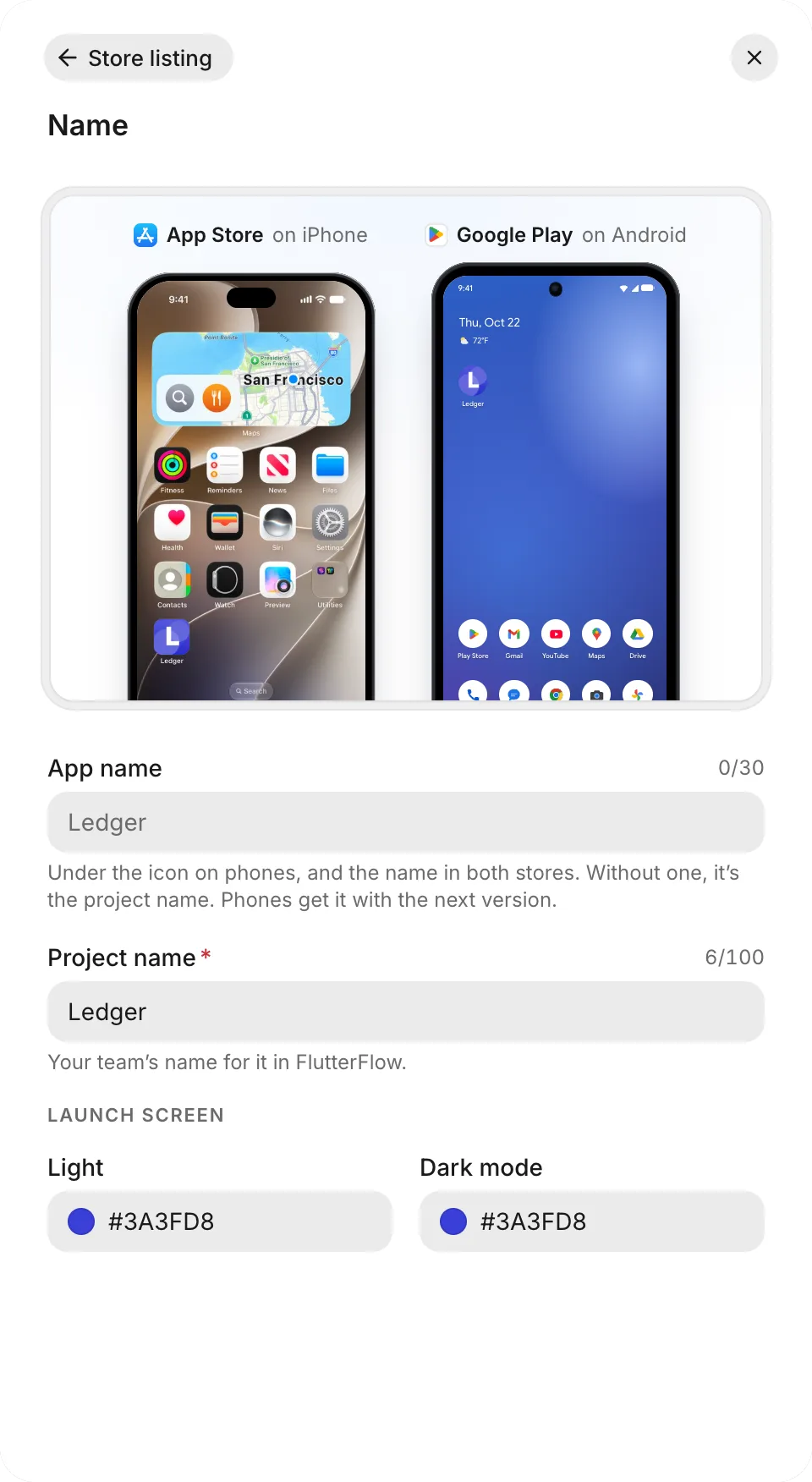
App name can be up to 30 characters and appears under the app icon on phones and in both stores. When App name is blank, FlutterFlow uses Project name, truncated to 30 characters in the stores if Project name is longer. Setting a separate App name lets you rename the project in FlutterFlow without changing the public name on phones.
Rename the project
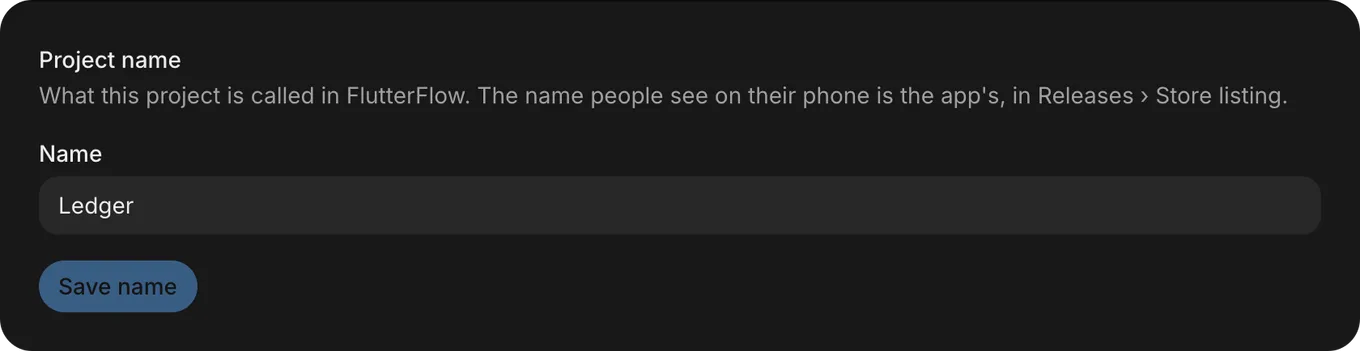
To change Project name:
- Open Project Settings › General.
- In Name, enter the new name.
- Click Save name.
Only an owner or a developer of the app can change its Project name.
Name on phones
To change App name:
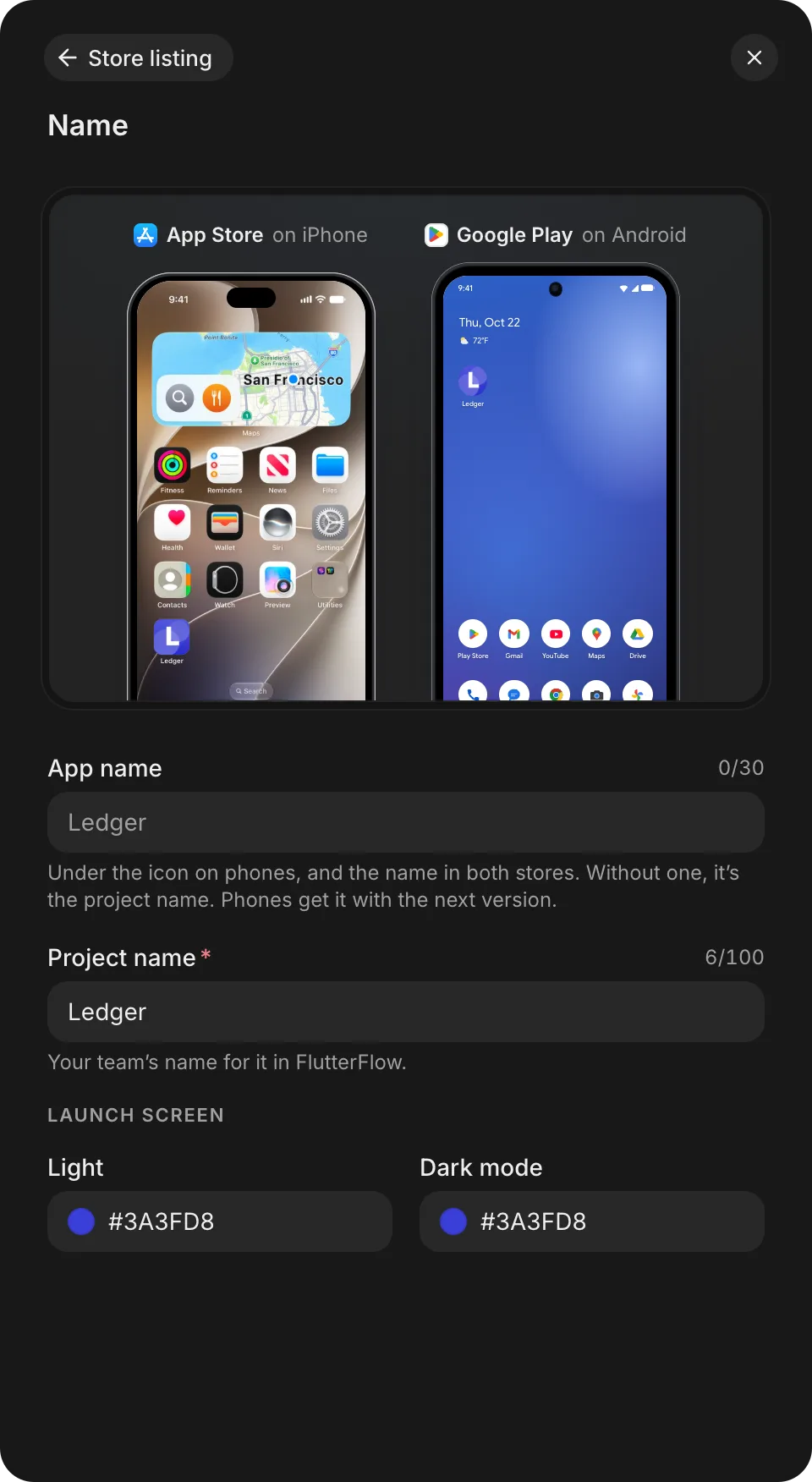
- Open Releases › Store listing › Name.
- In App name, enter the name.
- Click Save changes.
Phones get the new name with your next version.
Launch colors
The Launch screen section is in Releases › Store listing › Name. For the terms used in this section, see share link and thread in the glossary.
Under Launch screen, Light sets the background of your app’s share link page while the app loads, and on a computer it fills the area around the phone frame. Dark mode replaces it when a visitor’s device uses dark mode, and browsers that tint their toolbar use the same colors. Phone builds, including store builds, may not show either color on a launch screen, but their app icon can use the Light color.
An app icon that follows your theme color uses Light only when Light has a hue. If Light is gray or near-gray (including black, white, or a new app’s default dark gray), FlutterFlow picks a color for the icon. The Dark mode color never affects the icon. New phone builds use the updated icon, so the App Store and Google Play get it with your next release.
To make your icon follow your theme color, open Releases › Store listing › App icon, open Color, and pick the first swatch (or click Follow theme when shown). Click Use this icon to save your changes. While your own PNG is the icon, Color reads Not used and stays closed.
Changing either launch screen color leaves your app’s screens unchanged; to recolor your screens, ask the agent in a thread. Asking the agent to change your brand or theme colors can also update Light. If nobody changes Light before your first version finishes, FlutterFlow can set it to the main color of your app’s light theme.
To set the launch colors:
- Open Releases › Store listing › Name.
- Under Launch screen, select a color for Light and Dark mode.
- Click Save changes.
Where the name comes from
When you create an app, FlutterFlow sets the initial Project name from the opening words of your prompt, or uses New app if it can’t derive one.
While the first version builds and the thread page stays open, FlutterFlow replaces Project name with the name that it generates for your app. To choose your own name, rename your app after the first version finishes.
Troubleshooting
For help with your app’s look, see Troubleshoot your app’s look. For help with Releases, see Troubleshoot releases.