Road to launch
Road to launch is the checklist on your app’s Overview page that guides your app from its first version to the App Store and Google Play.
Each step checks off when your app meets its requirements.
Open Road to launch
Open the Road to launch from any of these places:
- Overview: the Road to launch card at the top of the side column shows how many steps are done (such as 4 of 6) and names the next step (such as Next: name and icon). Click the card to open the list.
- The rail: while required steps remain, a progress ring appears above Project Settings. Click the ring to open the list.
- Search: while required steps remain, click Search on the rail or press
Control+K(Command+Kon macOS), and select Open the road to launch.
The progress count includes only required steps, not Optional ones. When a step needs your input, the card says Needs you: instead of Next: and opens that step first. When every required step is done, the card shows Every step is done and stays on Overview for one week before it disappears.
Work through the steps
To work through the Road to launch:
- Open the Road to launch. The next step expands automatically and shows its status and button.
- Click the step’s button to go to where the work happens: a new thread, Releases, or Share.
- Follow the docs page for that step (listed in the next section).
While a thread is working on a step, the step’s button shows Open thread and opens that thread.
The steps
The Road to launch lists its steps in the following order. To remove Save data between visits or Let people sign in from the list, click Options in the Road to launch, and under Steps for this app, turn off Save data or Sign-in. Turning off both stores in Releases removes Launch in the stores.
Make the first version
The agent builds your app’s first version from your prompt. Before you start, the button says Describe your app. This step completes when your first version is ready.
See Your first version.
Change something with the agent
Ask the agent for a change in a thread, and then push it to your app. The step’s button is Start a thread. This step completes after you push a change.
See Your first change.
Save data between visits
This step is done when your app has a backend, and it lists your app’s tables, such as “3 collections: Expense, Budget, Category.”
Your first version comes with a backend: a table for each kind of record your app shares or keeps across devices, filled with starter data, and sign-in with an email and password. When people can add pictures to a record, its sample pictures are saved in Backend › Files, along with the ones people add. To change any of this, ask the agent in a thread.
Let people sign in
This step is done when your app has sign-in, and it shows the ways that people can sign in: “Email and password and Guest sign-in.” After people sign up, it also shows how many.
See Add sign-in.
Name and icon
Give your app the name and icon that people see. The step’s button, Open store listing, opens Releases › Store listing. This step completes when your app has an icon.
See App icon and App name and launch screen.
Launch in the stores
Take your app to the App Store and Google Play. This step shows your app’s next action in Releases. The step’s button, Open Releases, opens Releases.
See Launch checklist.
Add a teammate (optional)
Invite someone to build your app with you. The step’s button, Invite someone, opens Share on the People tab. This step completes when your app has more than one person.
See Invite teammates.
Share a link (optional)
Send a link to your app or open it on your phone. The step’s button, Share a link, opens Share on the Link tab. This step completes when you turn on your app’s share link.
See Share a link.
Hide Road to launch
To remove the Road to launch card from Overview:
- On Overview, open the Road to launch card.
- Click Options.
- Click Hide from Overview.
While required steps remain, you can still open the list from the progress ring on the rail.
To put the card back on Overview, open the list from the rail, click Options, and then click Show on Overview.
Turn steps on or off
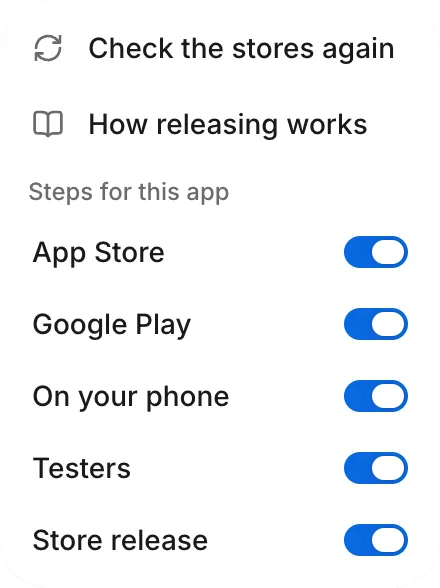
In Releases, Steps for this app sets which stores and release steps your app uses. Only owners and developers can change it (see Team roles):
- Go to Releases.
- In the header, click Options.
- Under Steps for this app, turn App Store, Google Play, On your phone, Testers, or Store release on or off.
Turning off a release step removes it from the steps in Releases. Turning off both App Store and Google Play removes Launch in the stores from the Road to launch.
Choices stay in this browser
Your current browser saves which steps you hide or turn off in the Road to launch and in Releases. Your teammates’ lists don’t change, and signing in from another browser or device shows every step and the Overview card again.
Next steps
Open the Road to launch and click the next step’s button. To get ready for the stores, see Launch checklist.
Troubleshooting
If the work for a Road to launch step shows a problem message, see Fix a problem.