Delete or restore an app
Delete an app you no longer need from its Project Settings.
Only an owner of the app can delete it or restore it. Other teammates don’t see the option to delete it.
Delete an app
To delete an app, follow these steps:
- Open Project Settings › General.
- Under Delete this project, click Delete project.
- In the Delete “Ledger”? dialog (with your app’s name), click Delete project.
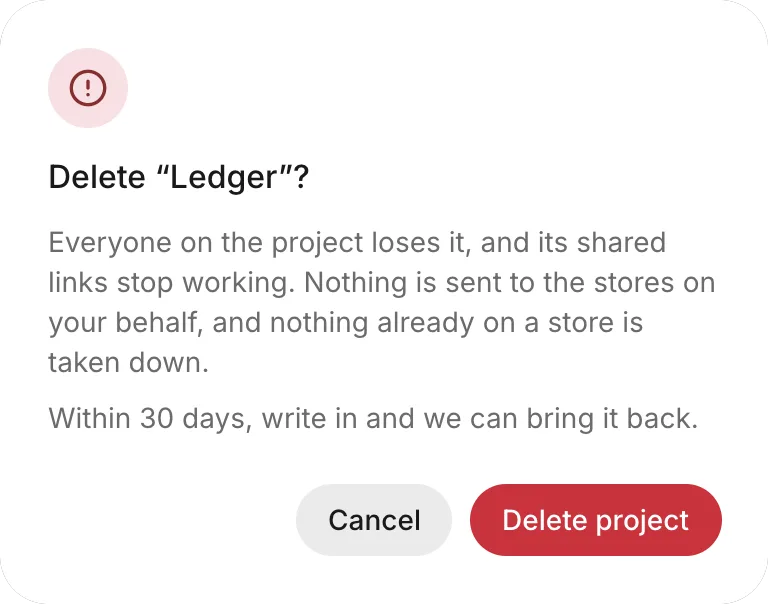
FlutterFlow takes you to Home, and the app is no longer in Your apps.
What deleting does
Deleting an app affects its data, its team, and its links, but not the stores:
- The app’s threads, backend, and data go with it.
- Everyone on the app’s team loses access to it.
- The app’s share links stop working.
- FlutterFlow sends nothing to the stores for you, and nothing already on a store is taken down.
Restore an app
Right after you delete an app, Home shows Deleted Ledger (with your app’s name) and an Undo button. To restore the app and open it, click Undo. If that fails, Couldn’t restore Ledger appears with the reason.
For 30 days after you delete an app, an owner can also restore it from the app’s address in FlutterFlow, for example from a bookmark or your browser history:
- Open the app’s address. FlutterFlow shows This app was deleted, with the day the app was deleted and the day it can be restored until.
- Click Restore.
Teammates who aren’t owners see the same screen without Restore. After the restore window ends, the screen says “It can no longer be restored.”