Features by area
This page maps each area, menu item, and settings page in FlutterFlow to the docs page that covers it. Some items appear only for some roles or plans, only on a wider screen, or only after your app has something for them to show.
Left bar
On a wider screen, the left bar runs down the edge of the screen inside an app. A phone has no left bar. Instead, Menu opens a drawer with Your app, Overview, Releases, Backend, Project settings, and your threads. Your picture at the bottom of the drawer opens You. The Coming soon menu isn’t on a phone.
| Item | Docs page |
|---|---|
| Search | Command palette |
| Overview | Overview page |
| Threads | How threads work |
| Backend | How the backend works |
| Releases | How releasing works |
| Coming soon | Find your way around |
| Road to launch | Road to launch |
| Project Settings | Project Settings |
| Send feedback | Send feedback |
| Your picture | Account menu |
| Menu on a phone | Use on a phone |
Top of the screen
On a wider screen, the top of the screen inside an app holds the app’s name on the left and its main actions on the right. On a phone, the top bar holds Menu and the page’s own actions, and the app’s name is at the top of the drawer. For the phone layout, see Use on a phone.
| Item | Docs page |
|---|---|
| The app’s name | Find your way around |
| New thread | Start a thread |
| The last thread you visited | Find your way around |
| Share | Share |
| The usage ring | Plans, prices and allowance |
| Show the app | Preview |
Home
Home appears outside any app.
| Item | Docs page |
|---|---|
| The box for a new app’s prompt | Write a prompt |
| Invitations to other people’s apps | Accept an invitation |
| Your apps | Find your way around |
Overview
Overview is the first page of each app.
| Item | Docs page |
|---|---|
| Overview as a whole | Overview page |
| How FlutterFlow works | How FlutterFlow works |
| Your app’s icon | App icon |
| Road to launch | Road to launch |
| Sign-ups | People |
| Threads and All threads | Organize threads |
| In the stores | Release status |
| Backend | How the backend works |
| Team | Work together |
| The changes waiting for the next release | Release an update |
Threads
Threads holds your app’s thread list and each thread’s conversation with the agent.
| Item | Docs page |
|---|---|
| How threads work | How threads work |
| The thread list | Organize threads |
| The thread list’s View options | Organize threads |
| Edit threads on a phone | Organize threads |
| New thread | Start a thread |
| The agent’s questions and choices | Agent questions |
| Push to your app | Push |
| The stage’s Preview tab | Preview |
| The stage’s Screens tab | Screens |
| The stage’s Data tab | Thread data |
| The stage’s Changes tab | What changed |
| The stage’s Choose tab | Agent questions |
| A thread’s menu: Rename… and Delete thread | Organize threads |
| A thread’s menu: Rate this thread… | Send feedback |
Backend
Backend holds everything your app stores, organized across the sections of its menu.
| Item | Docs page |
|---|---|
| How the backend works | How the backend works |
| Activity | Backend activity |
| Data: a table’s records | Records |
| Data: a table’s Fields | Tables and fields |
| People | People |
| Files | Files |
| Secrets | Secrets |
| Starter data | Live, thread and starter data |
| Usage | Backend usage |
Releases
In Releases, you build phone apps and take them through testing and store review.
| Item | Docs page |
|---|---|
| How releasing works | How releasing works |
| The Releases page as a whole | Release status |
| App Store | Connect App Store Connect |
| Google Play | Connect Google Play |
| Store listing | App details |
| On your phone: the Android app | Android test build |
| On your phone: the iPhone app | iPhone test build |
| The options menu’s Check the stores again | Release status |
| The options menu’s Steps for this app | Road to launch |
Share
Share, at the top of the screen, opens a panel with two tabs.
| Item | Docs page |
|---|---|
| Link | Share a link |
| People | Invite teammates |
Project Settings
Project Settings holds your app’s settings in six sections: General, Team, Connections, App stores, Emails, and Store pictures.
| Item | Docs page |
|---|---|
| General: Project name | App name and launch screen |
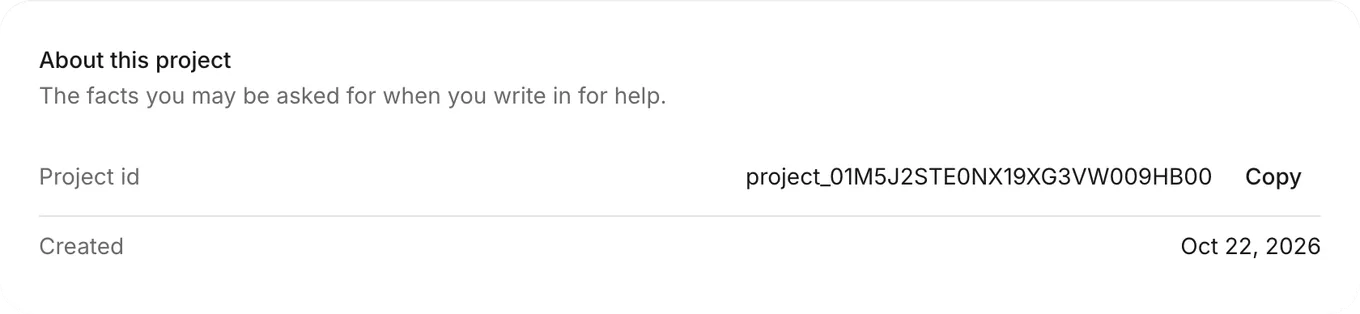
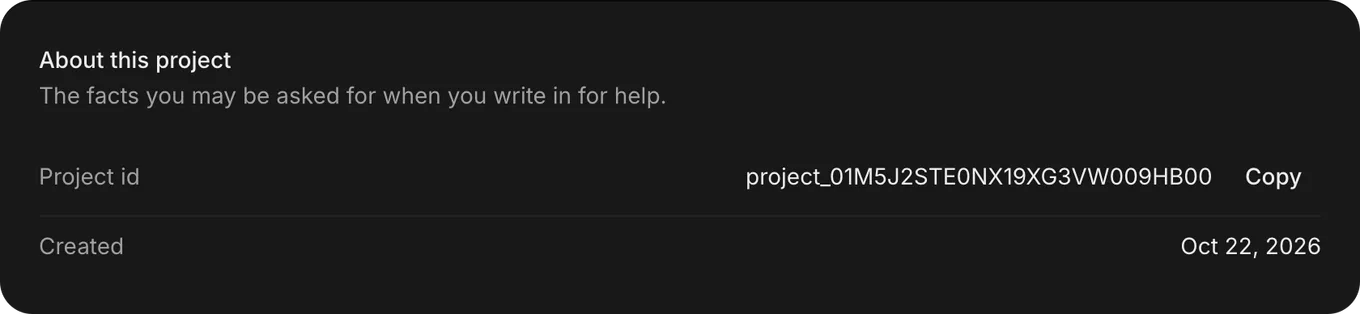
| General: About this project | Project id and Created |
| General: Delete this project | Delete or restore an app |
| Team: Invite someone and Invitations | Invite teammates |
| Team: Members | Manage members |
| Connections | Connect a service |
| App stores | Connect App Store Connect and Connect Google Play |
| Emails | Password reset email |
| Store pictures | Agent cards |
Project id and Created
Project Settings › General › About this project shows two facts about your app: its Project id and when it was Created.
| Item | What it shows |
|---|---|
| Project id | Your app’s ID. To copy it, click the copy button beside it. |
| Created | The date your app was created. |
Account
Account holds your personal settings, which apply across every app. Open it from the account menu, and use its back link to return to where you were.
| Item | Docs page |
|---|---|
| Profile | Profile |
| Plan & usage | Plans, prices and allowance |
| Plan & usage: Change plan | Change plan |
| Plan & usage: Cancel plan | Cancel plan |
| Plan & usage: Refill now | Refill allowance |
| Plan & usage: Manage billing | Billing and invoices |
| Connections | Tools for the agent |
| App stores | Store accounts |
Account menu
To open the account menu, click your picture. It’s at the bottom of the left bar inside an app, or at the top right on Home. On a phone, your picture opens You, your account’s sheet, instead of this menu.
| Item | Docs page |
|---|---|
| An invitation to someone else’s app | Accept an invitation |
| Your allowance | Plans, prices and allowance |
| Account settings | Profile |
| Plan & usage | Plans, prices and allowance |
| Connections | Tools for the agent |
| App stores | Store accounts |
| How FlutterFlow works | How FlutterFlow works |
| What’s new | What’s new |
| Send feedback | Send feedback |
| Theme | Find your way around |
| Sign out | Find your way around |