Your first share
In this tutorial, you share your app with a link, add it to a phone’s Home Screen, and install an Android test build on an Android phone.
What you’ll build
You put your app on a phone in two ways: as a web app on the Home Screen, opened from its share link, and as an Android app that you install yourself.
Share the link
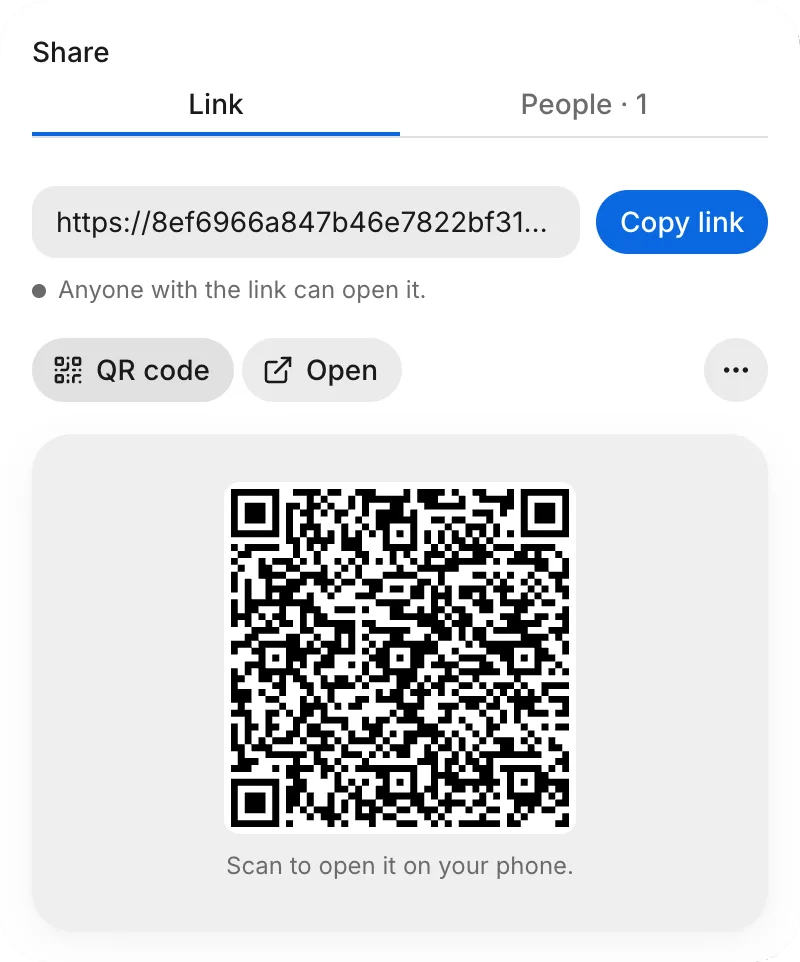
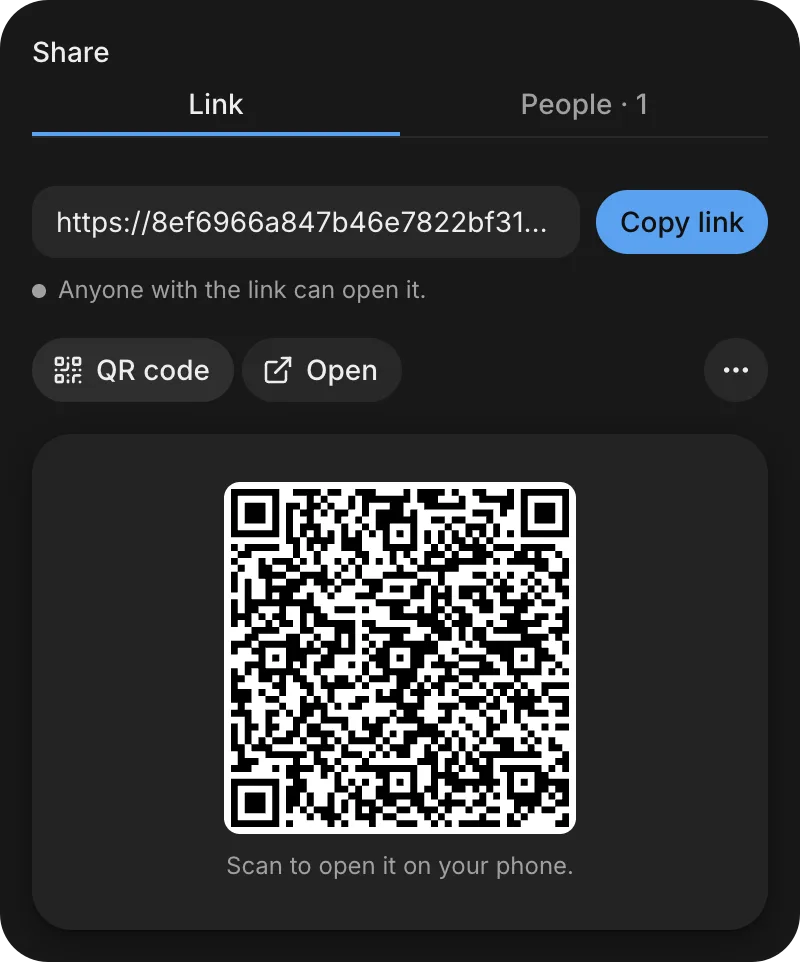
Your app’s share link opens your app in a browser for anyone who has the link.
- In FlutterFlow on your computer, open your app and click Share.
- To send the link to someone, click Copy link, and then paste the link into a message to them.
Open it on a phone
The Link tab has a QR code that opens your app on a phone.
- On the Link tab, click QR code.
- Scan the QR code with your phone’s camera, and open the link.
Add it to the Home Screen
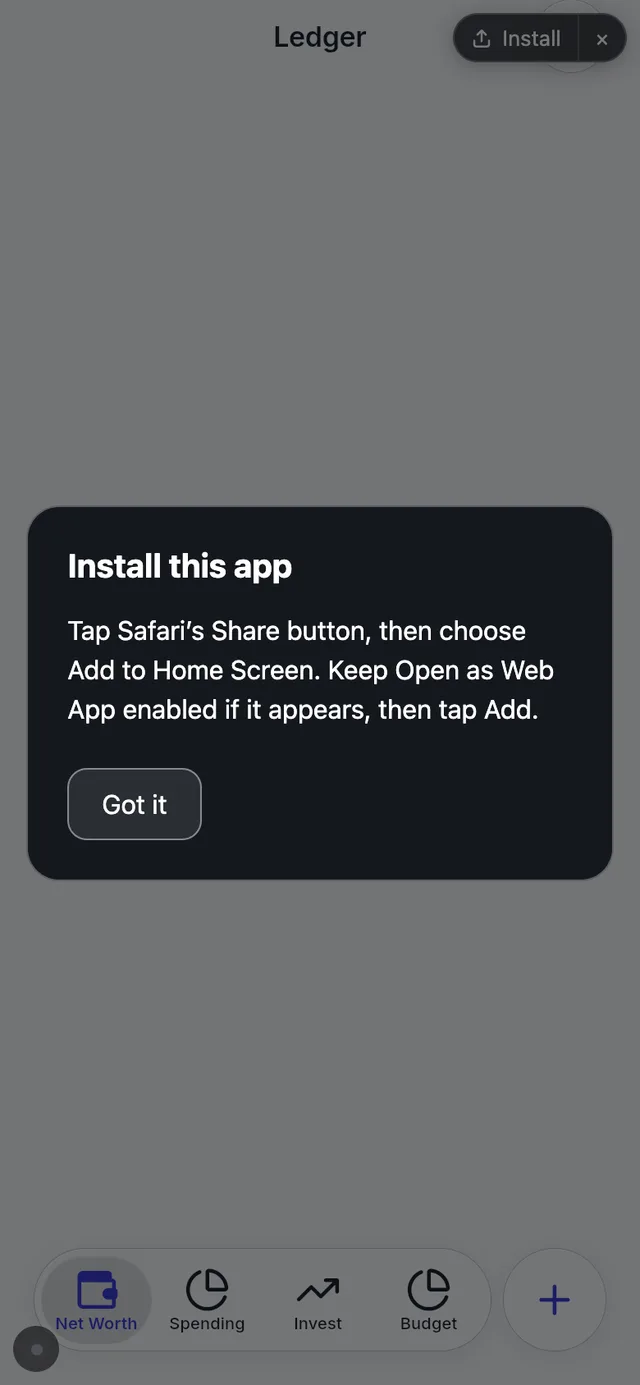
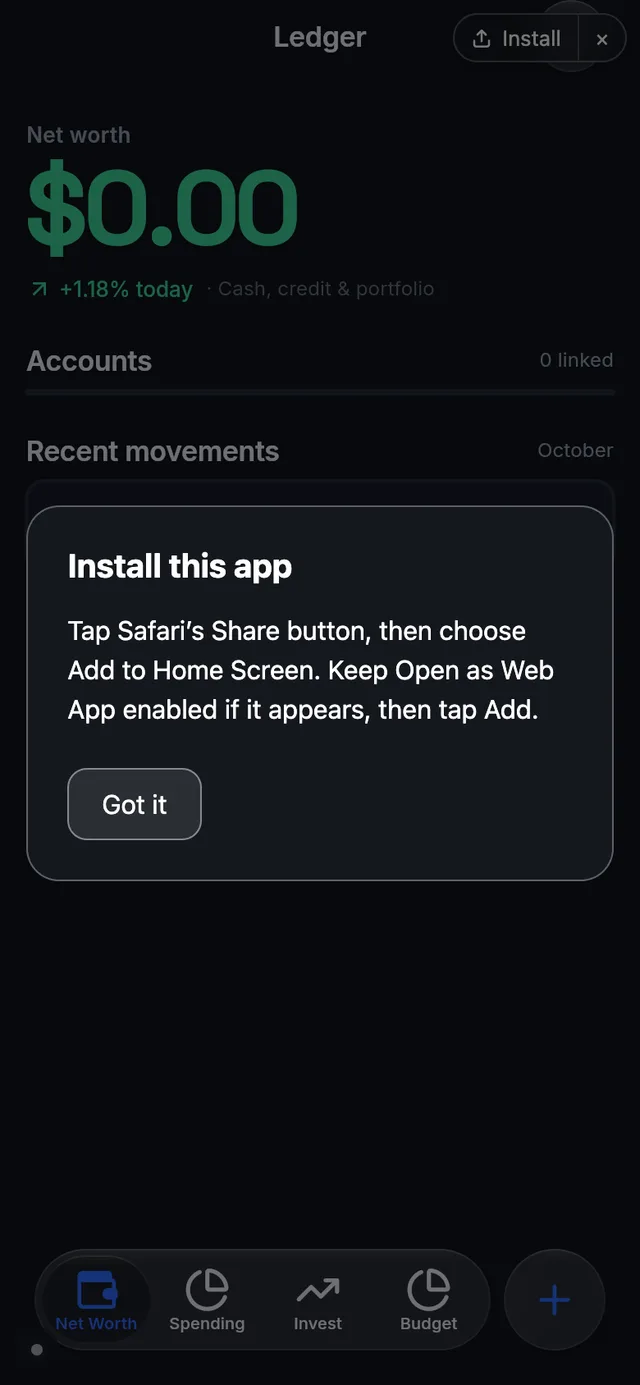
After your app opens on your phone, you can add it to the phone’s Home Screen so that it opens full screen, like any app.
-
Follow the steps for your phone:
- iPhone, in Safari: Tap Install to open Install this app. Tap Safari’s Share button, and choose Add to Home Screen. If Open as Web App appears, keep it on, and then tap Add. Tap Got it.
- Android, in Chrome: Tap Install, and follow the steps that Chrome shows to install the app.
-
Open your app from the Home Screen.
For iPhone steps in Chrome, see Add to Home Screen.
Install the Android test build
A test build is an Android app that FlutterFlow builds from your app and that you install on your own phone.
-
In FlutterFlow on your computer, open Releases, and then click On your phone.
-
In the Android app row, click Prepare Android app.
The row says Preparing app… while FlutterFlow builds the app.
- Check: The Android app row says Ready, and On your phone shows a QR code to download the app.
On your phoneScan with your Android phone’s camera to download the app.Open the downloaded .apk file on your Android phone. If Android asks, allow your browser to install apps, then tap Install.Android appReady · 0.1AiPhone appConnect your Apple Developer account to continue.You can also preview your app in Safari using a Share link.Open ShareI only have an iPhone -
Scan the QR code with your Android phone’s camera to download the app.
-
Open the downloaded
.apkfile on your Android phone. If Android asks, allow your browser to install apps, and then tap Install.
Next steps
To give your app a backend with saved data and sign-in, see Your first backend.