Organize threads
Organize your app’s threads so that the ones that need you are easy to spot, and the rest are easy to find, rename, or delete.
The thread list
The thread list shows your app’s threads in three groups, each sorted by latest activity:
- Needs you: the agent asked a question or is waiting on you to act on a card it showed (such as connecting a service or adding a key), your push waits for your answer, or the thread stopped and you haven’t opened it in this browser since.
- In motion: the agent is starting, working, or pushing the thread’s changes to your app.
- Recent: every other thread.
Status rings
Each row starts with a ring that shows the thread’s state:
| Ring | What it means |
|---|---|
| Amber, with a dot | Needs you: the agent asked a question or is waiting on a card, or your push waits for your answer. |
| Red, with a dot | Needs you: the thread stopped, and you haven’t opened it in this browser since. |
| Blue, with a turning arc | Working: the agent is starting or working. |
| Green, with a turning arc | The agent is pushing the thread’s changes to your app. |
| Blue, with a dot | Unread: the thread finished after you last opened it in this browser. Its name is bold. |
| Gray | Finished, or stopped and you’ve opened it in this browser since. A stopped thread’s line and hover card still say Stopped. |
| Green | All in your app: the thread finished, you’ve read it, and all its work is in your app. |
Row lines
Under each thread’s name, one line says what’s happening: the question the agent asked or the title of the card it’s waiting on (such as Connect Stripe), Your push waits for your answer, the step the agent is on and how long it’s been running, Pushing to your app, Stopped, or the agent’s last reply.
A row shows its line only when the thread needs you. To see the rest, hold the pointer over the row. A card opens with the full name, the status in words, who started the thread, and whether its work is in your app.
To the right of the name, a row also shows:
- A green merge mark and a number, after the thread pushes to your app: how many times it pushed.
- A teammate’s avatar, on a thread that a teammate started.
- How long ago the thread was last active.
Filter the list
Change the list’s grouping and hide threads that you don’t need to see:
- Click View options (the filter icon) above the list.
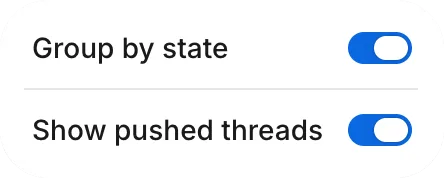
- Turn any of these switches on or off:
- Group by state: when it’s on, the list shows Needs you, In motion, and Recent. When it’s off, the threads appear in a single list, sorted by latest activity.
- Show pushed threads: when it’s off, the list hides threads that have a green ring, whose work is all in your app.
- Only mine (shown when teammates have threads in the list): when it’s on, the list hides threads that teammates started.
FlutterFlow keeps your view for each app in this browser. When the view hides threads, a note at the end of the list says how many, such as 3 pushed threads hidden. To show them again, click Show.
Find a thread
To find a thread by words in its name, press Command+K (Control+K on Windows) and type part of the thread’s name.
List size
The thread list holds your app’s 50 most recent threads. When it holds that many, the end of the list says Showing the 50 most recent threads.
Rename a thread
FlutterFlow names each thread for you. To give a thread a different name:
- In the thread, click its name at the top of the conversation.
- In Thread name, enter the new name. A name can be up to 120 characters long.
- Click Save.
Delete a thread
Delete a thread that you no longer need:
- In the thread list, point to the row, click ⋮, and choose Delete thread.
- In the Delete “…”? dialog, click Delete thread.
You can’t undo a delete.
What deleting keeps
Deleting a thread removes its conversation, stops any work the agent is doing in it, and turns off its shared preview links.
Changes that the thread already pushed stay in your app. See Undo a push.
Rate a thread
To tell us how a thread went, use Rate this thread… in the thread’s menu. See Send feedback.
Troubleshooting
- If you can’t rename or delete a thread, check that you started it. Only the person who started a thread can rename or delete it.
- For other thread problems, see Troubleshoot threads and the agent.