Use on a phone
FlutterFlow switches to its phone layout in a browser window narrower than 768 pixels, and on a phone turned sideways. The tables on this page list what’s different from the layout on a computer.
The menu
On a phone, the menu replaces the rail along the left edge. The menu button appears at the top left on Home, the new-app page, Overview, All threads, Releases, Backend, Project settings, the New thread page, and each thread. To open the menu on these pages, tap the menu button or, on an iPhone, swipe right from the left edge of the screen. Pages inside an area, such as a backend table or a release, have a back arrow instead of the menu button.
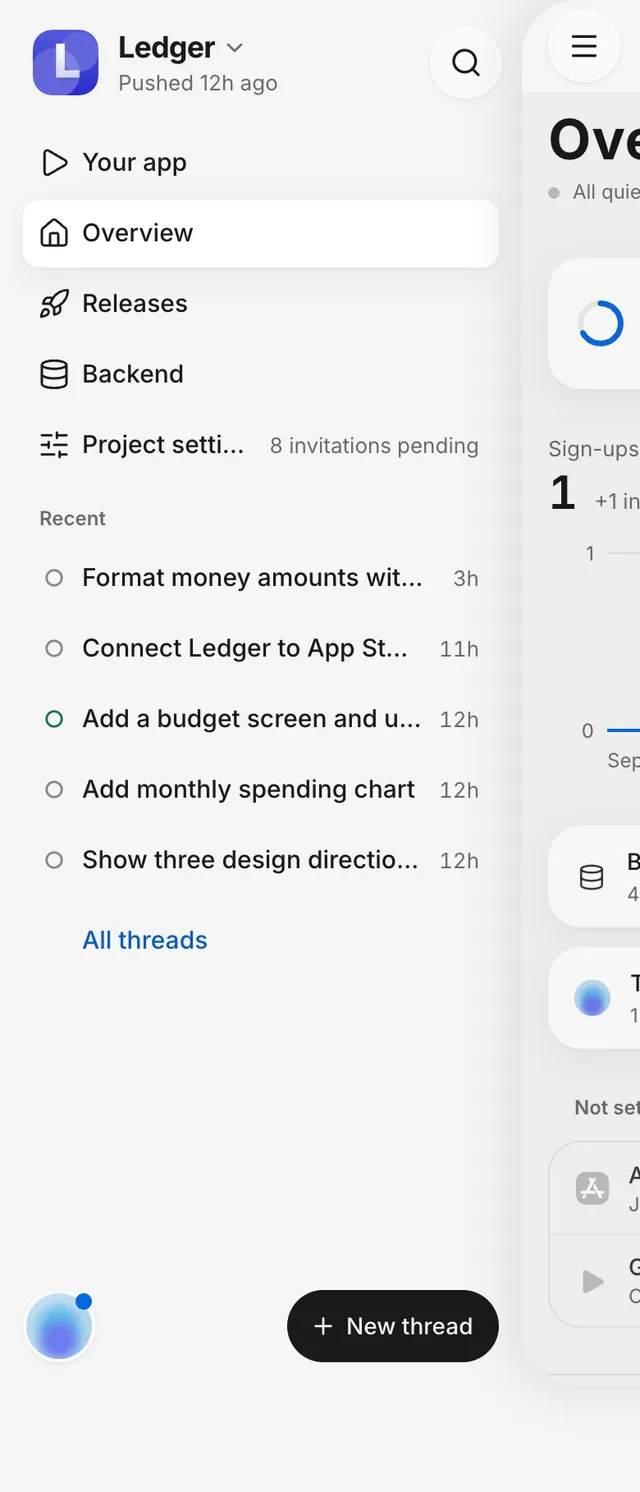
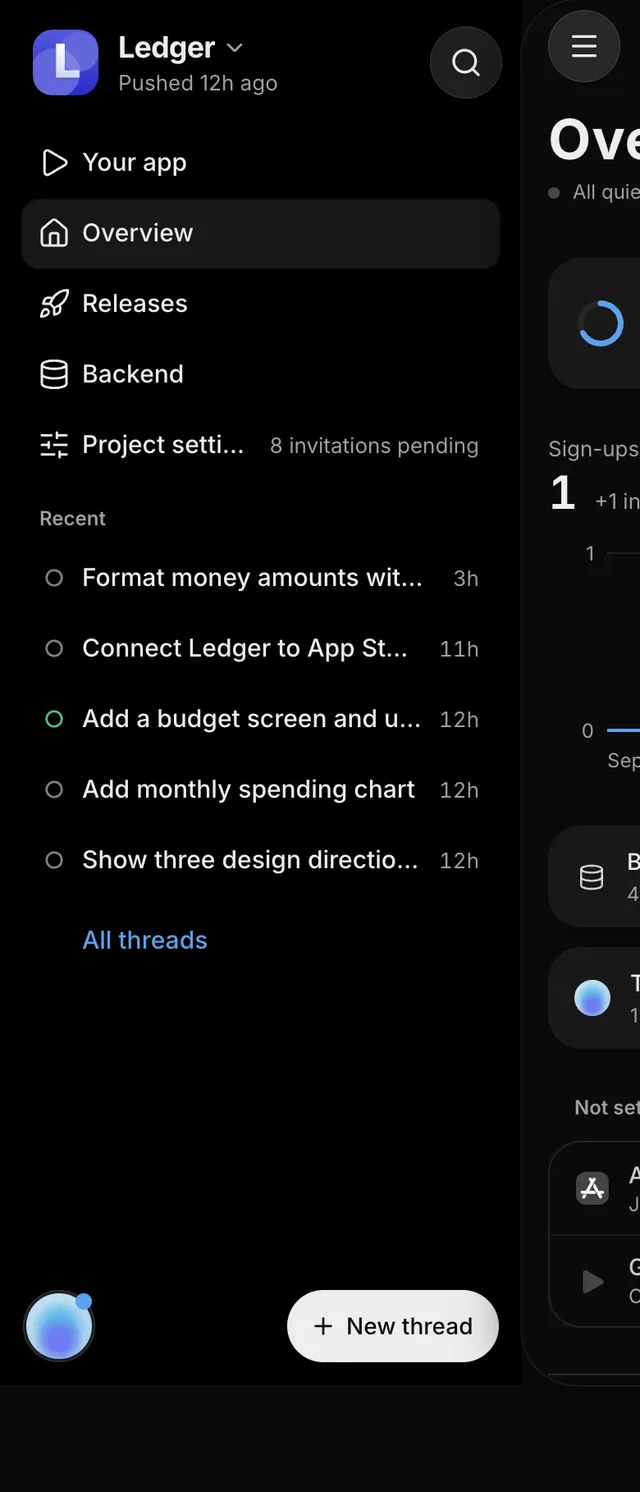
The following table lists the parts of the menu.
| Part of the menu | What it does |
|---|---|
| Menu button | Opens the menu. An amber dot on it means another thread needs you. |
| Your app’s name | Opens Your apps, where you switch to another app. The line under the name says when you last pushed, such as Nothing pushed yet. |
| Search | Opens a search box, Search threads and places, that finds places in your app and your threads by name. |
| Your app | Opens your app over the screen. See Your app over the screen. |
| Overview, Releases, Backend, Project settings | Opens that area. |
| Road to launch | Opens the Road to launch checklist. The menu shows it only after you hide the checklist from Overview and while steps are left. |
| Needs you, Working, Recent | Lists the app’s threads by what they’re doing, including your teammates’ threads. Recent shows the latest threads. Touch and hold a thread for Share…, Rate this thread…, and, on your own threads, Rename… and Delete thread. |
| All threads | Opens the full list of the app’s threads. |
| Get the FlutterFlow app | Helps you add FlutterFlow to your phone’s Home Screen: the steps on an iPhone, or, on Android, Chrome’s offer to install it. The menu shows it while your phone’s browser can do this, until you add FlutterFlow. |
| Your picture | Opens You, your account. See Allowance and account. |
| New thread | Starts a new thread. |
On Home, the menu lists Your apps instead, with New app at the bottom.
Your app over the screen
On a phone, your running app opens over the whole screen, not beside the page. To close it, tap Close at the top left or use your phone’s Back gesture. The page under it is where you left it.
The following table lists what you can open this way.
| What you open | How | What you see |
|---|---|---|
| Your app | Tap Your app in the menu. | Live App, your pushed app. Tap Live App at the top for a menu with tools such as Ask for a change, Dark appearance, Share a screenshot, and Install on this phone. |
| A thread’s copy of your app | In a thread, tap Show the app at the top right. A number on the button counts the thread’s changes that aren’t in your app yet. | Thread Preview. To switch to the thread’s other views and tools, tap its name at the top. |
Share
On a phone, Share opens as a sheet over the page, with the share link to your app or to a thread’s copy of it. The following table lists where to open it.
| Where | What to tap |
|---|---|
| Live App or Thread Preview | The Share button at the top right. |
| A thread | The thread’s name at the top, then Share…. |
| The menu | Touch and hold a thread, then Share…. |
Only the person who started a thread can share its copy. For a teammate’s thread, Share… in the menu shares your app.
The sheet has Copy link, QR code, Open (tries the link on your phone), and Link settings. Where your phone’s browser has its own share options, Share link… opens them.
On a phone, the Share sheet doesn’t list your app’s team. To invite someone, an owner opens Project settings, then Invite people under Team. For more information, see Invite teammates.
Allowance and account
On a phone, your allowance doesn’t show at the top of the page as it does on a computer. To see it, open the menu and tap your picture at the bottom. You opens with your plan and a bar that shows how much of your allowance is left and when it resets. To open Plan and usage, tap your plan.
You also holds your account rows, most of which match the account menu on a computer. The following table lists the main ones.
| Row | What it does |
|---|---|
| Install FlutterFlow | Installs FlutterFlow on your phone. The row appears on Android while Chrome offers to install FlutterFlow. |
| Connections | Opens the accounts that the agent uses as you in chats that you start. |
| App stores | Opens your App Store and Google Play accounts. |
| Connected apps | Shows the apps that you’ve connected. The row appears after you connect one. |
| Profile | Opens your name, how you sign in, and your picture. |
| How FlutterFlow works | Opens the guide to FlutterFlow. |
| What’s new | Opens recent changes to FlutterFlow. |
| Send feedback | Opens a form for your feedback. |
| Theme | Sets FlutterFlow itself to Light, Dark, or System. |
| Sign out | Signs you out. |