Overview page
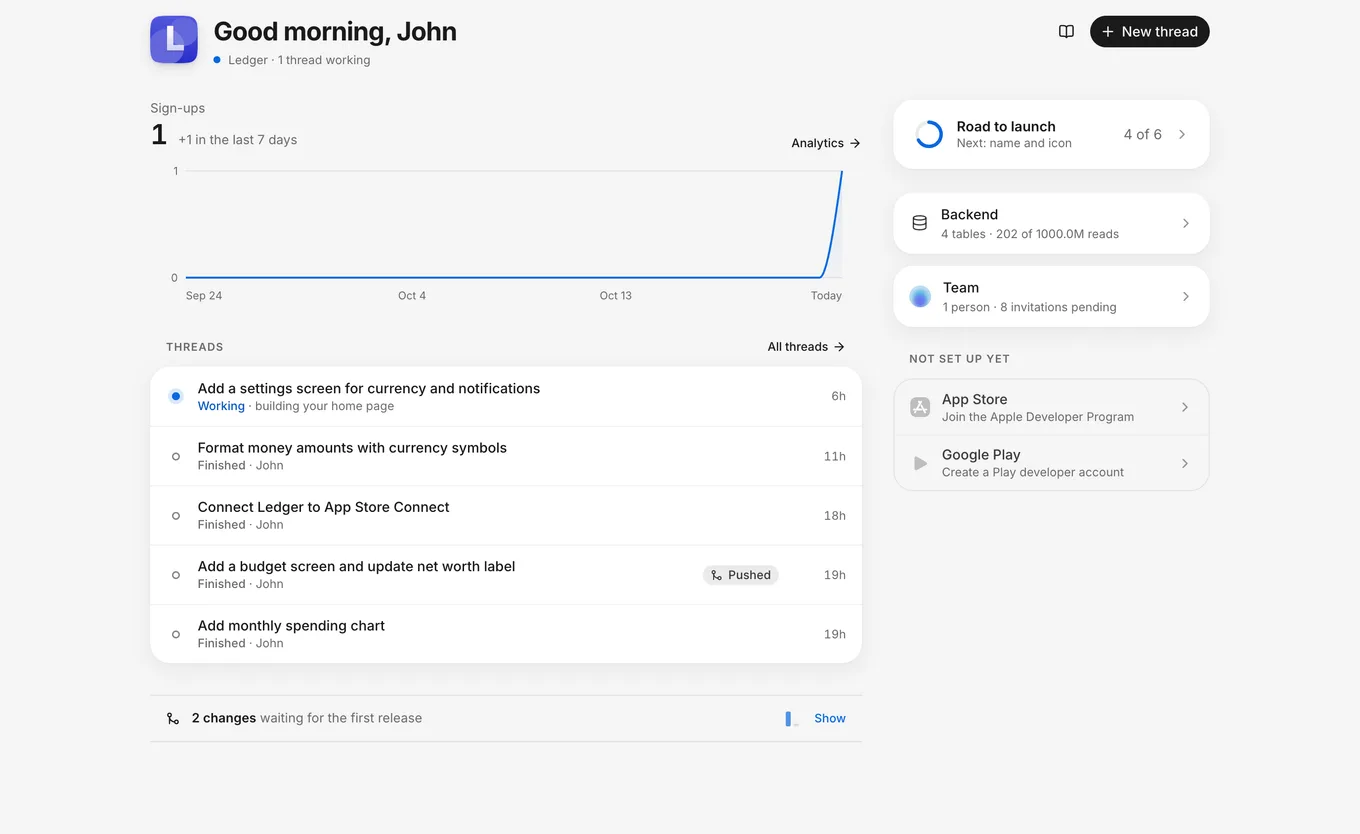
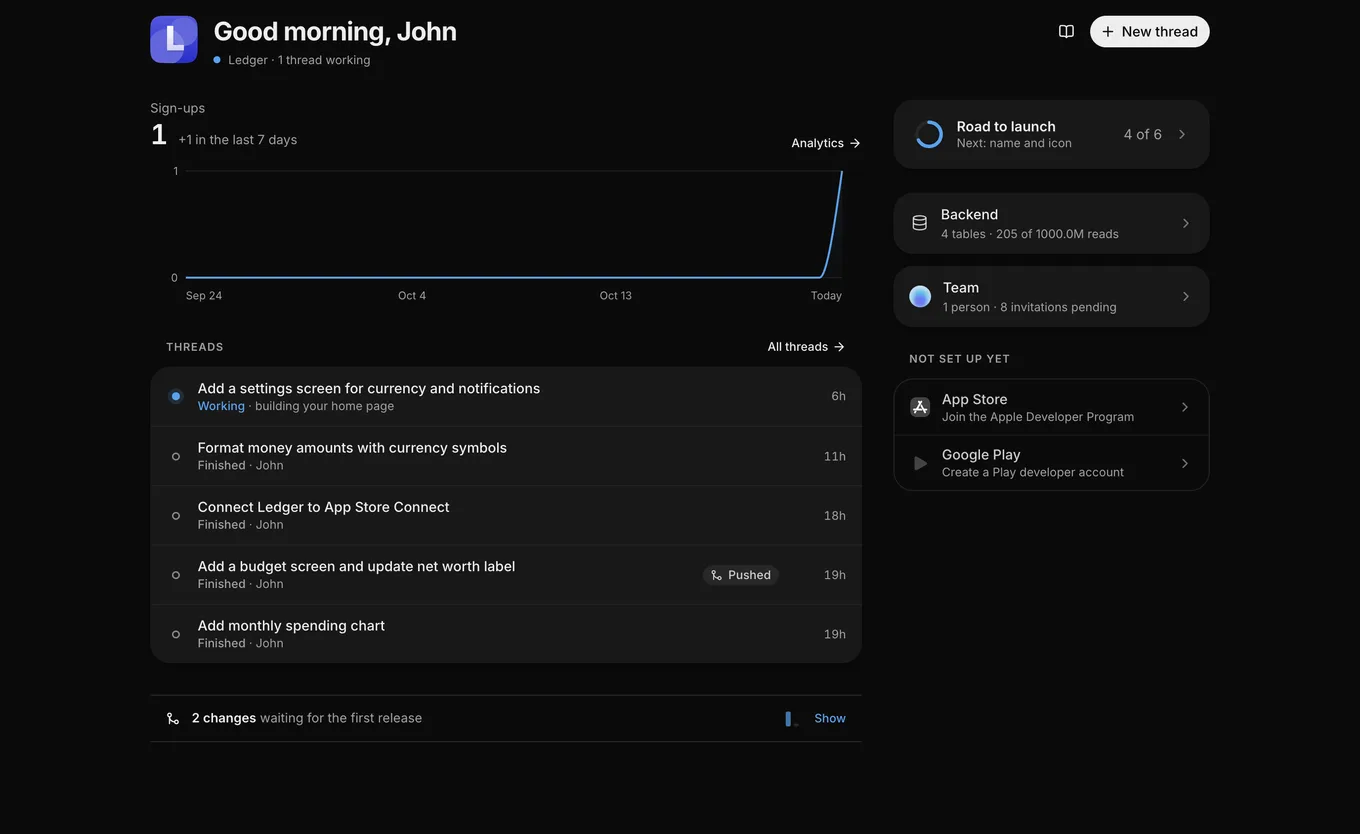
Overview is the first page of each app. This page describes the main parts of Overview, what each one shows, and where each one leads.
Header
The header at the top of Overview names your app and says what its threads are doing. The following table describes each part.
| Part | What it shows | Where it leads |
|---|---|---|
| Your app’s icon (App icon) | The icon your app uses | Opens App icon. See App icon. |
| The greeting | Good morning, Good afternoon, Good evening, or Good night, with your first name. | |
| The status line | Your app’s name, then what its threads are doing, such as 1 thread working or 2 need you. It says all quiet when no thread is working or waiting for you, and no threads yet before the first thread. The dot before it is still and amber while a thread needs you, and pulses while a thread is working. | |
| How FlutterFlow works | Opens the How FlutterFlow works guide. See How FlutterFlow works. | |
| New thread | Starts a thread. See Start a thread. |
Road to launch
The Road to launch card at the top of the side column shows how many steps are done on the way from your first version to the stores, and what to do next. Selecting it opens the full list. After every step is done, the card stays for a week. For the steps and how to hide the card, see Road to launch.
Sign-ups
Sign-ups is the first block after the header, and it counts the people who signed up for your app. The following table lists what it shows, and when.
| What you see | When |
|---|---|
| The total, with The line starts with your first sign-up | Your app doesn’t have sign-in yet, or nobody has signed up |
| The total, how many people signed up in the last week, and a chart of the total for each day of the last month | After the first sign-up |
On the chart, a dashed line labeled with a version marks the day each version of your app was built. To see a day’s total, point to it.
The chart’s Analytics link opens the Analytics page, which is Coming soon.
To see who signed up, open Backend › People. See People.
Threads
Threads lists your app’s threads, with the ones that need you first.
The list shows every thread that needs you, then every thread that the agent is working on, then your most recent other threads. Each row starts with a dot and the thread’s title. Under the title, a word says where the thread stands, followed by a detail. The following table describes each word.
| Word | Dot | What it means | Detail after the word |
|---|---|---|---|
| Needs you | Amber | The agent asked you something, a card is waiting for your answer (such as a service to connect), or a turn failed and you haven’t opened the thread in this browser since. | What the agent asked, the title of the card it’s waiting on, or the last turn failed |
| Working | Pulsing | The agent is working on the thread. | What the agent is doing, or pushing to your app while a push runs |
| Stopped | Hollow ring | A turn failed, and you’ve opened the thread in this browser since. | the last turn failed |
| Finished | Hollow ring | Nothing is running or waiting for you. | The first name of the person who started the thread, or started automatically when FlutterFlow started it |
Each row ends with the following:
- Pushed, or a count such as Pushed 3×, when the thread has pushed changes to your app.
- When the thread last changed. Reply › takes its place when the agent asked you something, and Look › when a turn failed and you haven’t opened the thread since.
Selecting a row opens its thread, and All threads opens Threads. For more about the list, see How threads work.
When your app has no threads, the list is one card, Start your first thread, with a New thread button.
In the stores
In the stores is a card in the side column that shows where your app stands in each store that you’ve set up (the App Store and Google Play).
Each store’s row shows where your version stands in that store, with its number and a track of its steps. When the store needs something from you, the row says what it needs instead. Selecting a row opens that store’s page in Releases.
If you’re a viewer or a billing member, the card is one line instead: Only owners and developers can see releases for now.
A store on your road to launch that you haven’t set up yet is listed under Not set up yet instead. For what each stage means, see Release status.
Backend
The Backend card in the side column shows what your app keeps. What the card shows depends on what your app has. The following table describes each case.
| Your app has | The card shows |
|---|---|
| Tables | How many tables, and how many reads your app has used, out of its limit when it has one |
| Files but no tables | File storage, and the reads |
| Sign-in, but no tables or files | How people sign in, and how many signed up, or no sign-ups yet |
| Server code, but no tables, files, or sign-in | TypeScript server code your app runs |
Selecting the card opens Backend › Activity. See How the backend works.
Team
The Team card in the side column appears when someone besides you works on your app, or an invitation is pending. It shows your teammates’ pictures, how many people are on the team, and how many invitations are pending.
Selecting the card opens Project Settings › Team. See Work together.
Not set up yet
Not set up yet lists what your app doesn’t have yet, in one row each, with its first step. The following table describes each row.
| Row | What it says | Where it leads |
|---|---|---|
| App Store or Google Play, for each store on your road to launch that you haven’t set up | The next setup step, such as Join the Apple Developer Program | That store’s page in Releases |
| Backend, until your app keeps data or files, signs people in, or runs server code | Ask the agent for data or sign-in | Starts a new thread |
| Team, until someone else works on your app or you invite someone | Just you so far, or, if you’re an owner, that you can invite someone | Project Settings › Team |
When your app gets one of these, a card replaces its row. If you’re a viewer or a billing member, the list has no App Store or Google Play rows. For the store steps, see Road to launch. To invite someone, see Invite teammates.
Recent changes
Recent changes, the last part of Overview, is one line about the changes pushed to your app. It appears when your app has a pushed change. The following table describes each part.
| Part | What it shows | Where it leads |
|---|---|---|
| The line | How many changes are waiting for the next release, and since which version, such as 2 changes waiting for the first release, or Nothing new since a version. Bars show the pushes on each recent day. | Show opens it, and Hide closes it |
| The changes waiting | The latest changes, with who pushed each one and when | Each opens the thread that it came from |
| The latest versions | Each version’s number, when it was made, and where it stands in each store | Opens that version’s changes |
| All changes | Opens Changes, a panel with every change, release by release |
If you’re a viewer or a billing member, the line says how many changes there were lately, without releases or versions.


To send the waiting changes to the stores, see Release an update.