Attachments
Attach pictures, documents, and fonts to your prompt or to a message in a thread, so that the agent can work from them.
Attach files
You can attach files in two places: the prompt box on Home (when you start an app) and the message box in a thread. To attach files, follow these steps:
- Add your files in one of these ways:
- In the prompt box (“Describe the app you have in mind”), click Attach files, and then choose your files.
- In a thread’s message box, click Attach files, and then choose your files.
- Drag the files onto the page.
- Paste the files into the box.
- Wait for each file to finish uploading.
- In the same message, tell the agent what each file is for, such as “Use the attached logo on the sign-in screen.”
- Send the prompt or the message.
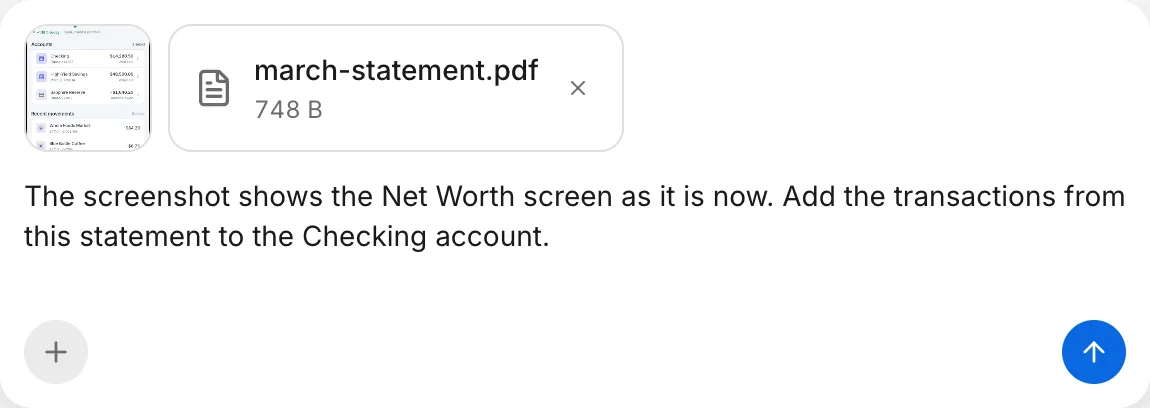
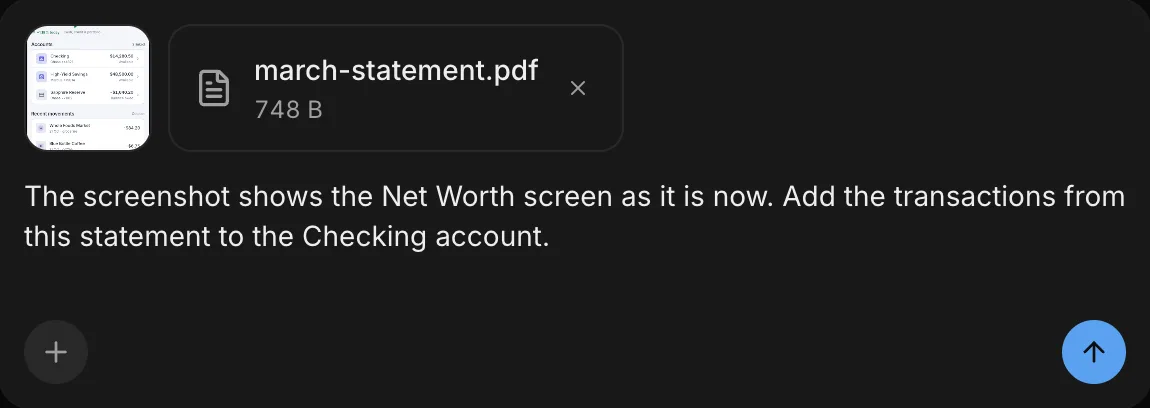
When the agent builds your first version, it reads the files that you attached to your prompt. It uses what they show, such as the requirements in a document or the layout and colors of a reference picture.
What you can attach
FlutterFlow accepts the three kinds of files in the following table:
| Kind | Formats | What the agent does with it |
|---|---|---|
| Pictures | PNG, JPEG, WebP, and GIF | Looks at the picture. |
| Documents | PDF, DOCX, XLSX, PPTX, ODT, ODS, ODP, RTF, TXT, LOG, RST, TEX, CSV, TSV, MD, JSON, JSONL, NDJSON, YAML, XML, and HTML | Reads the document’s text. |
| Fonts | TTF and OTF | Gets the font’s filename, not the font itself. |
FlutterFlow refuses every other kind of file, including SVG pictures, audio, video, ZIP files, and source code files such as .dart or .js files.
Pictures and fonts that you attach can also go into your app itself, such as your logo or the font for your headings. See Logo and fonts.
Documents
The agent reads the text in a document, not the pictures in it. For a scanned document, or a document that’s mostly pictures, attach screenshots of its pages instead.
- Save text files, such as TXT, CSV, MD, and JSON files, as UTF-8 text.
- If your documents hold more text than the agent can take in one turn, attach only the part that the agent needs.
File limits
Each prompt or message can include up to 6 files, up to 4 MB in total.
- Before a large picture uploads, FlutterFlow shrinks it to 1,568 pixels on its long edge, so a big photo or screenshot usually still fits. A GIF of 4 MB or less is kept as it is.
- You can’t attach a document or font that’s larger than 4 MB.
- If your files are too large in total, send some of them in your next message.
For every limit on prompts, messages, and files, see Limits.
Code and documents as text
To give the agent code or other text to work from, do one of the following:
- Paste the code or text into your message. A message can be up to 32,000 characters long.
- Save the code in a text file, such as a
.txt,.md, or.jsonfile, and attach the file. You can’t attach source code files, such as.dartfiles.
Before you paste code, remove any keys or passwords from it. FlutterFlow doesn’t send a message that looks like it contains a key. See Don’t paste credentials.
Troubleshooting
- If the files that you attached to your prompt are gone after the page reloads, see Files that you attached to your prompt are gone after a reload.
- If a message won’t send, see A message won’t send.