Tables and fields
Ask the agent to add tables, change what each record keeps, or change who can use the records. Review the changes in a thread before you push them to your app.
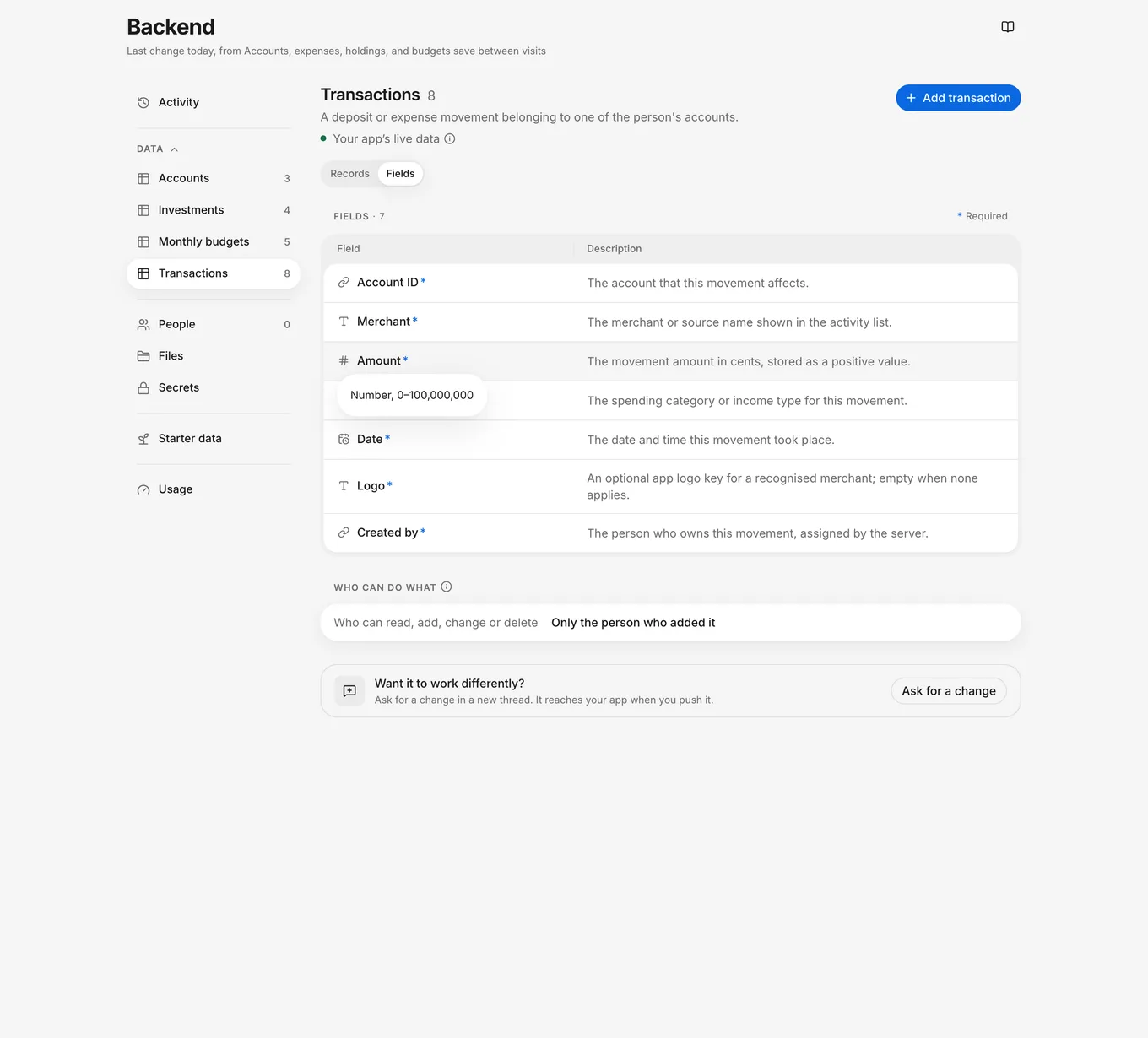
To inspect an existing table, open Backend, select the table under Data, and select Fields. This view shows the table’s fields and access rules. To change them, ask in a thread.
What to ask
Describe what your app needs to keep, which screens use those records, and who can read, add, change, or delete each record:
Example request
“Add a table for expenses with an amount, a date, a category, and a note. Each expense belongs to the person who adds it. Only that person can read, change, or delete it. Add a screen where they can enter an expense and see their own expenses.”
Example request
“Add a receipt file to each expense. Keep the existing amount, date, category, and note fields, and let people attach a receipt when they add an expense.”
For an existing table, select Ask for a change in its Fields view to open the composer for a new thread. Complete the request, review it, and send it.
Agent questions
If the agent shows a Question or Approval card while it works, read the card and answer the agent to continue.
Fields
The Fields view lists what each record keeps. An asterisk marks each required field. To read a field’s type, point to its type icon. On a narrow screen, the type shows under the field’s name.
The following table lists the field types that the Fields view shows. With each type, the view also shows any choices, number range, linked table, or file folder.
| Type | What the field keeps |
|---|---|
| Text | Text, such as a note or name. |
| Email address or Web address | An email address or a web address. |
| Number | A whole number or a decimal number. |
| Yes / No | A yes or no value. |
| Date and time | A date and time. |
| Choice | A value from the field’s listed choices. |
| Link | A reference to a record, such as a person or an expense. |
| File | A reference to a saved file. |
| Group of fields | Fields grouped within a record. The label can include the field count. |
| Location | A geographic location. |
| Binary data | A value stored as bytes. |
| List of… | Multiple values of the type named in the label. |
| Not specified | No type to display. |
Fields affected by open threads show New, Changed, or Removed labels. A removed field stays listed until you push the thread. To see which thread changes a field, point to or tap its change label.
Access rules
The access rules in Who can do what control access from your app: Who can read covers opening records, Who can add covers creating them, Who can change covers editing them, and Who can delete covers removing them. Actions that share the same rule and have no extra details appear on one row, such as Who can add, change or delete. The following table lists each value and what it means.
| Value | Meaning |
|---|---|
| No one in the app | No one in the app can perform that action. |
| Signed-in people | Anyone signed in to an account can perform that action. |
| Only the person themselves | Matches the person’s own account record. |
| Only the person who added it | Matches the person recorded as the record’s creator. |
| Only the person it belongs to | Matches the person in the record’s ownership field. |
| Only the person in Assignee | Matches the person in the named field. The label uses your field’s name, such as Assignee. |
| A custom rule | A condition decides access. The view shows the condition. |
| Not specified | The view has no recognized rule to show. |
| No one in the app, until a rule is set | The table has no access rules set, so no one in the app can access its records. |
If opening a record and listing records use different rules, the read row adds Listing: details. When you test a screen that lists records, check both rules.
Review
Check the fields, access rules, and affected screens before you push the change.
After the agent finishes, read the turn’s Summary and review its Changes. Check the affected screens in Screens, and try the change in Preview. If the change uses records or sign-in, test it with the thread’s own data in Data.
After you push a backend change, check the result in Backend.
Test that people can perform the allowed actions and can’t perform the restricted ones. For example, verify that one person’s private expenses don’t appear for another person.
Push
To apply the table changes to your app, push the thread.
If the push removes data, the confirmation dialog shows This removes data from your app. Review the changes and select Remove it before you push.
Next steps
After you push, open the table’s Fields view in Backend again to check its fields and access rules. To manage its live data, see Records.
Troubleshooting
For problems with tables or records, see Troubleshoot data. If the change can’t reach your app, see Troubleshoot pushing.