Client work
Set up a client’s app so your client holds the Owner role and you build the app as a developer on its team.
You and your client each need a FlutterFlow account. See Create an account.
Who owns what
An app built for a client involves three things that can belong to different people: the app, its store connections, and the plans that pay for the agent’s work.
The app
An app’s owners are the teammates with the Owner role. The role menu describes it as “Everything, including people and keys”. For client work, your client holds the Owner role, and you join with the Developer role (“Builds and ships: threads, config, releases”). With these roles, your client controls who can work on the app, and you can still build and release it.
When someone creates an app, the owners of their FlutterFlow account become the app’s owners. The person who creates it gets the Owner role only if they own their FlutterFlow account. Otherwise, they get the Developer role. If you create your FlutterFlow account from an invitation, it joins the FlutterFlow account of the app you were invited to, and you aren’t one of that account’s owners. So ask your client to create the app from a FlutterFlow account they signed up for themselves, not from an invitation.
An app can have more than one owner. For what each role can see and do, see Team roles.
The store connections
The app’s store listings are in the Apple Developer and Google Play accounts that the app’s store connections use. Only an owner of the app can connect a store for it, choose the store account that it uses, and set its App ID, so your client does these steps.
An app uses the store accounts connected to its first owner’s FlutterFlow account. Only an owner of that FlutterFlow account can connect, rename or disconnect them. When your client creates the app from their own FlutterFlow account, the app uses the store accounts that your client connects there, not the ones you connect from yours.
For more about store accounts, see Store accounts.
The plan
Plans and allowance belong to each person, not to an app. Each thread draws from the allowance of the person who started it. The threads that you start in your client’s app use your allowance, and the threads that your client starts use theirs. See How allowance works.
Join a client’s app
To join your client’s app with the Developer role, follow these steps:
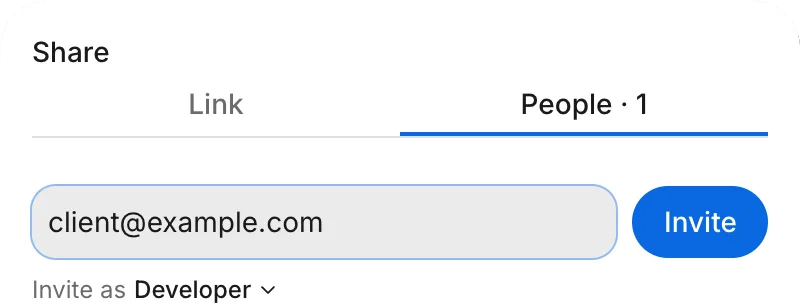
- Ask your client to invite you with the Developer role. Your client can follow Invite teammates.
- On Home or in the account menu, find the invitation and click Accept.
For other ways to accept, see Accept an invitation.
Client-only steps
As a developer, you can start threads, push your own threads, send versions to testers, and submit them for review. Some steps need an owner, so your client does them:
- Inviting people, changing roles, and removing someone from the app.
- Connecting a service in Project Settings › Connections.
- Connecting a store for the app, choosing its store account, and setting its App ID in Releases.
- Deleting the app.
When the agent needs a store connected in your thread, its card says “Only an owner can connect a store.” and names the owners to ask. See Owner-only steps.
Hand over an app
To give your client an app that you built, see Hand over an app.
Troubleshooting
For an expired invitation link, a link for another email address, or a step that you don’t have permission for, see Troubleshoot teamwork.