Records
Use Backend to change the records in your app’s live data. Owners and developers can add, edit, and delete records. Viewers can only view them.
Find a record
To open a table’s records:
- Open Backend.
- Under Data, select the table.
- To narrow the list, enter text in the search field, or select a filter value.
- To view a record’s fields, select the record.
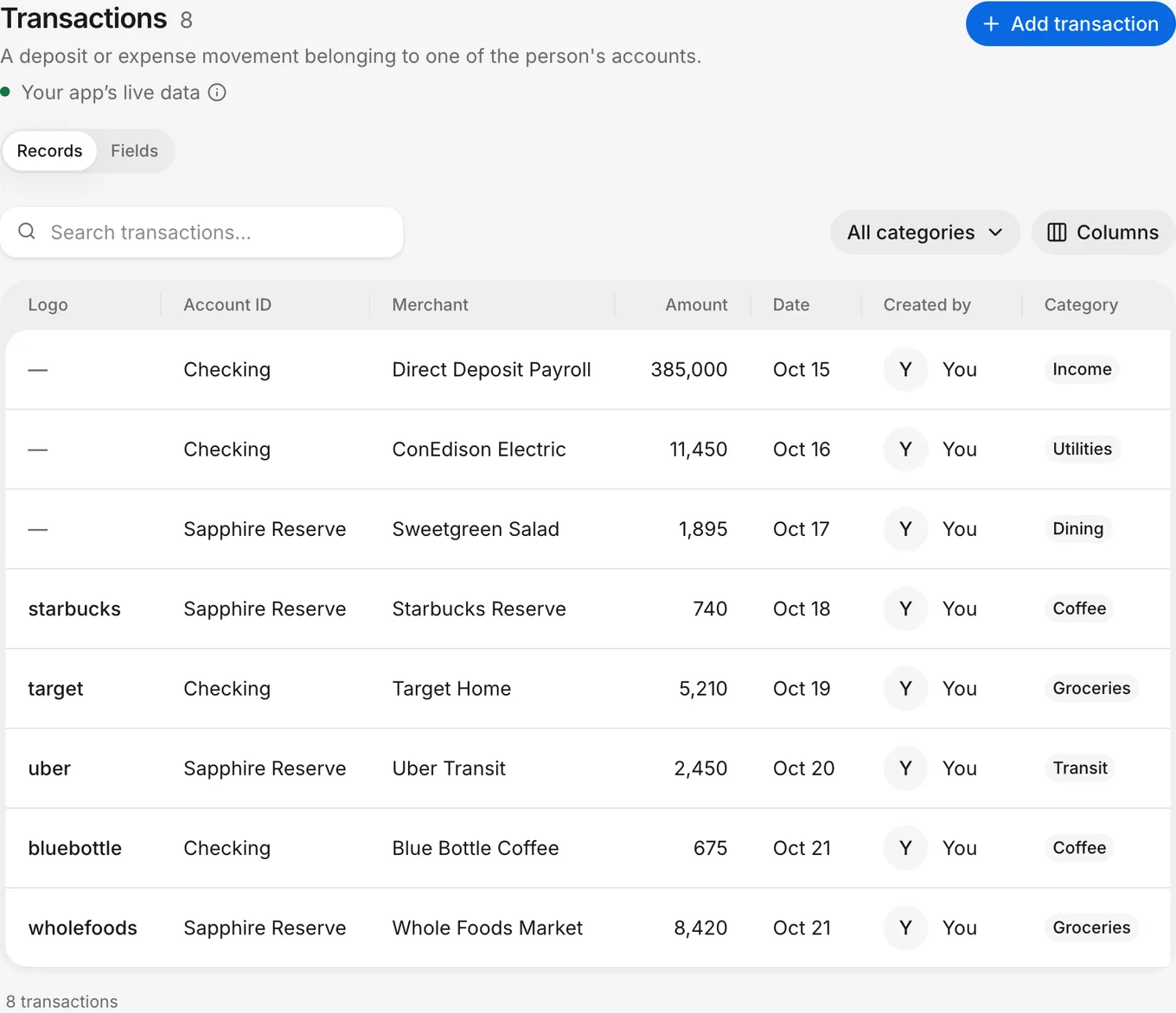
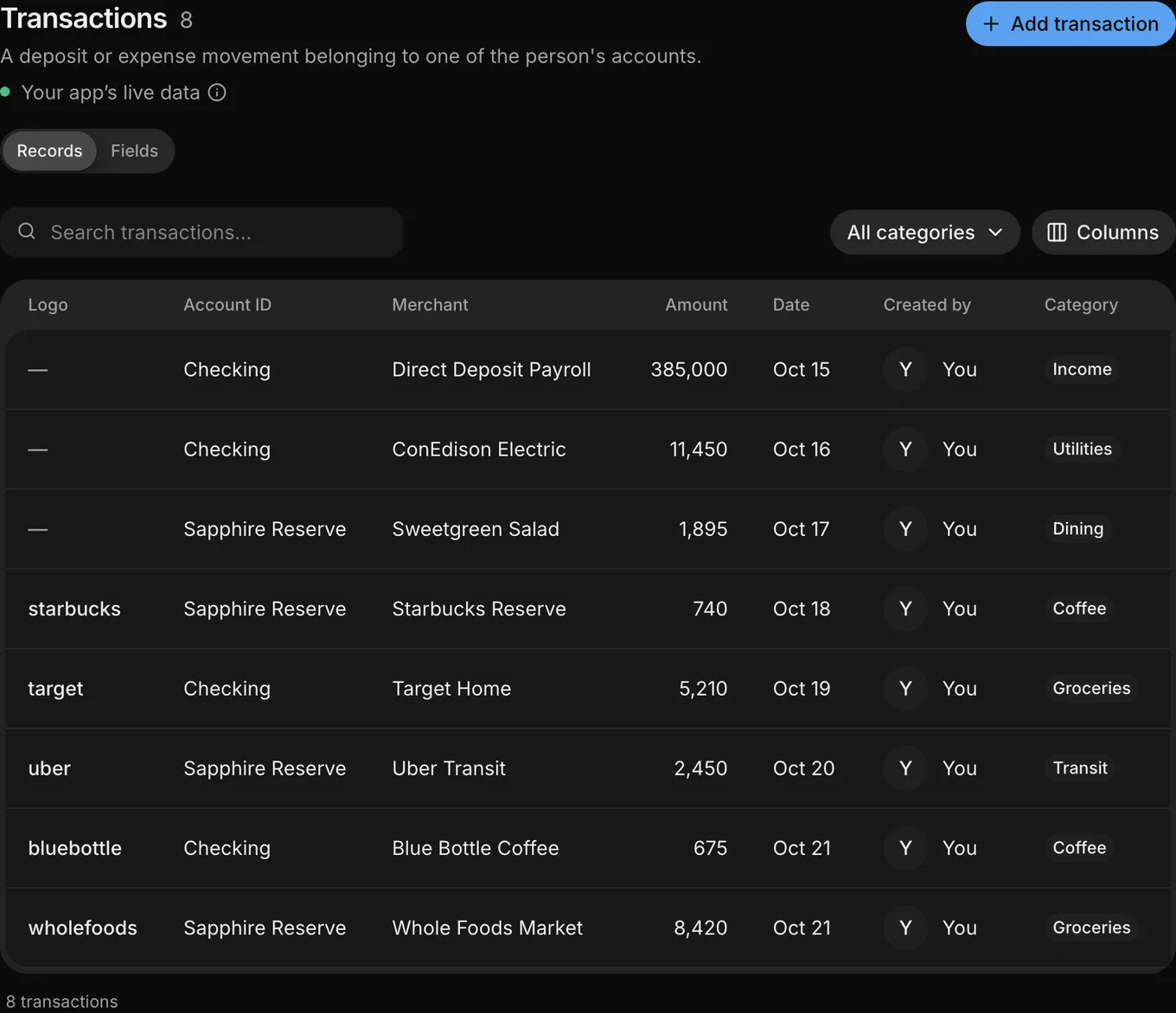
To choose which columns appear, use Columns. Search checks only the visible columns and the records already loaded in the list. To load more records, clear the search and filter, then click the table’s Load more button, such as Load more transactions, at the end of the list.
Add a record
To add a record to the open table:
- Click the table’s Add button, such as Add transaction.
- Fill in the table’s fields.
- In the form, click Add for that kind of record.
Edit a record
To change an existing record:
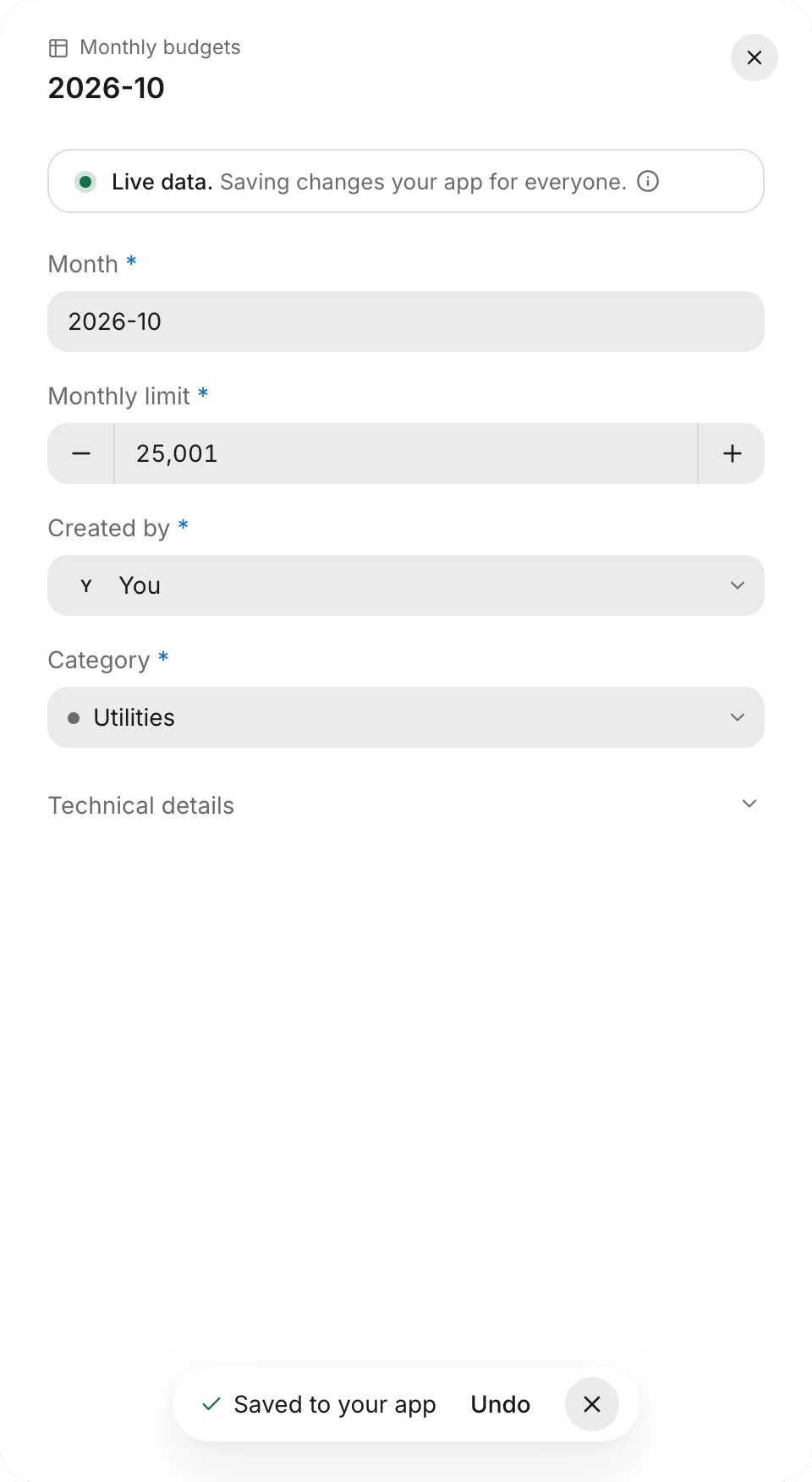
- Open the record from Records.
- Edit the fields.
- Click Save to app.
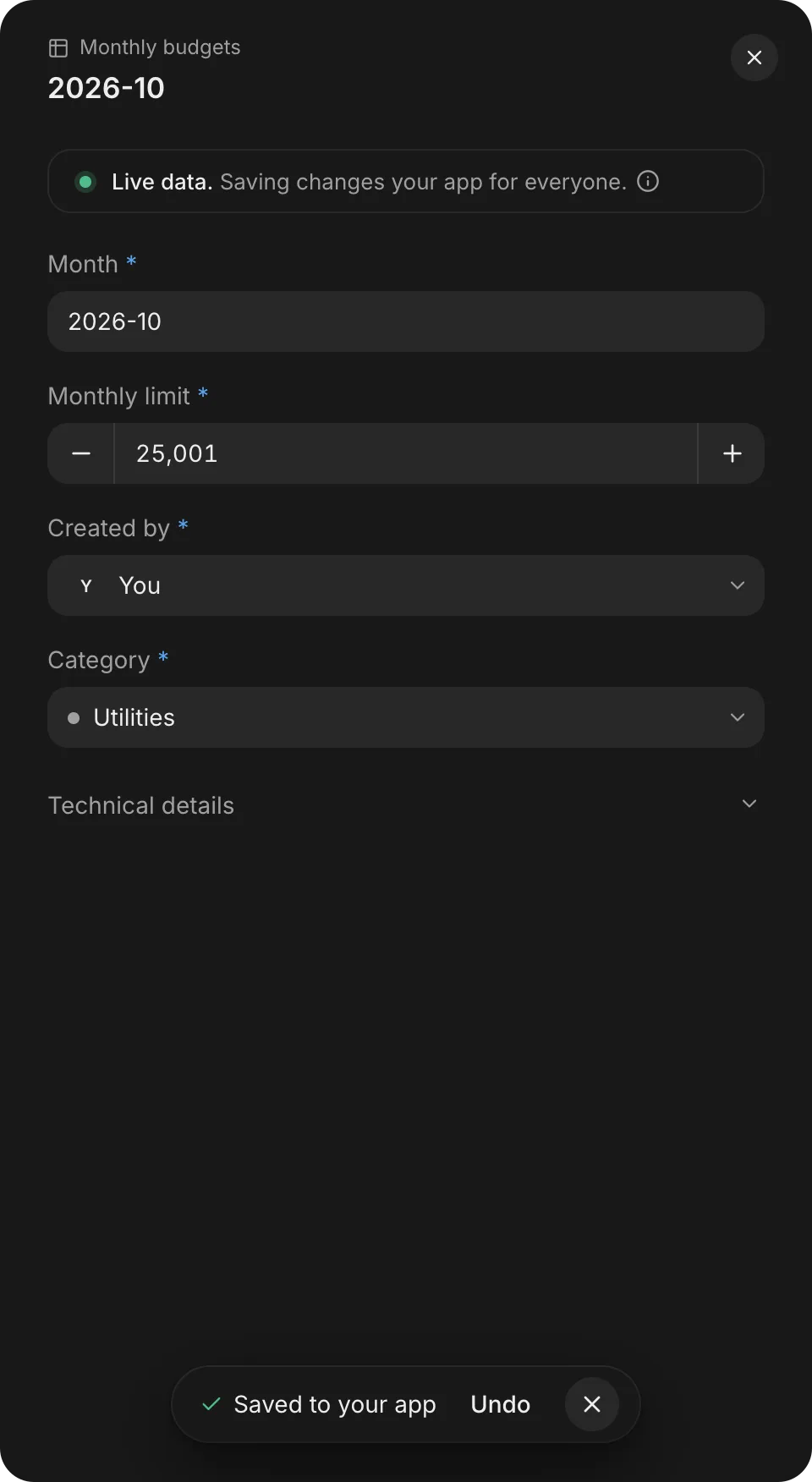
To restore the previous values, click Undo while the message appears.
To change a table’s fields or access rules, ask the agent in a thread instead. See Tables and fields.
Delete a record
To remove a record from the open table:
- Open the record.
- Click Delete for that kind of record, such as Delete transaction.
- In Delete this transaction?, click Delete.
To restore the record, click Undo in the notification before it closes and before you leave the table.
Links from other tables to a deleted record stop working.
Bulk changes
Backend doesn’t import records from spreadsheets or CSV files, export records, or edit or delete records in bulk. Owners and developers can edit or delete live records one at a time by opening their table under Backend › Data.
Troubleshooting
If a save fails, a record changes while you edit it, or a table won’t load, see Troubleshoot data and sign-in.