Design directions
Ask the agent for contrasting design directions, compare their pictures, and choose which one to build into your app.
What to ask
Ask for directions that differ visibly in layout, spacing, color, or typography. Name the screen, state what must stay the same, and describe the differences you want to compare:
Example request
“Show me three directions for Ledger’s transaction screen: a compact list, a spacious list, and grouped cards. Keep the same transactions and actions in each direction. Let me compare them before changing the screen.”
Example request
“Show me two directions for Ledger’s dashboard: one with muted colors and one with stronger color contrast. Keep the same information and navigation in both.”
Agent questions
The agent presents a Choice card with a picture, name, and caption for each direction, and marks its suggested direction with Recommended.
For other cards that require an answer, see Answer the agent.
Choose a direction
Compare the pictures on the card and choose a direction:
- Select a direction’s picture to highlight it without sending your answer yet.
- Optional: Select Show in stage to compare larger pictures on the Choose tab.
- On the card, select Use {name} for your chosen direction. The agent builds it into the screen.
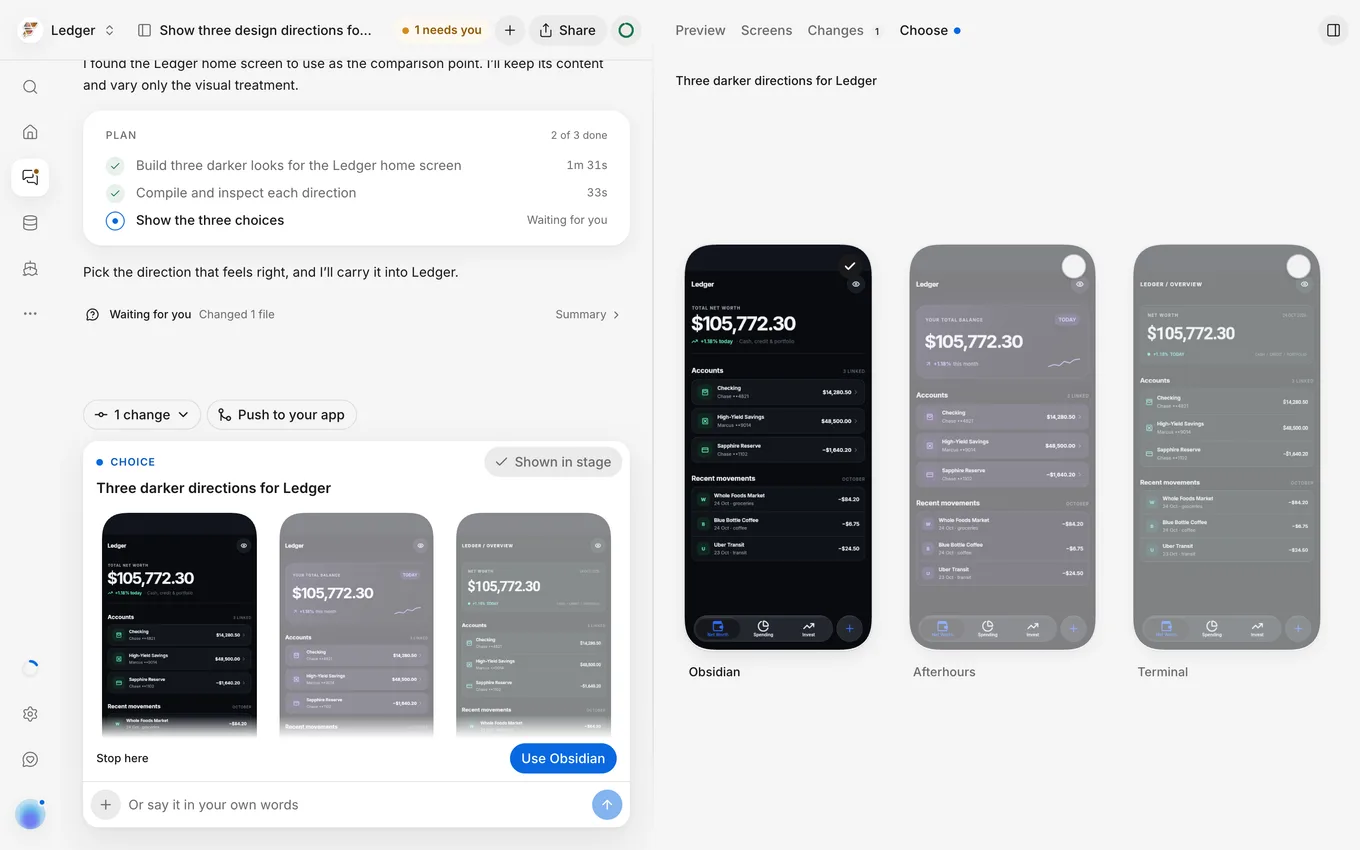
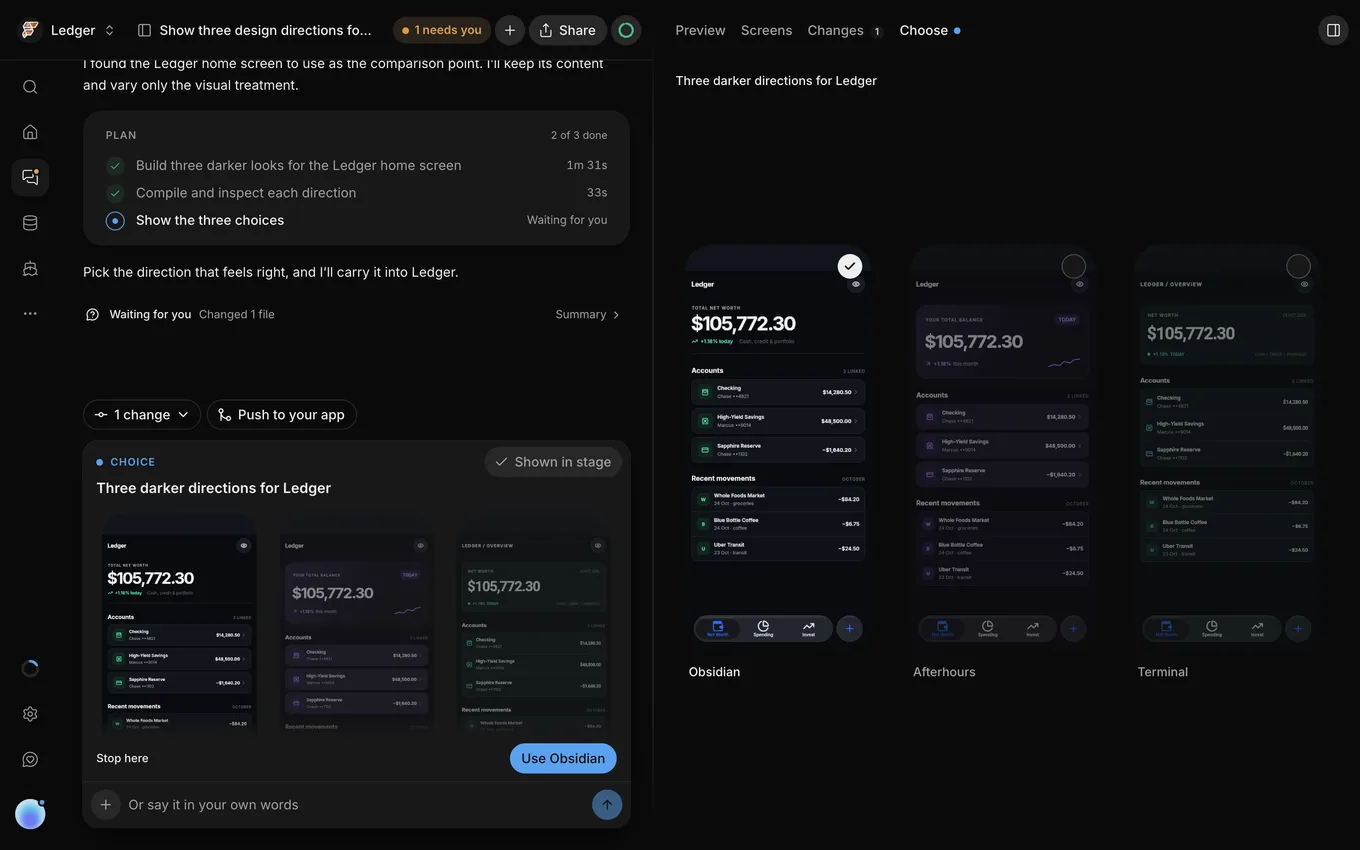
You can also reply in the message box to combine details from multiple directions, such as one direction’s spacing with another’s layout.
Review
After the agent finishes, read the turn’s Summary and review its Changes. Check the affected screens in Screens, and try the change in Preview. If the change uses records or sign-in, test it with the thread’s own data in Data.
After you push a backend change, check the result in Backend.
Compare the finished screen against your chosen direction, test its actions and navigation, and verify that it keeps the information you asked to preserve.
Push
To apply the chosen design to your app, push the thread’s changes.
Next steps
To refine the design further, describe the next adjustments in the same thread. See Change your app’s look.
Troubleshooting
If the pictures or the finished screen fail to load, see Troubleshoot the preview. For design issues, see Troubleshoot your app’s look.