Troubleshoot sharing and phone installs
People still see an older version after you push
What it means: After you push, your app’s share link points to the new version at the same address. Any page that’s already open keeps the version that it loaded until the visitor reloads it.
Fix it:
- Ask the visitor to reload the page or reopen the link.
- If they still see the older version, open Share › Link outside a thread (for example, from Overview).
- If the tab says “A newer version of your app exists. Visitors get the previous version for now.”, see “A newer version of your app exists. Visitors get the previous version for now.”.
Faster version ready in the shared app offers a faster build of the open version, not a newer push.
“A newer version of your app exists. Visitors get the previous version for now.”
What it means: FlutterFlow couldn’t update the link to your app’s latest version, so visitors who open the link get the previous version. For a thread’s link, the message says “A newer version of this thread exists. Visitors get the previous version for now.”
Fix it:
- Close Share, and then reopen Share › Link. Opening the tab makes FlutterFlow try again to update the link.
- After the message disappears, the link opens the latest version. Ask anyone with the app open to reload the page.
“This app is unavailable. Ask its owner for a current link.”
What it means: The shared app shows this message when the link no longer opens the app:
- Someone reset the link, which turned off the old link.
- Someone turned off sharing.
- Someone deleted the thread whose version the link shared.
- Someone deleted the app.
- The link is incomplete. For example, part of it was cut off when someone copied it.
Fix it:
- In your app, open Share › Link. In a thread you created, choose Your app or This thread (on a phone, Link settings › Opens › Live App or Thread Preview). Only the thread’s creator can share a thread’s version. If someone else created the thread or deleted it, open Share › Link outside a thread (for example, from Overview) to share your app instead.
- If the tab says “Sharing is off. The old link no longer opens the app.”, click Share again to generate a new link.
- Click Copy link and send the full link to your visitors.
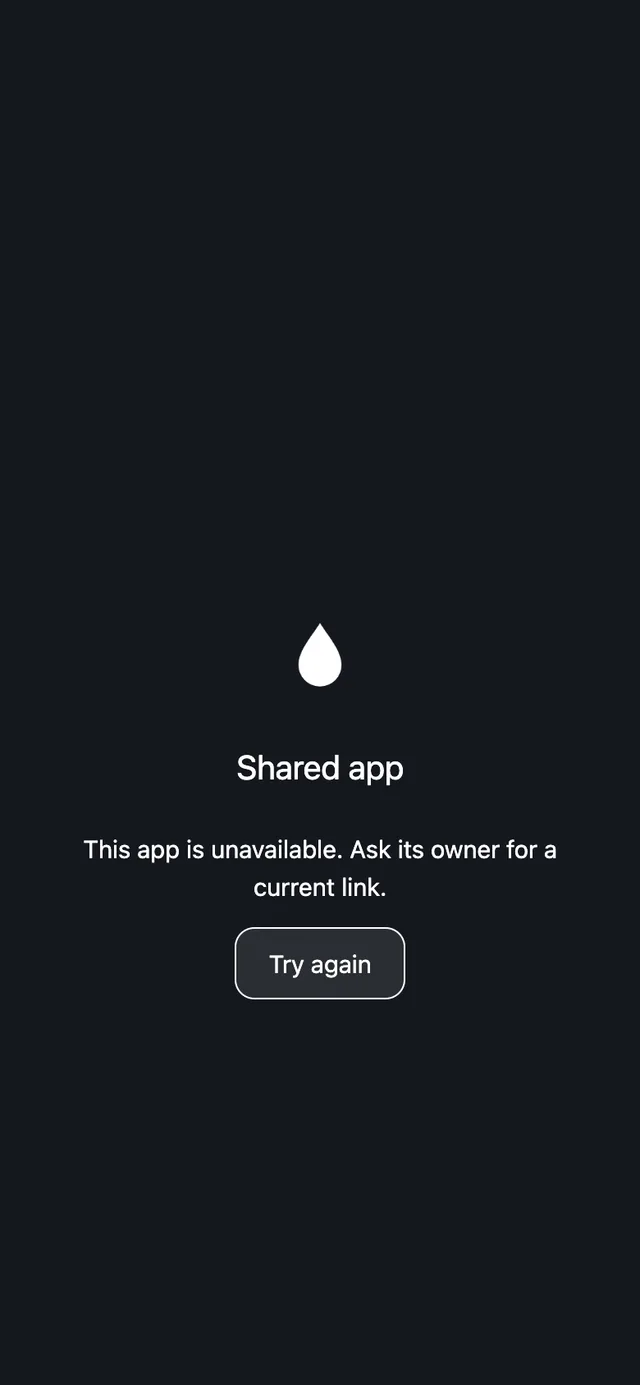
See Reset the link and Stop sharing.
“This link no longer opens the app”
What it means: Someone opened an older share link that required visitors to sign in. Those links no longer work. The page says “Ask the app’s owner for its current link.” and offers Build your own app. Current share links open the app directly without sign-in.
Fix it:
- In your app, open Share › Link.
- Click Copy link and send the current link to the visitor.
“Still loading… The first visit can take a little longer.”
What it means: The shared app is still loading. While it loads, the screen shows your app’s icon and name, followed by “Ready in a moment”. If loading takes longer, this message appears with Try again.
Fix it:
- Wait for the app to open.
- If it still doesn’t open, tap Try again to reload the page.
“Loading timed out. Check your connection and try again.”
What it means: The shared app didn’t finish loading in time. Only time spent with the page visible on screen counts toward the timeout, so a background tab doesn’t time out.
Fix it:
- Check the phone’s or computer’s internet connection.
- Tap Try again.
“The app’s first screen could not finish loading. Try again.”
What it means: The shared app loaded, but its first screen didn’t finish rendering in time.
Fix it:
- Tap Try again.
- If the message appears again, check the internet connection, and then tap Try again.
“Could not load the app. Try again.”
What it means: The shared app couldn’t open.
Fix it:
- Tap Try again.
- If the message appears again, check the internet connection, and then tap Try again.
“Opening the standard version…”
What it means: The faster build of your app couldn’t load, so the shared app opens the standard version automatically. You don’t need to do anything.
See Standard and faster versions.
“Enable JavaScript to open this app.”
What it means: JavaScript is turned off in the browser, and the shared app requires it to run.
Fix it:
- Turn on JavaScript in the browser’s settings.
- Reload the page.
“This version is no longer available to switch to.”
What it means: A visitor tapped Switch now on Faster version ready, but the faster build of the open version is no longer available.
Fix it: Reload the page to open the link’s current version.
“Could not check the update. Try again.”
What it means: A visitor tapped Switch now on Faster version ready, but the shared app couldn’t confirm the switch, for example because the open version is no longer available, someone reset the link, or sharing stopped.
Fix it:
- Tap Later to keep using the open version.
- Reload the page to open the link’s current version. If the page says “This app is unavailable. Ask its owner for a current link.”, see “This app is unavailable. Ask its owner for a current link.”.
“Only the creator can share this thread’s version.”
What it means: You opened Share › Link in a thread that someone else created. Only the thread’s creator can share its version.
Fix it:
- To share your app, leave the thread (for example, go to Overview) and open Share › Link there.
- To share the thread’s version, ask the thread’s creator to share it.
“Nothing to share yet. This thread has no version saved to share.”
What it means: On a computer, Share › Link is set to This thread (the default inside a thread), but the thread has no saved version to share yet. The tab says “Ask the agent to save one, or share your app.”
Fix it:
- Ask the agent in the thread to save a version, and then reopen Share › Link.
- Choose Your app to share your app instead.
“The link could not be retrieved.”
What it means: Share › Link couldn’t load your app’s link.
Fix it:
- Check your internet connection.
- Click Try again.
“The link could not be checked. It may be out of date.”
What it means: Share › Link shows the link, but FlutterFlow couldn’t confirm whether it opens the latest version.
Fix it: Click Try again.
“A new link could not be created.”
What it means: On a computer, you clicked Share again in Share › Link, but FlutterFlow couldn’t turn sharing back on.
Fix it: Click Share again one more time.
The Android test build won’t install over the Google Play version
What it means: The test build that you download from On your phone has the same App ID as your Google Play app, but FlutterFlow signs it with its own key. Android installs an app over an existing one only when both have the same signature, so it can refuse to install the test build over the Google Play version.
Fix it:
- Uninstall the app on your Android phone.
- Open the downloaded
.apkfile and tap Install.
See Install the app.
You don’t have an Apple Developer account
What it means: FlutterFlow delivers iPhone test builds through TestFlight, which requires an Apple Developer account. Until you connect one, the iPhone app row in On your phone says “Connect your Apple Developer account to continue.”
Fix it:
- To try your app on your iPhone without an Apple Developer account, open its share link in Safari. On a computer, click Open Share in On your phone to open Share › Link, choose Your app if you’re in a thread, and then click Copy link. See Open on a phone.
- To build for TestFlight, click iPhone app in On your phone and connect your Apple Developer account. See Connect App Store Connect.
See Only an iPhone.
Problems covered on other pages
- Thread records aren’t in your app or on a share link (Troubleshoot data and sign-in)