Thread data
Use a thread’s Data tab to try records in this thread’s data without changing your app’s live data, and to choose which of them every new thread starts with.
The Data tab appears when your app has a table or sign-in. Only the person who started the thread can change its data, and only until the thread is pushed.
Open thread data
To see this thread’s data, open the thread and select the Data tab. Each new thread starts with its own copy of your starter data, and changes that you make here stay in this thread.
Under Records, each table shows how many rows it has, such as 4 rows · 2 new here. A table that the thread added shows New table. If the app has sign-in, Accounts lists the thread’s test accounts. For more about test accounts, see Test sign-in.
Change records
To add, edit, or delete a record in this thread’s data:
- Under Records, select the table.
- Do one of the following:
- Add a record: Click the table’s Add button, such as Add expense. Fill in the fields, and then click the Add button in the form, such as Add expense.
- Edit a record: Select the record, change its fields, and then click Save. To put back the earlier values, click Undo while it appears.
- Delete a record: Select the record, click the Delete button for it, such as Delete expense, and then confirm with Delete.
The record’s form starts with This thread’s data., so you can tell it apart from a record in Backend. Saving in a thread never changes your app’s live data. To change live data, see Records.
See what changed
Each record and account in this thread’s data shows where it came from:
- New here: the item was added in this thread.
- Changed here: the item came from your starter data and was edited in this thread.
- No label: the item is as your starter data has it.
A table’s page also totals them under the list, such as 2 from your starter data · 1 new here. Items that the agent adds to or changes in the thread’s starter data are marked the same way.
Keep a record for new threads
New threads start with your starter data, not with what you add or change in one thread. To make every new thread start with a record or an account from this thread:
- Open the item on the thread’s Data tab. Keep for new threads appears on items marked New here or Changed here.
- Turn on Keep for new threads.
- Push the thread to your app.
After the push, new threads start with the item. To add a new record or account and keep it in one step, turn on Keep for new threads in its form before you add it.
For how starter data reaches your app’s live data, see Live, thread and starter data.
Get newer starter data
If your starter data changes after you start a thread, for example because another thread kept items and was pushed, the thread’s creator sees a note on its Data tab: Your starter data changed since this thread started, with the number of updates.
To bring the newer starter data into the thread, click Update. Items that you added or changed in this thread stay as you left them.


Starter data
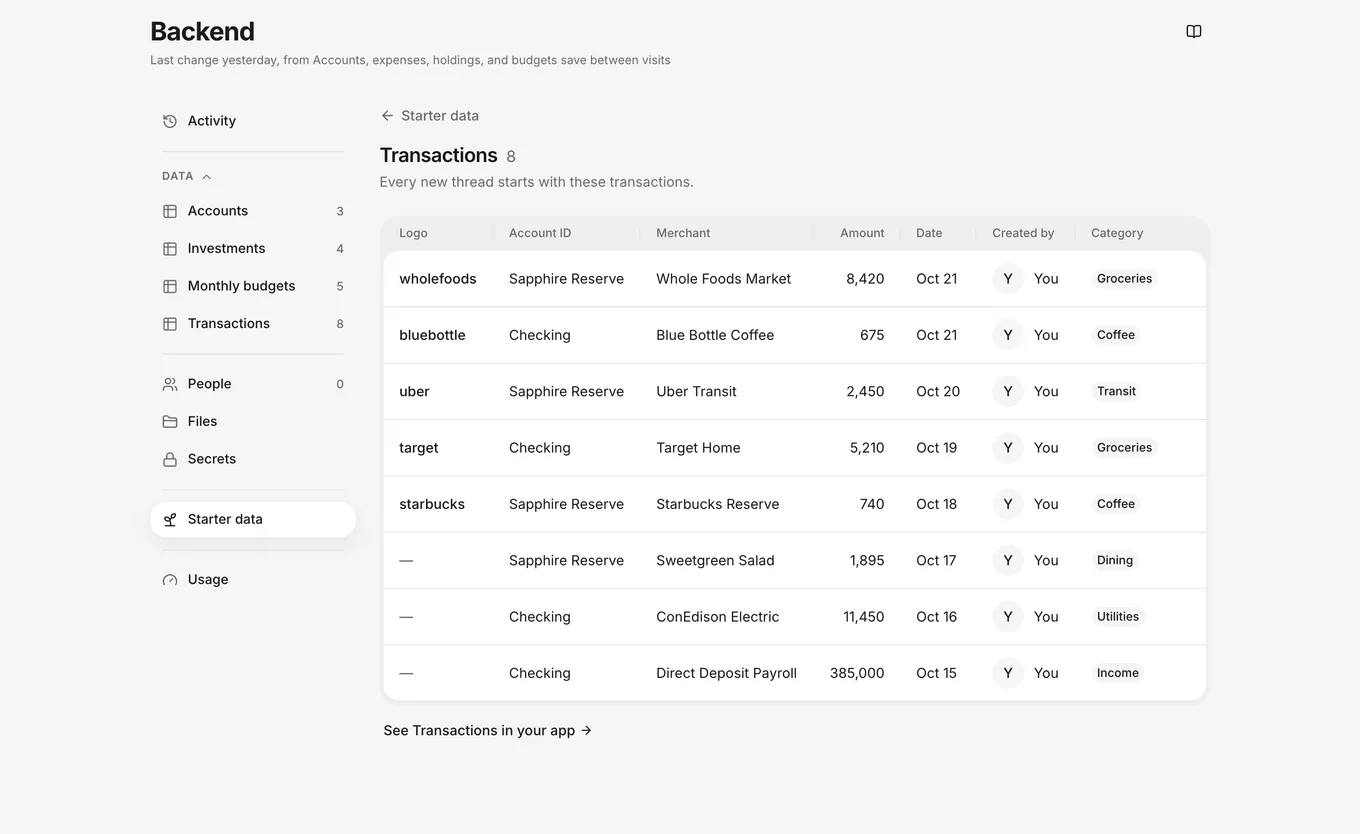
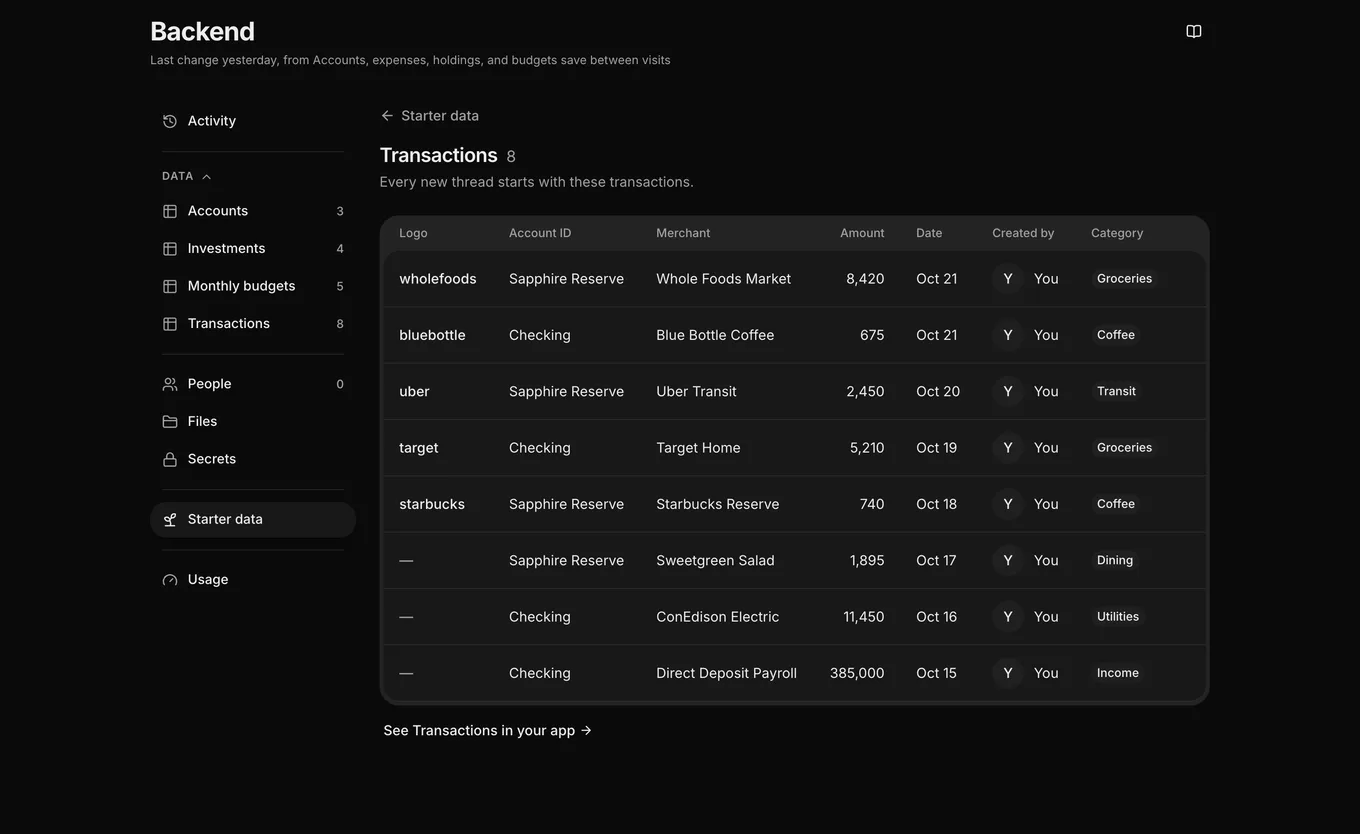
To see your starter data, open Backend and select Starter data. The page shows the accounts and records that every new thread starts with. Under Records, each table lists how many starter rows it has and names the first few.
To see a table’s starter rows, select the table. From there, See followed by the table name, such as See Expenses in your app, opens the table’s live records.
You can’t edit starter data on this page. To change it, change the items in a thread, turn on Keep for new threads, and push the thread.