Create an account
When you’re done, you have a FlutterFlow account, you’re signed in, and your email address is verified, so you can start building. To find out who can sign up, see One account.
Sign up
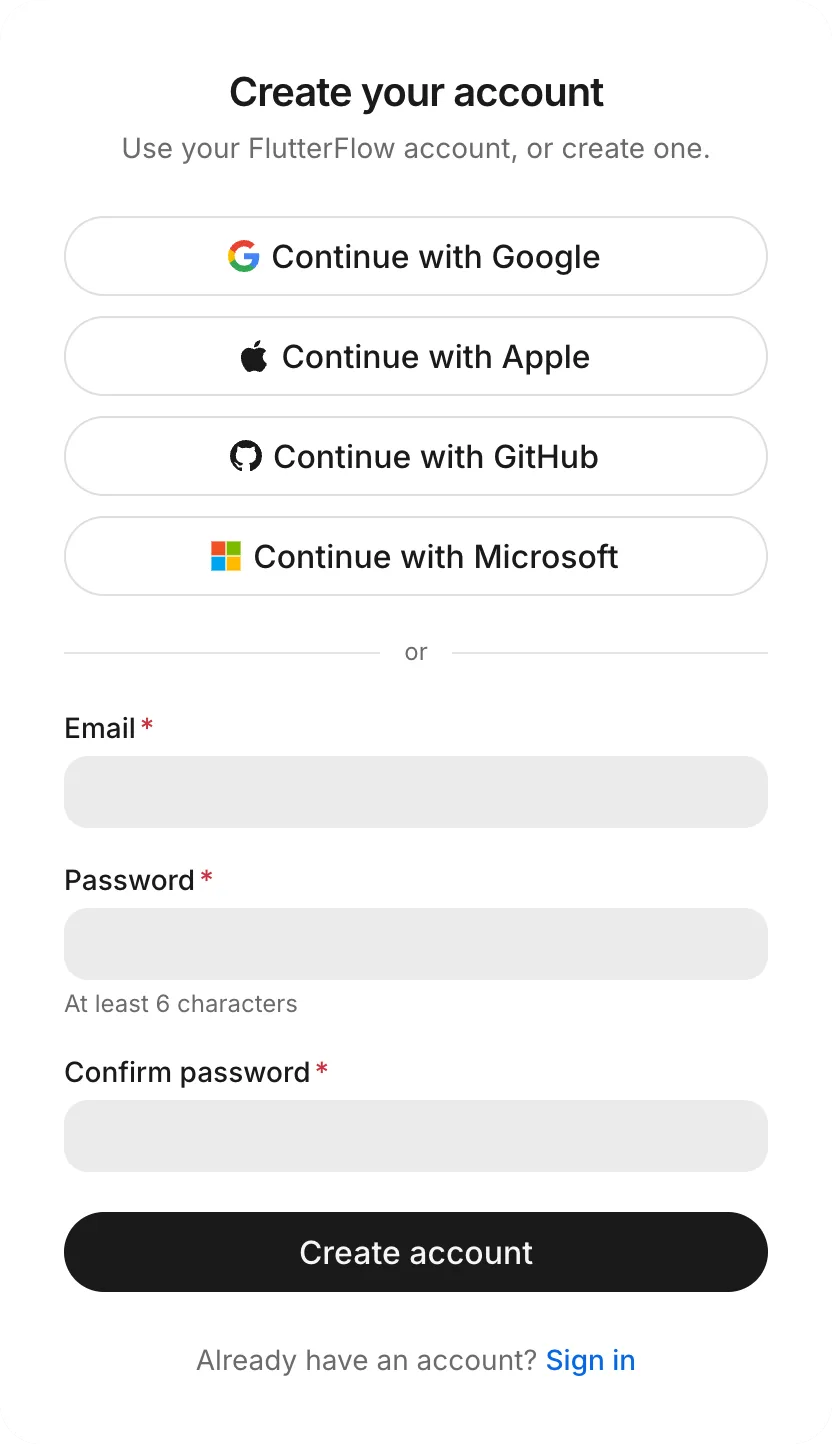
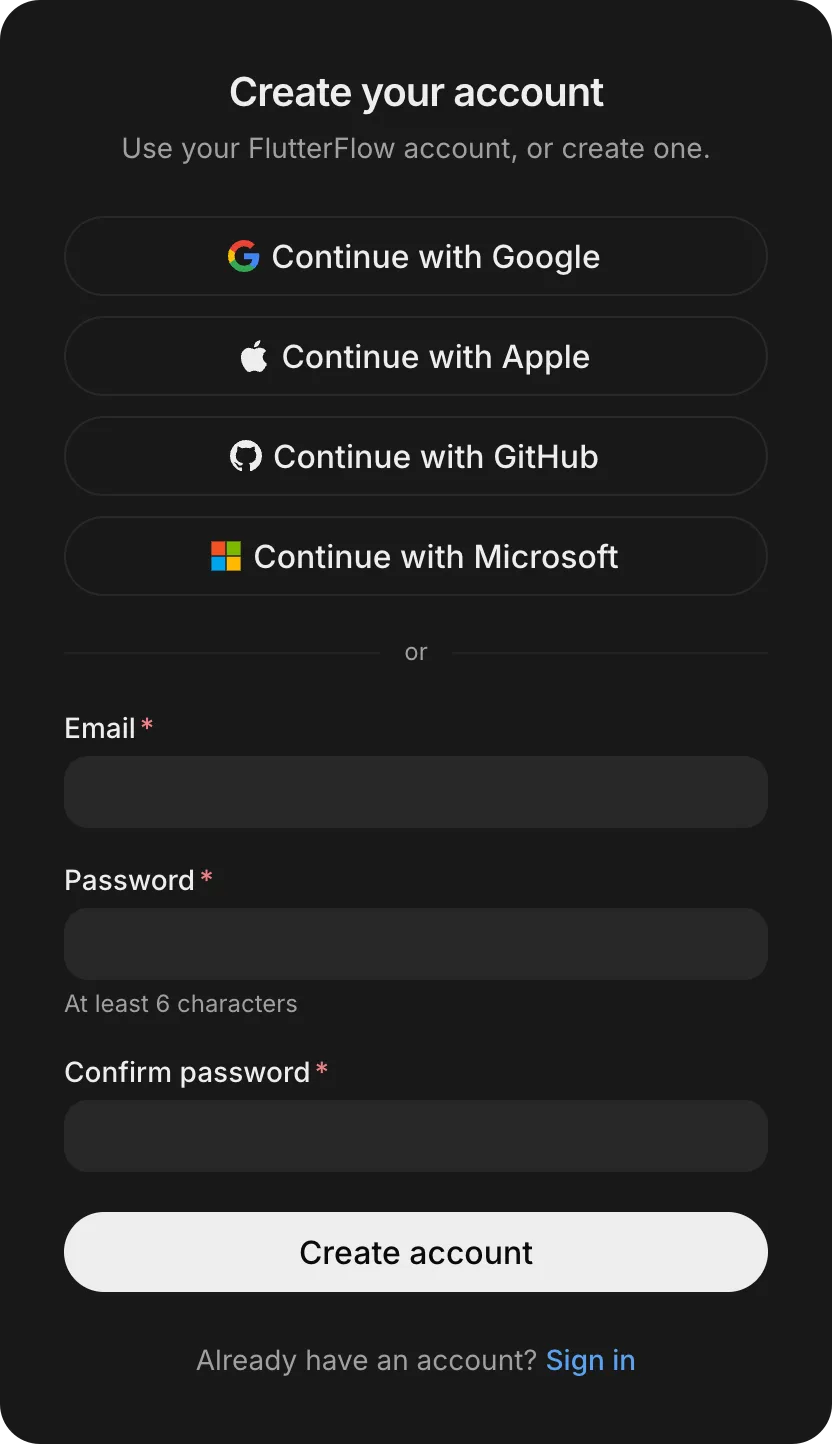
Create your account with one of the four providers or an email address:
- Open FlutterFlow in your browser, and click Create an account.
- Choose a sign-in method:
- To use a provider, click Continue with Google, Continue with Apple, Continue with GitHub, or Continue with Microsoft, and sign in to that account in the window that opens.
- To use an email address, enter your Email and a Password (at least 6 characters), enter the password again in Confirm password, and click Create account.
- If you used a provider, FlutterFlow asks Create a new account?. Click Create account. See Confirm a new account.
- Answer the welcome question. See Welcome question.
Verify your email address before you send your first prompt. See Verify your email.
Sign in
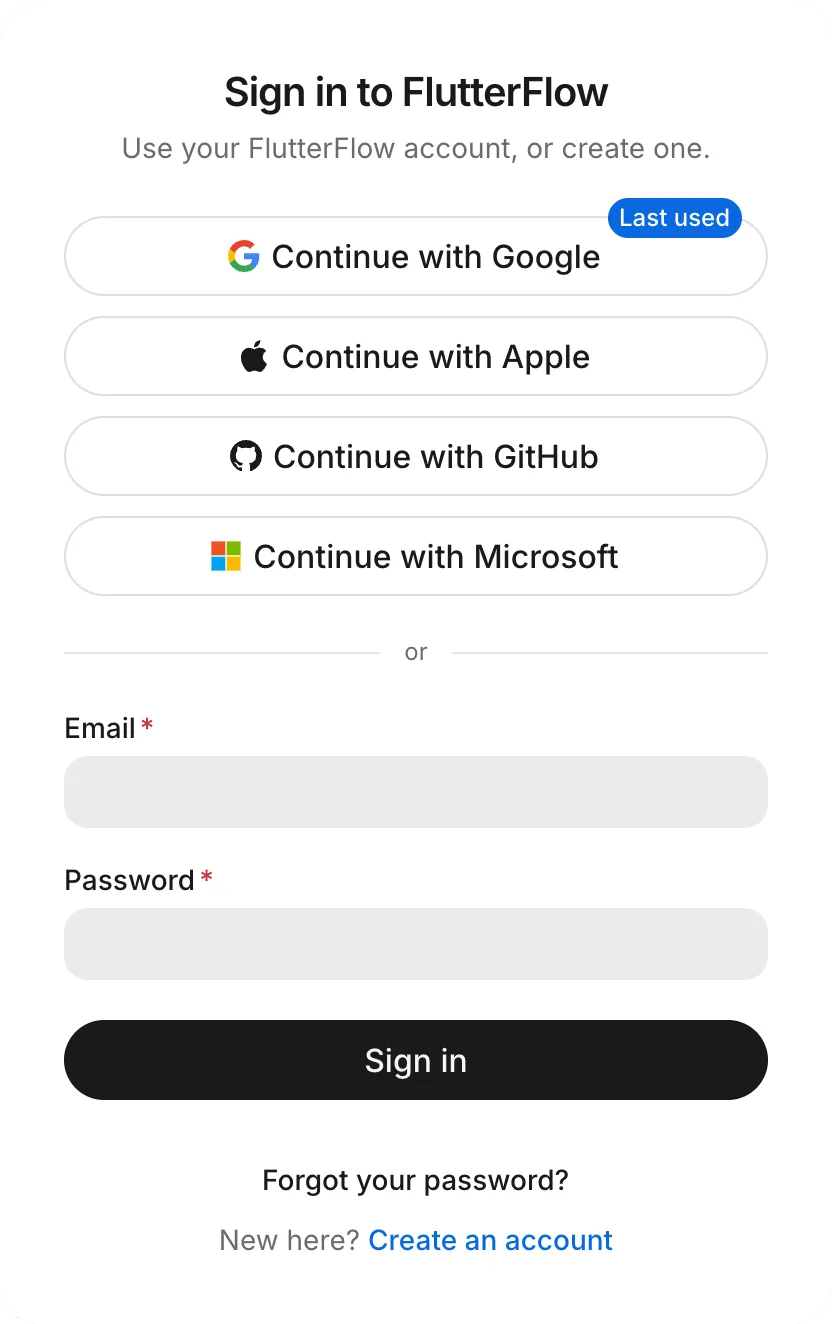
Sign in to FlutterFlow with the provider or email address that you used to create your account:
- Open FlutterFlow in your browser.
- Sign in with your provider or password:
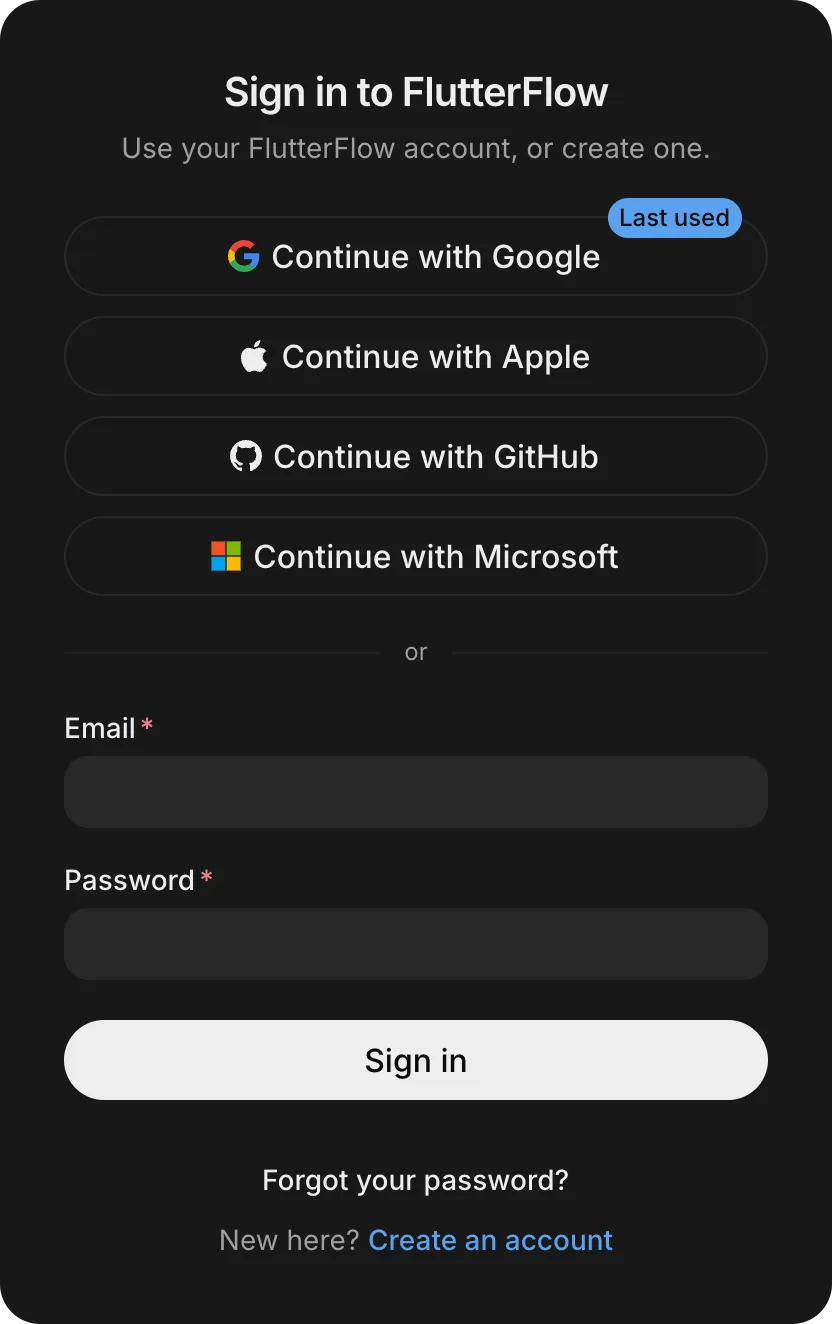
- Click your provider, such as Continue with Google. The provider that you used last in this browser shows Last used.
- Enter your Email and Password, and click Sign in.
An account that you created with a provider has no password, so sign in with that provider’s button.
Add a sign-in method
When you continue with a provider whose email address already belongs to a FlutterFlow account, FlutterFlow adds that provider to your existing account instead of creating a second one. Next time, you can sign in either way.
To add a provider, follow these steps:
-
Click the provider’s button, such as Continue with GitHub, and sign in to that provider.
FlutterFlow shows You already have an account.
-
Sign in to your existing account the way you usually do: click one of the other providers, or enter your Email and Password, and click Sign in with password.
FlutterFlow adds the provider and signs you in.
Confirm a new account
When you continue with a provider whose email address isn’t on a FlutterFlow account yet, FlutterFlow asks Create a new account? before signing you in. If you meant to use an existing account under a different email address, you can go back here.
If Apple hides your email address, or the provider doesn’t share one, FlutterFlow can’t match the sign-in to an existing account and states why (for example, “Apple is hiding your email”).
- To keep the new account, click Create account.
- To go back and sign in another way, click Use a different account. FlutterFlow deletes the account that it just created.
Welcome question
The first time you sign in to FlutterFlow in a browser with a new account, you see Welcome to FlutterFlow and the question “Which best describes your experience building apps?”
- Select every answer that applies:
- I’ve built and published an app myself
- I’ve had an app built for me
- I’ve started building an app but haven’t published it yet
- This will be my first time building an app
- Click Get started.
FlutterFlow asks this question each time you sign in until you answer it. Your browser records that you answered, so FlutterFlow asks again when you sign in from a different browser.
The first time a FlutterFlow Studio account signs in, it skips this question and sees Welcome to the new FlutterFlow instead, with Start building and a link to your projects in FlutterFlow Studio.
Verify your email
You must verify your email address before FlutterFlow sends anything to the agent.
When you create an account with an email and password, we send you a verification email. To verify your email address, open the link in that email.
If you send a prompt before verifying, FlutterFlow keeps it in the box and asks you to verify your email.
Open the verification link, and then return to FlutterFlow. FlutterFlow sends your prompt and starts building your app. If you can’t find the email, click Resend email.
In an existing thread, FlutterFlow shows “Verify your email to keep building.” After you open the link, send your message again.
Reset a password
If you forget your FlutterFlow password, request a reset email from the sign-in page:
- On Sign in to FlutterFlow, click Forgot your password?.
- Enter your Email, and click Send reset link.
If your account has a password, we send you a link to reset it. Follow the link, and then sign in.
Troubleshooting
For problems with sign-in and email verification, see Troubleshoot getting started.