Open on a phone
Open your app on a phone with its share link, and add it to the phone’s Home Screen so it opens like any other app.
You can send For people you share with directly to anyone who opens your link.
From a computer
To open your app on a phone from FlutterFlow on a computer:
- Click Share, and on the Link tab, click QR code.
- Scan the QR code with your phone’s camera and open the link.
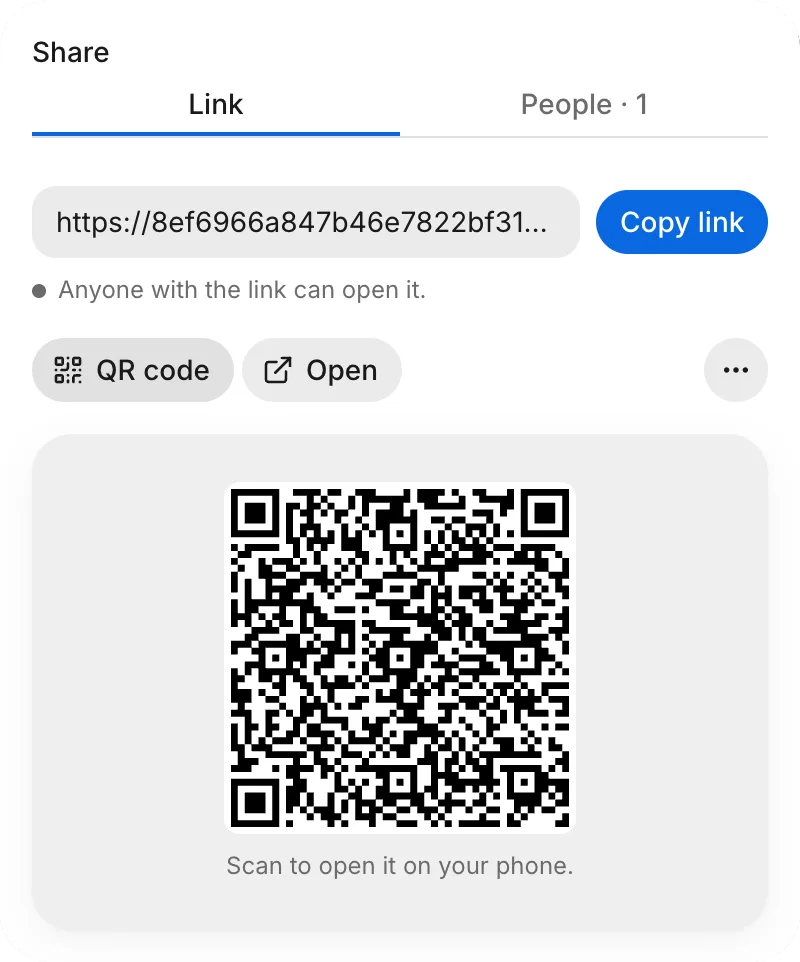
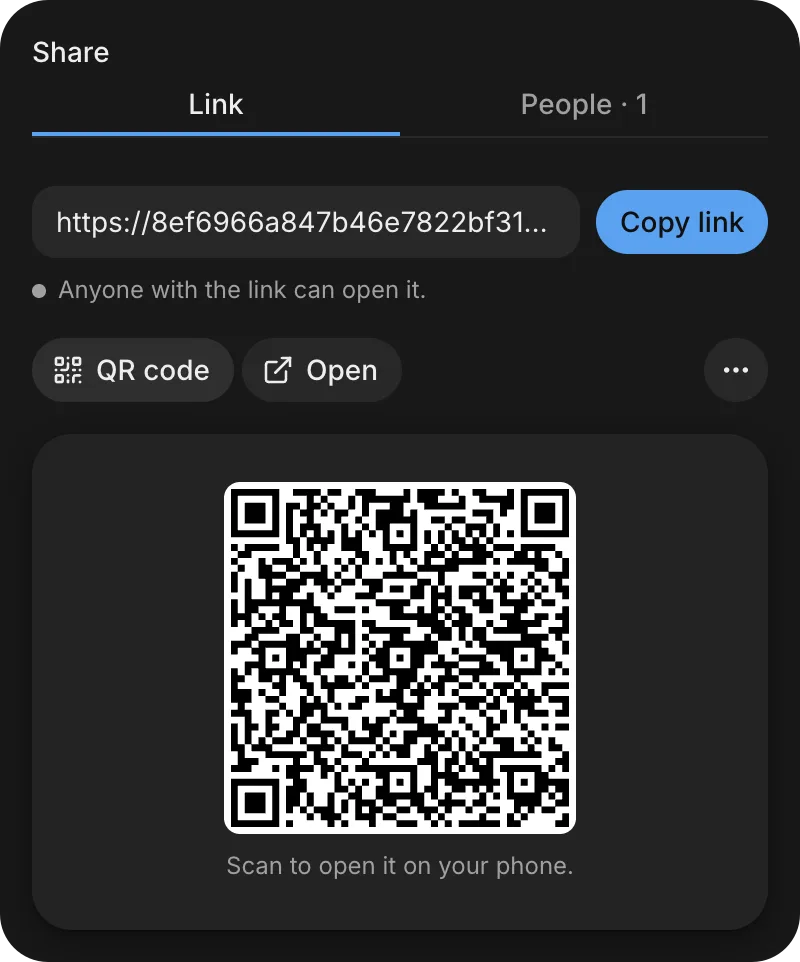
To add your app to the phone’s Home Screen, see Add to Home Screen.
On the phone you’re using
To open your app on the phone where you’re using FlutterFlow:
- Tap Share, and then tap On your phone.
- Under On this phone, follow the steps for your phone:
- iPhone, in Safari: Tap Open to open the link. Tap Share, and choose Add to Home Screen. Keep Open as Web App turned on, and tap Add.
- iPhone, in another browser: Tap Copy link, paste the link into Safari, and follow the Safari steps.
- Android: Tap Open to open the link. In Chrome, tap ⋮ and tap Add to Home screen.
Result: Your app appears on your Home Screen and opens full screen.
The link opens your app in the browser rather than installing a native test build. To install a native phone build, use the options under As a phone app, or see Android test build and Install a test build on an iPhone.
For people you share with
Anyone with your app’s link can open it on their phone without signing in. Open the link or scan its QR code with your phone’s camera, and wait for the app to load.
Add to Home Screen
When the app opens, Install appears at the top right of the screen. Follow the steps for your phone and browser:
iPhone, in Safari:
- Tap Install to open Install this app.
- Tap Safari’s Share button, and choose Add to Home Screen.
- Keep Open as Web App turned on, and tap Add.
- Tap Got it.
iPhone, in Chrome:
- Tap Install. An arrow points at Chrome’s Share icon.
- Tap Chrome’s Share icon, and choose Add to Home Screen.
- Keep Open as Web App turned on, and tap Add.
- Tap Got it.
Android, in Chrome:
- Tap Install.
- Follow Chrome’s prompt to install the app.
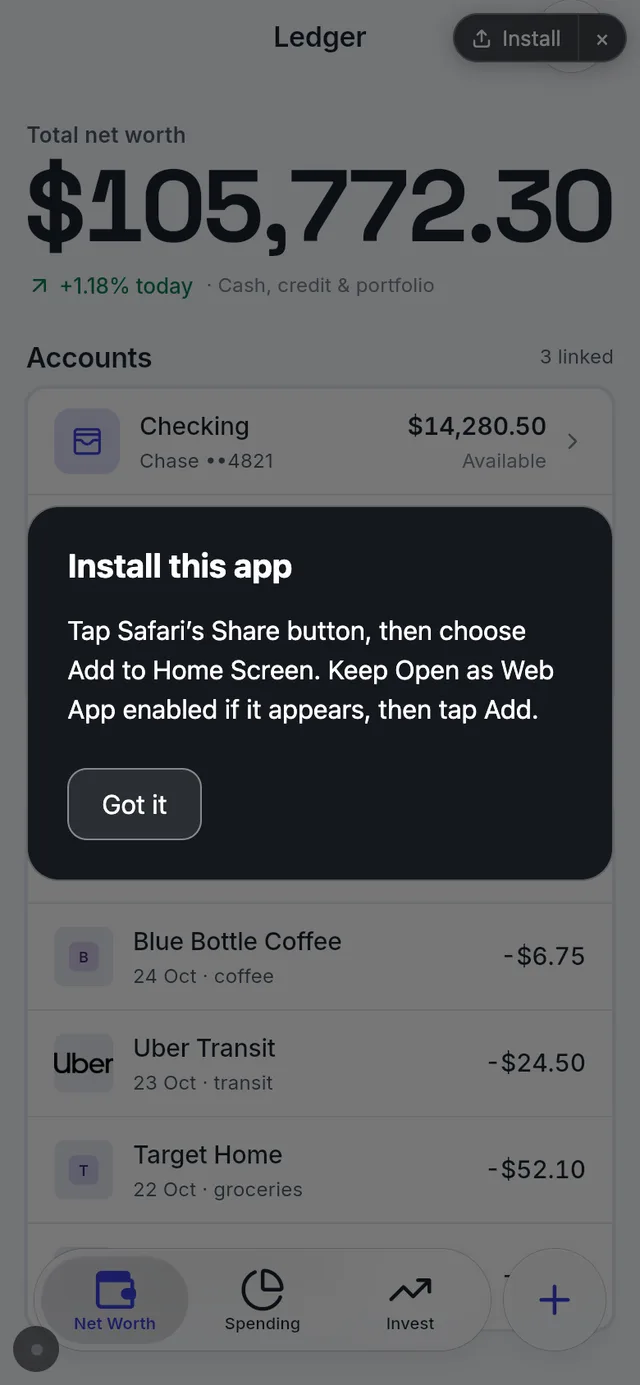
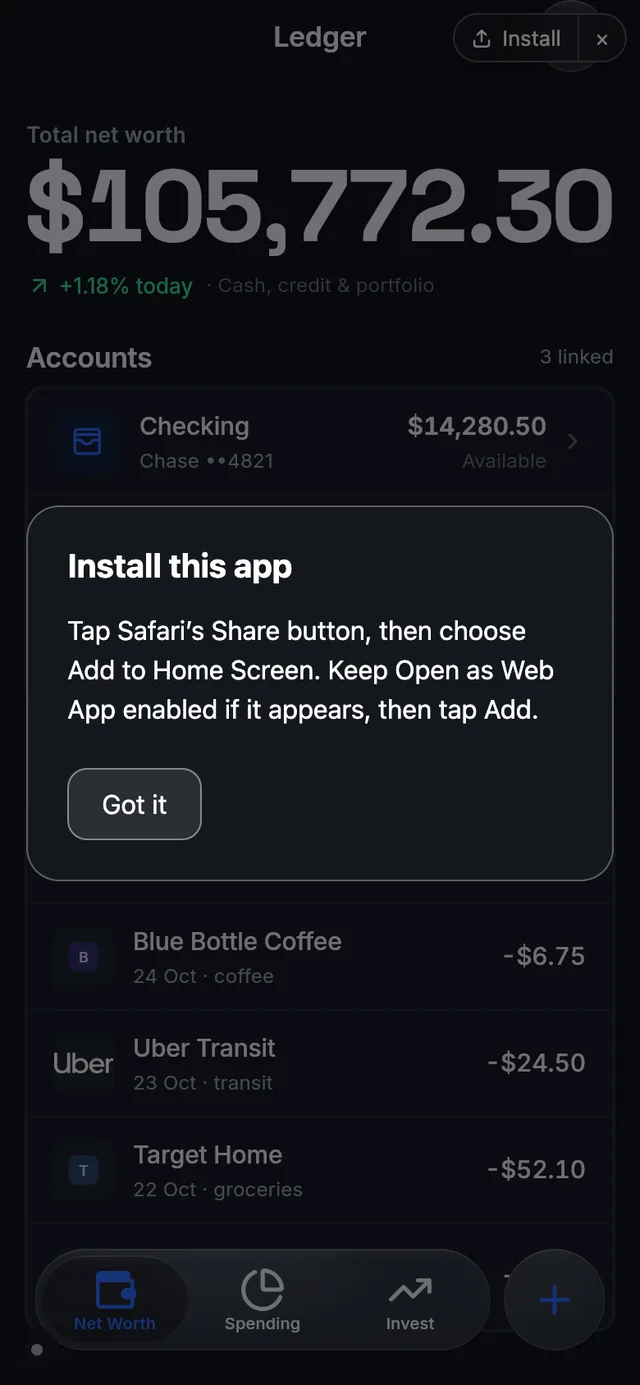
Result: The app appears on your Home Screen and opens full screen.
Switch to the faster version
The link can open a standard version of the app while FlutterFlow prepares a faster version. When the faster version is ready, Faster version ready appears at the bottom of the screen.
To switch:
- Save any unfinished work in the app, because switching reloads the app.
- Tap Switch now.
Result: The app reloads in the faster version.
To keep using the current version for now, tap Later. The next time you open the link, it loads the faster version.
Troubleshooting
If the link doesn’t open the app or doesn’t show your latest changes, see Troubleshoot sharing and phone installs.