Sign-in options
Backend › People › Sign-in shows how people sign up and sign in to your app: the ways to sign in, how long they stay signed in, and the shortest password allowed. To add sign-in to your app, see Add sign-in.
Where to find it
To open the sign-in view, go to Backend › People, and then select Sign-in. People appears when your app has sign-in, and only owners and developers can open it.
The following table describes the sections of the view.
| Section | What it shows |
|---|---|
| Ways to sign in | Each way people can sign in, and whether it’s on |
| Accounts and sessions | The settings for the ways that are on, and how long people stay signed in |
| Profile fields | The details each person’s profile keeps |
| Who can see profiles | Who can do what with profiles |
The view is read-only. To change how sign-in works, click Ask for a change at the end of the view. A new thread opens with “Change how people sign up and sign in:” in the composer for you to finish and send. The change reaches your app when you push the thread.
Ways to sign in
Ways to sign in lists the four ways to sign in, each with its state. The following table lists them.
| Way | When it’s on |
|---|---|
| Email and password | People sign up with their email and a password. |
| Guest accounts | People look around before they sign up. |
| Not available yet. | |
| Apple | Not available yet. |
Each way shows one of the states in the following table.
| What you see | What it means |
|---|---|
| On | The way is on in your app. The line under its name describes what it does. |
| “Not set up” and Ask | The way is off. Ask opens a new thread with a request for that way in the composer. |
| “Not available yet” and Soon | Your app can’t offer this way yet. |
Accounts and sessions
Accounts and sessions lists the settings for the ways to sign in that are on, and your app’s session settings. The values are your app’s own. The following table describes these settings and gives their defaults.
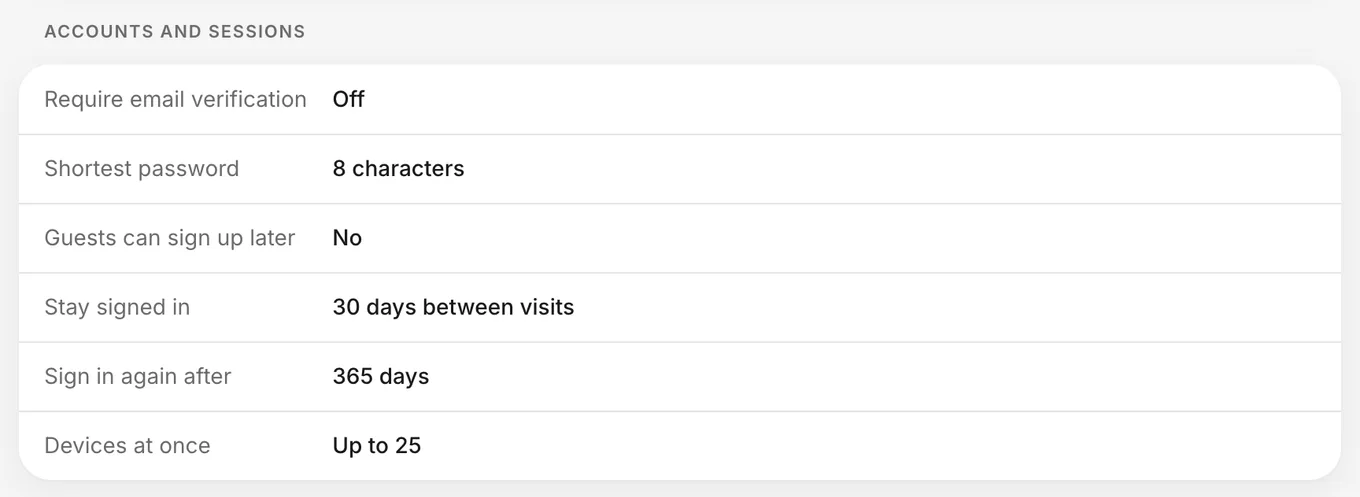
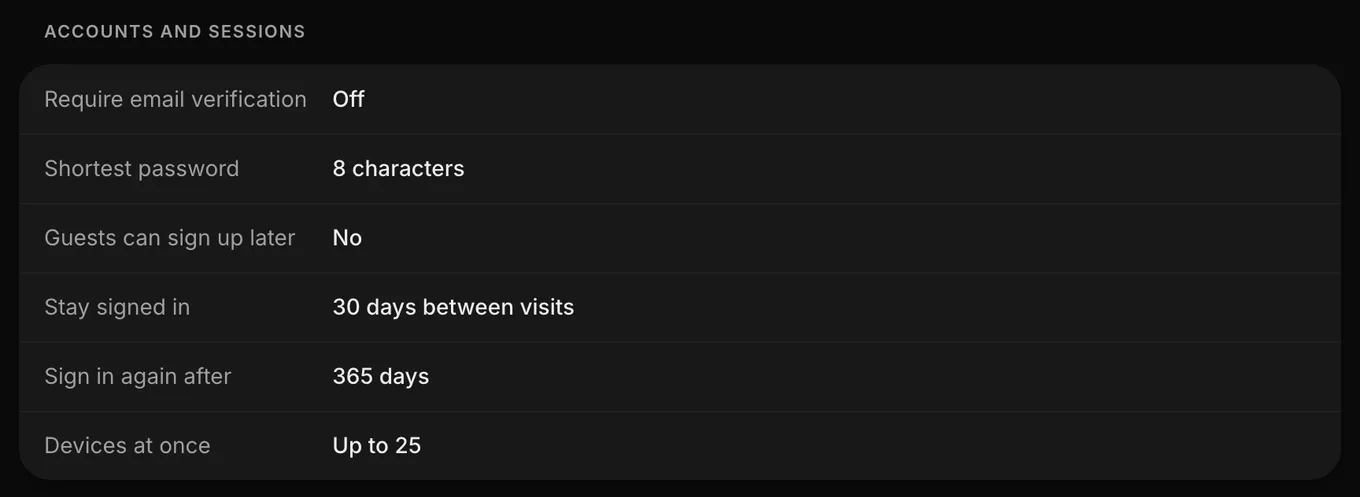
| Setting | What it means | Default |
|---|---|---|
| Require email verification | Shown when Email and password is on, as On, Off or Not specified. Whatever it shows, your app sends no verification email and doesn’t require a confirmed address. |
Your app’s own value |
| Shortest password | Shown when Email and password is on. The fewest characters a password can have. Sign-up and password resets reject a shorter password. It can be 6 to 100 characters. | Your app’s own value |
| Guests can sign up later | Shown when Guest accounts is on, as Yes, keeping what they did, No or Not specified. Whatever it shows, a guest who signs up becomes a new person and doesn’t keep what they did as a guest. |
Your app’s own value |
| Stay signed in | How long a person stays signed in on a device without using the app. Each visit starts the count again. | 30 days between visits |
| Sign in again after | How long after signing in a person has to sign in again, however often they use the app. | 365 days |
| Devices at once | The most devices one person can be signed in on at the same time. When they sign in on one more, the device they used least recently is signed out. | Up to 25 |
When someone resets their password with a password-reset link, every device signed in to their account is signed out. To change the email that contains the link, see Password reset email.
Email verification and guests
Email and password sign-in sends no verification emails, so people can sign in without confirming their address. Backend › People (visible to owners and developers) lists these accounts as Unverified.
When a guest creates an account in your app, they appear in Backend › People as a new person, and their original guest row stays with the status Guest.
What isn’t available
Your app’s backend offers only Email and password and Guest accounts. These ways to sign in aren’t available:
- Google and Apple, which Ways to sign in shows with Soon.
- Phone number sign-in.