Keyboard shortcuts
The tables on this page list the keyboard shortcuts in FlutterFlow by where you use them. Where a key combination differs on a Mac, the table gives both.
Everywhere
One keyboard shortcut works anywhere in your apps and your account.
| Keys | What it does |
|---|---|
Command+K on a Mac, Control+K on other computers |
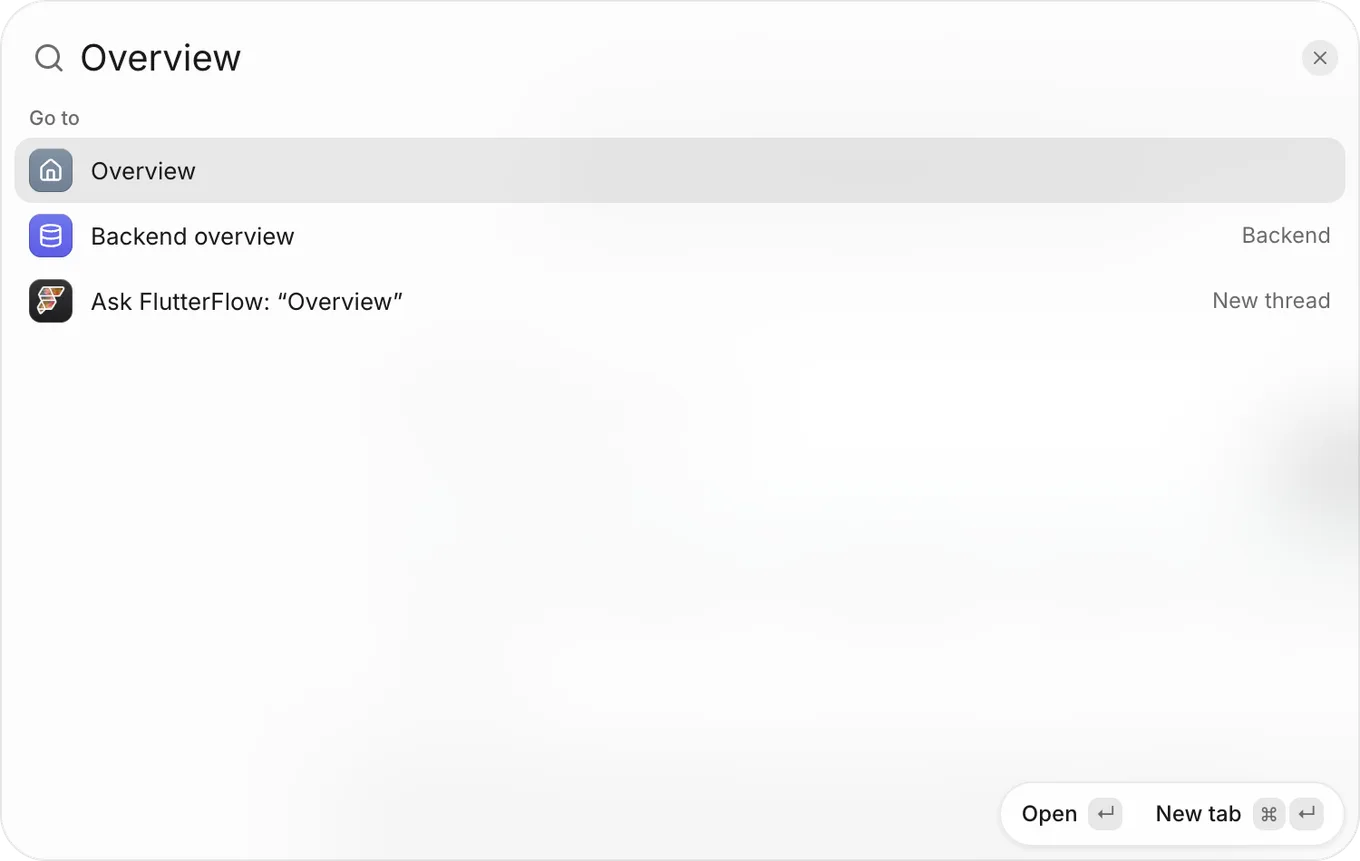
Opens the command palette. Press it again to close the palette. |
The shortcut also works while you use the preview of your app. It doesn’t open the palette while the agent is building your app’s first version, or while another menu or dialog is open. The Search button on the rail opens the palette too.
Command palette
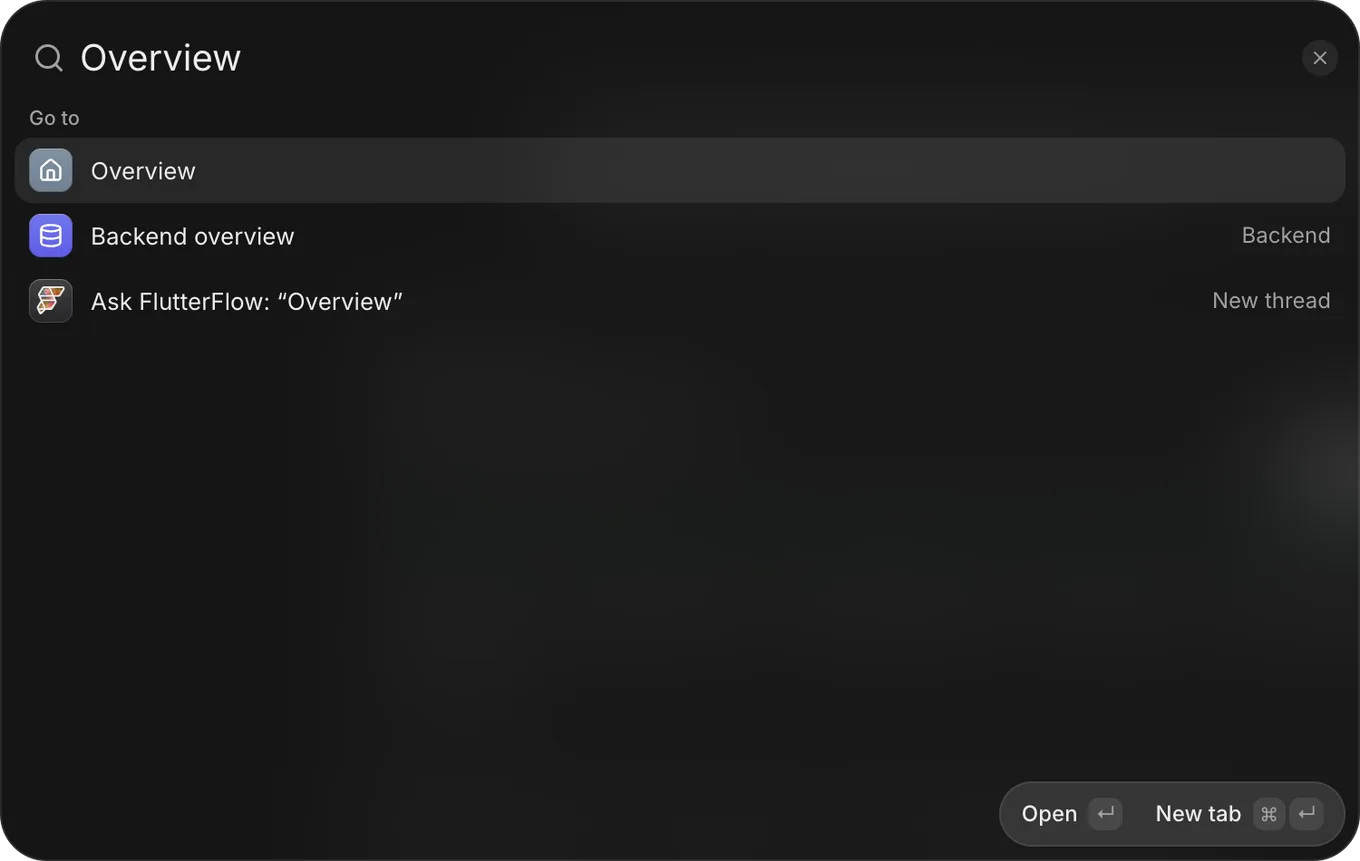
These keys work while the command palette is open. The palette’s footer names what Enter and Command+Enter do to the highlighted row.
| Keys | What it does |
|---|---|
Down arrow or Up arrow |
Highlights the next or previous row. |
Option+Down arrow or Option+Up arrow on a Mac, Alt+Down arrow or Alt+Up arrow on other computers |
Highlights the first row of the next or previous group. |
Command+Down arrow or Command+Up arrow on a Mac |
Highlights the last or first row. |
Control+N or Control+P on a Mac |
Highlights the next or previous row. |
Enter |
Runs the highlighted row: Open, Switch, Run, Ask, or Open draft. |
Command+Enter on a Mac, Control+Enter on other computers |
On a row whose footer shows New tab, opens that place in a new browser tab. On the Ask FlutterFlow row, sends your request to a new thread right away (Send now). |
Escape |
Closes the palette. |
New-app prompt
These keys work in the box where you describe a new app.
| Keys | What it does |
|---|---|
Command+Enter on a Mac, Control+Enter on other computers |
Sends your prompt, the same as the send button (the up arrow). |
Enter |
Adds a new line. |
Thread message box
These keys work in the box where you write to the agent in a thread.
| Keys | What it does |
|---|---|
Enter |
Sends your message. While the agent is working, Enter queues the message instead (Queue message). On a phone or tablet, Enter adds a new line. |
Shift+Enter |
Adds a new line. |
Command+Enter on a Mac, Control+Enter on other computers |
Sends your message. This works on a phone or tablet too. |
Up arrow, in an empty box |
Puts your last message back in the box. |
Escape |
Stops the agent’s current turn, the same as Stop. |
Preview
This key works in the preview of your app while you’re picking a part of a screen, with Inspect element turned on.
| Keys | What it does |
|---|---|
Escape |
Stops picking a part of a screen. |
Screens
These keys work in the Screens tab while one screen is open. When you open a screen from its tile, the screen’s states have keyboard focus, so the arrow keys work right away.
| Keys | What it does |
|---|---|
Left arrow or Right arrow |
Shows the previous or next state or direction. |
Home or End |
Shows the first or last state or direction. |
Escape |
Goes back to all screens. |
Thread list
These keys work in the list of threads beside your app, when a thread row has keyboard focus.
| Keys | What it does |
|---|---|
Down arrow or Up arrow |
Moves to the next or previous thread. |
Home or End |
Moves to the first or last thread. |
Right arrow |
Moves to the thread’s menu button. |
Left arrow, from the menu button |
Moves back to the thread. |
| A letter or number | Opens the command palette with that character typed, so you can find a thread. |
Records
These keys work in the sheet that opens when you open or add a record in Backend, or in a thread’s Data tab.
| Keys | What it does |
|---|---|
Enter, in a one-line field |
Saves the record (Save or Save to app). When you’re adding a record, adds it. |
Command+Enter on a Mac, Control+Enter on other computers, in any field |
Saves or adds the record, the same as Enter in a one-line field. |
Escape |
Closes the sheet. If you have changes that aren’t saved, the sheet asks whether to discard them first. |
Feedback
This key combination works in the note box of the Send feedback dialog, and of the dialog that opens from Rate this thread….
| Keys | What it does |
|---|---|
Command+Enter on a Mac, Control+Enter on other computers |
Sends your feedback. |