Build your first app
In this tutorial, you describe an app in a few sentences, the agent builds a first version, and you open it on your own phone.
What you’ll build
You build a working app from your own description and open it on your phone with a QR code.
Describe your app
Your first app starts from a prompt: a few sentences about what the app does, who it’s for, and the style you like.
-
Sign in to FlutterFlow, or create an account.
-
On Home, in the “Describe the app you have in mind” box, write your prompt. For example:
A money app called Ledger for people who want one honest number.Net worth at the top, accounts grouped by bank, and spending bycategory for the month. Calm and precise, with one blue accent.To start from a longer example instead, click finance app, habit tracker, or marketplace under the box. The example replaces whatever is in the box. For more tips, see Write a prompt.
Building your first version uses your account’s one free build. On Free, that’s the only new app you can start, so describe the app you really want.
-
Optional: To give the agent a logo, a screenshot, or a font to follow, click Attach files, and then choose your files. See Attachments.
-
Click Build the first version.
A thread called “First version” opens, with a First version card for the agent’s work. If Home asks you to verify your email instead, open the link in the email FlutterFlow sent you, and your app starts building by itself.
Wait for the first version
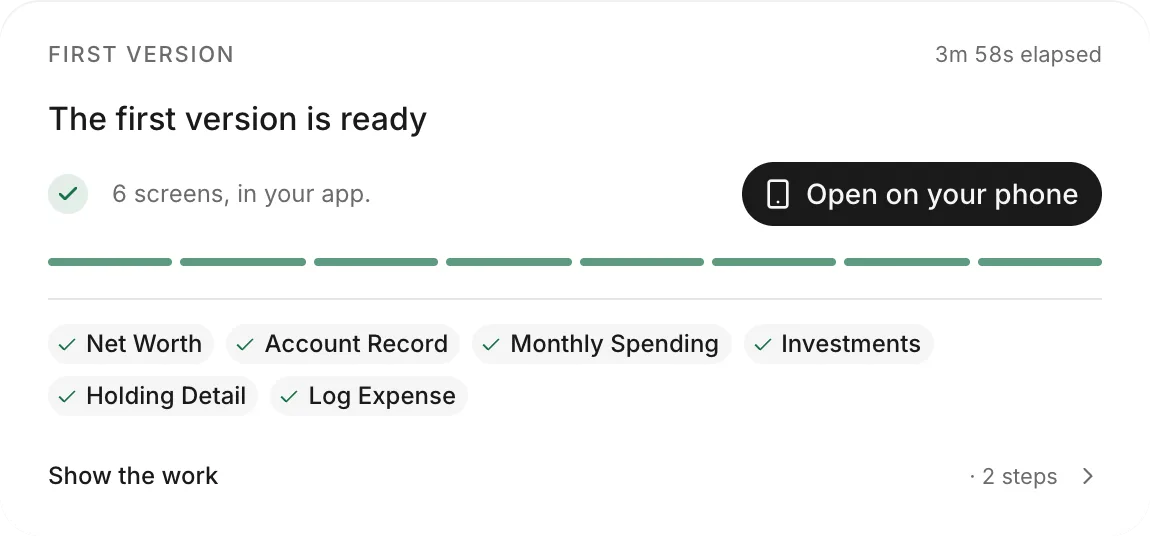
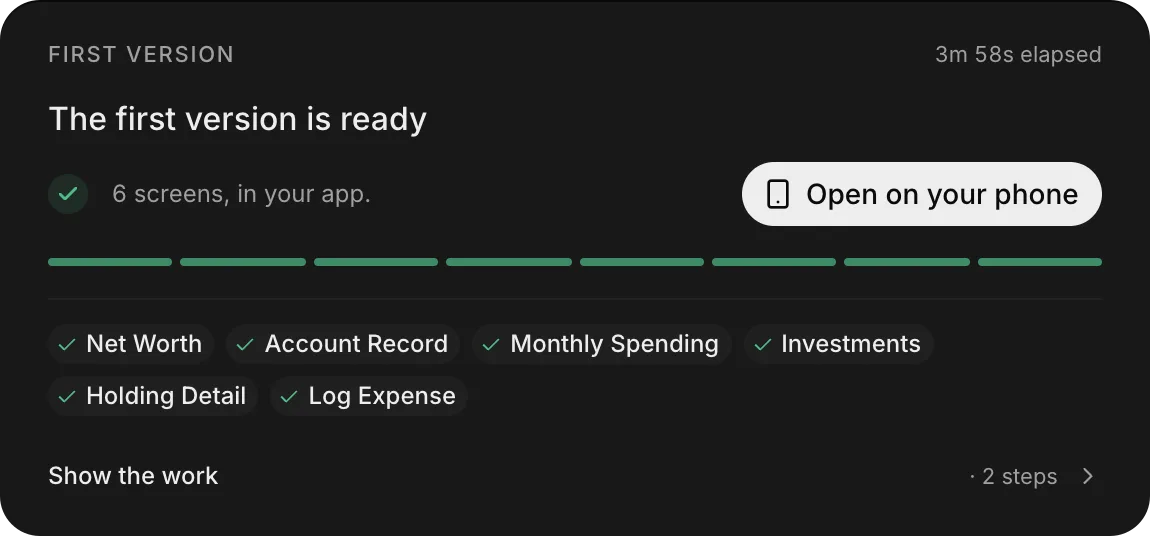
The First version card shows how far along the agent is: the current step, and then how many screens it has made.
To see what the agent is doing while it works, click Show the work. To get a browser alert when the first version is ready, click Notify me.
Your first version comes with a backend: a table for each kind of record your app shares or keeps across devices, filled with starter data, and sign-in with an email and password. When people can add pictures to a record, its sample pictures are saved in Backend › Files, along with the ones people add. To change any of this, ask the agent in a thread.
Open on a phone
The First version card includes a button to open your app on your phone with a QR code.
-
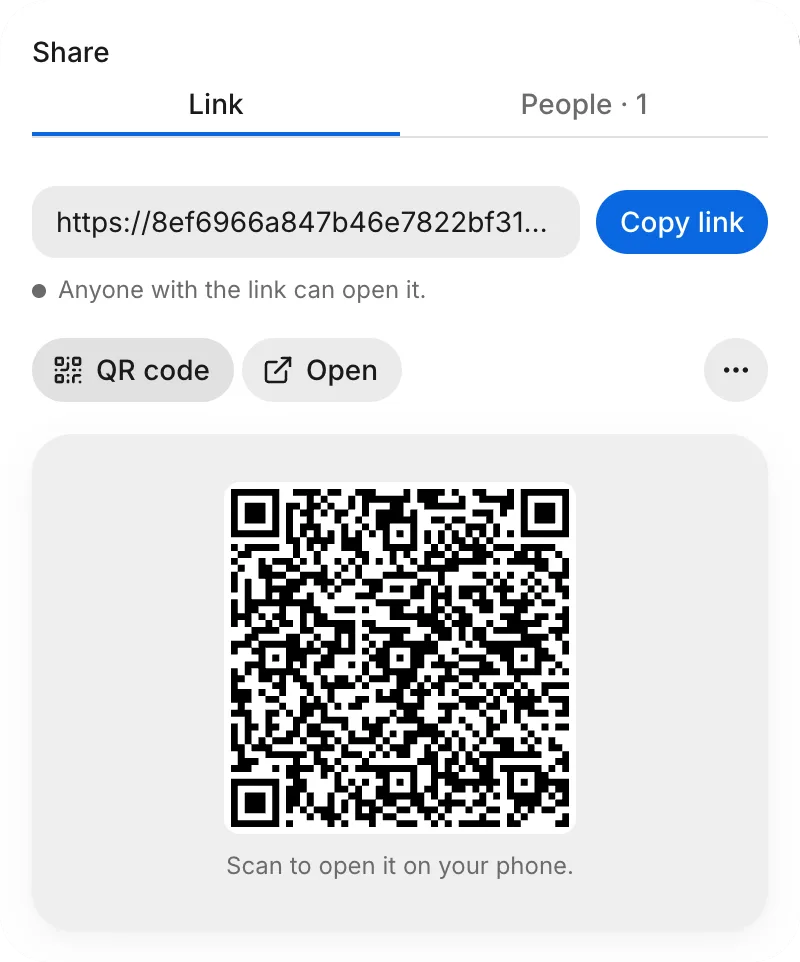
On your computer, on the First version card, click Open on your phone.
-
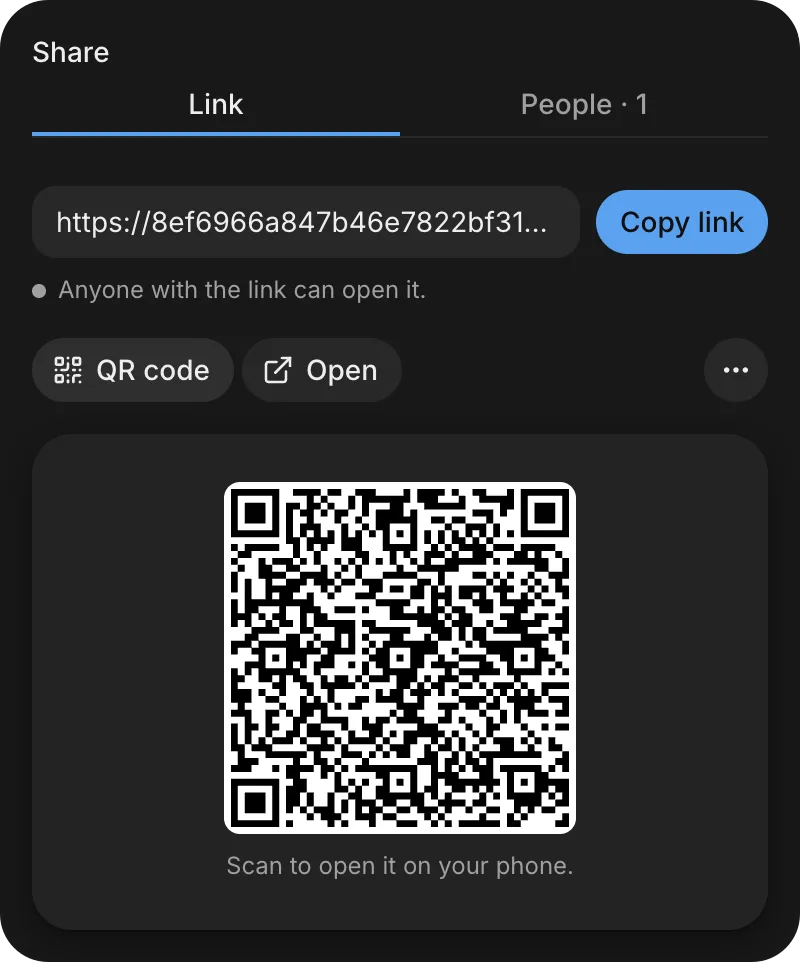
On your phone, scan the QR code to open your app.
Next steps
To make your first change, see Your first change.
Learn more
- Write a prompt
- Your first version
- Open on a phone
- Share a link
- Troubleshoot getting started, for a first version that fails or stops