Password reset email
When you’re done, the people who use your app get a password reset email with your own sender name, subject, and message, and its link opens the page that you chose.
The password reset email is for apps with Email and password sign-in. See Add sign-in.
Open the email
Owners and developers can change the emails. Viewers and billing members can’t see them. See Team roles.
- Open Project Settings › Emails.
- Next to Password reset, click Edit.


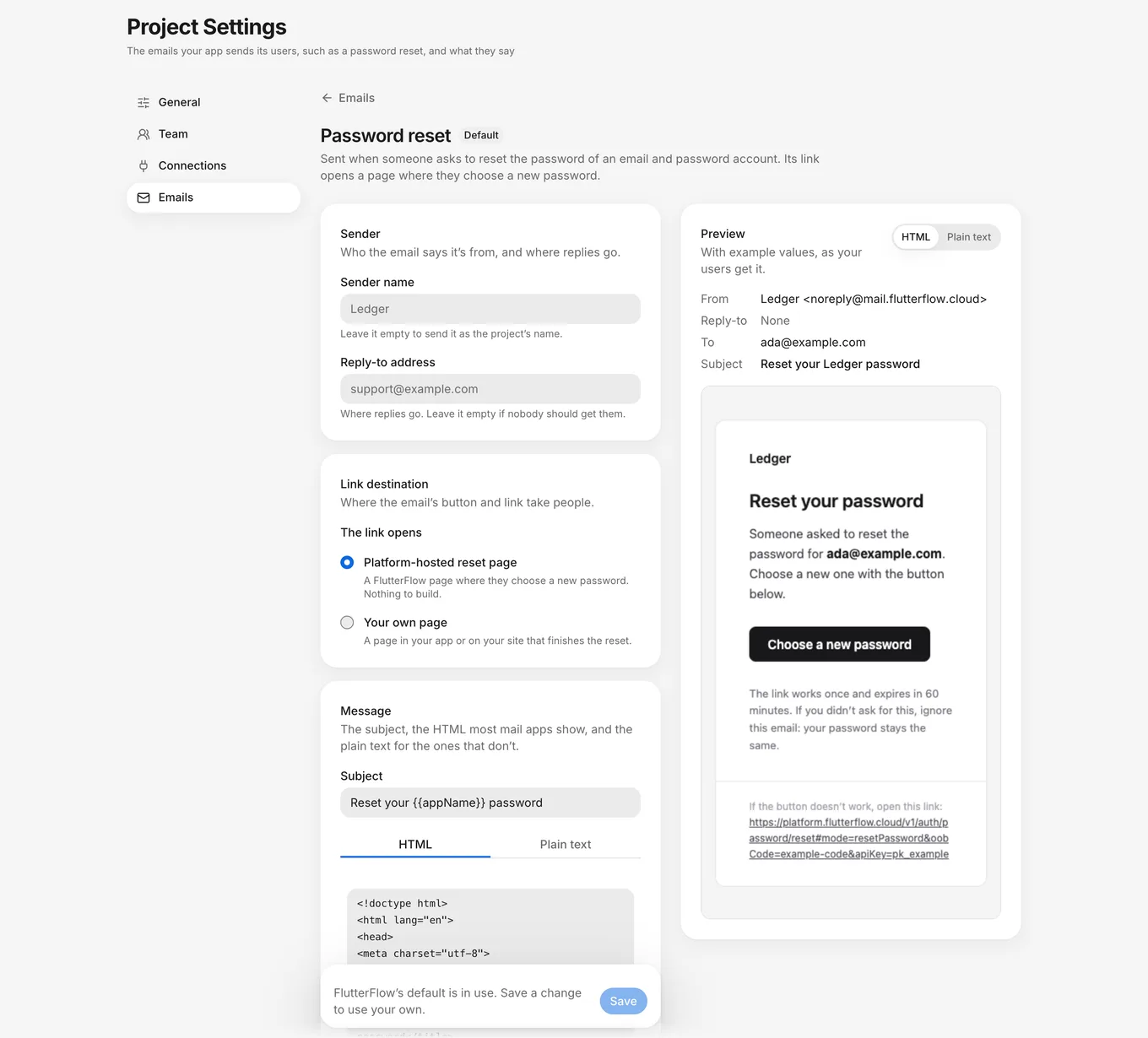
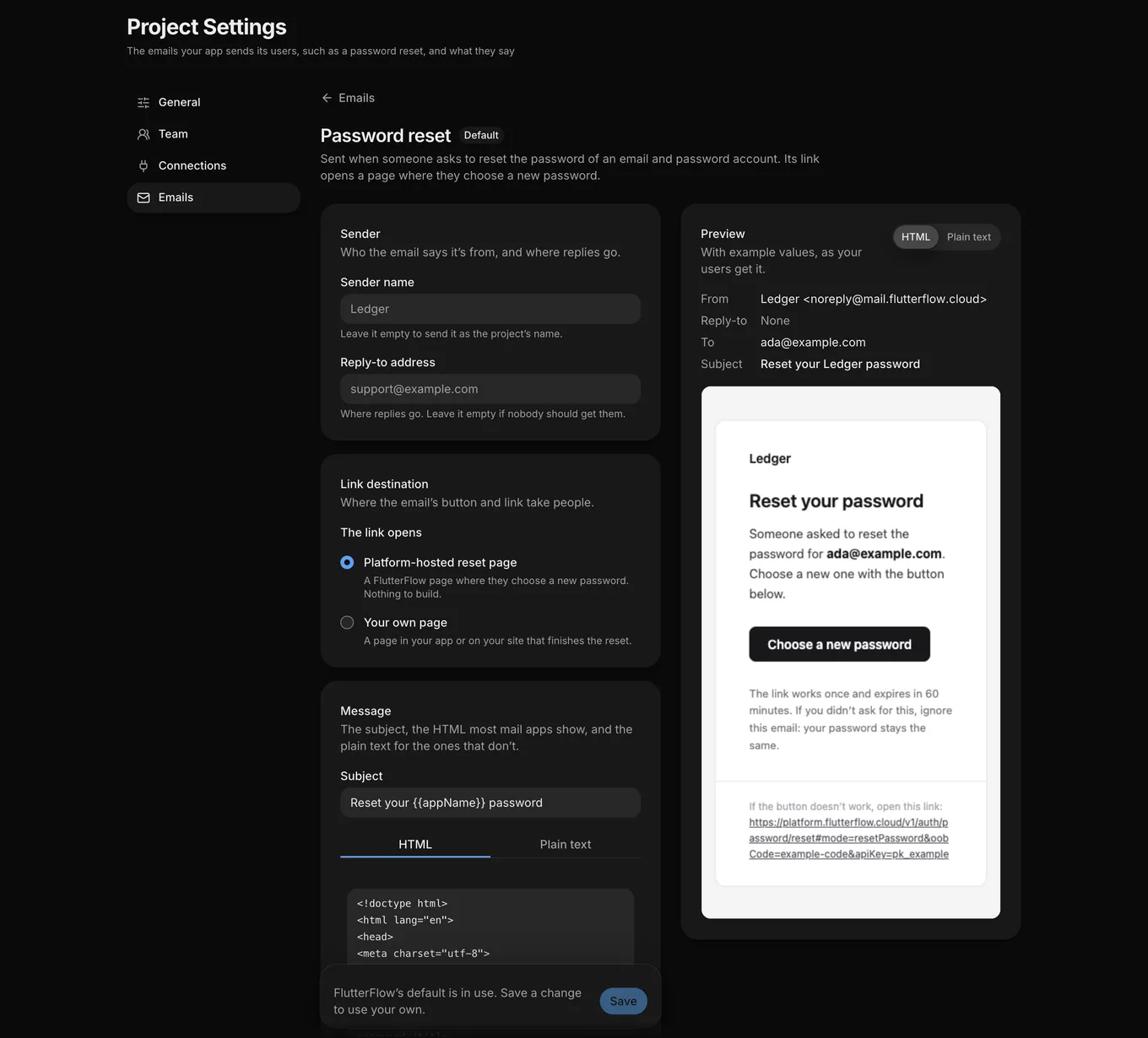
The editor shows the email’s fields and, beside them, a Preview of the email with example values. To switch the preview between the two bodies, select HTML or Plain text.
Sender
In the Sender card:
- Sender name: the name that the email shows as its sender. If you leave it empty, the email uses your app’s name. Only the name changes: the address that sends the email stays FlutterFlow’s.
- Reply-to address: where replies go, such as
support@example.com. If you don’t want replies, leave it empty.
Link destination
In the Link destination card, under The link opens, select one:
- Platform-hosted reset page: a FlutterFlow page where people choose a new password. You don’t need to build anything. See What people see.
- Your own page: a page in your app or on your site that finishes the reset. In Your page’s address, enter an
httpsaddress, or an app link whose scheme is a reverse domain, such ascom.example.app://reset. Don’t include a#part. The link adds?mode=resetPassword&oobCode=…to the address.
Subject and message
In the Message card:
- In Subject, enter the subject line. Keep it on one line.
- To change the body that most mail apps show, select HTML and edit it.
- To change the body for mail apps that don’t show HTML, select Plain text and edit it.
Variables
To add a value that changes with each email, write a variable in double braces, such as {{appName}}, in the subject or a body. FlutterFlow fills it in when it sends the email. To copy a variable, click the copy button next to it in the Variables card.
| Variable | What it holds |
|---|---|
{{appName}} |
Your app’s name. |
{{email}} |
The account’s sign-in email: the recipient. |
{{resetLink}} |
Required. The single-use link that opens the page where the person chooses a new password. |
{{expiresInMinutes}} |
How many minutes the link works for. |
{{resetLink}} must be in both the HTML body and the plain-text body.
Save
- Check the email in the Preview.
- Click Save.
Result: The next password reset email that FlutterFlow sends uses your changes.
To drop your unsaved changes instead, click Discard changes.
Reset to default
Reset to default appears after you’ve saved changes to the email.
- Click Reset to default.
- In the Reset the password reset email? dialog, click Reset to default.
Result: The sender name, reply-to address, link, subject, and both bodies go back to FlutterFlow’s default, and any unsaved changes are dropped. The next email uses the default.
Who gets the email
FlutterFlow sends the password reset email when someone asks your app to reset their password. It sends the email only when the address belongs to an email and password account that isn’t disabled. Your app gets the same answer either way, so it doesn’t reveal whether someone has an account.
What people see
The link in the password reset email works once and expires after 60 minutes.
If the email uses Platform-hosted reset page, the link opens a page titled Choose a new password:
- The person enters their new password in New password and Confirm new password.
- They click Change password.
The page shows Password changed, and every device signed in to their account is signed out. The new password must be at least as long as your app’s Shortest password. See Sign-in options.
If the link has expired or was already used, the page says This link can’t be used after they click Change password, and asks them to request another email.
Reset limits
If someone asks for too many password reset emails for the same address in a short time, FlutterFlow refuses your app’s request with “Too many password-reset requests for this email.” A link that was already sent keeps working until it’s used or expires. For what to tell the person, see Troubleshoot your live app.