What the agent can do
The agent builds and changes your app when you ask in a thread. It makes the changes, checks its work, and asks you when a decision belongs to you. Some actions are yours alone: pushing, connecting services and store accounts, and releasing your app through the stores.
What the agent builds
The agent works on the thread’s Copy of your app, not on your app itself. FlutterFlow pushes your first version for you. After that, most of the agent’s changes reach your app only when you push.
When you ask in a thread, the agent can:
- Add and change screens: what they show, how they look, and how they work.
- Set up your app’s backend, including its tables, sign-in, and files.
- Add starter data: the records and accounts that every new thread starts with.
- Change your app’s icon.
- Add pictures and fonts that you attach, such as your logo or typeface.
- Use connected services, both from your app and from the thread. It runs an action that changes something outside FlutterFlow, such as sending a message, only when you ask for it in that thread.
- Build the Android or iPhone app. The agent builds from your app rather than the thread, so if the thread has unpushed changes, it asks you to push them first. When the build finishes, it appears in Releases.
Releases tracks whether an upload to TestFlight or Google Play succeeded and whether a version is in review. The agent can’t check those store statuses. See How releasing works.
How the agent checks its work
While the agent works, it checks the code that it changed for errors and fixes them. After it changes a screen’s appearance, it takes a screenshot of that screen to inspect the result.
When a turn that changed your app ends, FlutterFlow builds its screens and updates the thread’s preview, so that you can test the change before you push. See What changed.
Agent questions
When your request is clear, the agent completes the work and summarizes what it did. When a sensible default exists, the agent chooses it and tells you what it chose.
When the agent needs a decision or input from you, it shows a card at the top of the message field and waits for your answer. The card’s label states what the agent needs:
- Question: a choice between options. Pick an option, reply in your own words, or click Let the agent choose.
- Choice: pictures of different designs to pick from.
- Proposal: a plan that waits for your approval before the agent builds it.
- Connect: a service to connect.
- Private: a key or other private value, such as an App Store Connect or Google Play key.
- Setup: service settings, such as ad IDs, to save.
- Approval: a single action through a connected service to approve before it runs.
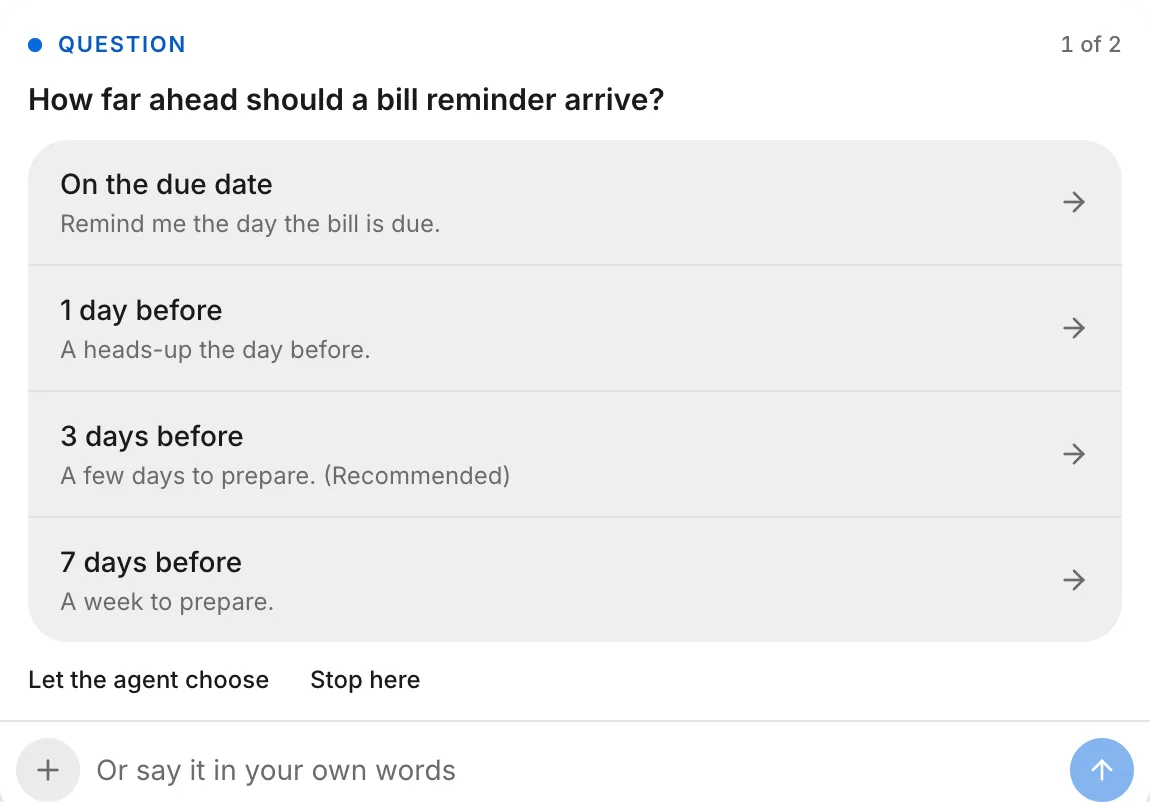
See Agent questions.
What only you can do
Only you can take these steps, even if you ask the agent to do them:
- Push changes to your app. After your first version, only the Push to your app button pushes. See Push.
- Connect services and store accounts. The agent prompts you on a Connect or Private card so that you can connect the service there. Only an owner can connect a service to your app or connect a store account. Your own accounts, which the agent uses in threads that you start, are in Account › Connections, and you connect them yourself. See Connect a service.
- Submit your app for review, and return to an earlier version. You do both in Releases, at the bottom of a version’s panel. To submit, click Send to both stores (or Send to the App Store or Send to Google Play), then Send for review. To return, click Go back to this version.
- Add testers. Invite testers directly in App Store Connect and Play Console. See Add testers.
- Answer the stores’ questions. Upload store screenshots and complete sections such as App Privacy and Data safety in App Store Connect and Play Console. The agent can make your store pictures from your app’s screens and list what your app collects to help you answer. See Finish console setup.
Keep keys out of messages
Don’t paste a key or token into a message. When a message looks like a credential, such as a private key, service-account key, or GitHub token, FlutterFlow blocks it, leaves your text in the message field, and warns you to keep credentials out of your messages and rotate the key.
When the agent needs a key, it prompts you with a card instead. For example:
- For a service, it shows a Connect card. After you connect the service, the agent uses it without seeing its key.
- For the App Store or Google Play, it shows a Private card. FlutterFlow saves the key as an account connection for releases and keeps it out of the thread.
Allowance
The agent’s work in a thread draws from the thread creator’s allowance. For how a first version counts, see Free first build. Because your allowance belongs to your account, your threads across all apps share it. See Plans, prices and allowance.
On each reply, the agent rereads the whole thread, so a long thread uses more allowance than a new one. After you push a long thread, FlutterFlow suggests starting your next change in a new thread.
When your allowance runs low, the agent builds the most useful part of a large request first. When it’s nearly used up, the agent offers the smallest useful piece and lets you choose. When your allowance runs out, FlutterFlow pauses sending messages and pushing changes. See Out of allowance.