What's new
This page lists recent changes to FlutterFlow, newest first, along with the docs sections that each change affects.
October 14, 2026: Every app has its own icon
Sections: Design · Data and sign-in · Live app · Make changes
| What changed | Learn more |
|---|---|
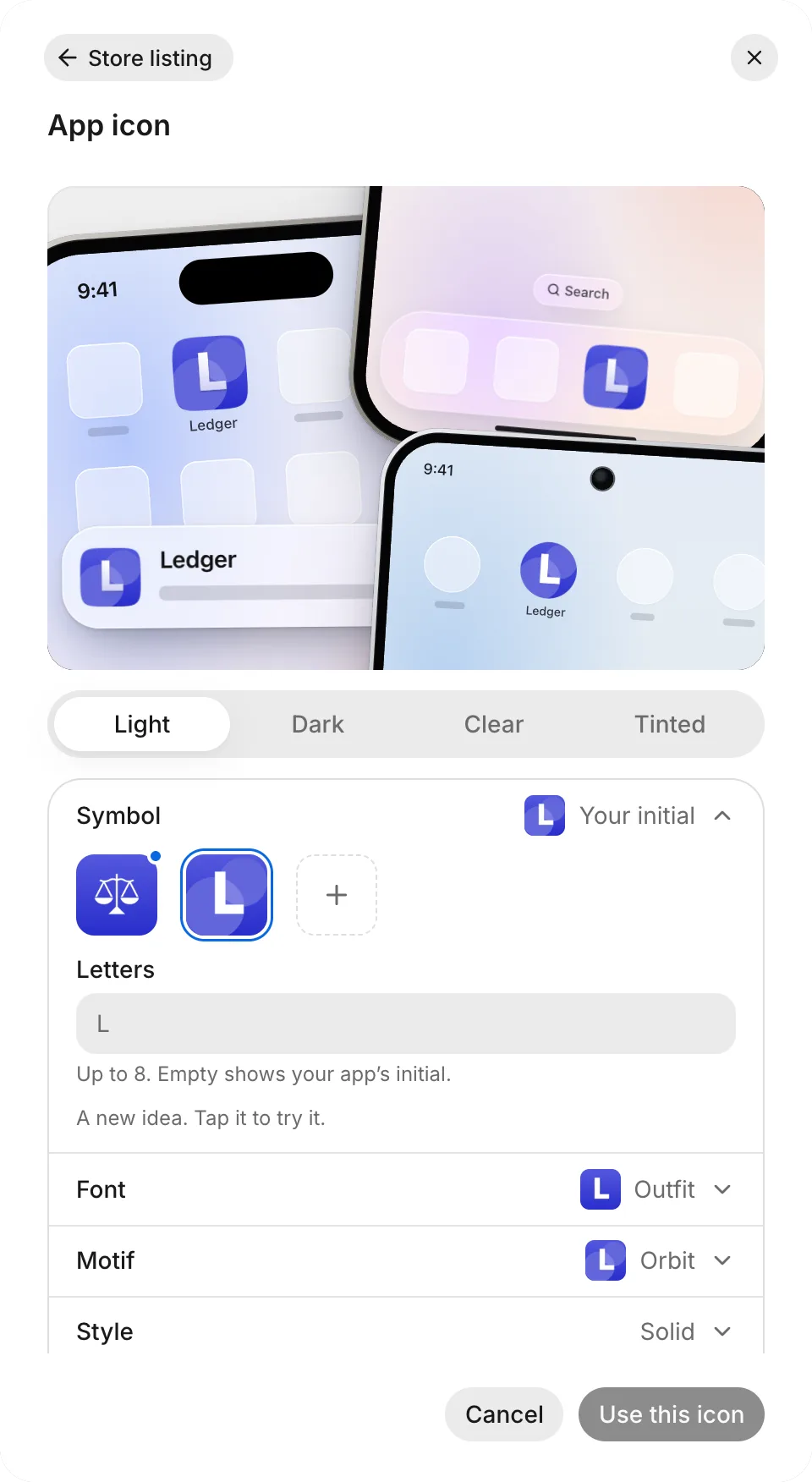
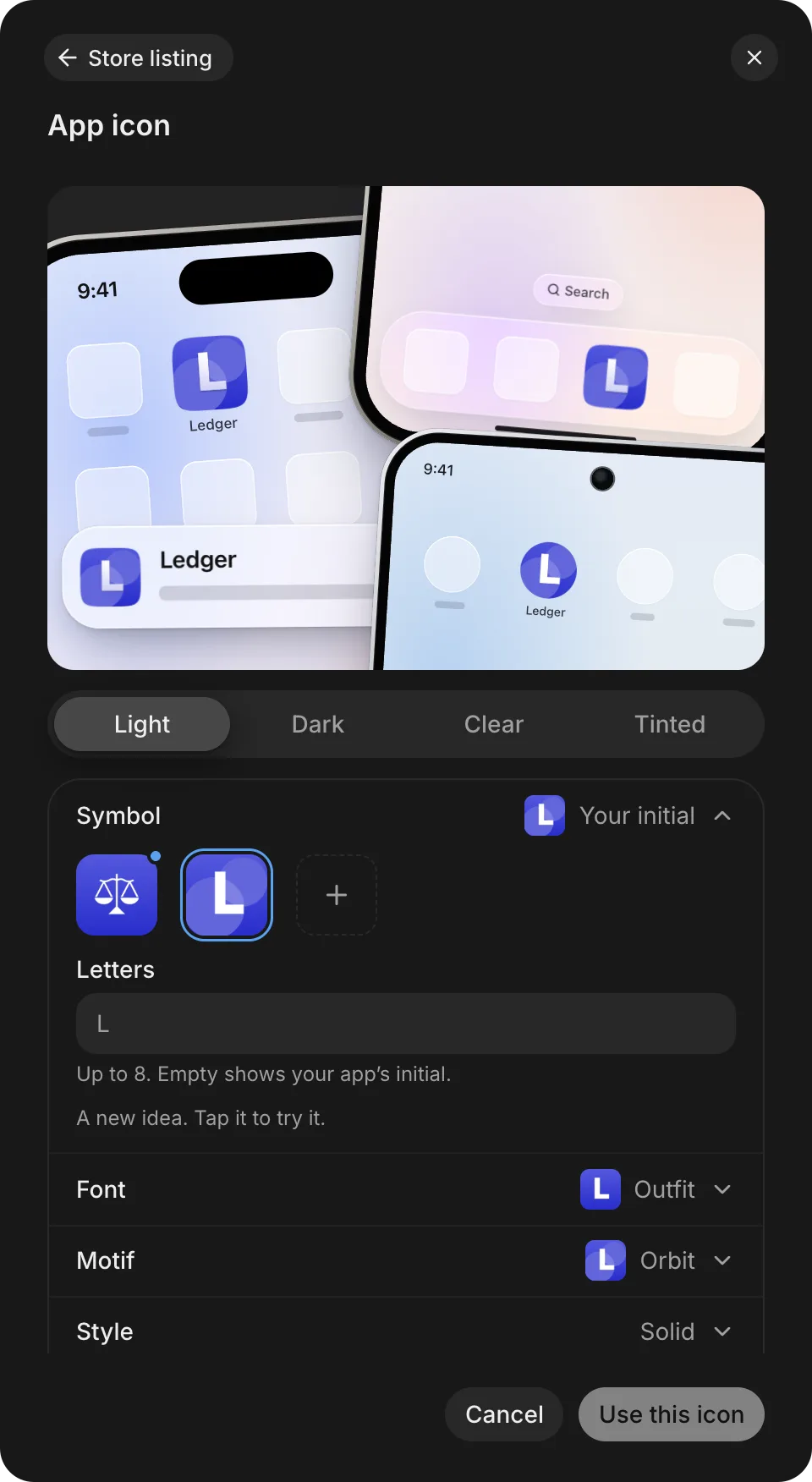
| When your app’s first version finishes, FlutterFlow draws a symbol for its icon. The symbol waits in the App icon drawer, where you can select it, draw new symbols, or change the icon’s Style. You can also ask the agent for another icon in a thread. | App icon |
| Starter rows copy into a table’s live data only the first time a push brings them in. After that, they behave like ordinary rows in your live data. | How data moves |
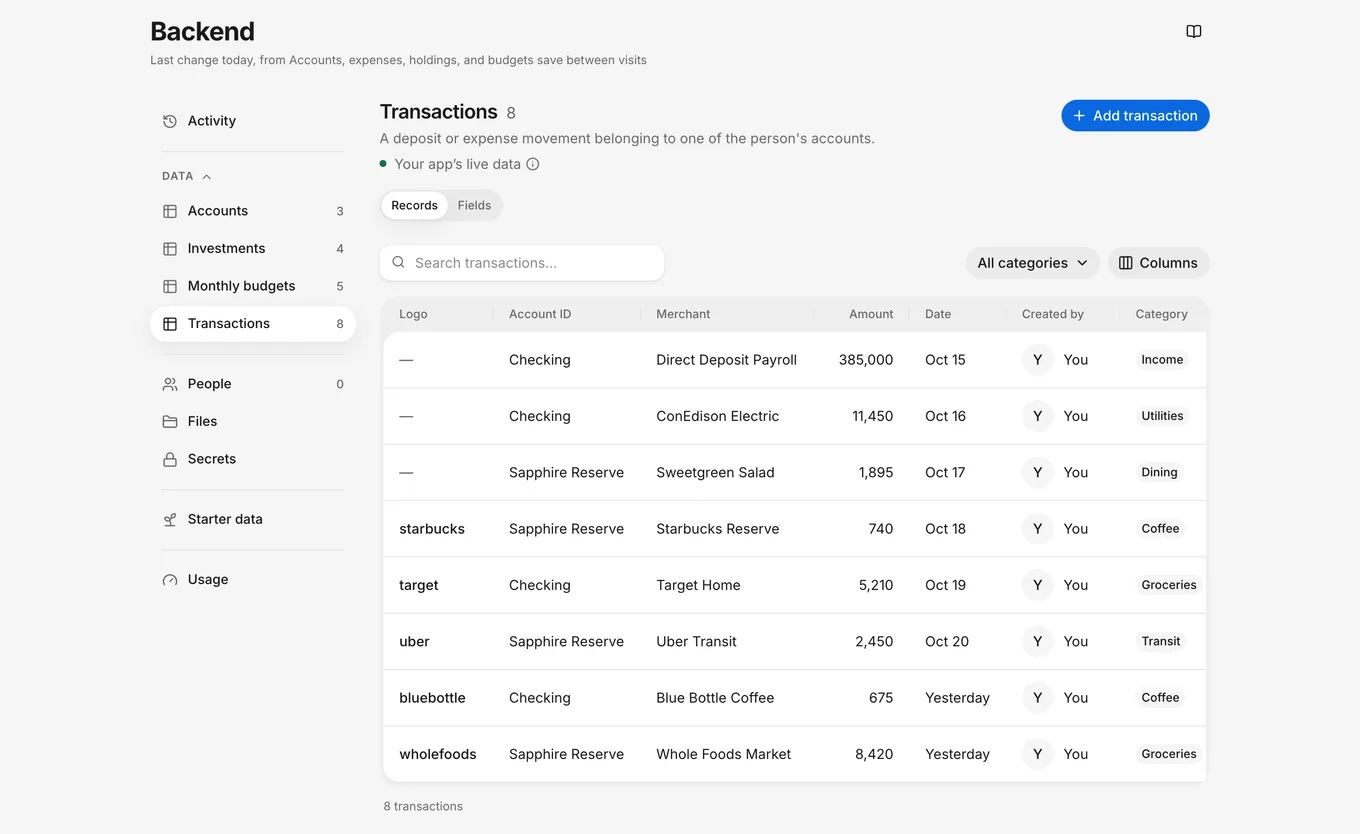
| When your app uses live updates, Backend › Usage tracks Live updates and Live connections: this month’s messages to and from screens that watch records or lists, plus the screens connected right now. | Backend usage |
| A thread’s preview shows only that thread’s changes. When another thread pushes to your app, your open thread shows a Your app card with Bring it in now and Later (which brings the changes in when you push the thread). | Multiple threads |
| In Project Settings › Emails, owners and developers can view and customize the emails your app sends to the people who use it, such as password resets. | Password reset email |
October 12, 2026: Every thread gets its own data
Sections: Data and sign-in · Make changes
| What changed | Learn more |
|---|---|
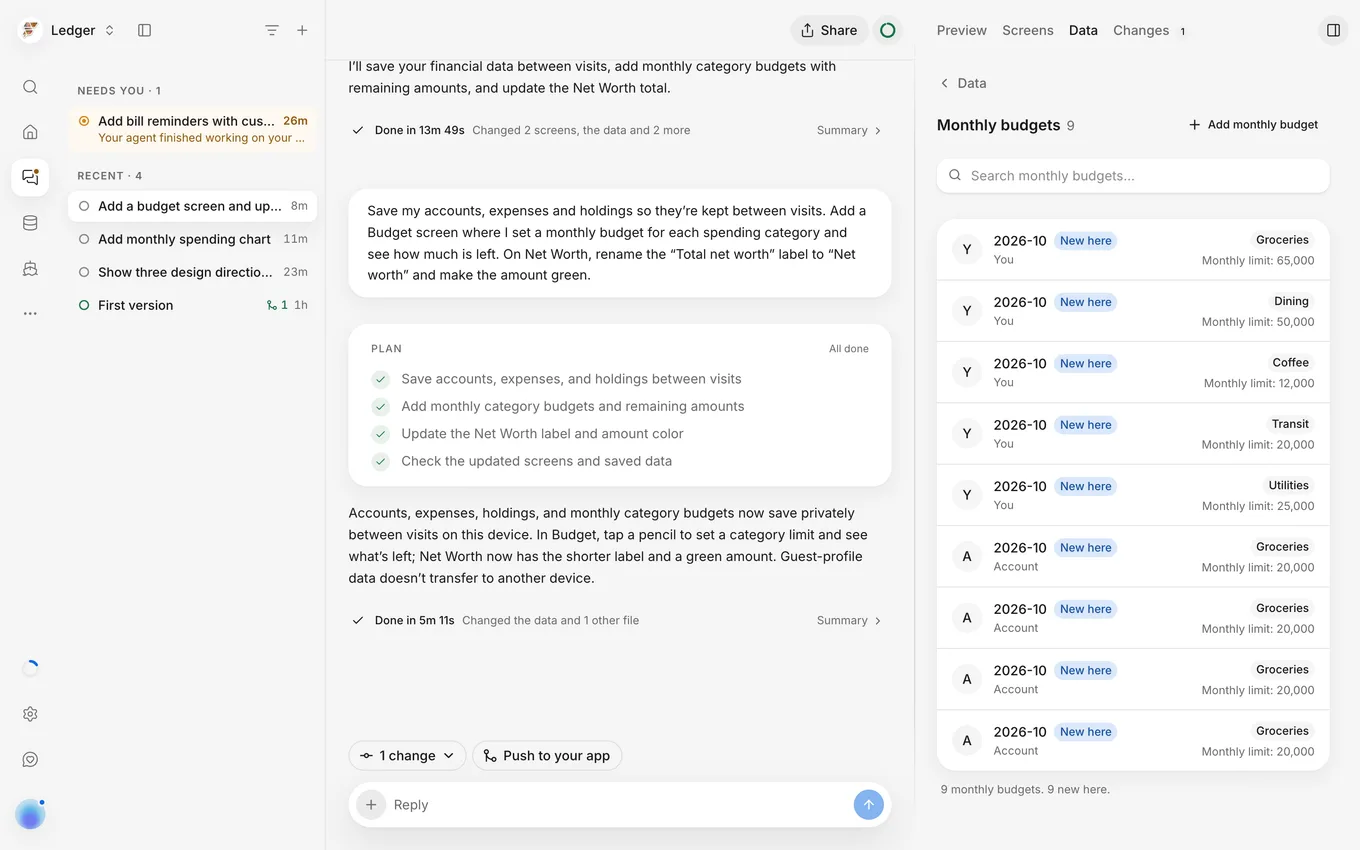
| Each thread tests its changes against its own copy of your starter data. When a thread’s copy of your app stores data, the thread’s Data tab shows that copy so that the thread’s creator can edit it without changing your app’s live data. | Thread data and Live, thread and starter data |
October 8, 2026: See what changed after every turn
Sections: Make changes · Get started · App stores
| What changed | Learn more |
|---|---|
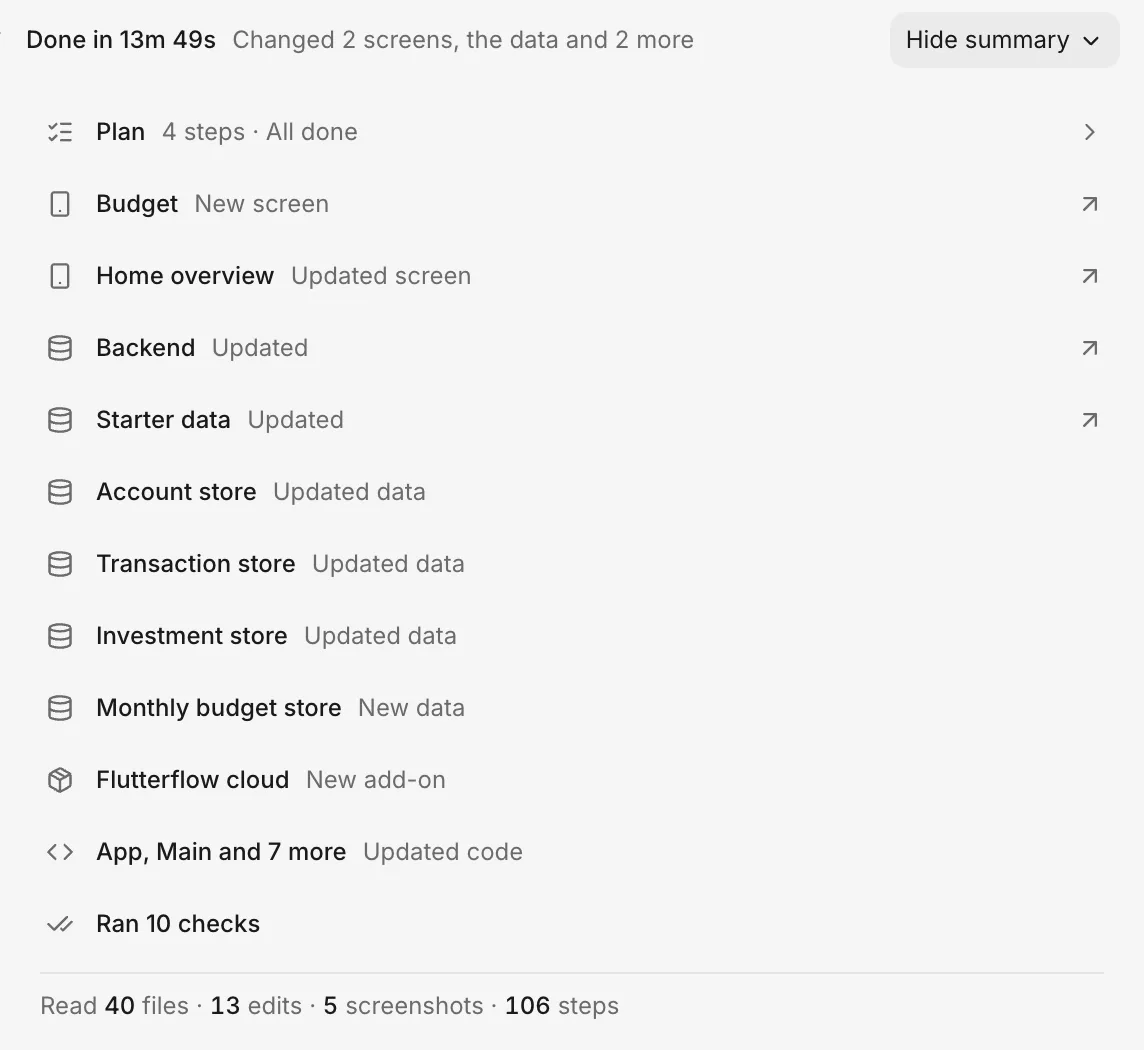
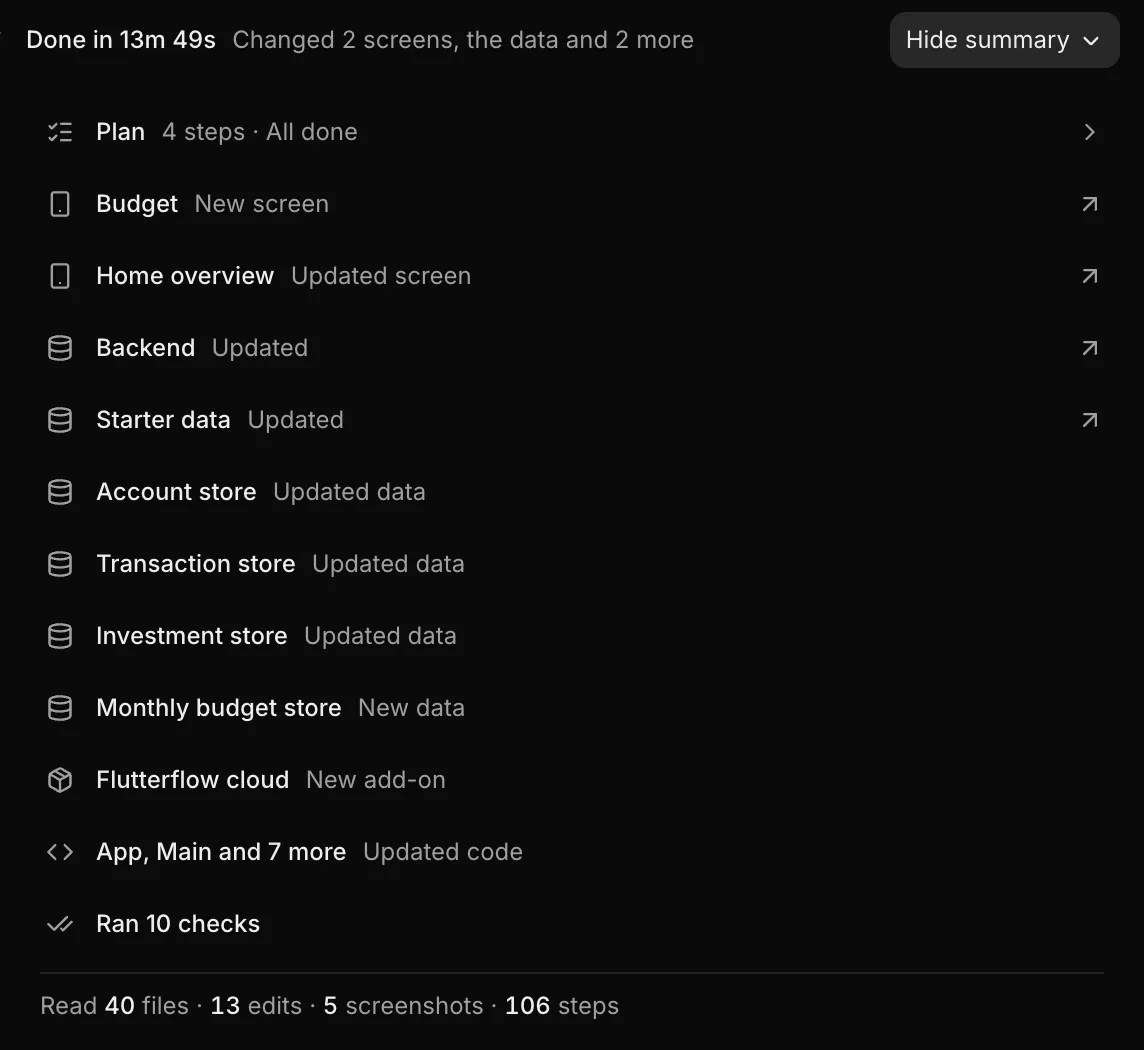
| When a turn ends, its Summary lists each screen and table that the turn changed. Select a screen row, or the Backend, table or Starter data row, to open that change. | Turn summary |
| A pill above the phone preview shows its current status, such as Updating preview while changes load, or Copy of your app on an idle thread. When your app stores data, pointing to the pill shows that the preview uses a copy of your starter data. | Preview |
| When a push removes data from your app, the push dialog warns This removes data from your app and requires you to select Remove it before you push. | Push |
| When a Choice card includes Show in stage, the stage panel opens the options on its Choose tab so that you can compare them before you pick one. | Pick a design direction |
| FlutterFlow shows a celebration when your first app is ready, when your first push finishes, and when your app goes live in a store. |
October 6, 2026: A picture of every screen
Sections: Make changes · Get help
| What changed | Learn more |
|---|---|
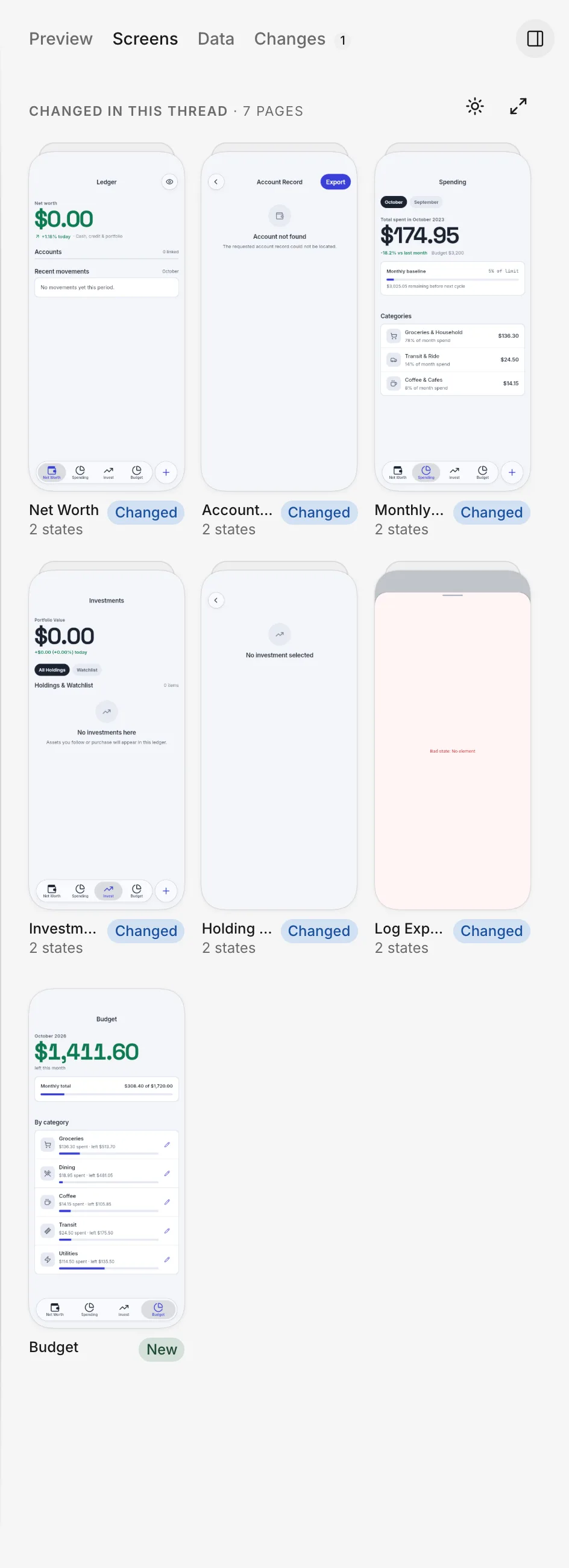
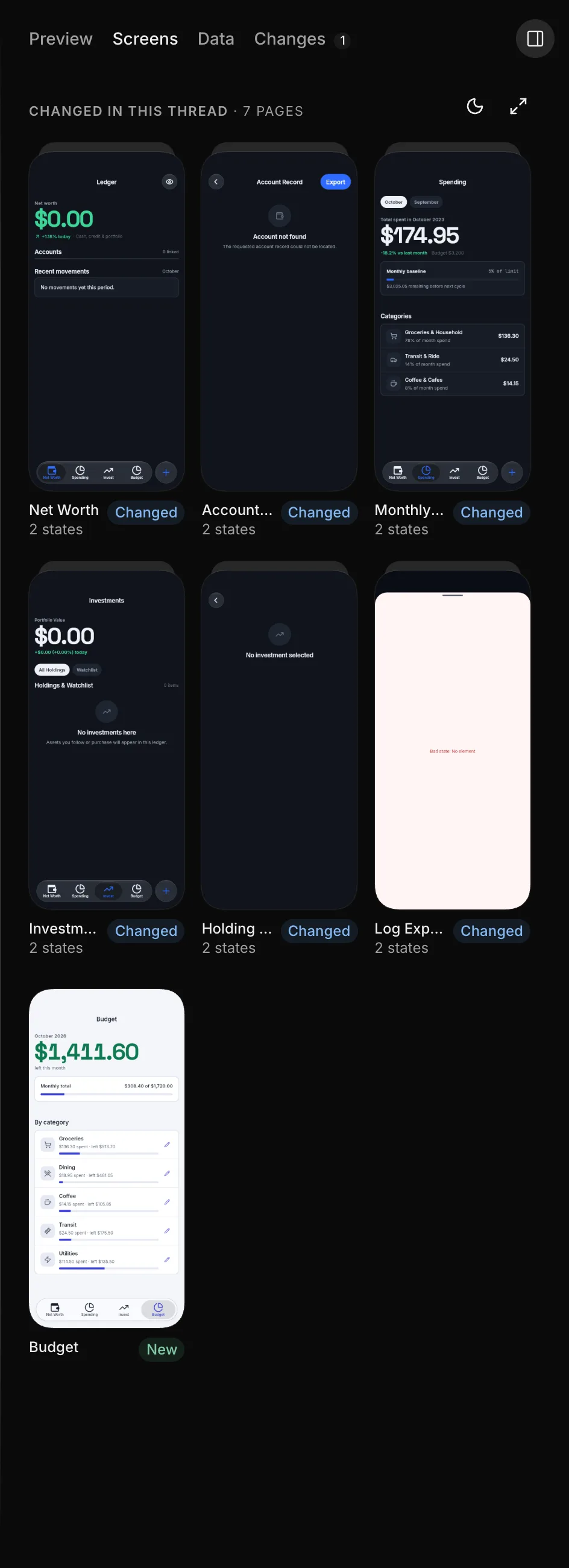
| The Screens tab shows light and dark pictures of every screen in a thread’s version of your app and marks the screens that the thread changed. | Screens |
| To rate the agent’s work in a thread, open the thread’s menu, select Rate this thread…, and choose Bad, Okay, or Good. | Send feedback |
| When another thread has pushed a conflicting change to the same part of your app, pushing prompts you to choose which change to keep. | Push |
October 4, 2026: Threads, grouped by who moves next
Sections: Make changes
| What changed | Learn more |
|---|---|
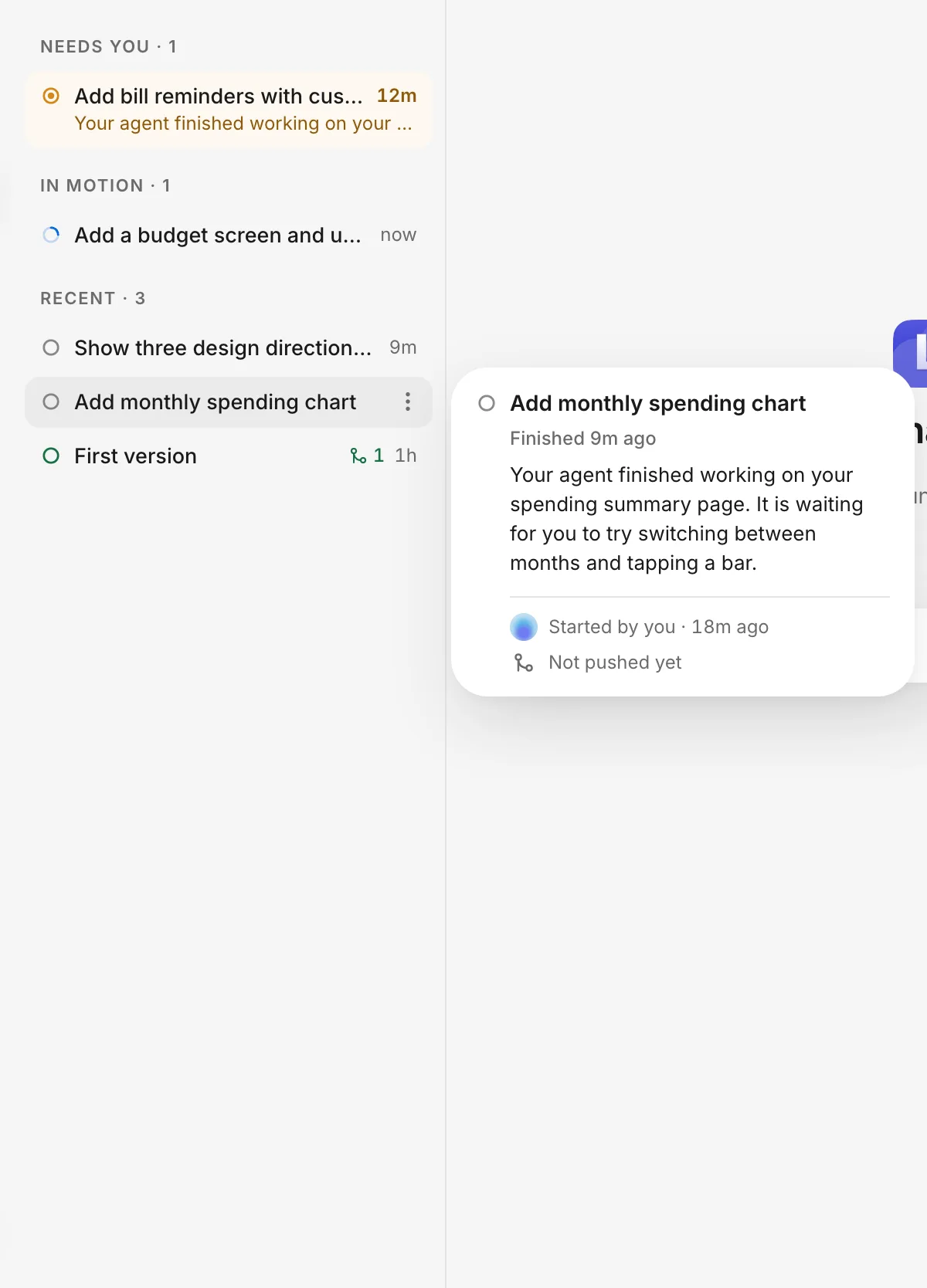
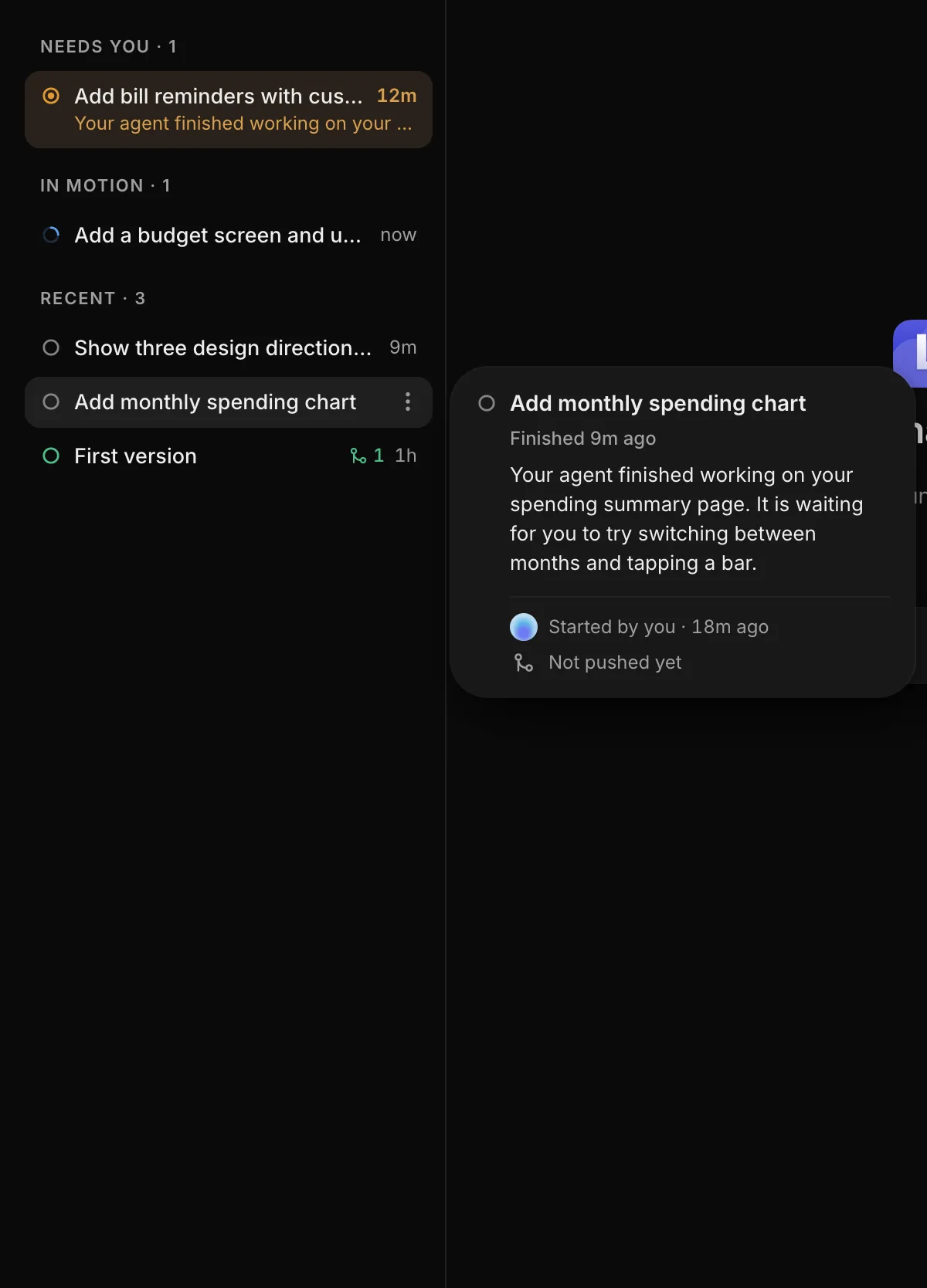
| The thread list groups your threads by who moves next: Needs you, In motion, and Recent. Each thread’s ring shows its status, and pointing to a thread opens a card with its full name and status. | How threads work |
October 2, 2026: A new Backend tab
Sections: Data and sign-in · Services · Get help
| What changed | Learn more |
|---|---|
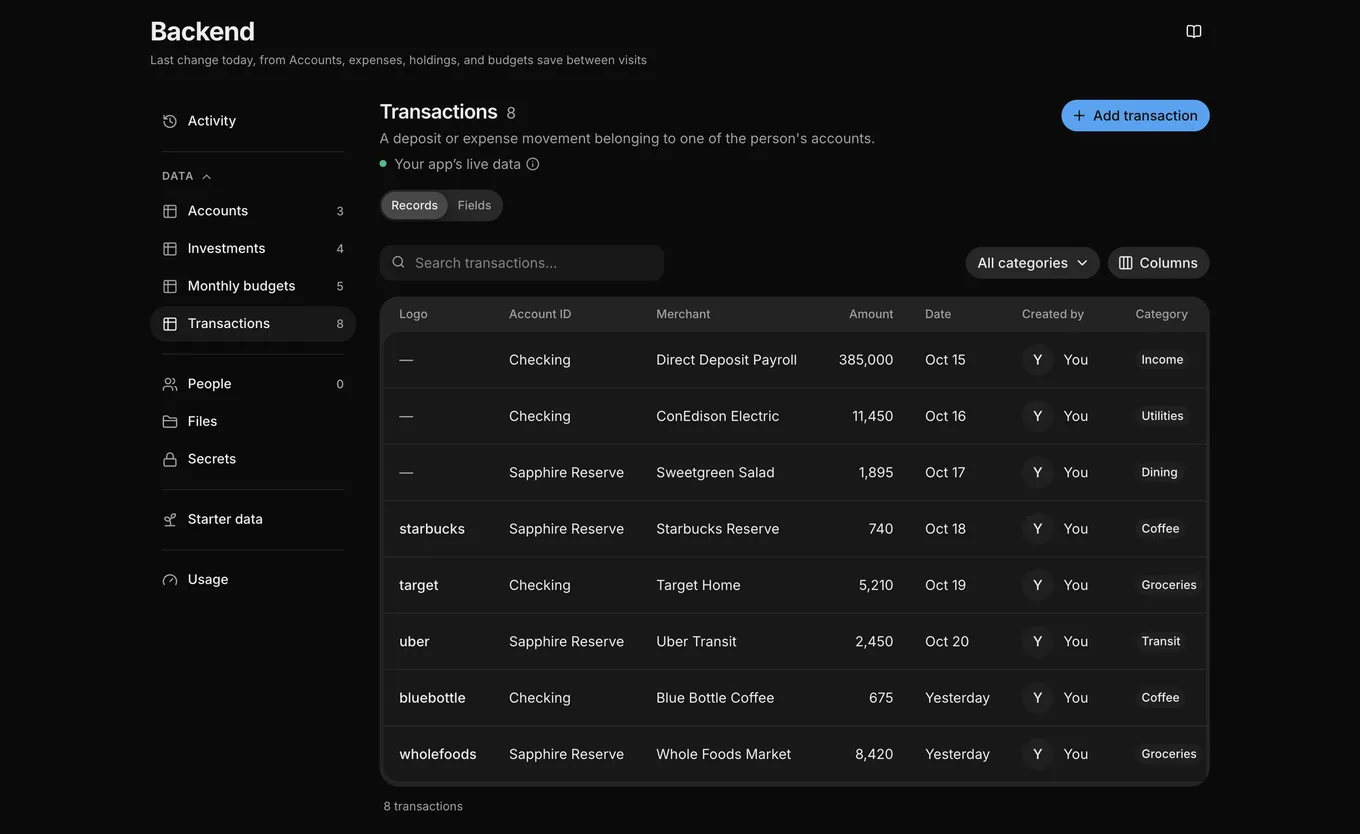
| Backend brings everything your app keeps into one place: Activity (every change pushed to your app’s backend), Data (tables and records that owners and developers can edit), People, Files, and Secrets (visible to owners and developers), Starter data, and Usage. | How the backend works |
| Connect an outside service once in Project Settings › Connections, and it works for both your app and the agent. Your own accounts, for the agent to use as you in chats that you start, are in Account › Connections. | How connections work |
| Open Send feedback from the account menu, the command palette, or the bottom of the left bar on a computer. | Send feedback |