Push
When a thread’s changes look right, push them to your app. After the push, everyone with your app’s link gets the changes.
Push a thread
To push a thread’s changes, follow these steps:
-
Optional: To see what the push includes, click the changes button next to Push to your app (for example, 3 changes). See What changed.
-
Click Push to your app.
-
Review the changes in the confirmation dialog.
If the list includes Updates your app’s backend, the push also changes your app’s backend.
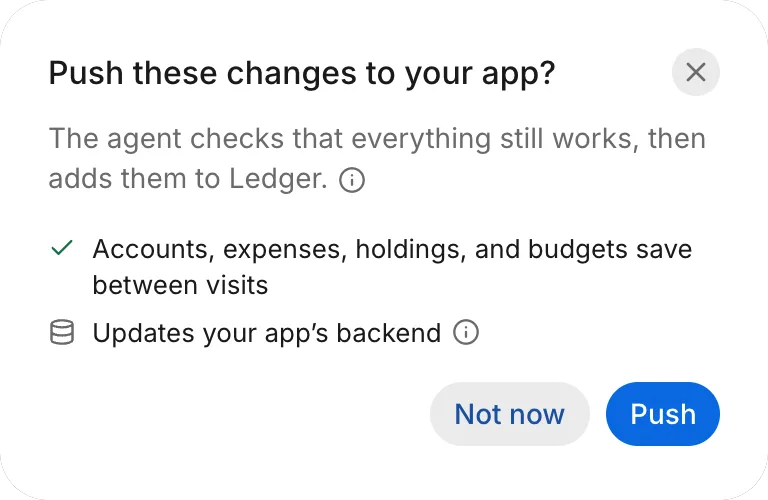
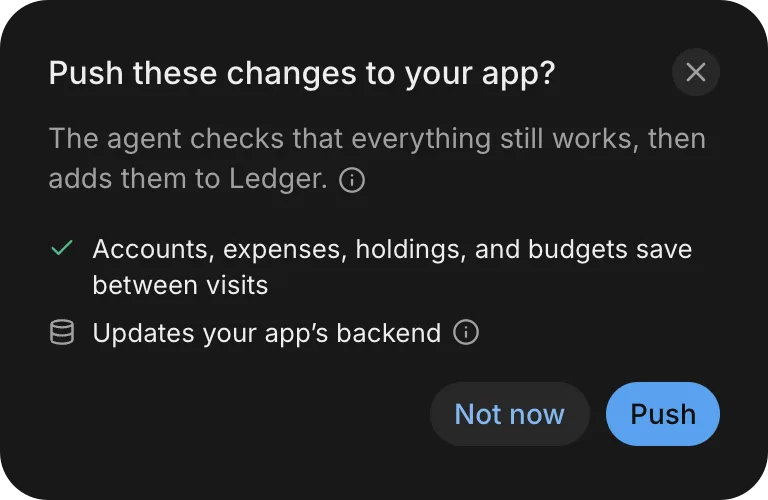
-
If the dialog warns This removes data from your app, the push deletes a table, folder, or field from your backend. To enable Push, select Remove it.
Push these changes to your app?The agent checks that everything still works, then adds them to Ledger.This removes data from your appRemove itRemove the Notes field from transactionsUpdates your app’s backendNot nowPush -
Click Push.
While the push runs, the button reads Pushing to your app, and a Push card in the thread tracks progress. The agent brings the thread up to date with your app, checks that everything works, and moves the changes into your app. Your app updates only when the push finishes.
After you push
When the push lands, the Push card shows “Pushed to your app”, an In your app chip, and a Show changes button. The thread stays open, and your next message builds on the updated app.
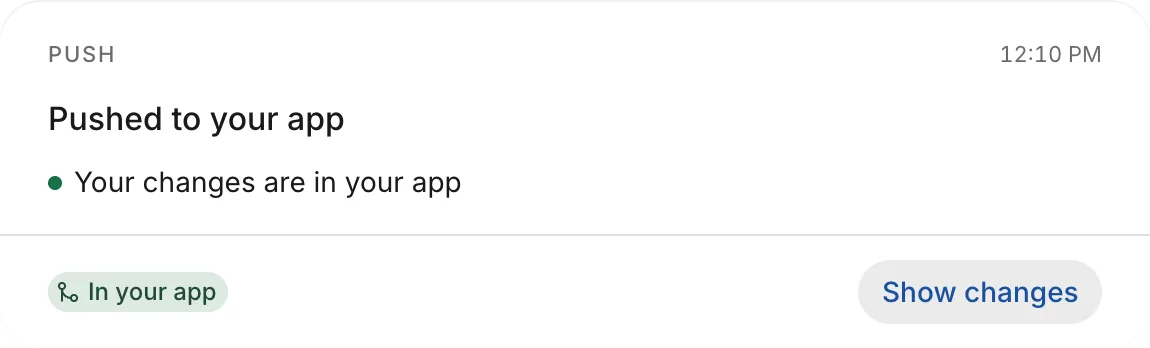
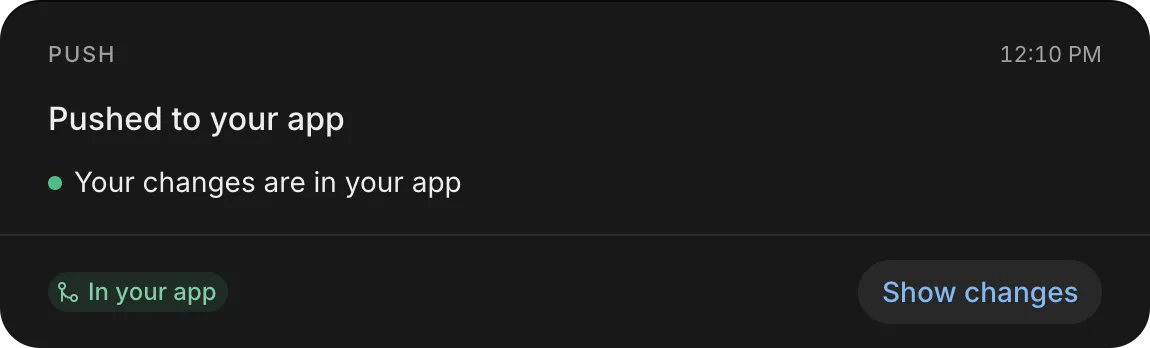
If a push fails, see Troubleshoot pushing.
Cancel a push
To stop a push before it lands, click Cancel next to Pushing to your app or Push waits for your answer. After the push lands, Cancel disappears. To reverse a finished push, see Can I undo a push?.
What a push reaches
A push reaches each of the following in its own way:
- Your app’s link: everyone with the link gets the changes immediately.
- The App Store and Google Play: store apps get the changes in your next release. See Release an update.
- Your other threads: each open thread without the changes shows a Your app card with Bring it in now and Later. If you click Later, the thread pulls the changes in when you push it. See Multiple threads.
Can I undo a push?
A push has no undo button. To reverse a push, ask for the change in a thread:
- In a thread, describe what to change back. You can start a new thread or continue in the thread you pushed.
- Check the result on Screens, or on Changes for non-visual updates.
- Click Push to your app, and then click Push.
As with any push, the App Store and Google Play get the change in your next release.
While the thread shows Pushing to your app, you can stop the push before it lands by clicking Cancel.
If the confirmation warns This removes data from your app, the push deletes a table, folder, or field, and you must select Remove it before clicking Push. Once that push lands, the deleted data is gone permanently; reversing the push does not restore it.
If you’re an owner or a developer, open the version in Releases, click Go back to this version, and then click Go back to rebuild it. Nothing already in the App Store or Google Play changes. Sending the build for review is a separate step, and later pushes stay in your app. See Earlier versions.