Logo and fonts
Ask the agent to use your logo, photos, or font in your app. Attaching a file gives the agent access to it; tell the agent to bundle it into the app and specify where to use it.
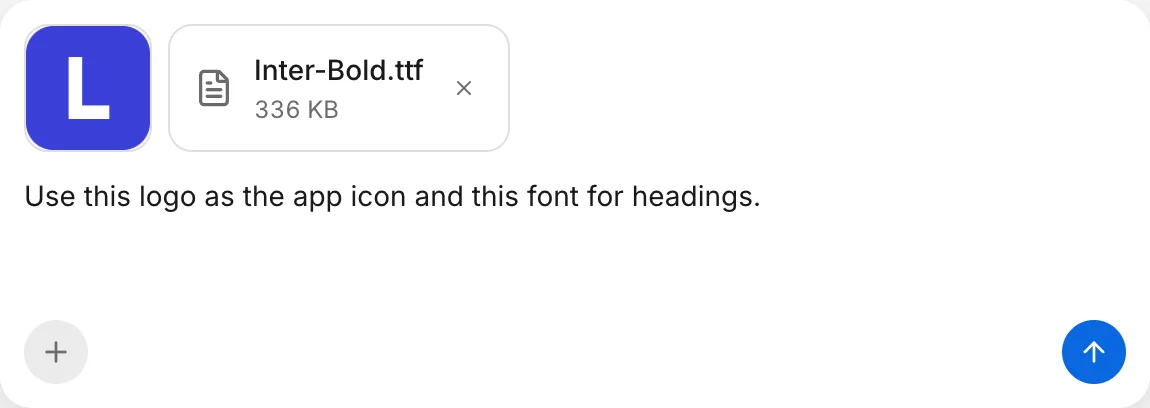
Attach your files using Attach files in the message box, and describe how to use them in the same message. Logos and photos can be PNG, JPEG, WebP, or GIF files, and fonts can be .ttf or .otf files.
What to ask
Name each attached file and state which screens or text it applies to:
Example request
“Use the attached logo on the sign-in screen and the attached photo at the top of the home screen. Keep the rest of the layout as it is.”
Example request
“Use the attached font for headings throughout the app. Include the font file in the app, keep the body font as it is, and tell me which font you used.”
Agent questions
If a picture or font is missing, the agent asks you to attach it. To answer a Question or Choice card, see Answer the agent.
Font fallback
Naming a font in a request doesn’t supply its font files; the agent must bundle and configure the font file in your app.
When your app references a font that isn’t bundled, the preview and web app fall back to Roboto, even if that font is installed on your computer or phone. Attach the font file and ask the agent to bundle it and apply it to your text.
Asset limit
Your app’s total assets, including attached pictures, fonts, and generated pictures, can use up to 30 MB. FlutterFlow rejects an asset copy that would exceed this limit.
If a copy exceeds the limit, ask the agent to remove unused pictures or fewer font weights, and try again. For message attachment limits, see Limits.
Review
Verify that each picture appears where requested, headings and body text render in the intended fonts, and labels fit inside buttons and remain legible against their backgrounds.
After the agent finishes, read the turn’s Summary and review its Changes. Check the affected screens in Screens, and try the change in Preview. If the change uses records or sign-in, test it with the thread’s own data in Data.
After you push a backend change, check the result in Backend.
Push
To apply the changes to your app, push the thread.
Next steps
For further visual changes, describe and change the look. To update your app’s icon, see App icon.
Troubleshooting
If a picture or font still renders incorrectly after the agent finishes, see Troubleshoot your app’s look.