Share a link
Create a share link that opens your app, or a single thread’s version of it, in a browser.
Only an Owner or Developer can get or change a share link, and only a thread’s creator can share that thread’s version.
- In a thread you didn’t create, Share › Link shows “Only the creator can share this thread’s version.” Owners and developers can still get the app’s main link by opening Share outside the thread.
- Outside a thread, teammates with the Billing or Viewer role see “The link could not be retrieved.” in Share › Link. Ask an Owner or Developer for the link.
Get the link
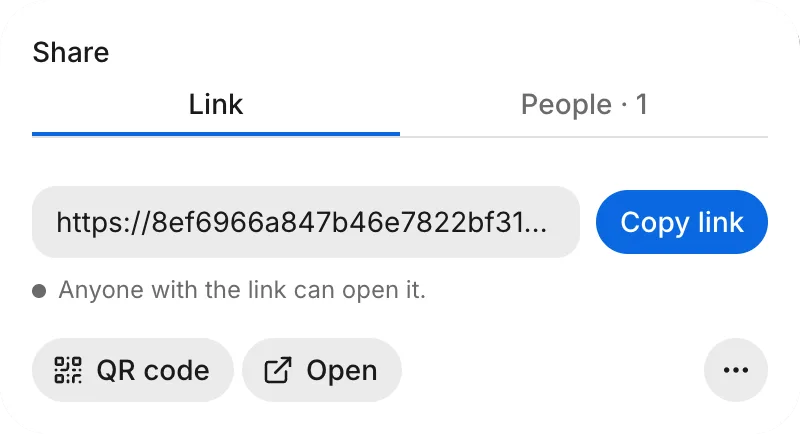
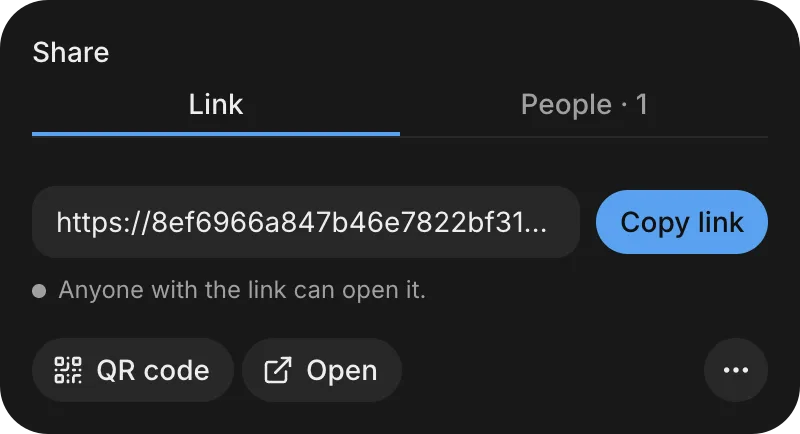
- Open your app and click Share.
- Select the Link tab. In a thread, choose Your app.
- Share or open the link:
- To copy the address, click Copy link.
- To open the link on a phone, click QR code and scan the code.
- To open the link in a new browser tab, click Open.
For instructions that your visitors can follow on a phone, see Open on a phone.
Share a thread’s version
A thread’s link opens that thread’s copy of your app so that others can test a change before you push it to your app. Your app and each thread have separate links. To get a thread’s link, follow these steps:
- Open the thread and click Share.
- On the Link tab, check that This thread is selected.
- Copy, scan, or open the link.
When the link updates
A share link keeps the same web address while it updates to the latest version:
- Your app’s link updates after each push.
- A thread’s link updates each time the thread saves a new version.
- Opening Share › Link also refreshes the link to the latest version.
Visitors who open the link after it updates get the latest version. If the link doesn’t update, see Troubleshoot sharing and phone installs.
Standard and faster versions
When a link updates to a new version, visitors immediately get the standard build while FlutterFlow compiles an optimized faster build in the background. After the faster build finishes, visitors get it automatically.
On the Link tab, the dot beside “Anyone with the link can open it.” shows which build is active. It turns green when the faster build is active. To see Fast · optimized build or Standard · JS preview, point to the dot.
To check the build type in the shared app, visitors can tap the corner dot. If the faster build finishes while a visitor is using the standard build, a Faster version ready banner appears with Switch now and Later buttons. The banner says “Switching reloads the app. Save any unfinished work first.”
If the faster build fails, visitors keep using the standard build. To retry, on the Link tab, click More, and then click Retry the fast build.
Link previews
When you paste the link into a chat or app that expands link previews, the preview shows your app’s name, a picture of its screens, and a short description.
Reset the link
If the link reaches someone who shouldn’t have access, reset it to revoke the old address and generate a new one:
- On the Link tab, click More, and then click Reset link.
- In the Reset the link? dialog, click Reset link.
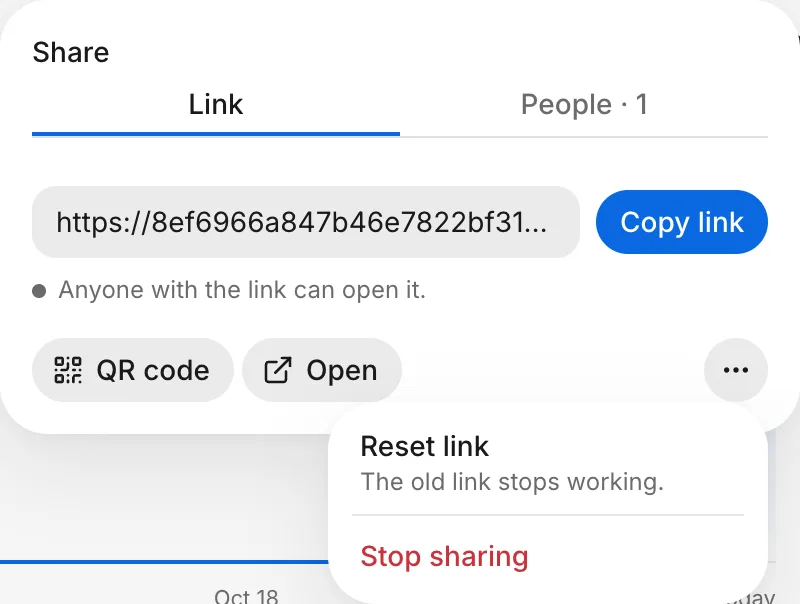
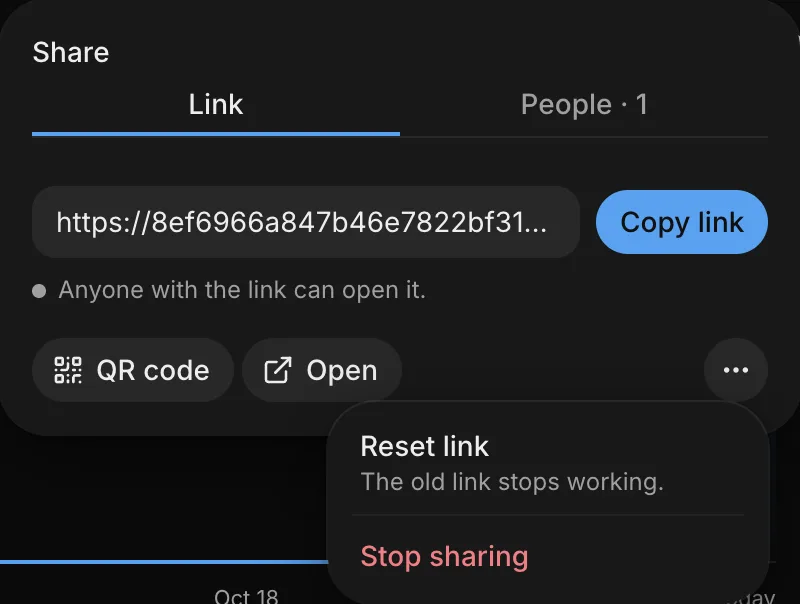
The old link stops working. Send the new link to the people who still need access.
Stop sharing
To stop sharing and turn off the link for everyone, follow these steps:
- On the Link tab, click More, and then click Stop sharing.
- In the Stop sharing? dialog, click Stop sharing.
To get a new link, on the Link tab, click Share again. The old link still doesn’t work.
Put it on the web
Share › Link publishes your app on the web. Anyone with the link can open your app in a browser. Some browsers, including those on iPhone and iPad, also show an Install button to add the app to the device. FlutterFlow assigns the link’s address.
Troubleshooting
For problems with share links, see Troubleshoot sharing and phone installs.